Hanwha SM481 PLUS Series Administrator’s Guide Eng.pdf.pdf - 第237页
8-1 Feeder Setup Chapter8. Feeder Setup 8.1. Feeder [F4] The ‘Feeder’ submenu edits data related to tap e feeder , stick feeder , and t ray feeder . Th e user can spec i fy the part to be in st alled on each f eeder , te…

7-78
Fast Flexible Placer SM481(L) PLUS Administrator’s Guide
value is 0.2000 and its range is 0.1000~5.000.
<Flux Dipping Inspect> check box
Recognizes the shape of flux applied on the balls of BGA parts.
<Flux Min Ratio(%)> edit box
Sets the ratio of the minimum allowable area of flux recognized by the Vision
against the ball area.
<Flux Max Ratio(%)> edit box
Sets the ratio of the maximum allowable area of flux recognized by the Vision
against the ball area.
<Flux Brightness> edit box
Sets the brightness of flux recognized by the Vision.
<Enable lead scan> check button
Selected when inspecting the leads of an IC part. This function can be used only
for machines equipped with a lead scanner.
<Lead Scan Tolerance> edit box
Input the value that allows the extent by which a lead deviates from the normal
pattern. It is indicated in mm. If the difference in the height of two neighboring
leads is greater than this value or a specific lead deviates from this value when it is
assumed that the inclination of each lead is straight line, the corresponding part is
judged to be defective.
<Lead Scan Gain> edit box
Sets the gain of the light receiving section for the laser spot beam. In general, set
this value to '2'.
<Lead Scan Offset> edit box
Even if it is possible to input and use an offset at the position calculated for lead
scanning, generally set it to '0'.
<Lead Scan Test> button
Performs a lead scan test.
8-1
Feeder Setup
Chapter8. Feeder Setup
8.1. Feeder [F4]
The ‘Feeder’ submenu edits data related to tape feeder, stick feeder, and tray feeder. The
user can specify the part to be installed on each feeder, teach the pick-up position, and test
the component pick-up. When this submenu is selected, the initial screen is for the tape
feeder screen.
8.1.1. Feeder Base
When the feeder base is selected, the following dialog box is displayed and the data on
feeder base can be edited.
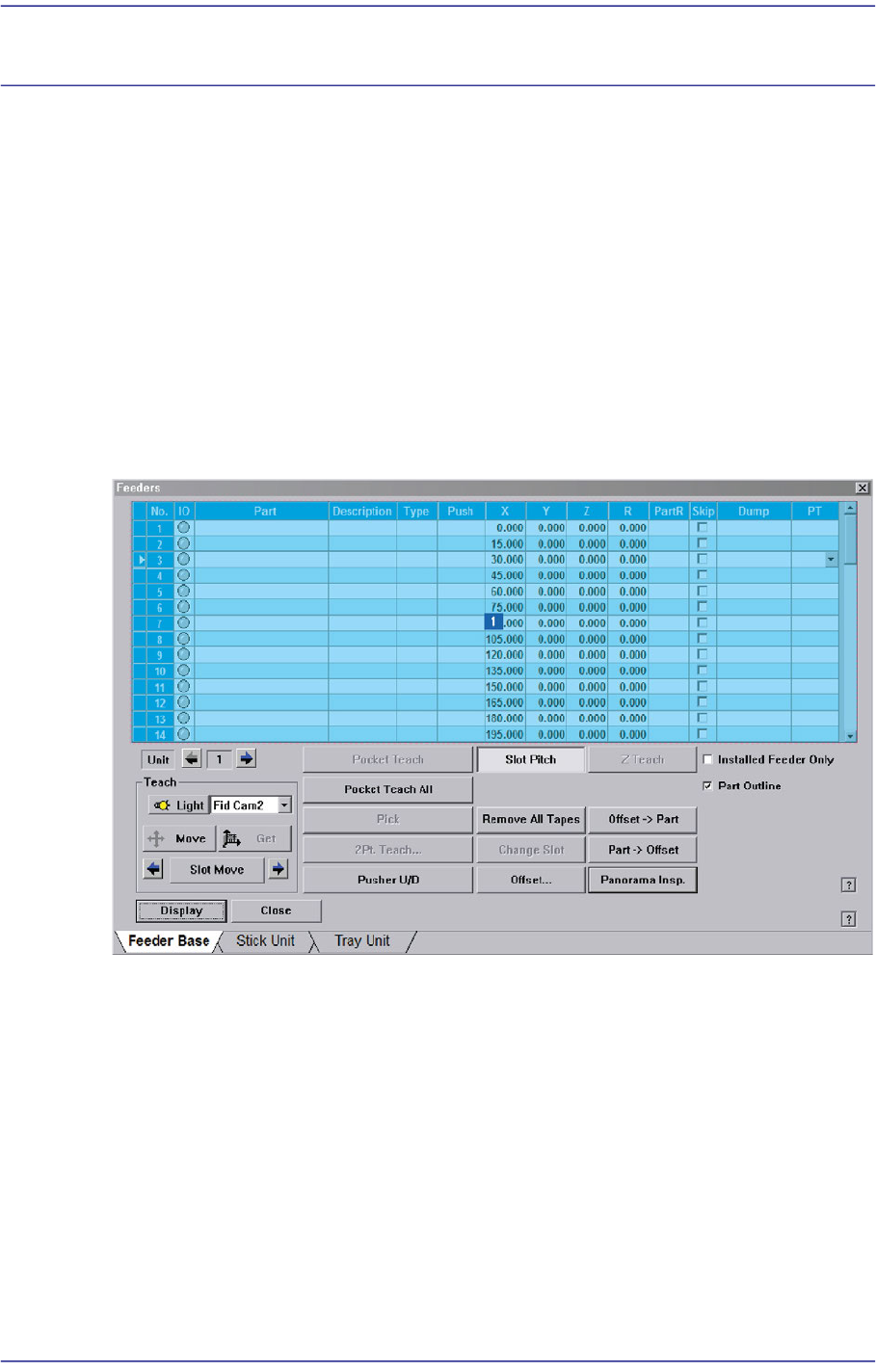
Figure8.1 “Feeder: Feeder Base” dialog box
1: Grid
‘Grid’ group
Display the status of various devices installed on the feeder base including the feeder
type and edit the installation position.
<No> column
A serial number of the feeder base slot. Air pressure type feeder base has 52 slots.
<IO> column
Displays the LED color for the status of the tape feeder installed in the
corresponding slot.
8-2
Fast Flexible Placer SM481(L) PLUS Administrator’s Guide
<Part> column
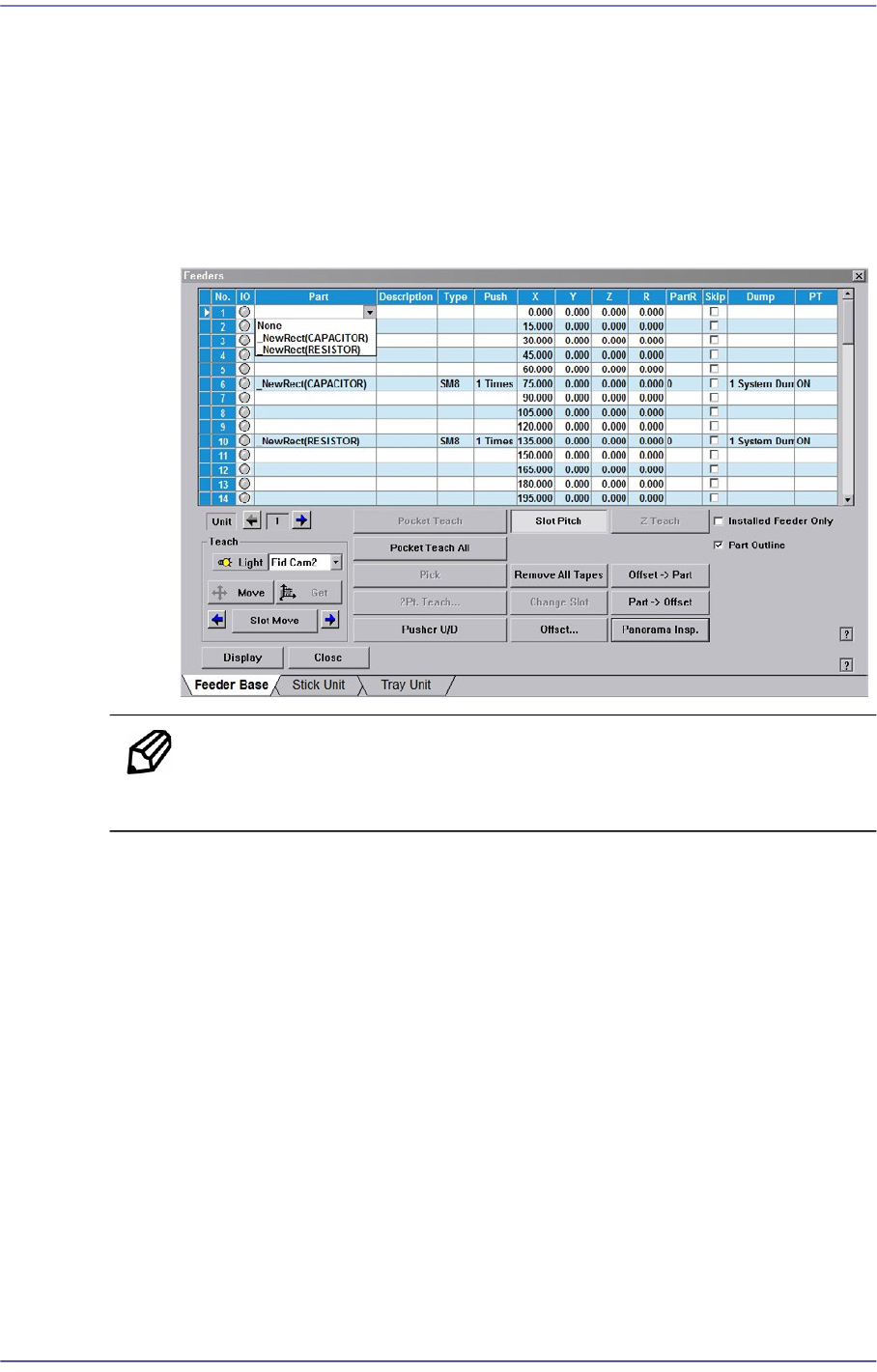
Select the component to install in the corresponding slot. When the <Part> column
is clicked on, the Combo Box appears, and of the components registered in <1.2
Part>, the list of components to be supplied to “Tape Feeder” is displayed. Select
the component to install in this list. Next is the screen that shows selection of
components in the Combo Box of <Part> column.
Figure8.2“Feeder: When the part is selected in the Feeder Base” screen
Memo Changing the part in the selected slot to another part will initialize the
Home Offset value set for the corresponding slot to ‘0’.
<Description> column
Note that slot to display the description of installed components.
<Type> column
Displays the type of the device installed in the corresponding slot. Next screen
shows the content displayed in the <Type> column of the feeder base on which
various devices are installed.