Hanwha SM481 PLUS Series Administrator’s Guide Eng.pdf.pdf - 第464页
15-28 Fast Flexible Placer SM481(L) PLUS Administ r ator’s Guide <Use Board Info T ransfer> check box In order to use the board information transmitted from the prev ious machine, select this check box. Then s el…

15-27
System Setup
<Buzzer On at error State> combo box
A buzzer sounds when an error occurs during the operation of the equipment. At this
time, selecting the method of the sounding buzzer is possible.
Silence: Do not sound buzzer.
Always: Always sound buzzer.
Machine: Able to setup the buzzer sound differently according to the status of
warning error.
<Tray Pallet Change Speed> combo box
When installation of parts is performed with many pallets in fast (fastest) speed, make
the next pallet standby at working position unless vision fail occurs after picking up a
part in a pallet. From the equipment which it sees it is a function which it does not
support.
<Tape Auto Link Disable> check box
When this item is selected, the auto link function is not used for the tape feeder.
<Stick Auto Link Disable> check box
When this item is selected, the auto link function is not used for the stick feeder.
<Both front and rear Feeder base> check box
This machine provides the Link function so that if the parts of the tape feeder mounted
in the feeder base run short, it searches another tape feeder by feeding the part
identical to the part that was used up and allowing the parts of this tape feeder to be
placed.
When searching the tape feeder, the one installed in the front feeder base is searched
first. If there is no corresponding tape feeder in the front side feeder base, it searches
the tape feeder installed in the feeder base in the rear side.
The default setup allows only the front side feeder base to be used. However, if this
Link function is selected, it can use both the front and rear side feeder bases.
<NCS> button
Used to change a job without stopping the machine. For more details regarding this,
contact us.
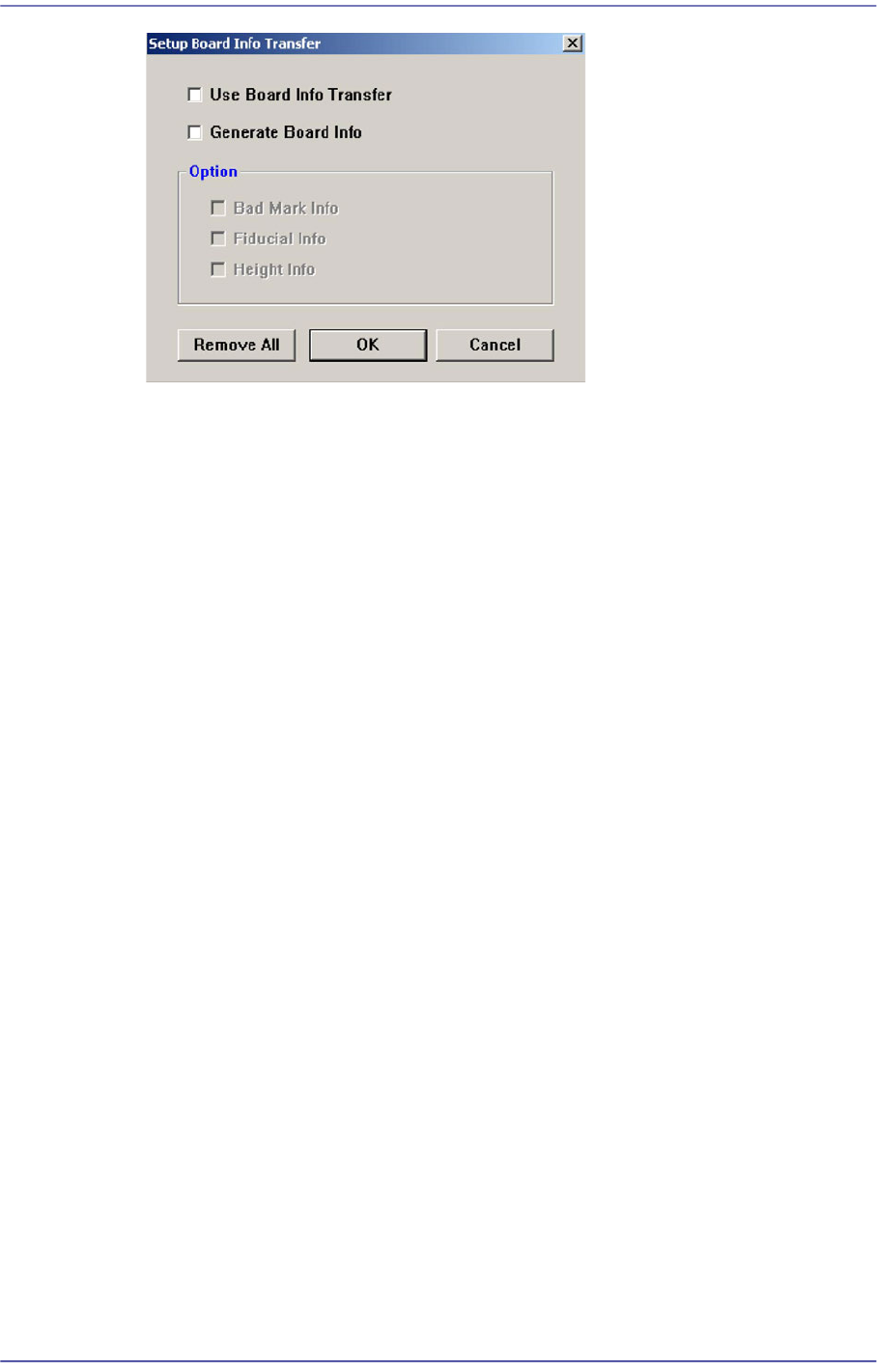
<Transporter> button
In the in-line system composed of several machines, this function allows reduction of
the time taken for the next machine to recognize the board information recognized and
transmitted by the previous machine, from the first to the last machine.
15-28
Fast Flexible Placer SM481(L) PLUS Administrator’s Guide
<Use Board Info Transfer> check box
In order to use the board information transmitted from the previous machine,
select this check box. Then select the board information to be used from the
enabled <Option Slave> group.
<Generate Board Info> check box
In order to set the board information to be transmitted to the next machine, select
this check box. Then select the board information to be created from the enabled
<Option Slave> group.
<Option> group
<Bad Mark Info> check box
In order to transmit bad mark information to the next machine, select this
check box. Once this information has been transmitted to the next machine,
the next machine performs work without recognizing the bad marks.
<Fiducial Info> check box
For array PCBs, select this check box in order to transmit fiducial mark
information on each array to the next machine. Once this information has been
transmitted to the next machine, the next machine performs work recognizing
only the global fiducial mark of the array PCB.
<Height Info> check box
If there is a height sensor, it is possible to measure the height of the upper
surface of the PCB. Select this box in order to transmit information regarding
the height of the upper surface of the PCB to the next machine.
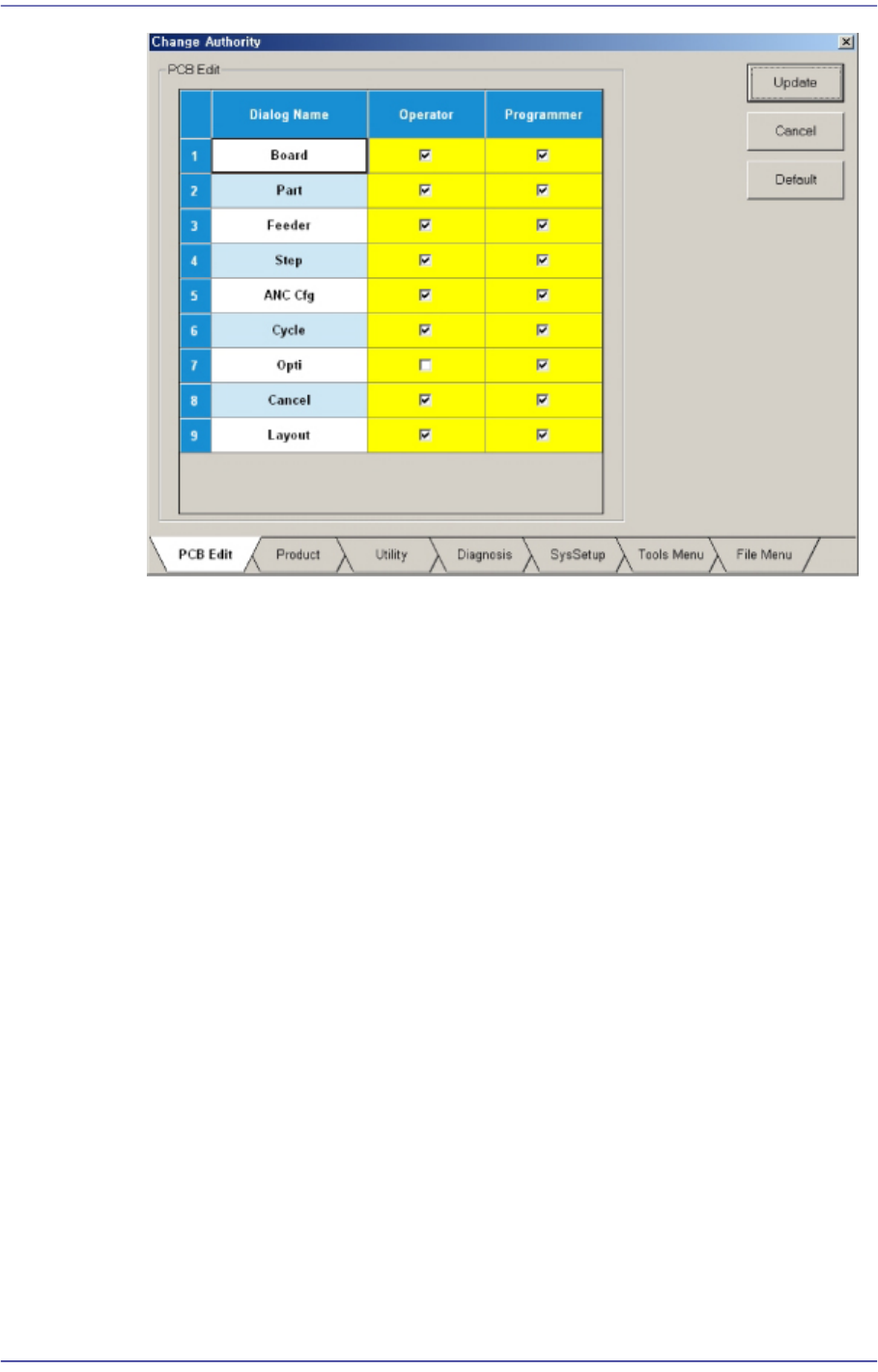
<Change Authority> button
Sets the authorization level of a user. The currently applied authorization level setup
function is used by default. However, if an operator plays the role of a programmer, it
is possible to perform setup to allow the operator to use some functions used with the
authorization level of the programmer.
15-29
System Setup
<Update> button
Saves the setup and closes the dialog box.
<Cancel> button
Neglects the setup and closes the dialog box.
<Default> button
Recovers the setup to the default (recommended) setup in the machine.
<PCB Edit> Tab
Sets the authorization level for the submenus of the <PCB Edit> menu.
<Product> Tab
Sets the authorization level for the submenus of <Product> menu.
<Utiliy> Tab
Sets the authorization level for the submenus of <Utility> menu.
<Diagnosis> Tab
Sets the authorization level for the submenus of the <Diagnosis> menu.
<SysSetup> Tab
Sets the authorization level for the submenus of <Sys.Setup> menu..
<Tools Menu> Tab
Sets the authorization level for the submenus of <Tools Menu> menu.