Hanwha SM481 PLUS Series Administrator’s Guide Eng.pdf.pdf - 第161页
7-3 Part Registration Select the group of c omponent to be di splayed. A vailable c omponent groups are a s follows; (CHIP-Circle, CHIP-Rect, Chip-T antal, Chip-Aluminum, M e lf, TR , TR 2, Tr immer , LED, Hemt, SOP , Sm…
7-2
Fast Flexible Placer SM481(L) PLUS Administrator’s Guide
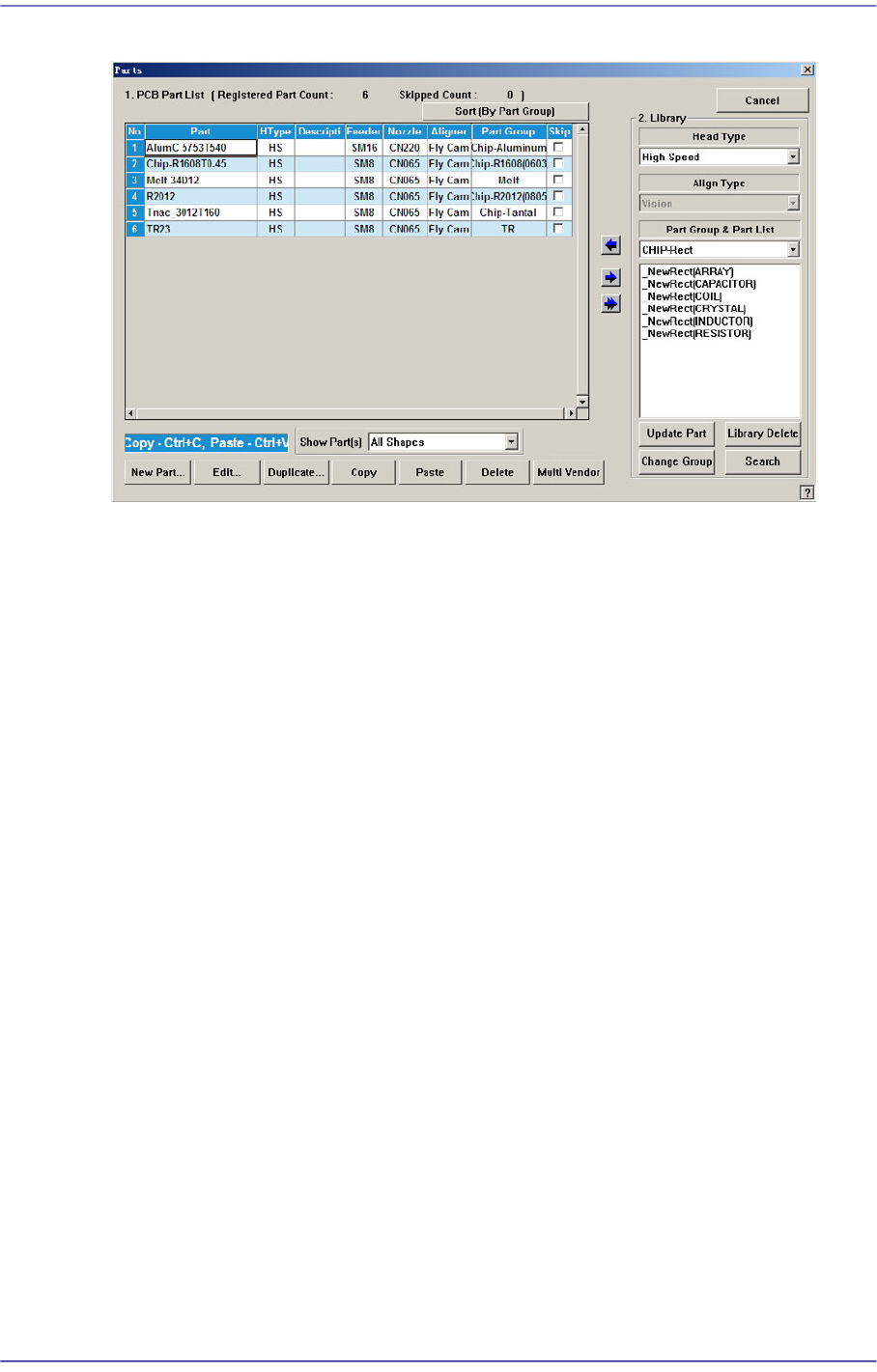
Figure7.2 “Parts” dialog box
<1. PCB Part List> group
Display a list of currently registered components.
<Part> column
Displays the component name.
<Feeder> column
Displays the type of the feeder supplying components.
<Nozzle> column
Displays the nozzle that pick up components. The nozzle types are as follows;
<Aligner> column
Indicates the camera used to recognize a part.
<Part Group> column
Displays the component Part Group.
<Skip> column
When it is checked, this part is skipped during placing
<2. Library> group
Display the component list of the Local Part DB managed by the machine.
<Align Type> combo box
Select the align type of the component to be displayed. The Vision Align is used as
default.
Vision: Alignment by the Vision Camera. Recognize the part.
<Part Group & Part List> group
7-3
Part Registration
Select the group of component to be displayed. Available component groups are as
follows;
(CHIP-Circle, CHIP-Rect, Chip-Tantal, Chip-Aluminum, Melf, TR, TR2,
Trimmer, LED, Hemt, SOP, Small SOP/Connector, SOJ, SOP2, SOJ2, QFP,
PLCC, PLCC[body], Connector, User IC, BGA, Multi-BGA, Flip Chip)
<Part List> list box
Displays the component data list of the data selected in <Align Type> and
<Part Group>. The parts corresponding to the conditions selected from the
Standard Part DB and Local Part DB are indicated.
<Update Part> button
Used for adding to the local DB after registering a new part. Select the newly
registered part in the <1. PCB Part List> first, and copy it to the <Part List> box of
the corresponding part group by clicking on the button. Select the part
copied to the <Part List> list box and click on this button.
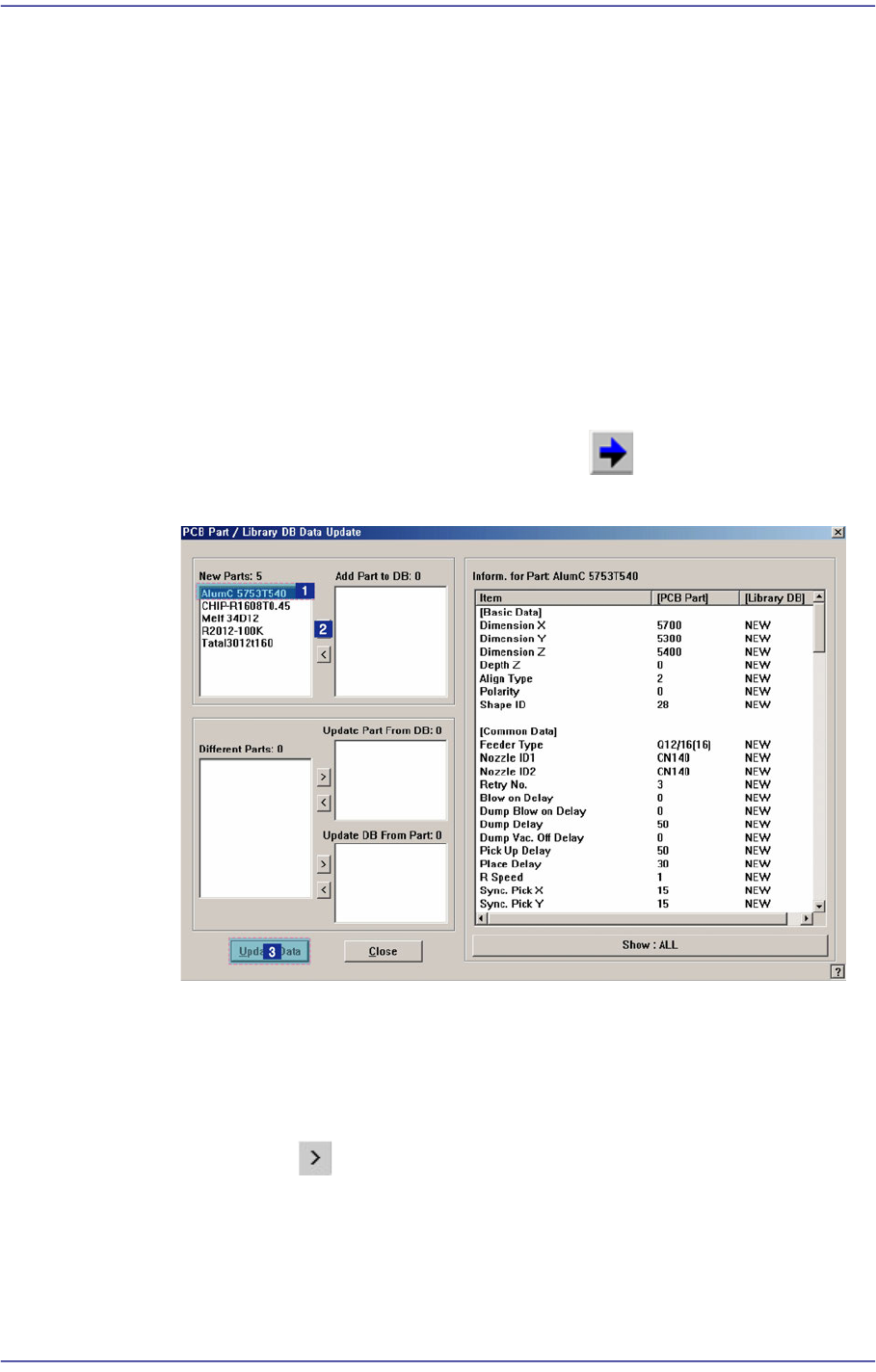
<New Parts:> list box
Indicates parts which are not registered in the local part DB among the parts
registered in the PCB file.
<Add Part to DB:> list box
Click the button and add to the list box the part to be registered in the
local part DB.
<Different Parts:> list box
Indicates parts with the same name as the parts registered in the PCB file
among the parts registered in the local part DB.

7-4
Fast Flexible Placer SM481(L) PLUS Administrator’s Guide
<Update Part From DB:> list box
If the part data having the same part name as the part registered in the PCB file
already exists in the local part DB, click the button and add to the list box
the part to be overwritten to the part data registered in the PCB file.
<Update DB From Part:> list box
Click the button and add to the list box the part to be overwritten in the
local part DB
[How to copy a PCB part to the local part DB]
Select the part to be registered in the local part DB from the <New Parts:> list box
or <Different Parts:> list box.
Click the button and add to the <Add Part to DB:> or <Update DB From
Part:> list box the item to be registered to the local part DB.
Click the <Update Data> button to register the corresponding part in the local part
DB.
<Change Group> button
Changes the group of the selected part from current part group to another group.
Select the part to change from the <Part List> list box and click on this button.
<Library Delete> button
Deletes the component data selected in <Part List> from the Local Part DB. Select
the part to delete from the <Part List> list box and click on this button.
<Search> button
When this button is clicked on, the following dialog box is displayed.