Hanwha SM481 PLUS Series Administrator’s Guide Eng.pdf.pdf - 第449页
15-13 System Setup < User defined Dump Box –Feeder> column Select t he h ead t o be used when dum ping a par t i nt o the selected U ser Dump Box. For example, when 'Front' is selecte d, only the part o…
15-12
Fast Flexible Placer SM481(L) PLUS Administrator’s Guide
to set the dump conveyor related items.
‘User Defined Dump box’ group
Setup the data related with the ‘User Dump Box’ installed by the user. The maximum
number of ‘User Dump Box’ able to be installed by the user is 8.
‘User Dump Box’ is utilized for dumping parts in the ‘User Dump’ position when
dumped parts are expensive, or require classification, or parts error has occurred in a
box installed in the equipment by the user.
Memo “System default Dump Box” is assigned as the default box when
‘Dump’ item of the feeder supplying the corresponding part in the
feeder dialog box is not assigned after setting up the ‘User Dump
Box’.
Method of setting up the ‘User Dump Box’ is as follows;
1. Select <Use> check box and move the head to the position where the ‘User Dump
Box’ is installed using the ‘Teaching Box’.
2. Select ‘Fid Cam’ in the <Teach> area, and fit the center of the ‘User Dump Box’
to the center of cross lines of the ‘Fiducial Camera’ seen on the SMVision
window.
3. Input the value of the present coordinates by clicking on the <Get> button.
4. Select the head to be used for the User Dump Box selected from the <Feeder>
area.
5. Click on the <Update> button to reflect the changed value.
After updating, select ‘User Dump’ of the feeder supplying parts using ‘User
Dump’ in the feeder dialog box.
<User defined Dump Box - No> column
Indicates the number of ‘User Dump Box’.
< User defined Dump Box - Use> column
Setup whether to use the corresponding ‘User Dump Box’ or not.
< User defined Dump Box - X> column
Setup the X position of the corresponding ‘User Dump Box’.
< User defined Dump Box - Y> column
Setup the Y position of the corresponding ‘User Dump Box’.
< User defined Dump Box –Release Z> column
Setup the height of the head Z-axis while dumping in the corresponding ‘User
Dump Box’.
15-13
System Setup
< User defined Dump Box –Feeder> column
Select the head to be used when dumping a part into the selected User Dump Box.
For example, when 'Front' is selected, only the part on the front head can be
dumped into the User Dump Box. When 'Both' is selected, the parts on both the
front and rear heads can be dumped into the User Dump Box.
<Update> button
Transmits the change data to the equipment and closes the dialog box.
<Cancel> button
Ignores the change data and closes the dialog box.
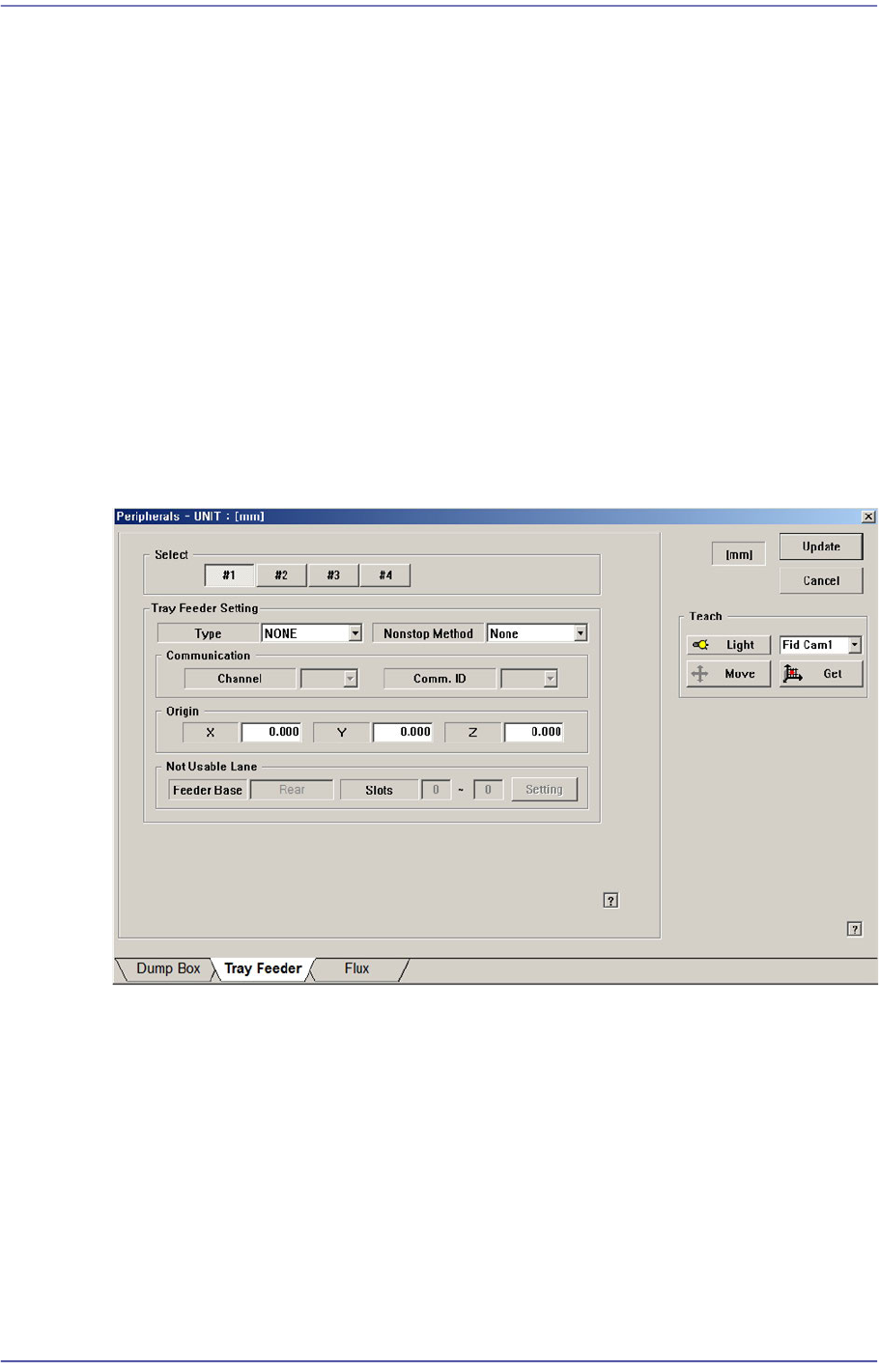
15.3.2. <Tray Feeder> Tab dialog
Sets the tray feeder related data. Selecting this button will display following dialog box.
Figure15.8 “Accessory” dialog box “Tray Feeder” Tab dialog
<Select> option button
Selects the tray feeder unit. Available tray feeder units are No. 1 to No.4 tray feeder
units.
That is, a total of 4 tray feeders can be installed. (Maximum 2 trays can be installed for
the type of trays that can communicate with the equipment.)
<Tray Feeder Setting> group
Selects the type of the set tray feeder unit. Available type is as follows.
<Type> combo box
Selects the type of the set tray feeder unit. Available type is as follows:

15-14
Fast Flexible Placer SM481(L) PLUS Administrator’s Guide
Single Tray[39321]: Refers to the tray installed on the feeder base.
NONE: Means that no tray is installed.
<Use Non Stop Func> combo box
Determines whether to use the non-stop function.
Note: The nonstop function is not used.
Master/Slave: One rack is used as master and another rack is used as slave.
Master/Master: One rack is used until the parts are exhausted, and then
another rack is used.
<Communication> group
Set the data related to RS-232C communication.
<Channel> combo box
Select the RS-232C communication channel. 2 channels are available for the
machine. Perform setup so that it may not be duplicated.
<Comm. ID> combo box
Select the communication ID. The used ID is 1 –3. Since only ID 1 is
supported, set the ID to ID 1.
<Origin> group
Setup origin of the selected ‘Tray Feeder Unit’. This origin is the offset value from
the origin of the equipment.
<Not Usable Lane> group
Sets the feeder base unit and slot occupied by the corresponding tray when using the
selected tray feeder unit.
<Feeder Base> combo box
Selects the feeder base. The selectable feeder base is front (Front Feeder Base or
Rear Feeder Base).
<Lane> edit box
Sets the slot the feeder base.
<Update> button
Transmits the change data to the equipment and closes the dialog box.
<Cancel> button
Ignores the change data and closes the dialog box.