Hanwha SM481 PLUS Series Administrator’s Guide Eng.pdf.pdf - 第238页
8-2 Fast Flexible Placer SM481(L) PLUS Administ r ator’s Guide <Part> column Select the c omponent to install i n th e corresponding slot. When the <P art> column is clicked on, the Combo Box appea r s, and…
8-1
Feeder Setup
Chapter8. Feeder Setup
8.1. Feeder [F4]
The ‘Feeder’ submenu edits data related to tape feeder, stick feeder, and tray feeder. The
user can specify the part to be installed on each feeder, teach the pick-up position, and test
the component pick-up. When this submenu is selected, the initial screen is for the tape
feeder screen.
8.1.1. Feeder Base
When the feeder base is selected, the following dialog box is displayed and the data on
feeder base can be edited.
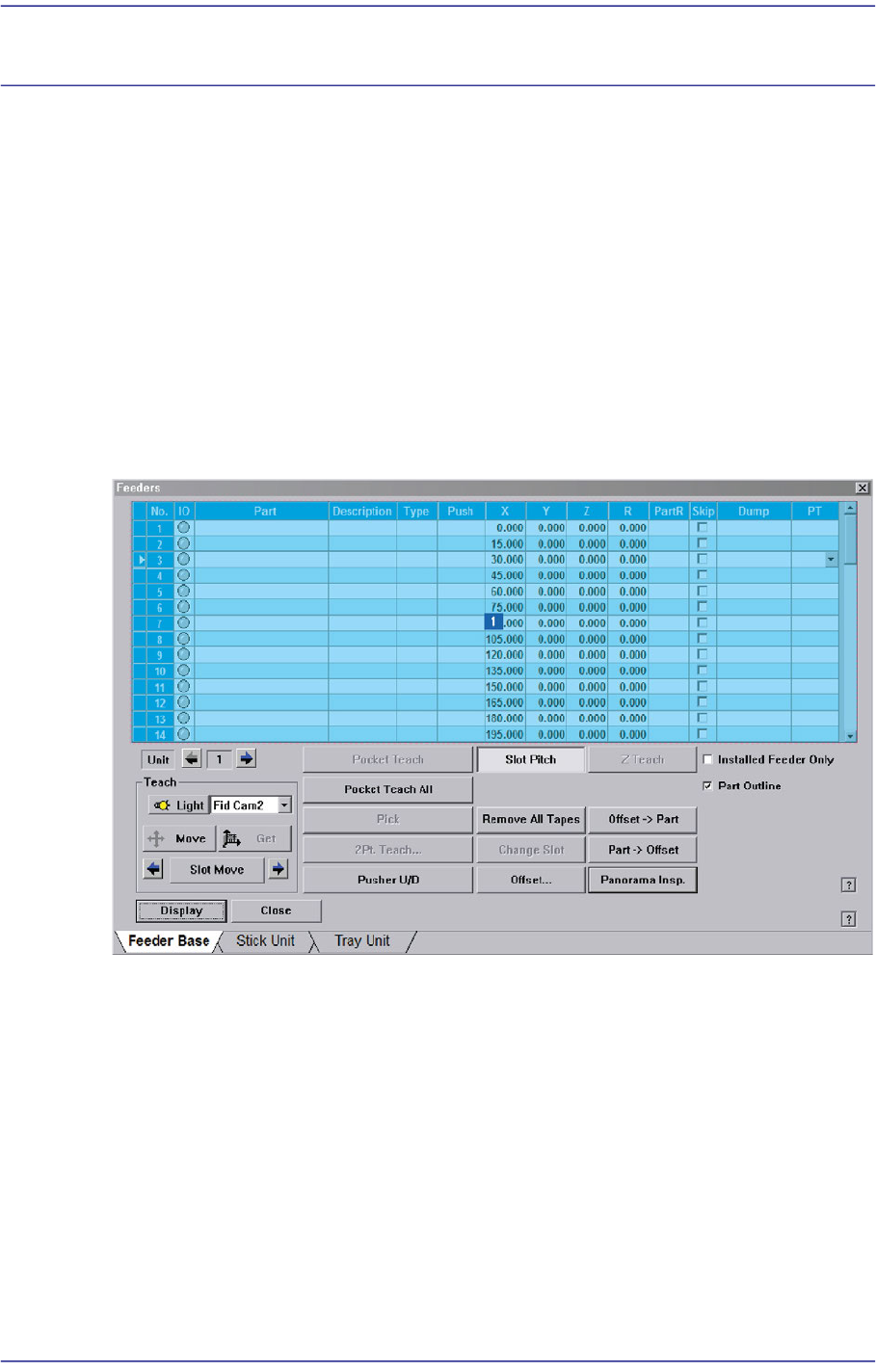
Figure8.1 “Feeder: Feeder Base” dialog box
1: Grid
‘Grid’ group
Display the status of various devices installed on the feeder base including the feeder
type and edit the installation position.
<No> column
A serial number of the feeder base slot. Air pressure type feeder base has 52 slots.
<IO> column
Displays the LED color for the status of the tape feeder installed in the
corresponding slot.
8-2
Fast Flexible Placer SM481(L) PLUS Administrator’s Guide
<Part> column
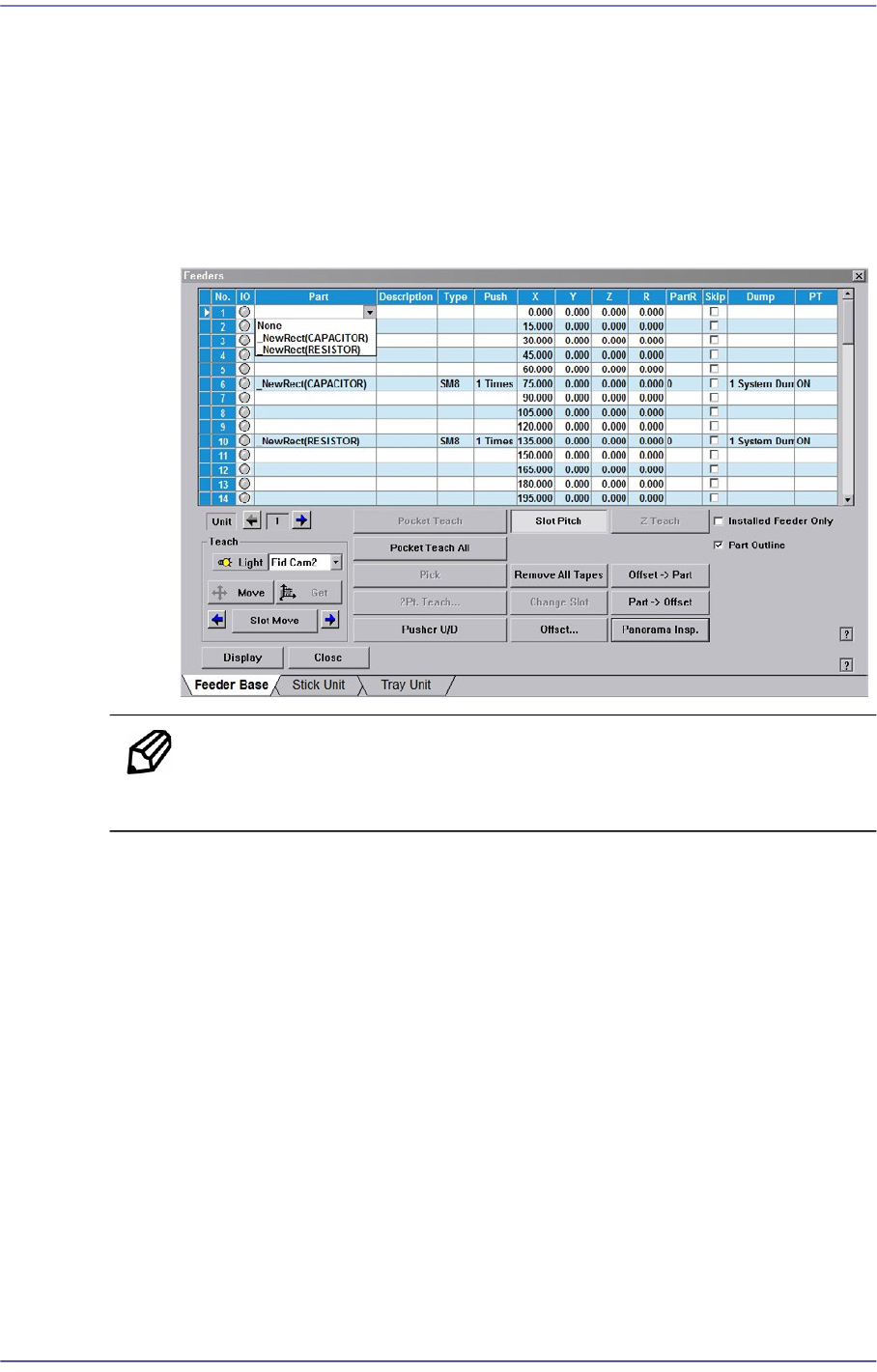
Select the component to install in the corresponding slot. When the <Part> column
is clicked on, the Combo Box appears, and of the components registered in <1.2
Part>, the list of components to be supplied to “Tape Feeder” is displayed. Select
the component to install in this list. Next is the screen that shows selection of
components in the Combo Box of <Part> column.
Figure8.2“Feeder: When the part is selected in the Feeder Base” screen
Memo Changing the part in the selected slot to another part will initialize the
Home Offset value set for the corresponding slot to ‘0’.
<Description> column
Note that slot to display the description of installed components.
<Type> column
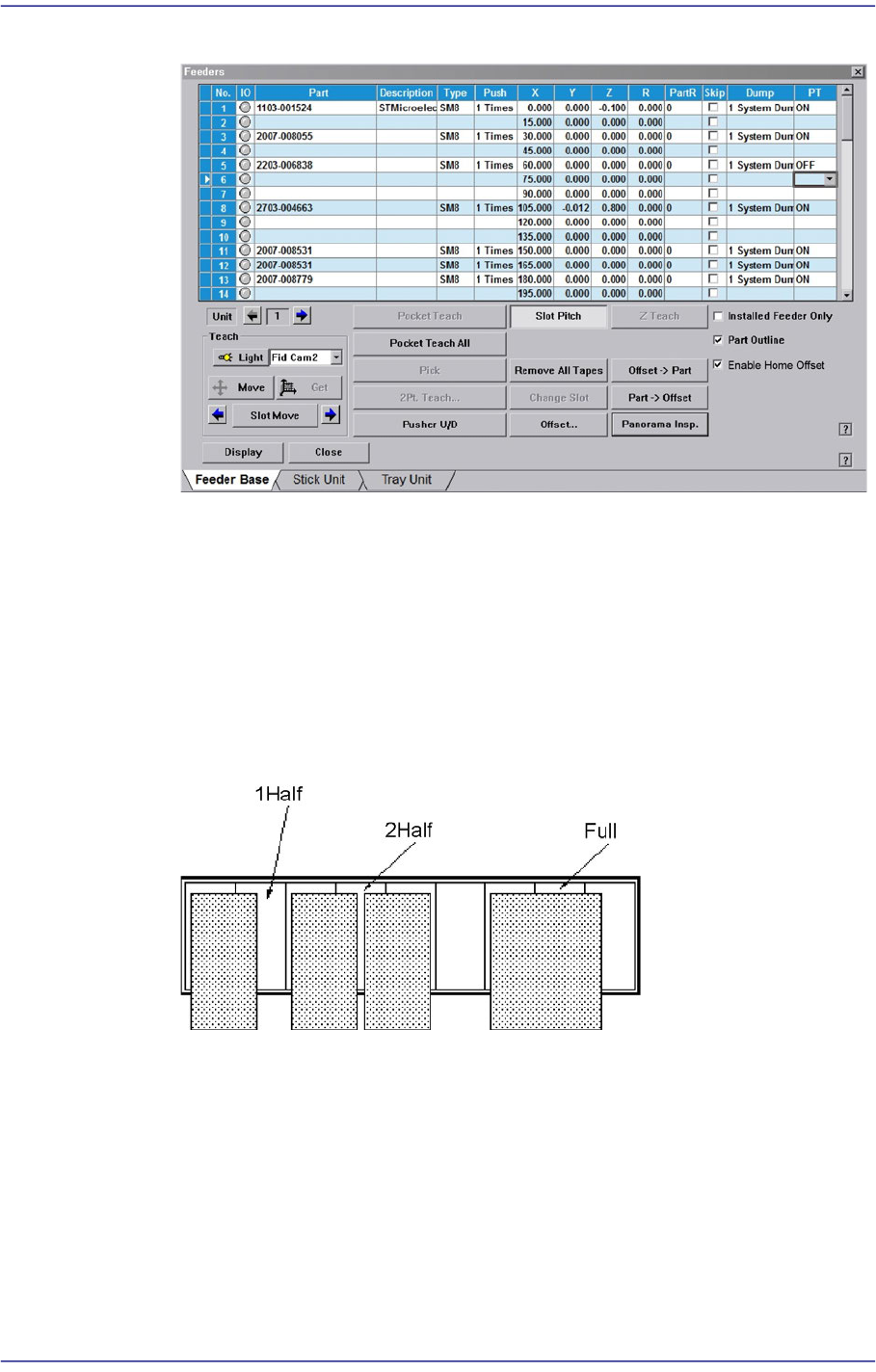
Displays the type of the device installed in the corresponding slot. Next screen
shows the content displayed in the <Type> column of the feeder base on which
various devices are installed.
8-3
Feeder Setup
Figure8.3“Feeder: When various devices are installed in the Feeder Base” screen
Of the items displayed in the <Type> column, explanation is given on the
following.
1Half: The corresponding slot is occupied by 1 device installed in the adjacent
slot.
2Half: The corresponding slot is occupied by 2 devices installed in the adjacent
slot.
Full: The corresponding slot is entirely occupied by the device installed in the
adjacent slot.
<Rank> column
Used to register and manage the rank for LED parts. When enabling the <Rank>
column, select the ‘General’ tab dialog box from the ‘Pref.’ submenu of the
‘Sys.Setup’ menu and select the <Use Rank Check> check box.
If an LED part is not registered in the part registration dialog box, the
corresponding part does not appear in the <Rank> column.
The following is the screen where the feeder supplying LED parts is selected from
the feeder base and the rank is selected from the <Rank> column.