Hanwha SM481 PLUS Series Administrator’s Guide Eng.pdf.pdf - 第457页
15-21 System Setup Figure15.13 Bottom Shape of Calibration Nozzle for Fly Camera Figure15.14 Bottom shape of the calibration plate for the Fid camera Figure15.15 Bottom shape of the calibration nozzle for the Fix camera …
15-20
Fast Flexible Placer SM481(L) PLUS Administrator’s Guide
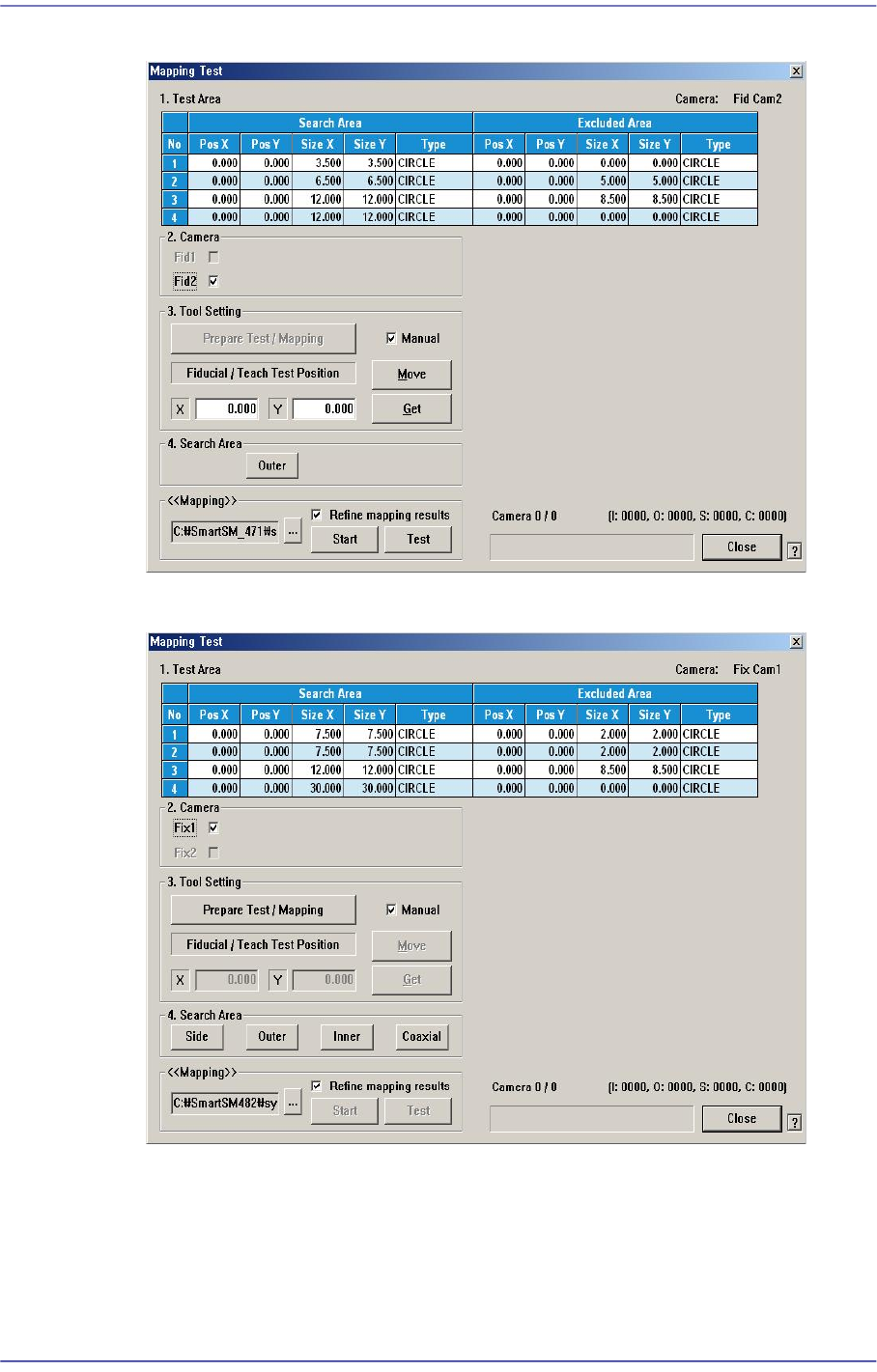
Figure15.11 When the Fid Camera is selected
Figure15.12 When the Fix Camera is selected
<1. Test Area> group
Designates the area for which the nozzle for test checks the brightness of the
lighting. The are can be designated up to 4. the search area and excluded area are
designated together. The test area is set automatically. Do not change this value.
15-21
System Setup
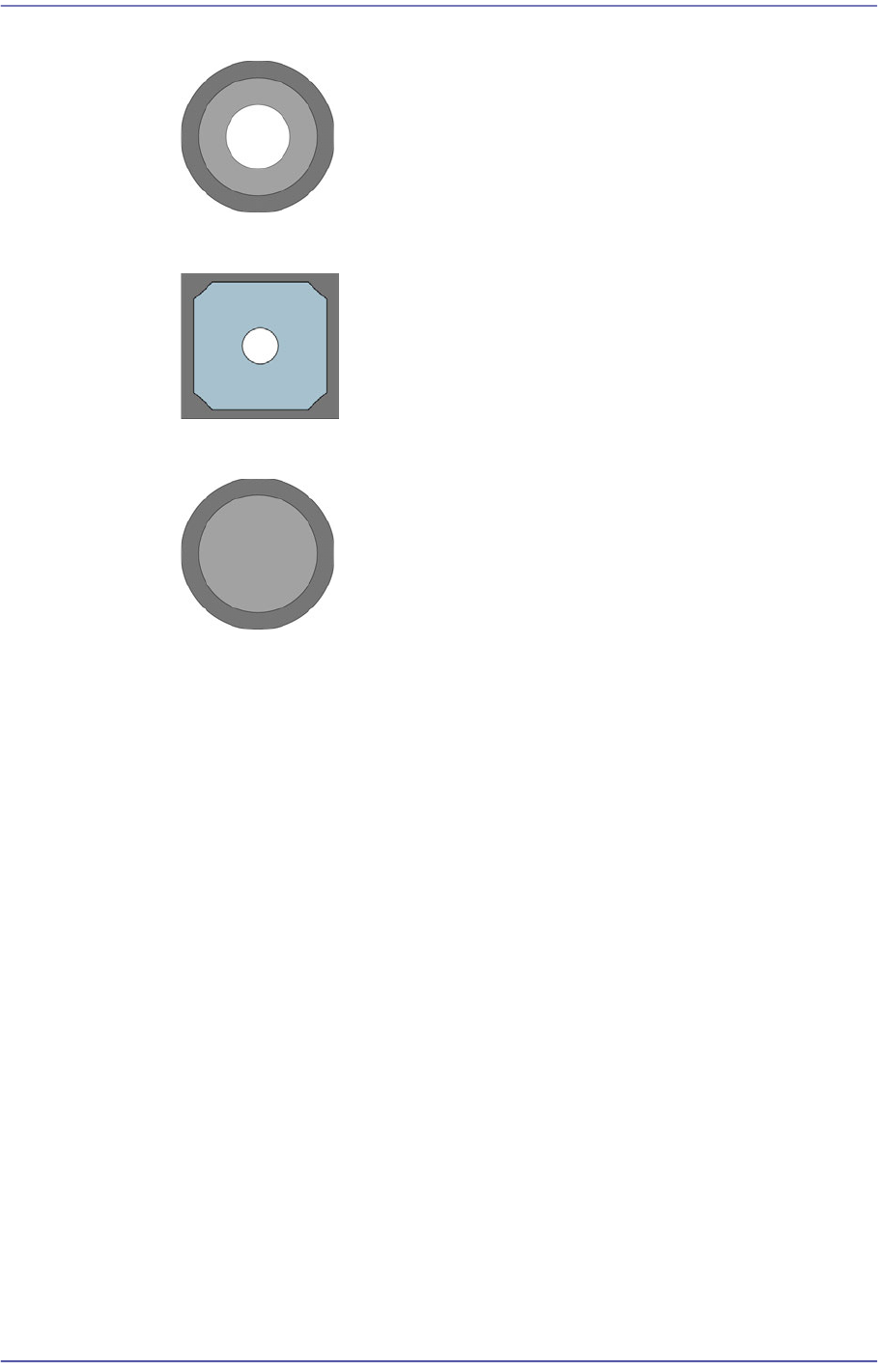
Figure15.13 Bottom Shape of Calibration Nozzle for Fly Camera
Figure15.14 Bottom shape of the calibration plate for the Fid camera
Figure15.15 Bottom shape of the calibration nozzle for the Fix camera
<2. Camera> group
Selects the camera for performing lighting brightness test or mapping. Activated
cameras can be designated at the same time.
<3. Tool Setting> group
Performs test or preparation for mapping.
<Prepare Test /Mapping> button
Return all nozzles mounted on the head to each corresponding ANC hole.
Before doing so, arrange the LightFly nozzle, a nozzle for calibration into the
No. 1 hole of the ANC.
If the nozzle arrangement is finished, the <Start> button and <Test> button in
the <<<Mapping>>> group.
<4. Search Area> group
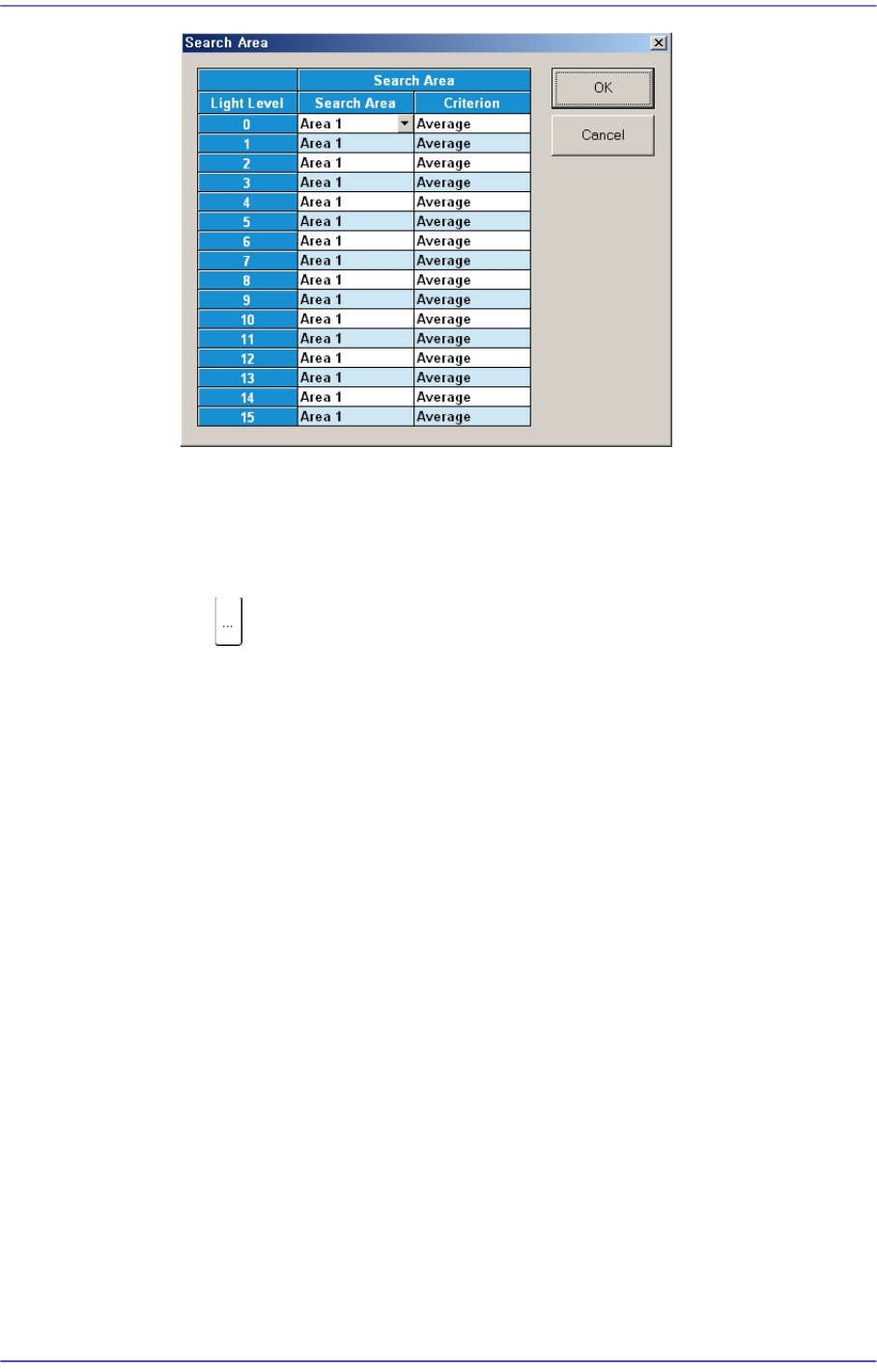
Clicking the button corresponding to the light for which mapping is to be
performed will display the following dialog box.
15-22
Fast Flexible Placer SM481(L) PLUS Administrator’s Guide
Click on the button corresponding to the illumination for mapping, set the test area
(Area 1 ~ 4) to 16 illumination levels for each lighting, and setup the average
illumination level for each pixel of the test area to the maximum value.
<<<Mapping>>> group
button
Select the Map File to be used for mapping. Since the file name is set
automatically, do not change it.
<Start> button
Start the Mapping.
<Test> button
Perform test for the mapping result. The light level that does not satisfy the
reference value is searched automatically and it is displayed in the result file.
Perform mapping with the <Refine Mapping Result> check box being selected.
State display
Displays current progressing state.
Camera (Number of camera for which test or maping is completed) /(Total number
of selected camera)
(I: Inner Level, O: Outer Level, S: Side Level, B: Back Level)
<Close> button
Closes the dialog box.
<Update> button
Transmits the set data to the equipment and closes the dialog box.