Hanwha SM481 PLUS Series Administrator’s Guide Eng.pdf.pdf - 第70页
3-6 Fast Flexible Placer SM481(L) PLUS Administ r ator’s Guide Click the <Search> button to select the e xisting PCB file to be used to create the PCB file Select the source file to be used to creat e the PCB file.…
3-5
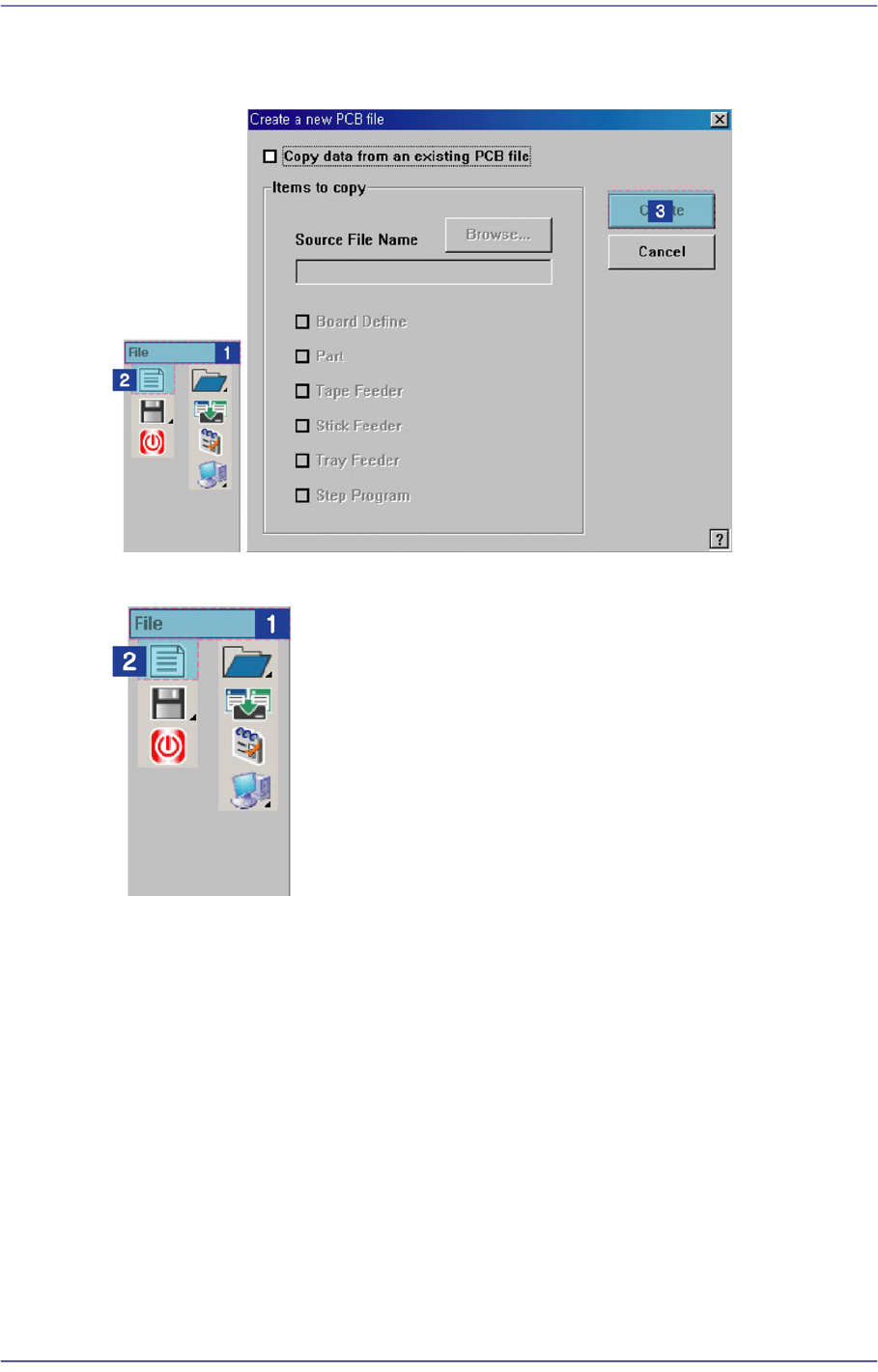
File Shortcut Menu
3.1.1. New File Creation Procedure
Default creation
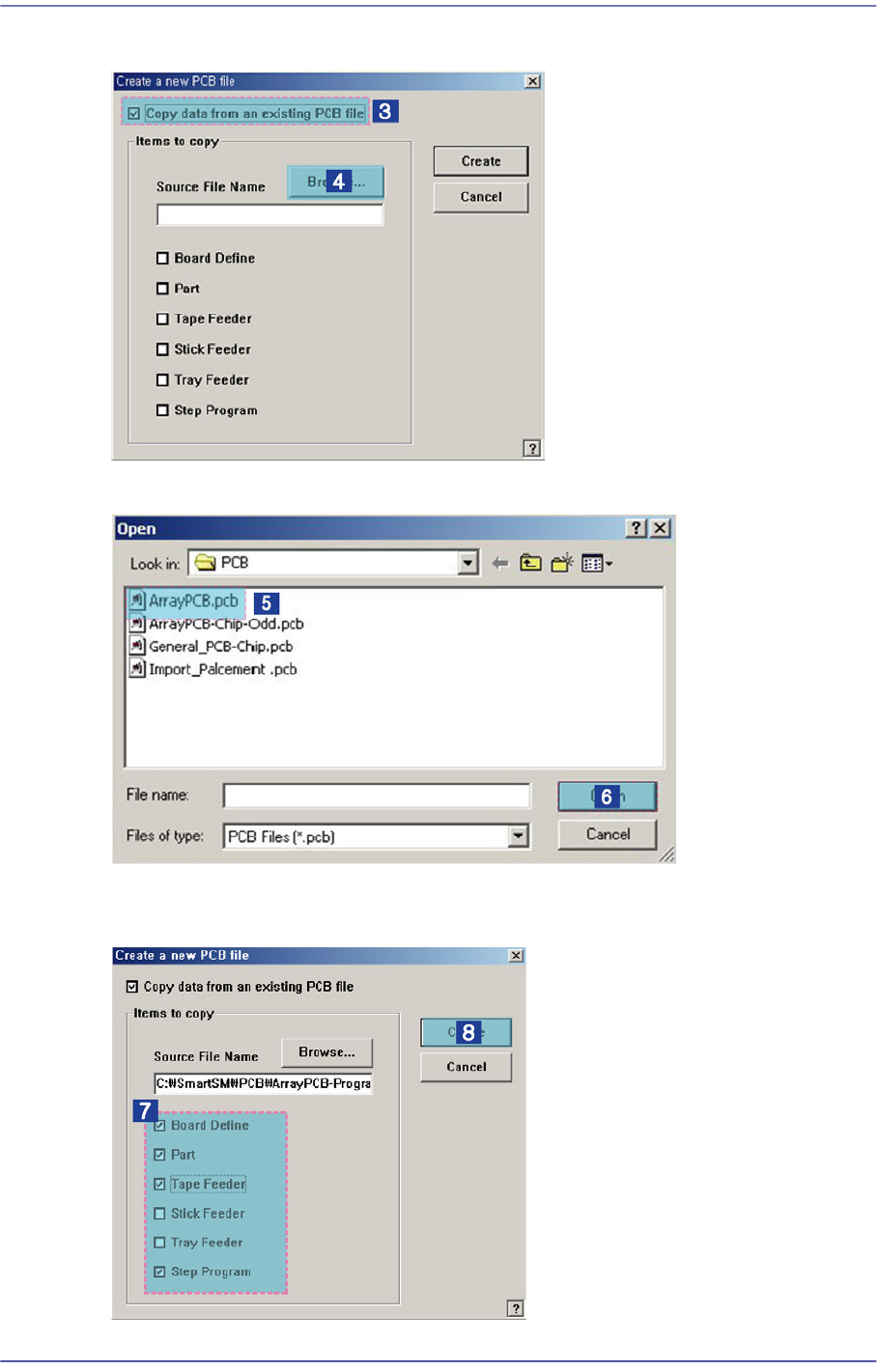
Creation using source file
3-6
Fast Flexible Placer SM481(L) PLUS Administrator’s Guide
Click the <Search> button to select the existing PCB file to be used to create the PCB file
Select the source file to be used to create the PCB file.
Select the item to be used to create the file among the PCB data in the source file and click
the <Create> button.
3-7
File Shortcut Menu
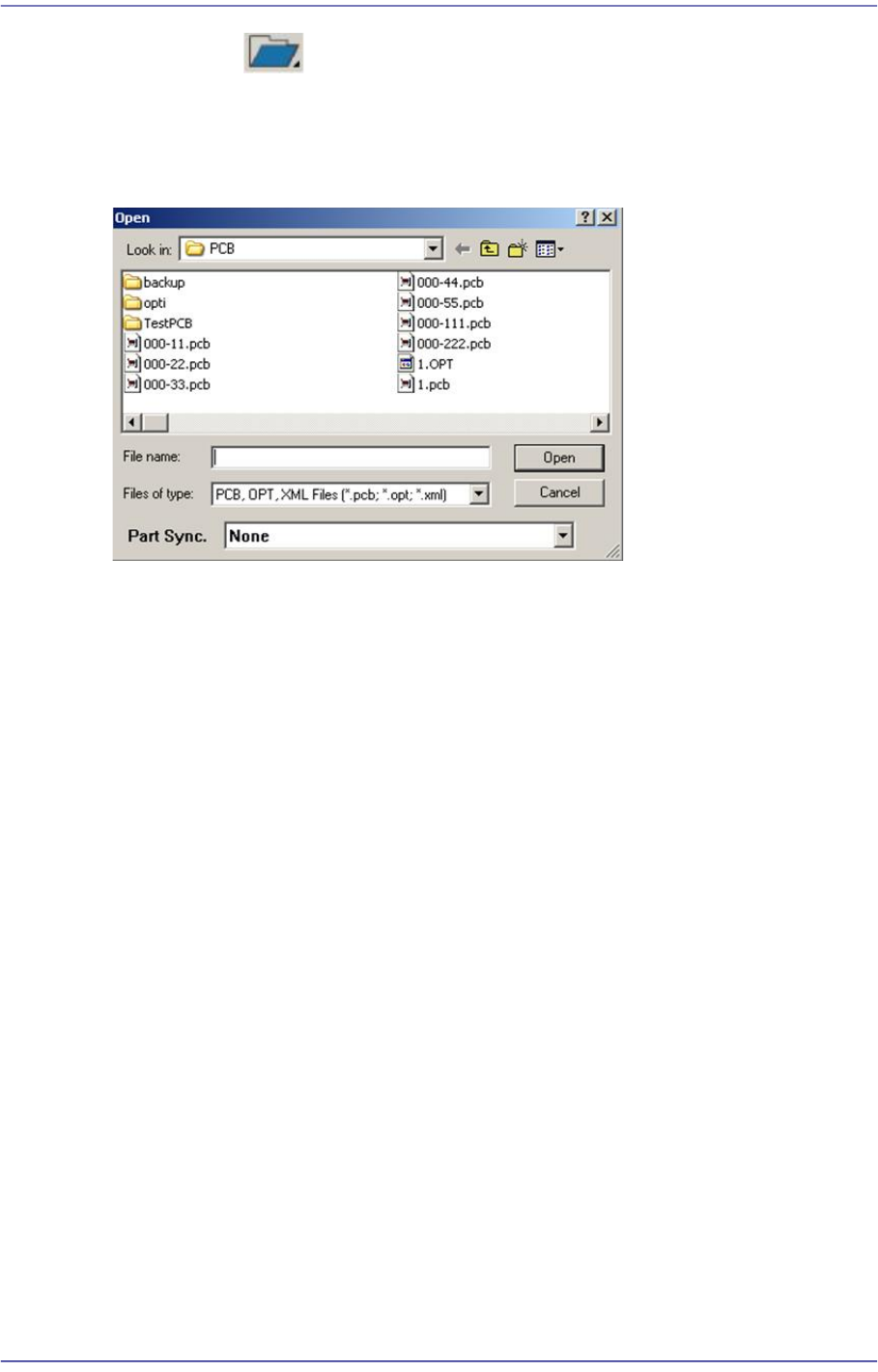
3.2. Open [Ctrl+O]
<Open> command is used to edit an existing PCB file. When the <Open> command is
selected, the following dialog box is displayed.
Figure3.5 “Open” dialog box
<Look in> list box
Specify the directory in which the file is located. Displays the files in the directory
specified here in the <File list> list box.
List box
Displays existing files. When a file name is clicked on, displays the file name in the
<File name> edit box.
<File name> edit box
Enter a file name. If a file from the file list is clicked on, that file name is displayed in
the edit box.
<Files of type > combo box
Select the type of file to be displayed in the <File list> list box. When the triangular
Button is clicked on, accessible file types are displayed.
PCB Files(*.pcb)
Indicates only those file names with a ‘pcb’ extension. Files with a ‘pcb’ extension
are PCB files for which optimization was not executed.
OPT Files(*.opt)
Indicates only those file names with an ‘opt’ extension in the list box. Files with
an OPT extension are PCB files on which an optimization result was reflected.
XML Files(*.xml)
Indicates only those file names with an ‘xml’ extension. Files with an XML
extension cannot be used with our SM400 series machines and PCB files.