Hanwha SM481 PLUS Series Administrator’s Guide Eng.pdf.pdf - 第510页
17-6 Fast Flexible Placer SM481(L) PLUS Administ r ator’s Guide 17.3. Co py...[F4] Copies the contents of the PCB file alread y existing in the PCB file to be copied wi thout creating a new PCB file. . When the ‘Copy’ su…

17-5
Utility
<History Clear> group
<Point of Date> combo box
Of the log files related to all PCBs produced by the machine, the files created
before the date selected here are deleted.
Here, if the <Log Clear> button at the right is clicked after selecting a date, the
files created before that date are deleted.
<Log Clear> button
Here, if the <Log Clear> button at the right is clicked after selecting a date, the
files created before that date are deleted.
<Total Clear> button
Deleted all PCB related log files.
<Log File Maintenance> group
<Size [Mbytes]> combo box
Select the size of all log files related to the PCB produced by the machine.
If the size of all log files is greater than the size selected here, the files are deleted
in the order of file creation date.
File size can be set at values from a minimum of 10MB to a maximum of 50MB in
10MB increments.
<Time [Year]> combo box
Select the period of time through which all log files related to the PCB produced
by the machine are managed.
If the created date of a log file is older than the period set here, it will be deleted.
The period of time can be set at values from a minimum of 1 year to a maximum
of 5 years in 1 year increments.
<Report> button
Used to analysis and make a report using the selected data. Please refer to“18.1
Production Information Management [Pd. Info] ”for more information.
<Close> button
Closes the dialog box for the production report.
17-6
Fast Flexible Placer SM481(L) PLUS Administrator’s Guide
17.3. Copy...[F4]
Copies the contents of the PCB file already existing in the PCB file to be copied without
creating a new PCB file. .
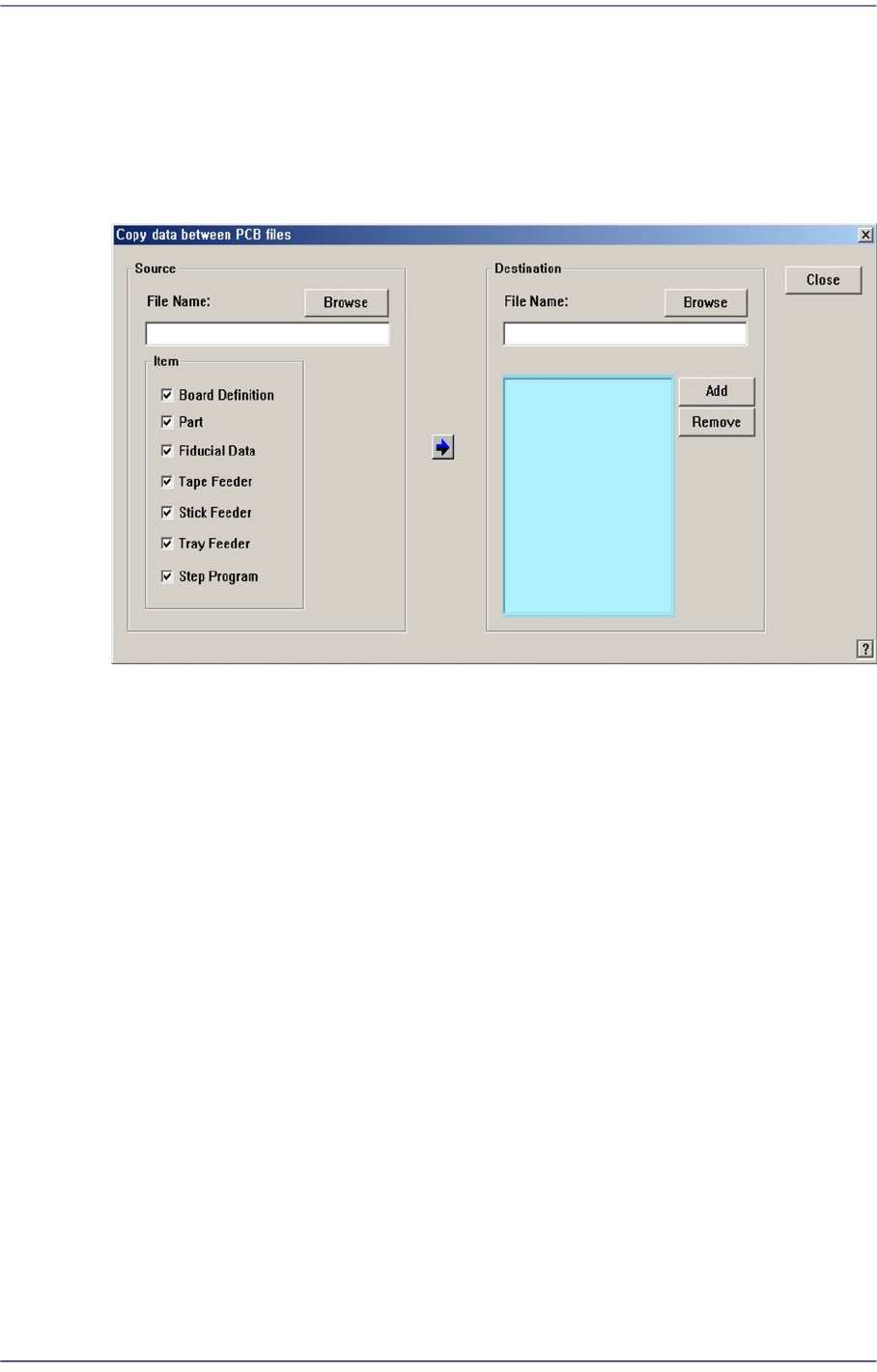
When the ‘Copy’ submenu is selected, the following dialog box is displayed..
Figure17.5 “Copy data between PCB files” dialog box
<Source> group
Used for selecting the original PCB file to copy, and for selecting the information to
copy.
<File Name:> edit box
Used for selecting the original PCB file to copy, and for selecting the information
to copy.
<Item> check box group
Select the information to copy.
<Browse…> button
Used for selecting the original PCB file to copy.
<Destination> group
Used for selecting the object PCB file to apply the copied information from the
original PCB file.
<File Name:> edit box
Directly input the file name of the object file or select the desired file name by
clicking the <Browse…> button.
<Browse…> button
Used for selecting the object PCB file. When this button is clicked on the
17-7
Utility
following dialog box is displayed.
List box
List up the PCB files on which the copied information will be applied.
<Add> button
Adds the file defined in the <File Name:> edit box to the PCB file on which the
copied information will be applied.
<Remove> button
Excludes the selected file in the list box from the object to apply the copied
information.
button
Copy the selected information from the original PCB file to the object PCB file.
17.4. File Man... [F5]
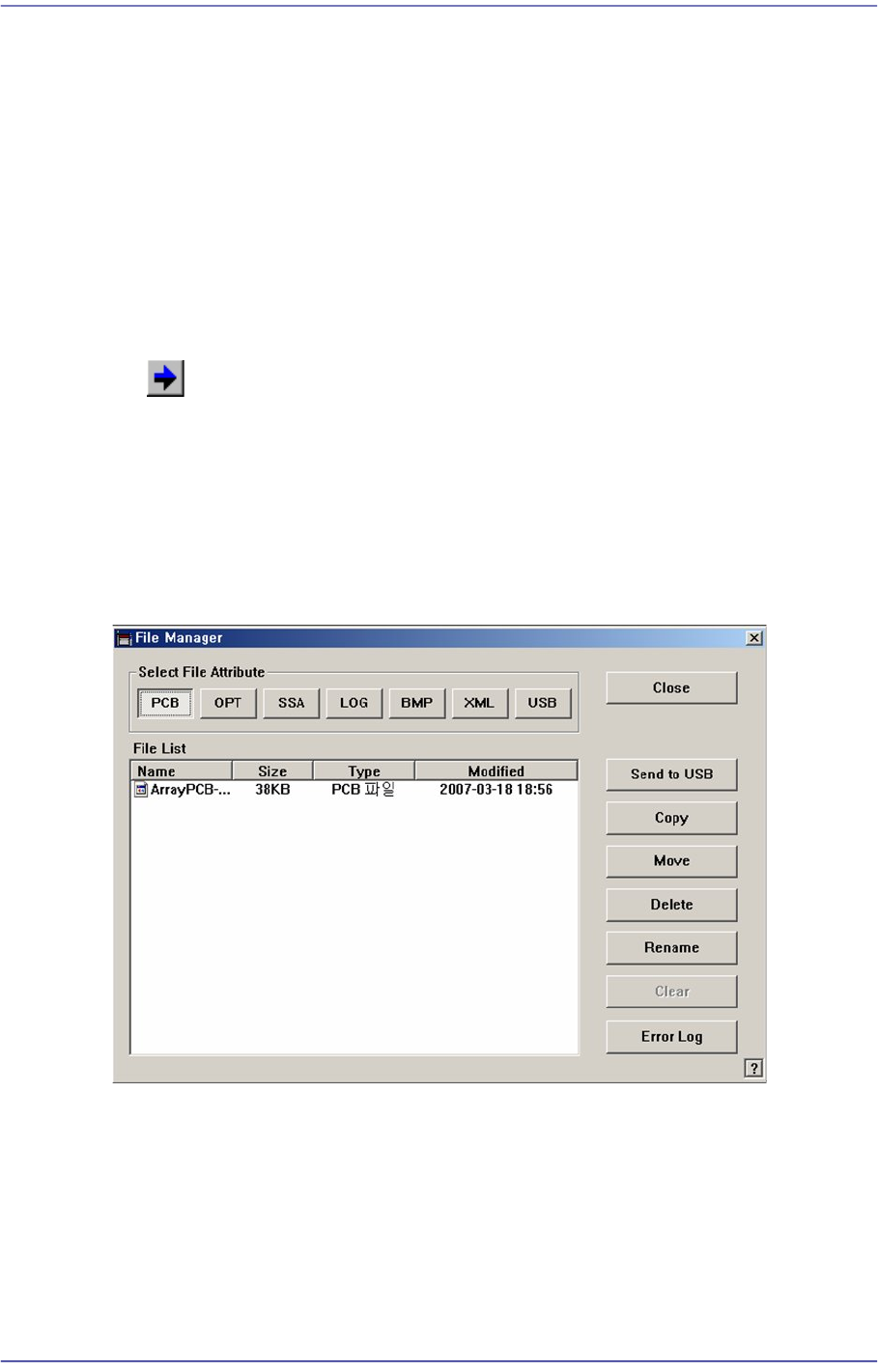
Allows easy file management such as Copy, Move, Delete, etc.
Figure17.6 “File Manager” dialog box
<Select File Attribute:> group
When the extension file button in the <Select File Attribute group> is clicked, the
corresponding contents are indicated in the list.
<Send to USB> button
Save the selected file in the USB storage device.