Hanwha SM481 PLUS Series Administrator’s Guide Eng.pdf.pdf - 第138页
6-28 Fast Flexible Placer SM481(L) PLUS Administ r ator’s Guide If not, revise t he “Shape Information’. 7) Fiducial mark reco gn ition test 8) T uning Perform tuning at lea s t more than twice. 9) Reflect set v alue: Cl…
6-27
Board Definition
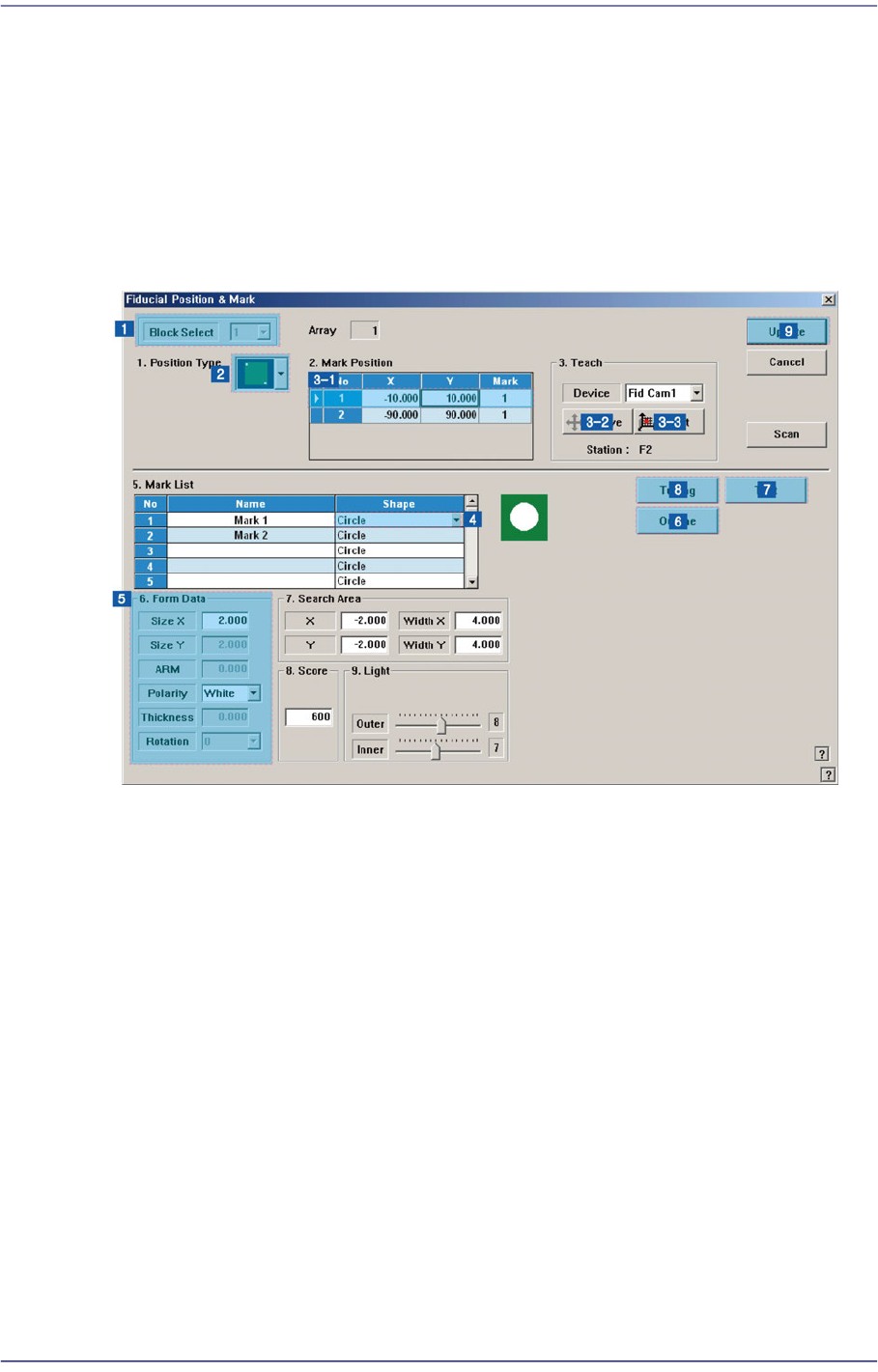
<OK> button
Saves the fiducial mark data and closes the <Fiducial Position & Mark> dialog box.
<Cancel> button
Closes the <Fiducial Position & Mark> dialog box without saving the fiducial mark
data.
6.3.1. Fiducial Mark Setup Order
1) Block Setup
Omitted for non-block PC
2) Position Type’ setup
3) Mark Position’ setup
Select a fiducial mark in the <Mark Position> group.
Click the <Move> button to move the fiducial camera to the selected fiducial mark.
Perform adjustments so that the center of the fiducial mark falls on the crosshair center
of the SMVision window.
Click the <Get> button to input the coordinate of the fiducial mark.
4) ‘Mark List’ setup
5) ‘Form Data’ setup
6) Outline check
Click the <Outline> button to check if the outline seen in the SMVision window falls
on the fiducial mark outline.

6-28
Fast Flexible Placer SM481(L) PLUS Administrator’s Guide
If not, revise the “Shape Information’.
7) Fiducial mark recognition test
8) Tuning
Perform tuning at least more than twice.
9) Reflect set value: Click the <Update> button
6-29
Board Definition
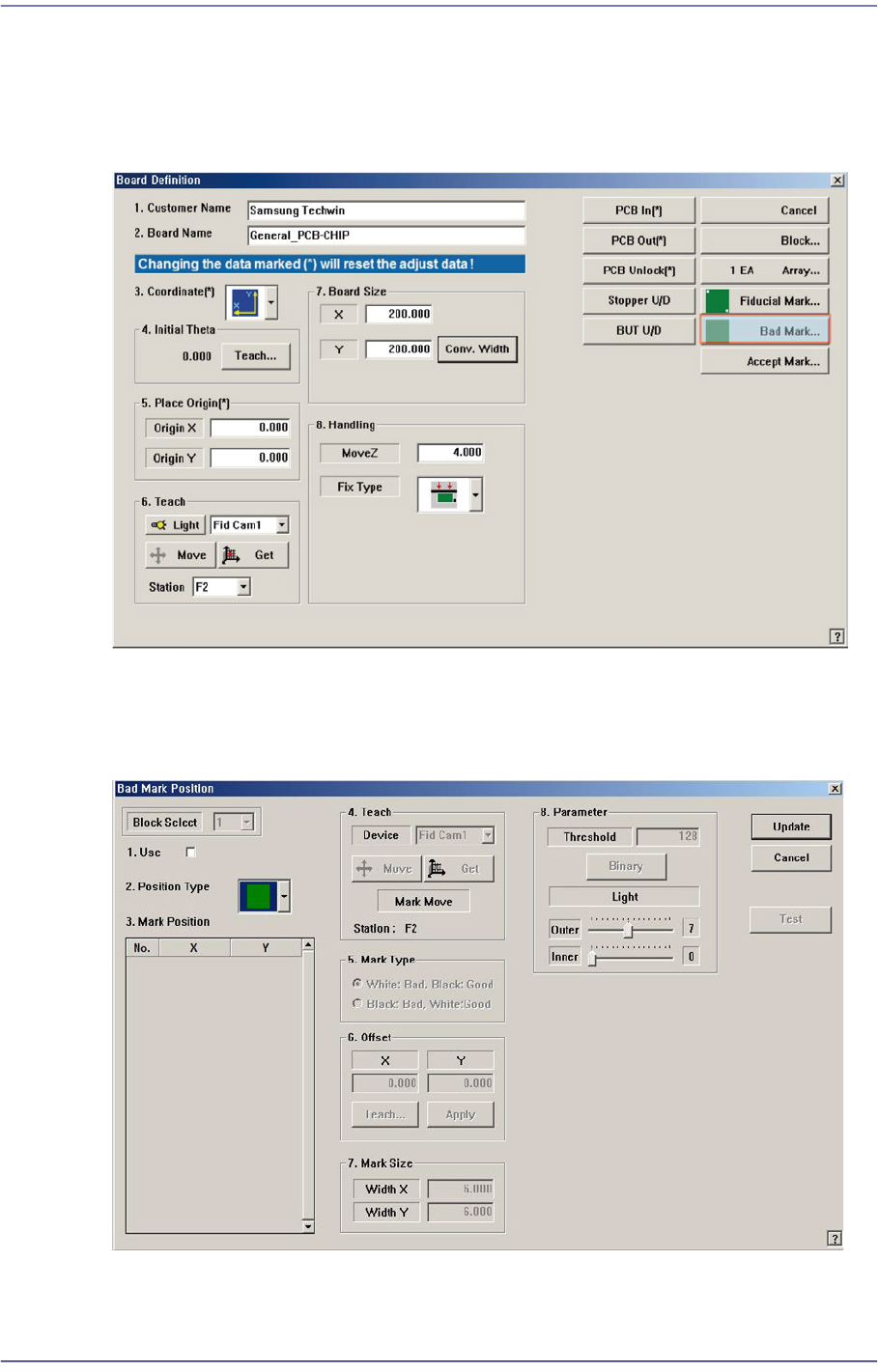
6.4. Bad Mark Setup
The ‘Bad Mark’ refers to the mark indicated on the PCB to show whether a small PCB in
the array PCB is good or defective. Placement is not performed on the small PCB
indicated defective.
When this <Bad Mark…> button is clicked on, the following dialog box to edit bad mark
data is displayed.
Figure6.6 “Bad Mark Position” dialog box (When the Position Type is “None”)