Hanwha SM481 PLUS Series Administrator’s Guide Eng.pdf.pdf - 第164页
7-6 Fast Flexible Placer SM481(L) PLUS Administ r ator’s Guide <Duplicate …> button Copies the s elected component data. At thi s time, new component name must be set. <Copy> but ton Copies the part da t …
7-5
Part Registration
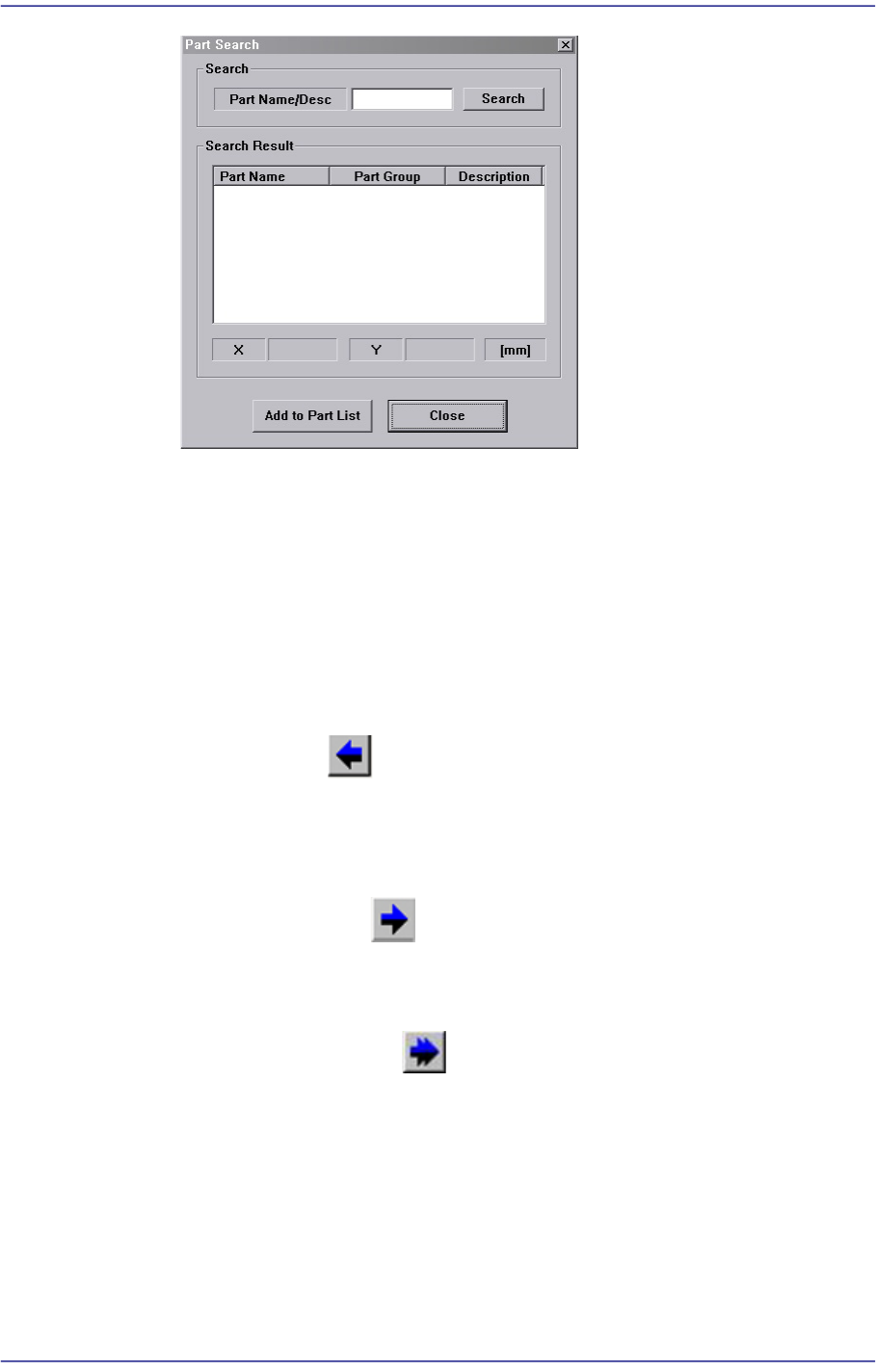
<Search> / <Search Result> group
Clicking the <Search> button after inputting the name or description of the
part to be searched in the <Part Name> edit box will search the information of
the part DB and show the result in the <Search Result> group.
<Add to Part List> button
Adds the corresponding part to the PCB Part List when this button is clicked
after selecting the part displayed in the <Search Result> group as a search
result.
<Copy to PCB Part> button
Copies the component data selected in <Part List> of <2. Library> group to <1. PCB
Part List> group. That is, this means that the part in the Local Part DB is copied to the
PCB part.
<Copy to Local Part DB> button
Copies the component data selected in the <1. PCB Part List> group to the Local Part
DB. That is, this means that the part in the PCB Part is copied to the Local Part DB.
<Copy All to Local Part DB> button
Copies all component data in the <1. PCB Part List> group to the Local Part DB.
<New Part…> button
Registers new component. Please refer to “7.1 New Part Registration” for more
information.
<Edit…> button
Edits the selected component data.
7-6
Fast Flexible Placer SM481(L) PLUS Administrator’s Guide
<Duplicate…> button
Copies the selected component data. At this time, new component name must be set.
<Copy> button
Copies the part data selected from the Part list box.
<Paste> button
Pastes the copied part data to the Part list box.
<Delete> button
Deletes the part selected in the Part list box.
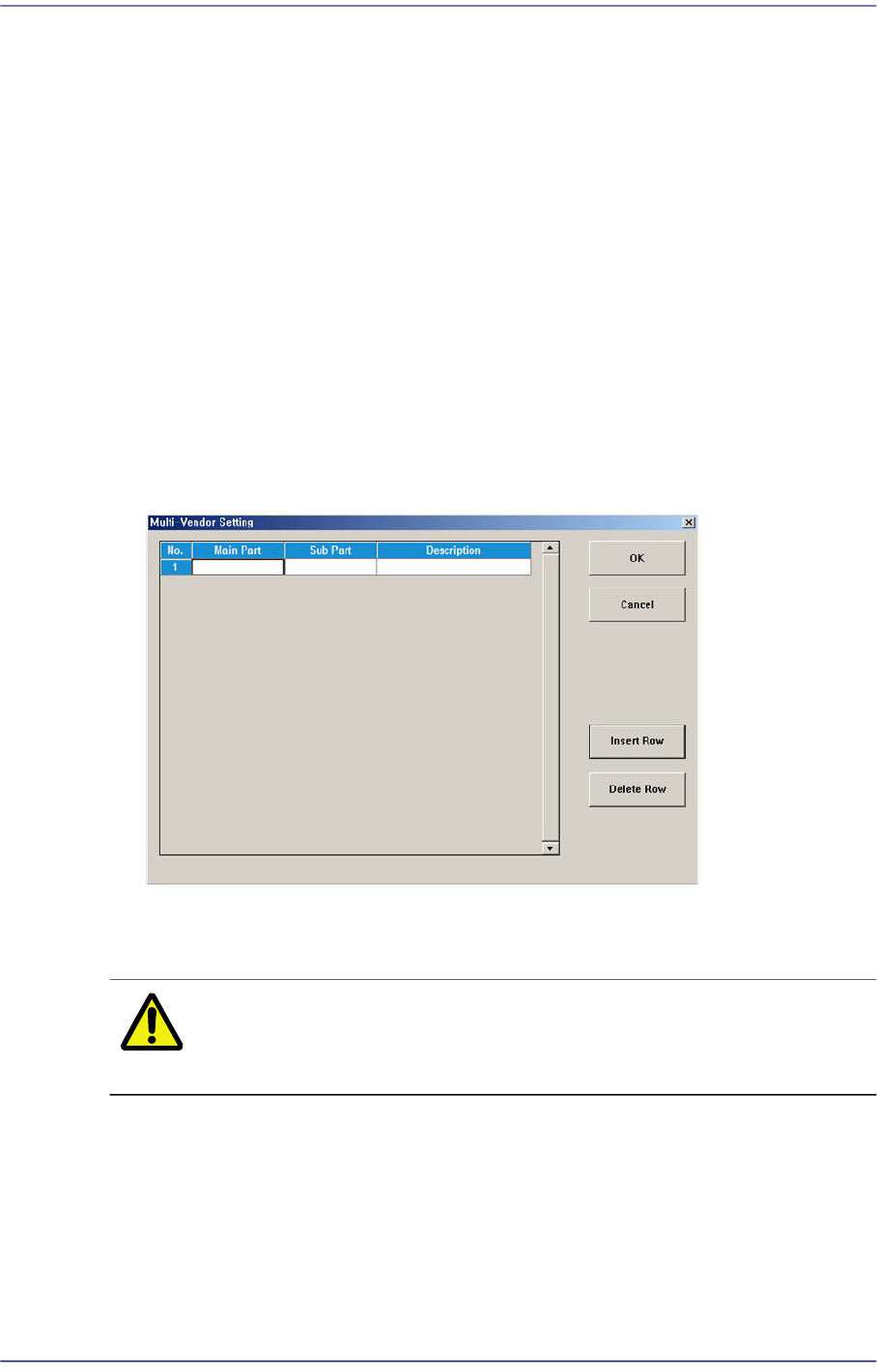
<Multi-Vendor> button
Refers to the function used to produce PCBs by using parts made by several
manufacturers for a part.
Allows work to be automatically performed using sub parts when placing them on a
PCB after registering them.
<Cancel> button
Cancels all edited data.
Caution If you move to another screen while editing the “Part” dialog
box, the edited data is saved automatically
7-7
Part Registration
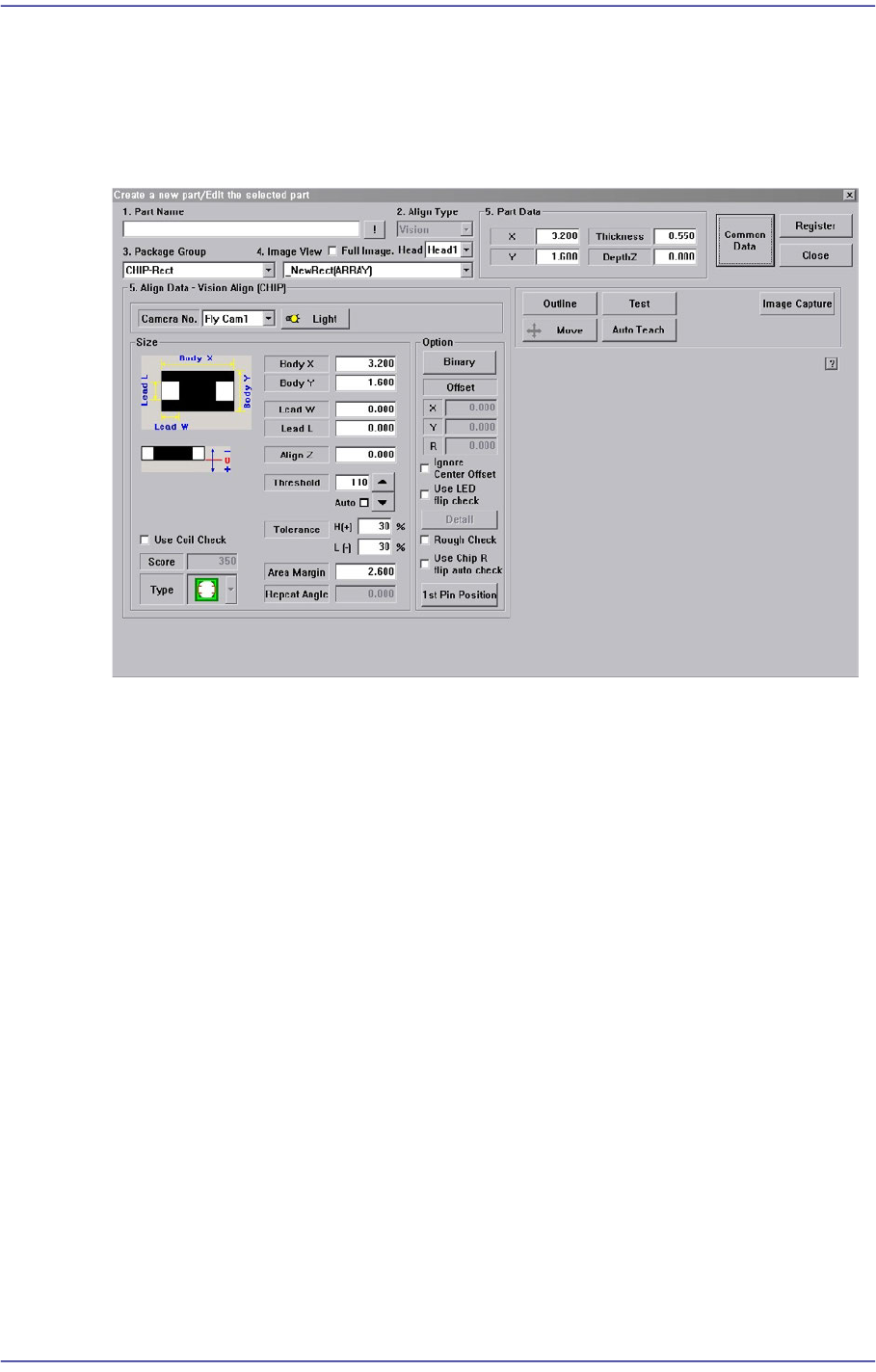
7.1. New Part Registration
Registers new component. When this button is clicked on, the following dialog box is
displayed.
Figure7.3 ”Edit Profile / Part” dialog box
<1. Part Name> edit box
Set the component name. Ensure that the component name having more than 32
Alphabet characters (16 characters in Korean) is not entered.
(When using the “Duplicate” function or when importing component information
from another PCB file.)
<2. Align Type> combo box
Select the align type. Automatically setup to “Vision”.
<3. Package Group> combo box
Select the component group.
<Package List> combo box
Displays the component data list selected in <2. Align Type> and <3. Package
Group>. From the list, select the part most similar to the part to be registered.
<Register> button
Adds the set component data to the PCB part list.
<Close> button
Closes this dialog box.