Hanwha SM481 PLUS Series Administrator’s Guide Eng.pdf.pdf - 第137页
6-27 Board Definition <OK> button Saves the fiduc ial mark data and closes the <Fiducial Position & Mar k> dialog box. <Cancel> button Closes the <Fidu cial Position & Mark> dialog box…
6-26
Fast Flexible Placer SM481(L) PLUS Administrator’s Guide
In general situations, the fiducial mark is not measured individually and the
coordinates of the fiducial mark are created after setting the PCB on the conveyor.
Input the approximate size (by visual judgment) and check the image mark deviation
between the actual mark and the image mark in the data through the SMVision
window to perform recorrection.
In this case also, more accurate correction can be made by performing measurement
through tuning. This function is executed until the actually measured new data
becomes equal to the inputted data.
<Outline/Real> button
Shows the image seen through the Vision in real display to which threshold is not
applied, or in the image (Binary) to which threshold is applied as recognized by MMI.
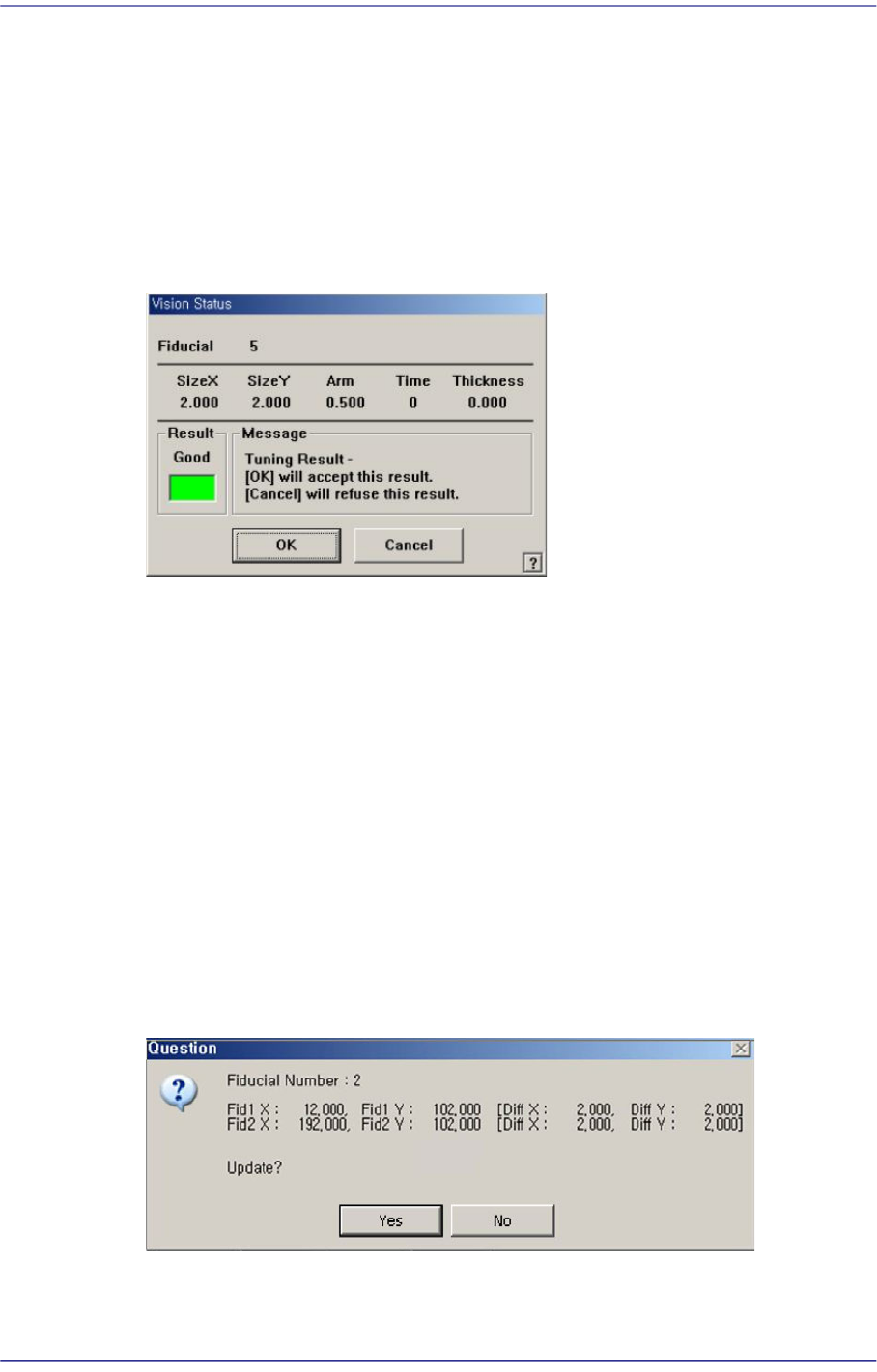
<Test> button
By using the registered mark information, tests the fiducial mark.. The accuracy of the
registered mark data can be verified. When the test is successful, the following
message box is displayed.
<Scan> button
Executes a scan test on the set fiducial mark. Mark recognition is performed to
minimize the teaching offset for the center points (2 points) of the fiducial mark.
Move the fiducial camera to the position of the set coordinate and recognize the mark.
After recognition of the mark, the offset is indicated as shown in the following figure.
When it is desired to compensate the offset, select “Yes”.
When placing the IC part whose lead pitch is 0.5, use this function to perform
compensation for the fiducial mark.
6-27
Board Definition
<OK> button
Saves the fiducial mark data and closes the <Fiducial Position & Mark> dialog box.
<Cancel> button
Closes the <Fiducial Position & Mark> dialog box without saving the fiducial mark
data.
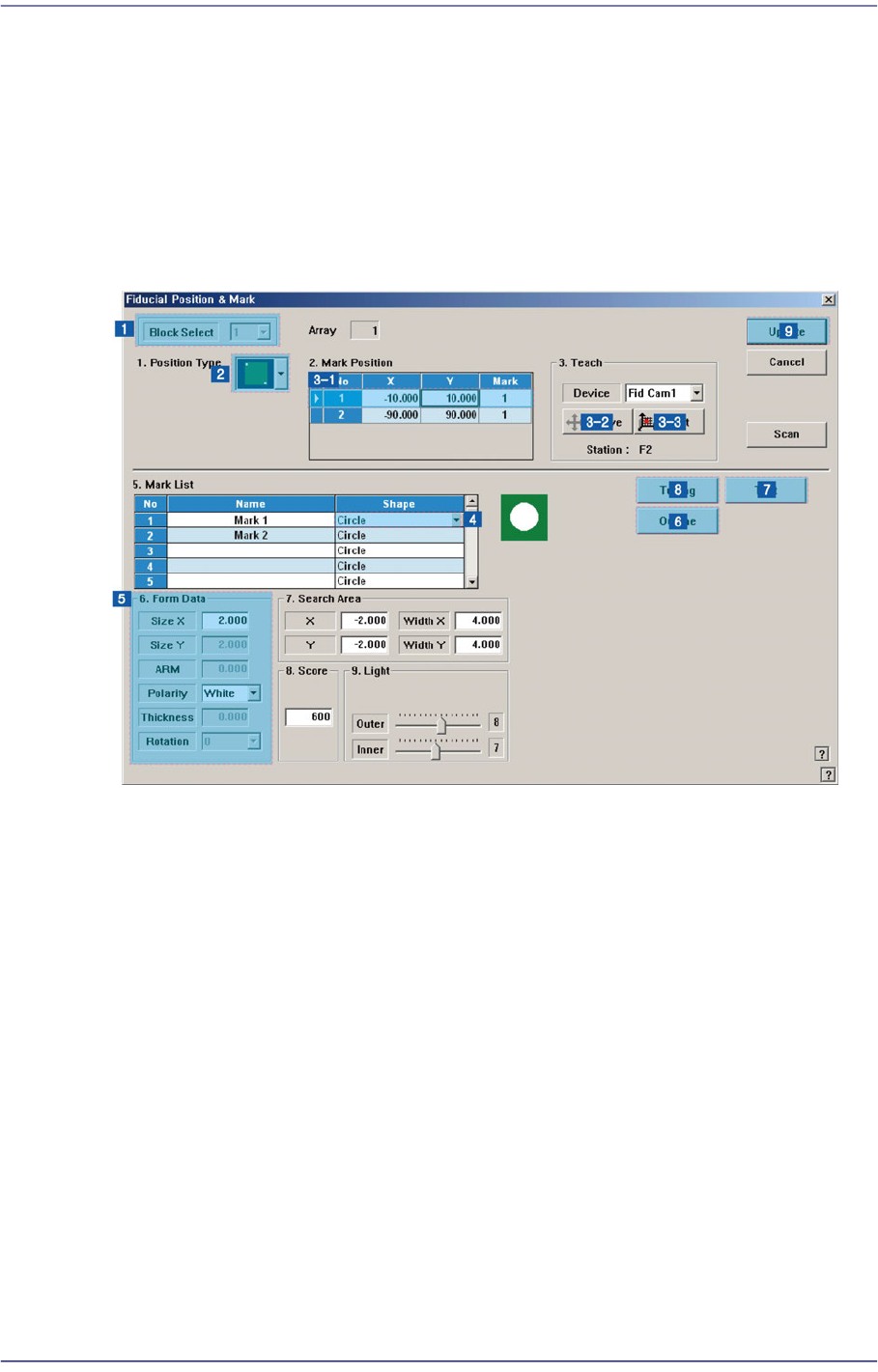
6.3.1. Fiducial Mark Setup Order
1) Block Setup
Omitted for non-block PC
2) Position Type’ setup
3) Mark Position’ setup
Select a fiducial mark in the <Mark Position> group.
Click the <Move> button to move the fiducial camera to the selected fiducial mark.
Perform adjustments so that the center of the fiducial mark falls on the crosshair center
of the SMVision window.
Click the <Get> button to input the coordinate of the fiducial mark.
4) ‘Mark List’ setup
5) ‘Form Data’ setup
6) Outline check
Click the <Outline> button to check if the outline seen in the SMVision window falls
on the fiducial mark outline.

6-28
Fast Flexible Placer SM481(L) PLUS Administrator’s Guide
If not, revise the “Shape Information’.
7) Fiducial mark recognition test
8) Tuning
Perform tuning at least more than twice.
9) Reflect set value: Click the <Update> button