Hanwha SM481 PLUS Series Administrator’s Guide Eng.pdf.pdf - 第512页
17-8 Fast Flexible Placer SM481(L) PLUS Administ r ator’s Guide <Copy> but ton Makes a copy of t he selected file and as the origi nal fil e exis ts under its original name, saves the copi ed file under a diff er…
17-7
Utility
following dialog box is displayed.
List box
List up the PCB files on which the copied information will be applied.
<Add> button
Adds the file defined in the <File Name:> edit box to the PCB file on which the
copied information will be applied.
<Remove> button
Excludes the selected file in the list box from the object to apply the copied
information.
button
Copy the selected information from the original PCB file to the object PCB file.
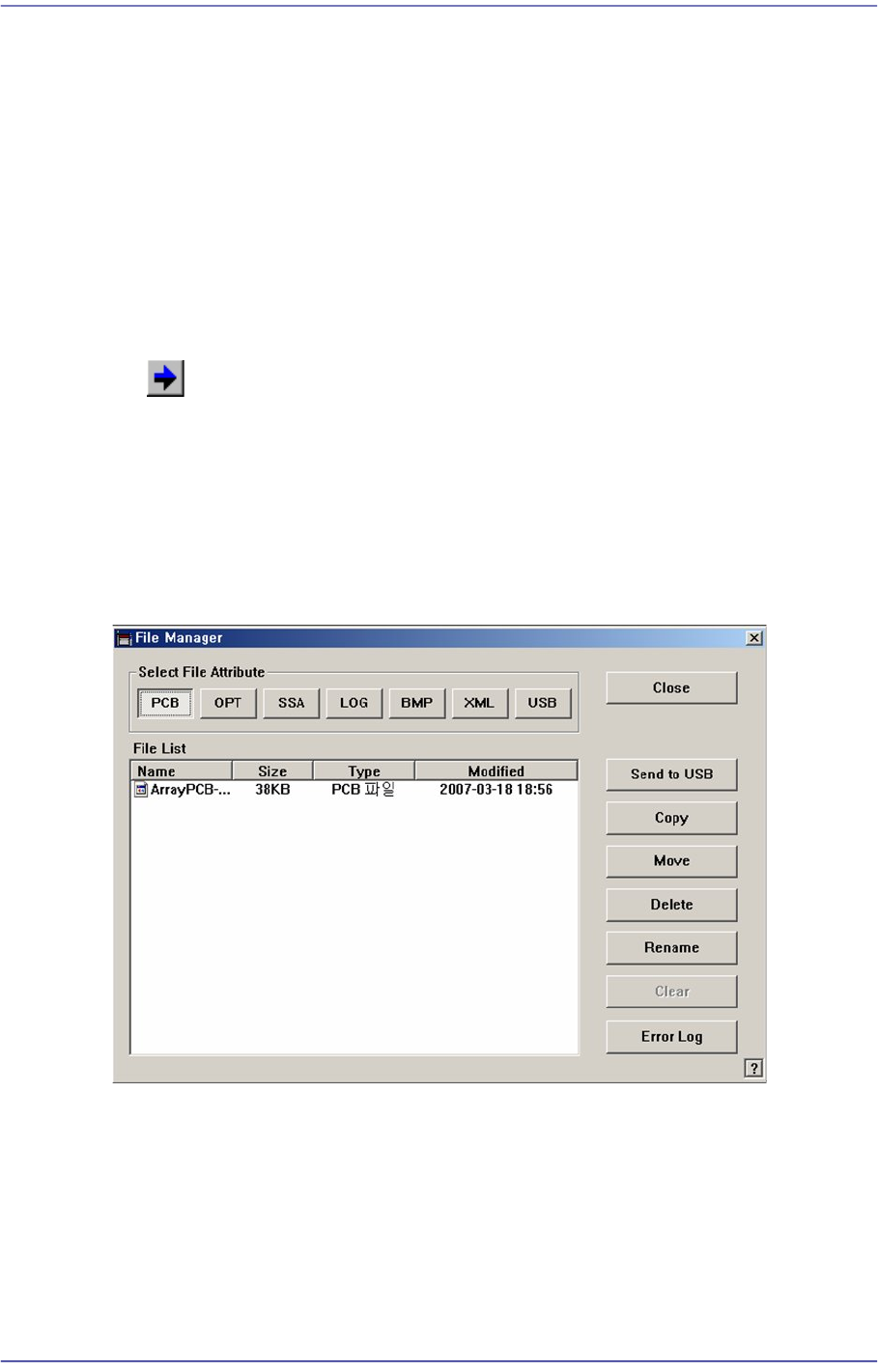
17.4. File Man... [F5]
Allows easy file management such as Copy, Move, Delete, etc.
Figure17.6 “File Manager” dialog box
<Select File Attribute:> group
When the extension file button in the <Select File Attribute group> is clicked, the
corresponding contents are indicated in the list.
<Send to USB> button
Save the selected file in the USB storage device.

17-8
Fast Flexible Placer SM481(L) PLUS Administrator’s Guide
<Copy> button
Makes a copy of the selected file and as the original file exists under its original name,
saves the copied file under a different file name when using the <Copy> command.
<Move> button
Moves the selected file to the other folder.
<Delete> button
Deletes the selected file.
<Rename> button
Renames the selected file.
<Clear> button
If the file size of a *.log file is very big, deletes the data saved previously.
<Error Log> button
When machine error occurs, it creates a zip file for all log files of corresponding works
necessary for the examination of the cause of the error to allow easy transmission of
the files to our C/S company and local agent..
17-9
Utility
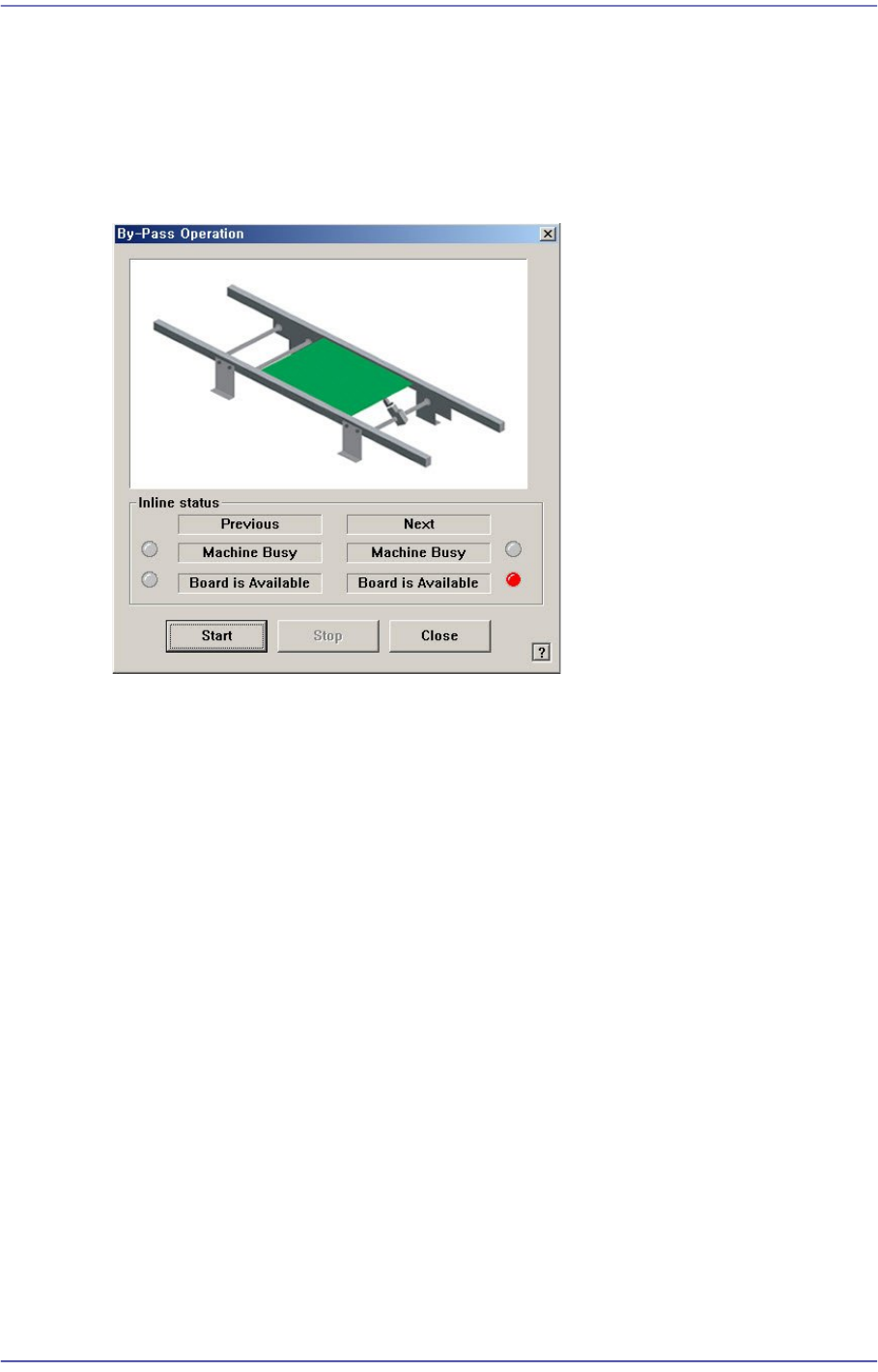
17.5. Bypass [F8]
The following dialog box is displayed and shows it is in the PCB Bypass status.
If the head is above the conveyor, the PCB sensing sensor gets affected. Therefore, move
the head out of the conveyor and execute the command.
Figure17.7 “By-pass Operation” dialog box
<Inline status> group
Indicates the SMEMA related input status. (Lighted On: On, Lighted Off: Off)
Previous
Indicates the status of the previous machine.
Next
Indicates the status of the next machine.
Machine Busy
PCB not transferred.
Board is Available
PCB can be transferred.
<Start> button
Starts the ‘PCB bypass’.
<Stop> button
Stops the ‘PCB bypass’.
<Close> button
Closes the dialog box.