Hanwha SM481 PLUS Series Administrator’s Guide Eng.pdf.pdf - 第340页
13-10 Fast Flexible Placer SM481(L) PLUS Administ r ator’s Guide <Auto Skip Placements> check box Even wh e n a specific p art has run short dur ing a ut omatic production, placem e nt is continuously performed o…
13-9
Production Setup
<Skip Board> check box
Perform the work without feeding the PCB into the working area on the
conveyor.
<Operation Option> group
Set the options related to placement.
<ANC before PCB load> check box
Selected so that the PCB stands by after replacing the nozzle before the PCB is
fed.
<Prefetch Parts> check box
In the case of the equipment with dual gantries, when the corresponding gantry
cannot work continuously due the shortage of parts in the feeder that has supplied
parts to any one of the gantries, it selects the function to improve the productivity
temporarily with another gantry performing the work instead.
For this function the <Auto Skip Placements> check box shall be selected in the
<Operation Option> group. This function can be used in the SM411 model.
<PreMove to 1st Fiducial> check box
While the PCB is being put into the working station, MMI move the fiducial
camera to the fiducial mark position and have it stand by.
<Stop before DUMP> check box
Selected so that the machine stops before dumping the part to the dump box when
a part recognition error occurs.
<Stop Machine When Pick Error> check box
There is a PCB in which small chips are placed underneath the large part such as a
shield cap.
In cases where the machine is equipped with a dual gantry that works on such
PCB, since each gantry performs work individually, a chip must be placed first.
However, even though the chip cannot be mounted since an error occurred while
picking it up, a situation occurs in which the rear gantry must place the shield cap.
As such, if the rear gantry places the part that is placed on a part such as the shield
cap earlier than the front gantry, the part underneath cannot be placed. Therefore,
when a pickup error occurs, this function stops the machine immediately.
<Enable RESCUING> check box
In the case of the equipment with dual gantries, when the corresponding gantry
cannot work continuously due the shortage of parts in the feeder that has supplied
parts to any one of the gantries, it selects the function to improve the productivity
temporarily with another gantry performing the work instead.
For this function the <Auto Skip Placements> check box shall be selected in the
<Operation Option> group. This function can be used in the SM411 model.
13-10
Fast Flexible Placer SM481(L) PLUS Administrator’s Guide
<Auto Skip Placements> check box
Even when a specific part has run short during automatic production, placement is
continuously performed on the remaining placement points, generating a warning
message.
Caution This function allows the placement to be simply performed
continuously. If interference is expected in the future
between the skipped part and the nearby placed parts while
performing placement, release this function.
<PCB Transfer Speed> combo box
Used to adjust the PCB feeding speed. When the PCB is heavy, if it is selected at too
high speed, the conveyor belt may not feed the PCB sufficiently with the belt rotating
while slipping. The default selection is Middle. Adjust the speed appropriately, if
necessary.
Fast: high speed
Middle: medium
Slow: low speed
<Speed> slide bar
Select the driving speed of the XY axis driving motor.
<Z Axis Mount Delay> slide bar
Works after adding the defined value in the slider bar to the placement delay value
setup in the common data at the time of part registration. This value is applied only to
Z-axis.
<Inhibit Lane> group
When it is not used, select the workstation. Then the PCB is not loaded on the
corresponding workstation.
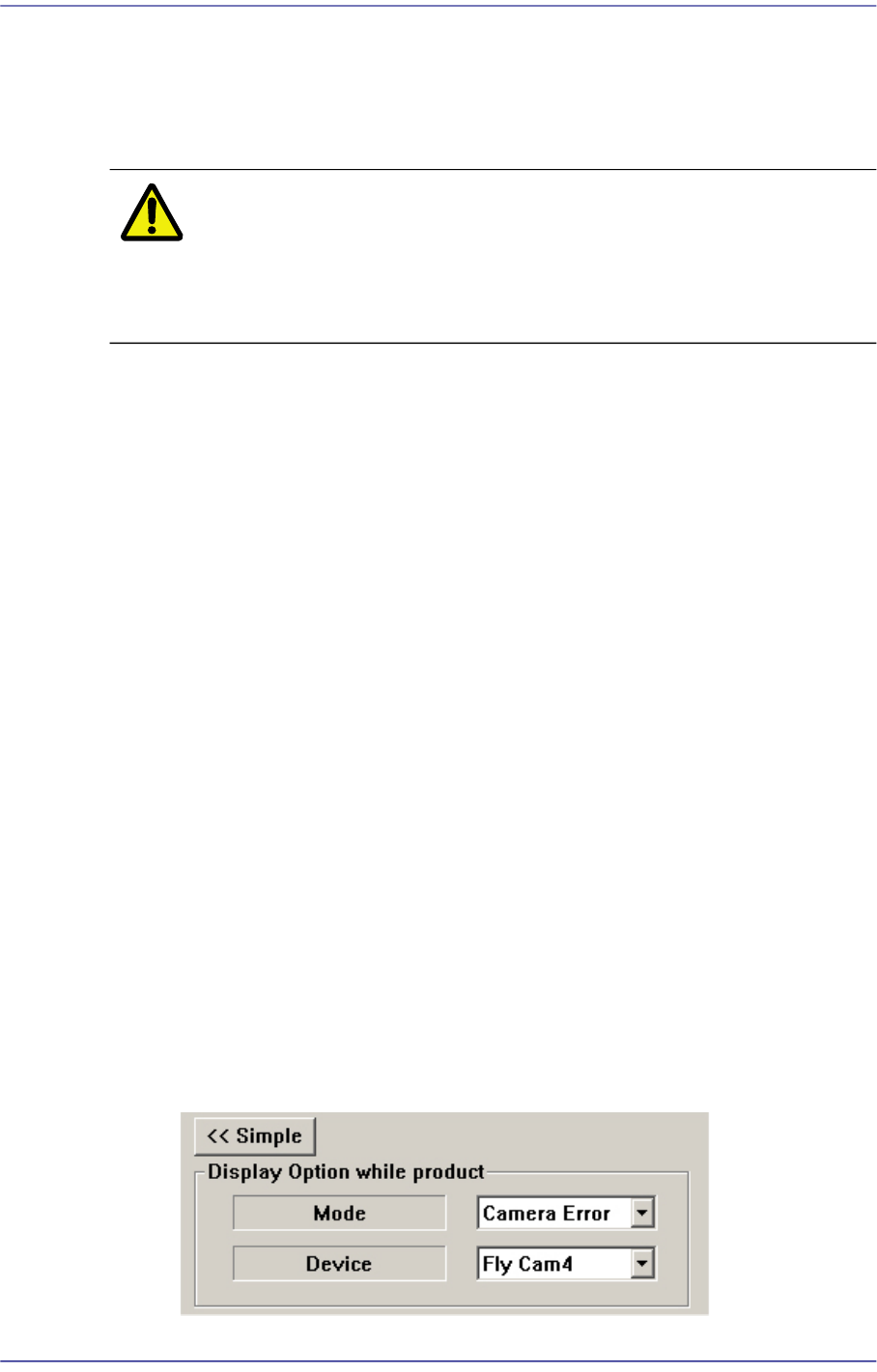
<Detail> button
<Display Option while product> group
This button is used to select the image viewed in the SMVision window during
PCB production.
13-11
Production Setup
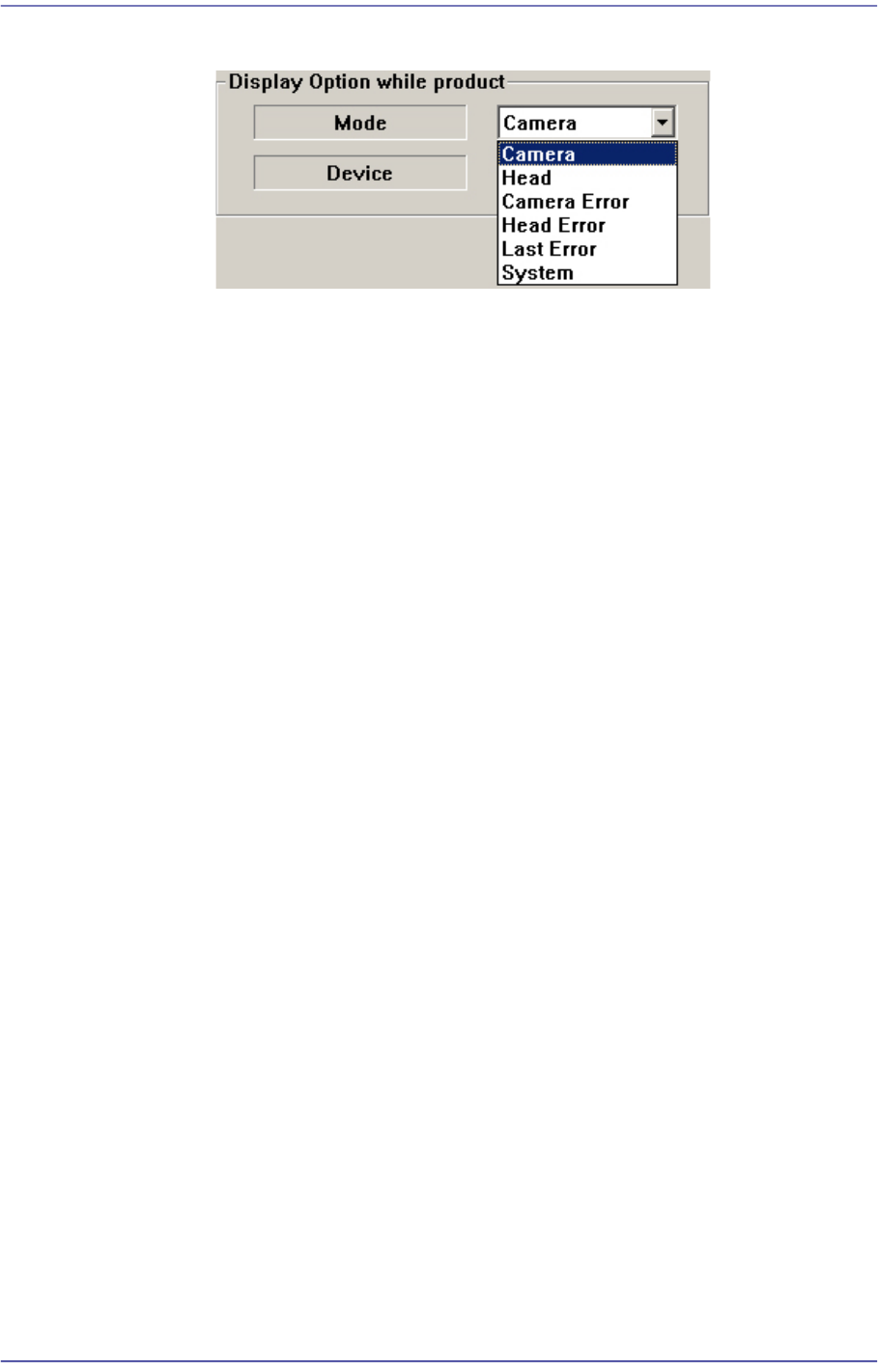
<Mode> combo box
Camera
Selected when looking at the image of a specific camera. Select the
corresponding camera from the <Device> combo box.
Head
Selected when looking at the image in which the part picked up by a
specific head is recognized. Select the corresponding head from the
<Device> combo box.
Camera Error
Selected when looking at the image of part recognition error from a
specific camera.
It shows the recognized part image according to the placement order
during placement. However, if the placement is completed, the camera
selected in the following <Device> combo box shows the part image error
that occurred last.
Head Error
Selected when looking at the recognition error image of part picked up by
a specific head.
It shows the recognized part image according to the placement order
during placement. However, if the placement is completed, it shows the
image of part recognition error that occurred last among the parts placed
by the head selected in the following <Device> combo box.
Last Error
It shows the recognized part image according to the placement order
during placement. However, if the placement is completed, it shows the
image of part recognition error that occurred last during placement.
System
Shows the part recognition image according to the placement order.