Hanwha SM481 PLUS Series Administrator’s Guide Eng.pdf.pdf - 第141页
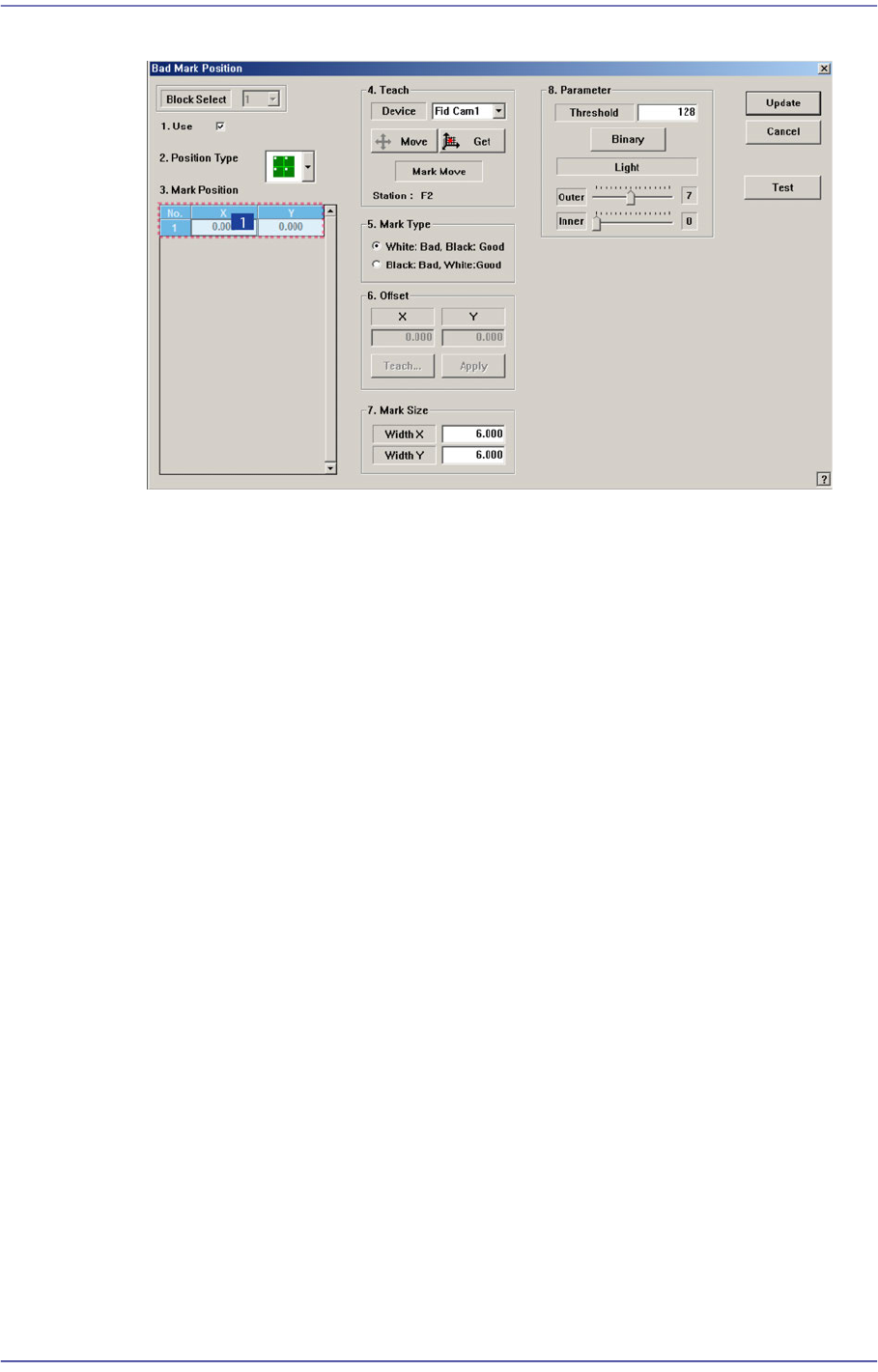
6-31 Board Definition Figure6.7 “Bad Mark Position ” dialog box (When the Position Type is “Array”) 1: Grid Cell <No> column A serial number of b a d mark data. <X> column The X position value of the bad …
6-30
Fast Flexible Placer SM481(L) PLUS Administrator’s Guide
<Block Select> combo box
For a Multi PCB
The model selected from the “Board Definition” dialog box is selected
automatically and the corresponding Combo Box is disabled..
For a Block PCB
Select the model for which setup will be performed and set other items.
<1.Use> check box
Determines whether to use a bad mark.
<2. Position Type> combo box
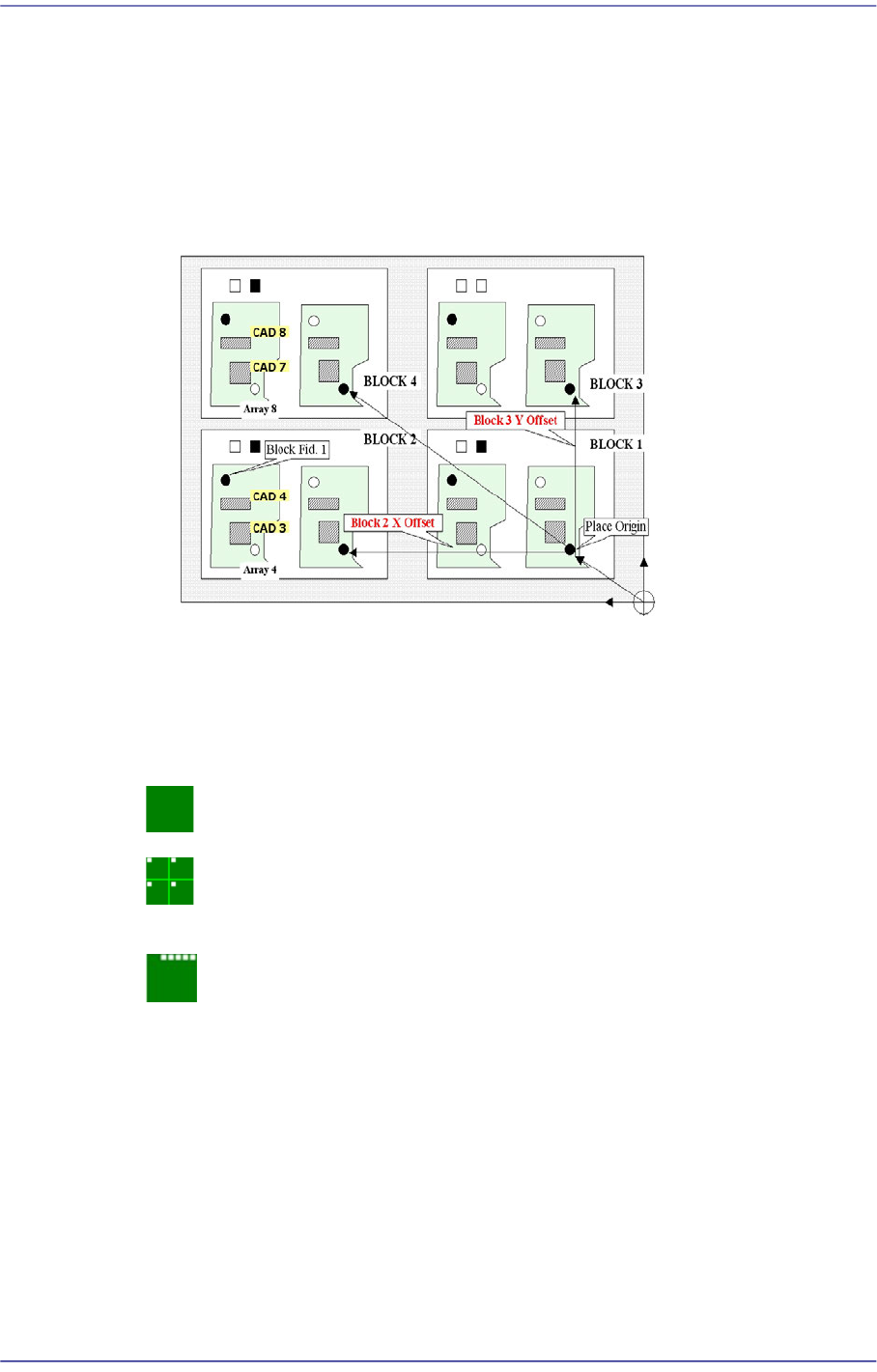
Select a bad mark type. The bad marks that can be selected are as follow;
None: Bad Mark.
Teach the bad mark on the first small PCB and determine the position of the bad
marks on each small PCB using the array offset that was already set up.
Set the bad mark offset to determine the bad mark positions automatically.
<3. Mark Position> group
If “None” is not selected in the <2. Position Type> combo box, data is created
according to the selected recognition type. The number of data generated is as follows;
When the <Position Type> is “Array”: 1
For example, when “Array” is selected in <2. Position Type> combo box, the
following dialog box is displayed. (When the number of Array PCBs is 4)
6-31
Board Definition
Figure6.7 “Bad Mark Position” dialog box (When the Position Type is “Array”)
1: Grid Cell
<No> column
A serial number of bad mark data.
<X> column
The X position value of the bad mark.
<Y> column
The Y position value of the bad mark.
<4. Teach> group
Used for moving the fiducial camera to the assigned position of coordinates by
rotating XY axis driving motor, or for obtaining the present coordinates of the fiducial
camera.
<Device> combo box
Select the Camera for checking Bad Mark. Selectable objects are as follows;
Fid Cam2: Select the fiducial camera on the front gantry.
<Move> button
Move the object selected in the <Device> combo box to the position of the
assigned coordinates. Before executing <Move> button, the cell in the grid
(Coordinates of the bad mark) corresponding to the desired position must be
clicked on with a mouse.
<Get> button
Obtain coordinates for XY, Z axis with reference to the object selected in the
<Device> combo box. At this time, the objects (Coordinates of the bad mark)
related with coordinates must first be clicked with the mouse before clicking on
6-32
Fast Flexible Placer SM481(L) PLUS Administrator’s Guide
the <Get> button.
<5. Mark Type> group
Select the color of bad mark. Available colors of bad marks are as follows.
Black: the mark looks darker than the surroundings.
White: the mark looks lighter than the surroundings.
<6. Offset> group
Used to set the offset value between bad marks automatically. It is enabled when
is selected in the <2. Position Type> combo box.
<X> edit box
Set the offset value of X.
<Y> edit box
Set the offset value of Y.
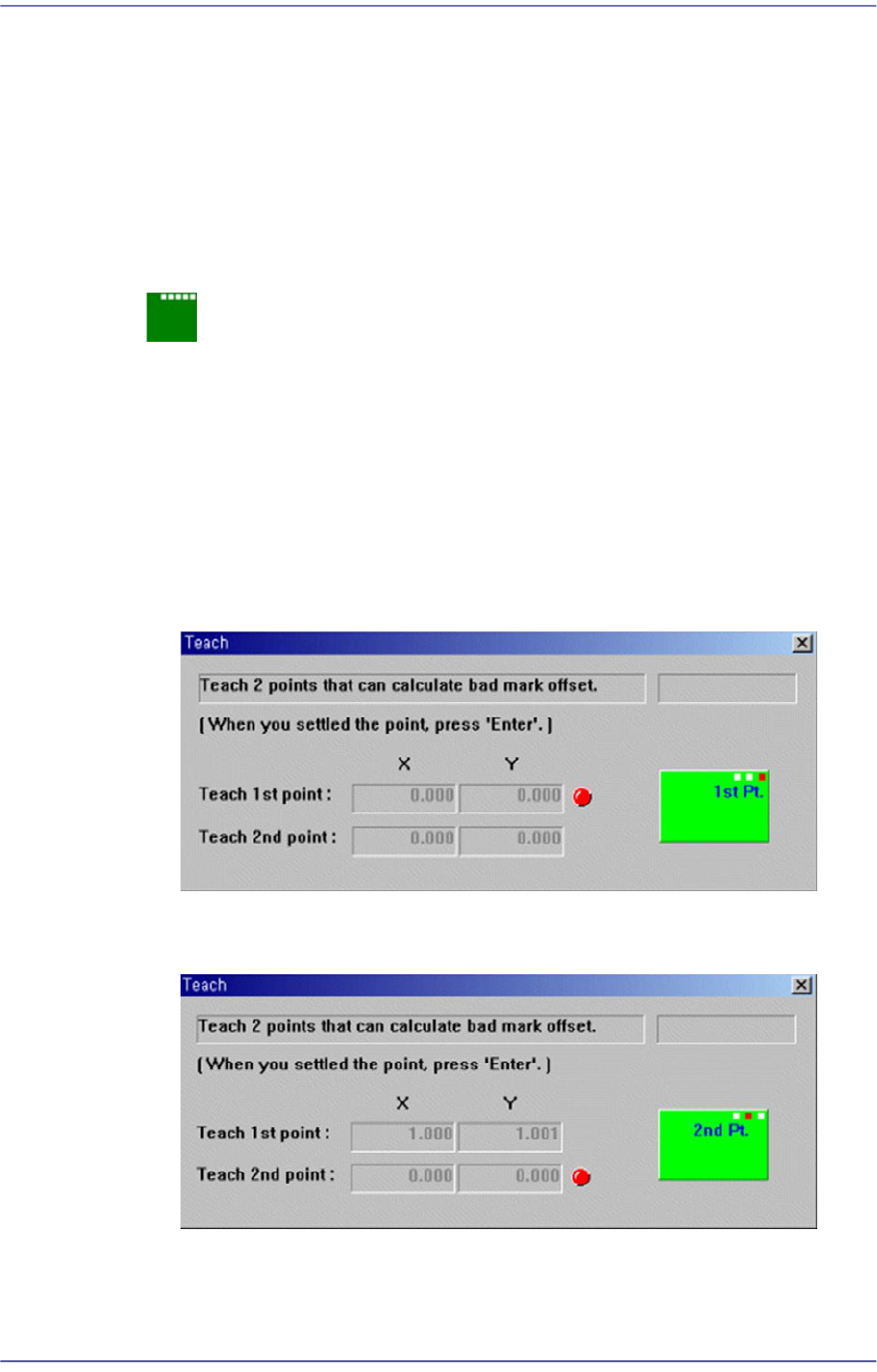
<Teach> button
Teach the offset value of bad mark. When this Button is clicked on, the following
screens are displayed in succession.
Teach the first position of the bad mark. When the “Enter” key is pressed after
teaching, the following screen is displayed.
Teach the position of the neighboring second bad mark. When the “Enter” key is
pressed after teaching, the following screen is displayed