Hanwha SM481 PLUS Series Administrator’s Guide Eng.pdf.pdf - 第144页
6-34 Fast Flexible Placer SM481(L) PLUS Administ r ator’s Guide appropriately according to the condit i on of PCB and bad mark. <T est> button By using the regist ered mark information, tests the mark.. The accur…
6-33
Board Definition
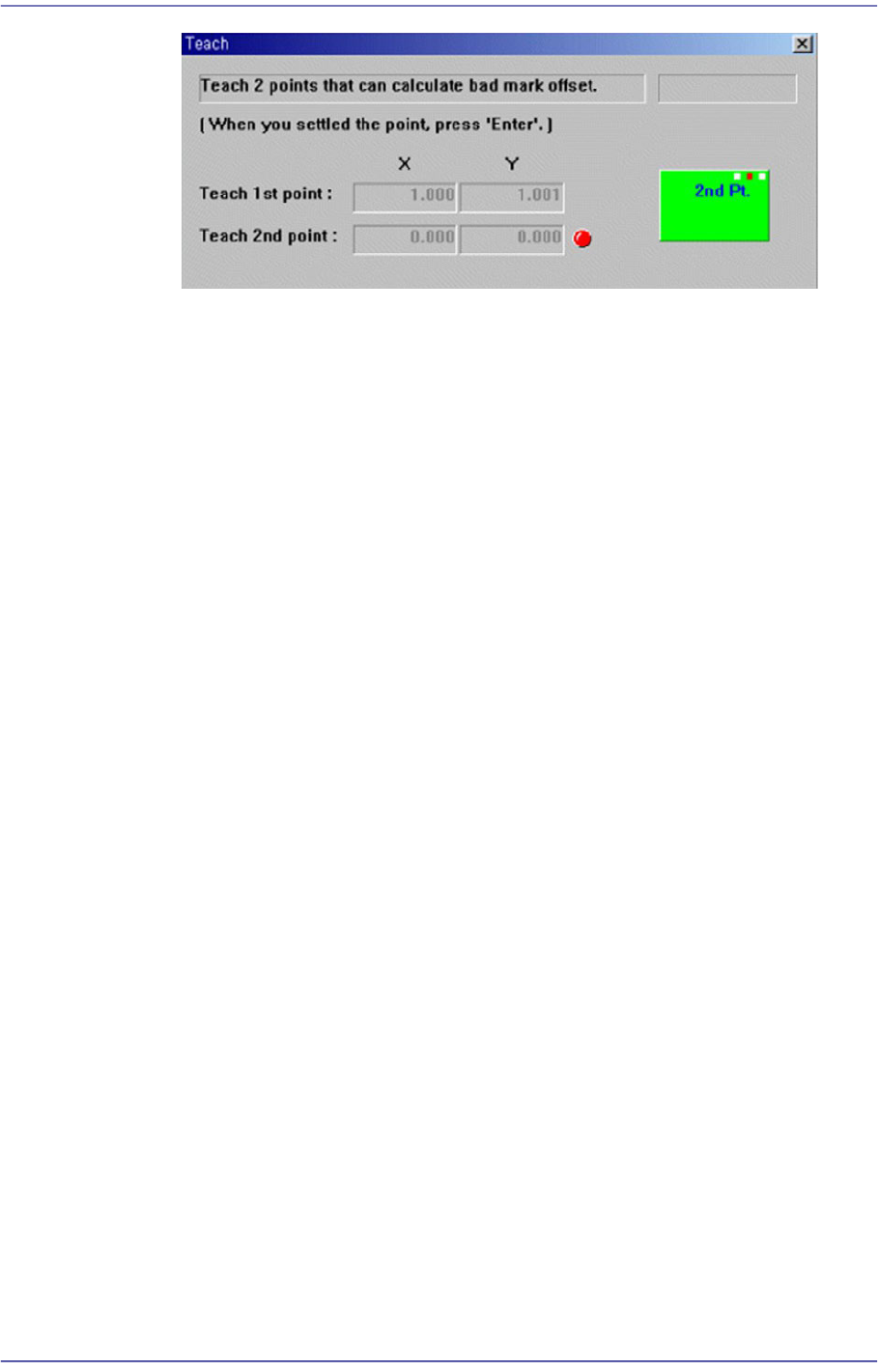
Press the “Enter” key to complete the bad mark offset value teaching operation.
<Apply> button
Automatically creates the bad mark position data by using the offset value set
in this group.
<7. Mark Size> group
Set the area in which to search the bad mark. The main purpose of this feature is to
limit the search range for when there are forms similar to the mark near the mark such
that they can interfere with recognition on certain PCBs.
<Width X> edit box
Set the value of search range in X axis direction. In general, it is 6 mm..
<Width Y> edit box
Set the value of search range in Y axis direction. In general, it is 6 mm.
<8. Parameter> group
<Threshold> edit box
The image viewed through the SM Vision window is composed of each pixel.
Each pixel has a unique value between 0 and 255 according to the seen degree of
brightness. Here, ‘Threshold Value’ indicates the border value deciding whether
each pixel should be recognized in white or black. That is, setup the limitation for
deciding if the image pixel should be black or white when checking a bad mark.
For example, if <Bad Mark> is “Black” and the <Threshold> value is 100, then all
the values under 100 in the vision image are recognized as black, and if <Bad
Mark> is “White” and the <Threshold> value is 100, then all values over 100 are
recognized as white.
<Real Display/Binary> button
Shows the image seen through the SMVision in real display to which threshold is
not applied, or in the image (Binary) to which threshold is applied as recognized
by MMI.
<Light> group
Set the light value for bad mark inspection. In general it is 7, but adjust it

6-34
Fast Flexible Placer SM481(L) PLUS Administrator’s Guide
appropriately according to the condition of PCB and bad mark.
<Test> button
By using the registered mark information, tests the mark.. The accuracy of the
registered mark data can be verified. When the test is successful, the following
message box is displayed.
<Update> button
Saves the bad mark data and closes the “Bad Position” dialog box.
<Cancel> button
Closes the <Bad Position> dialog box without saving the bad mark data.
6-35
Board Definition
6.5. Accept Mark setup
The bad mark refers to the mark indicated on the PCB to show whether a small PCB in the
array PCB is good, acceptable or defective. The bad mark is indicated for defective PCBs
while the Accept Mark is not indicated for defective PCBs. However, in the case of the
Accept Mark, part placement is performed only in the PCB with the Accept Mark.
If no small PCB proves to be defective in the array PCB, it is not necessary to set the
Accept Mark, which will otherwise waste time.
In such cases, if setup is performed to use a bad mark but it is not used, the machine will
waste time checking for the existence of the bad mark.
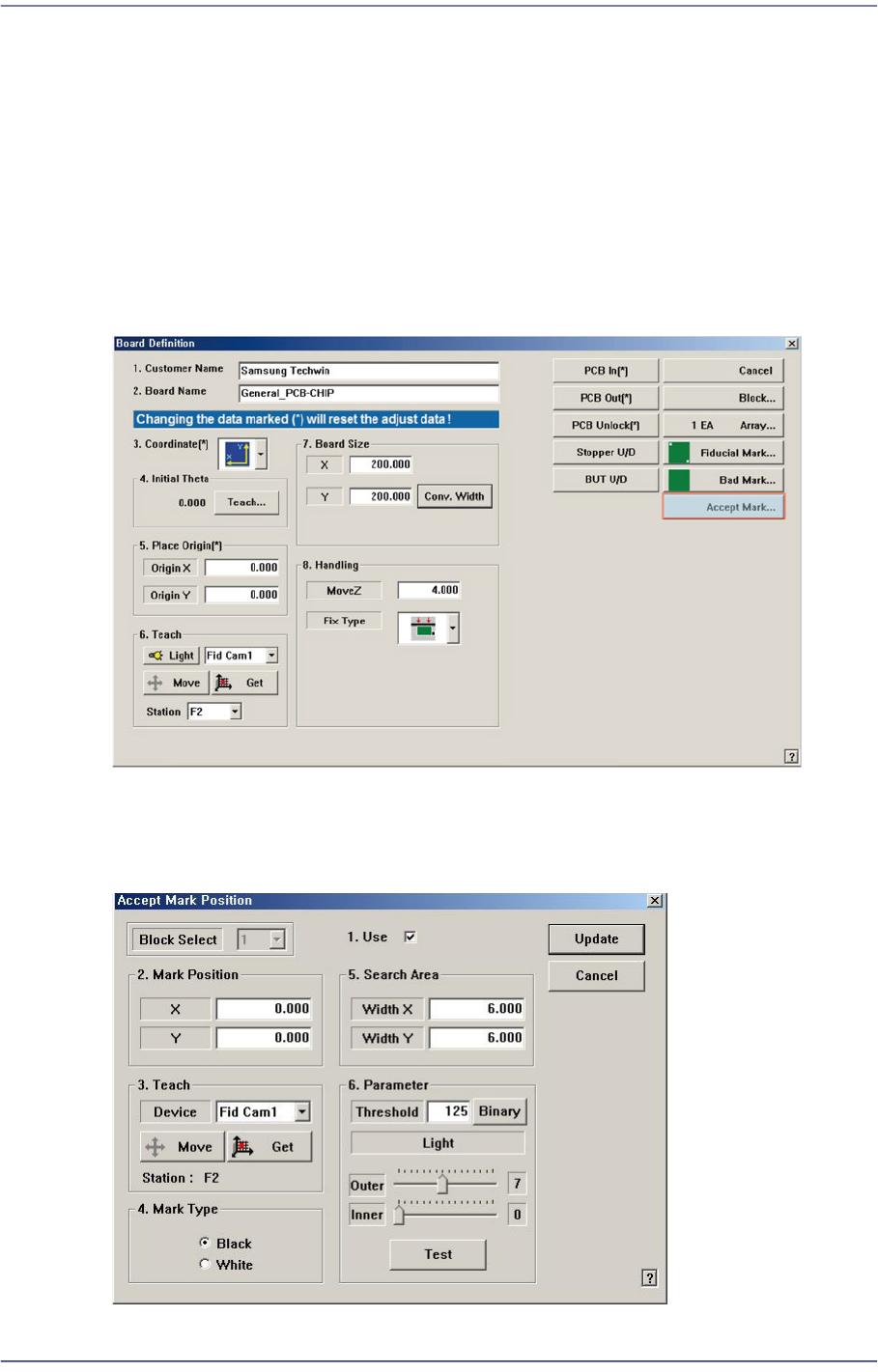
When this <Accept Mark> button is clicked on, the following dialog box for the editing of
accept mark data is displayed.
Figure6.8 “Accept Mark Position” dialog box