Hanwha SM481 PLUS Series Administrator’s Guide Eng.pdf.pdf - 第266页
8-30 Fast Flexible Placer SM481(L) PLUS Administ r ator’s Guide <1Pocket w ith Angle> This i s a teaching m ethod that i s useful whe n the the f iducial camera i s movable to a definite area of the tray and when…
8-29
Feeder Setup
<2Pocket Y-Axis>
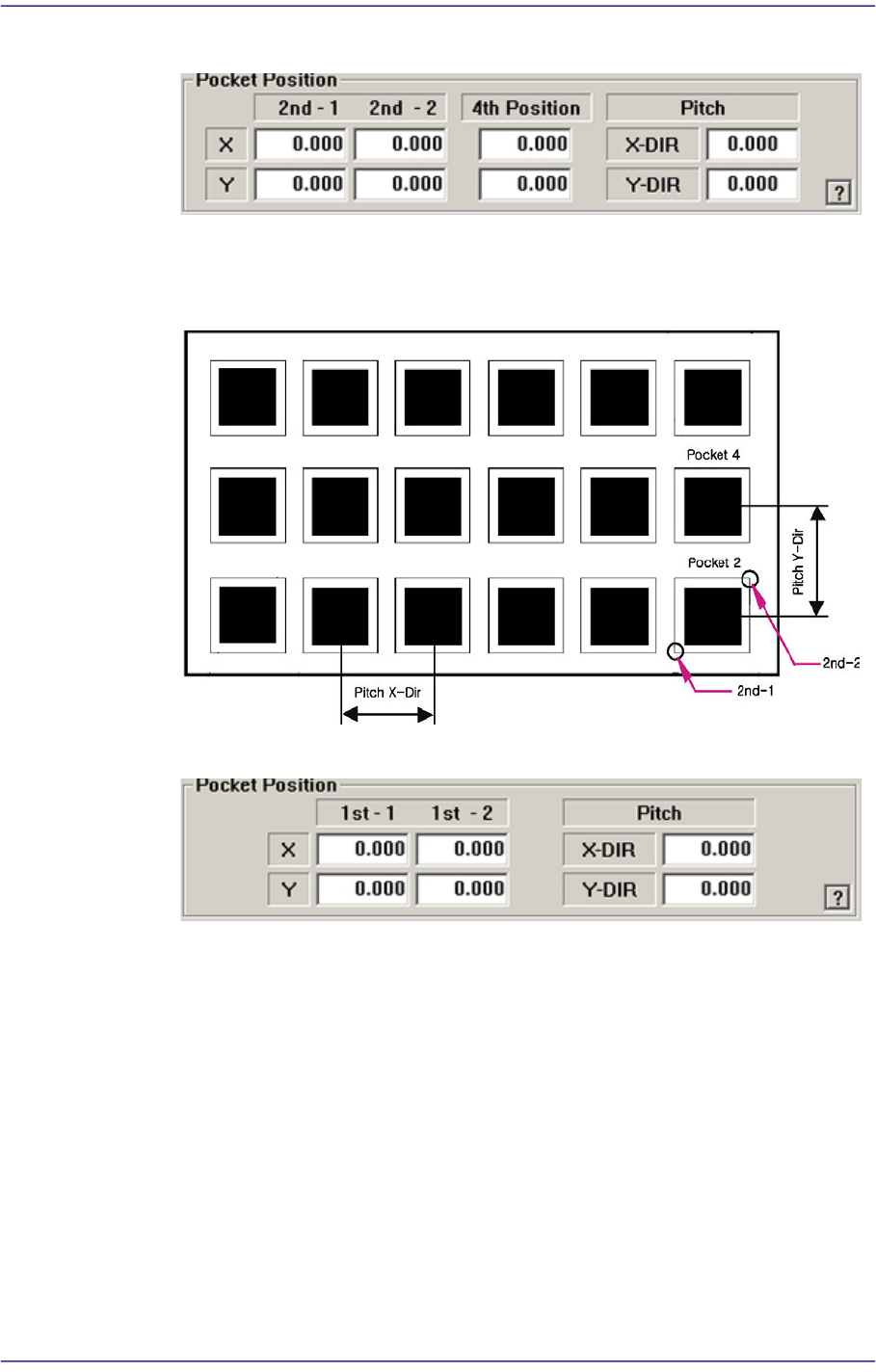
As shown in the following figure, input the coordinates of the center point of any
one pocket in the Y direction, the coordinates of the two corners in the diagonal
position of the second pocket and the pocket pitch in the X and Y directions.
<1Pocket>
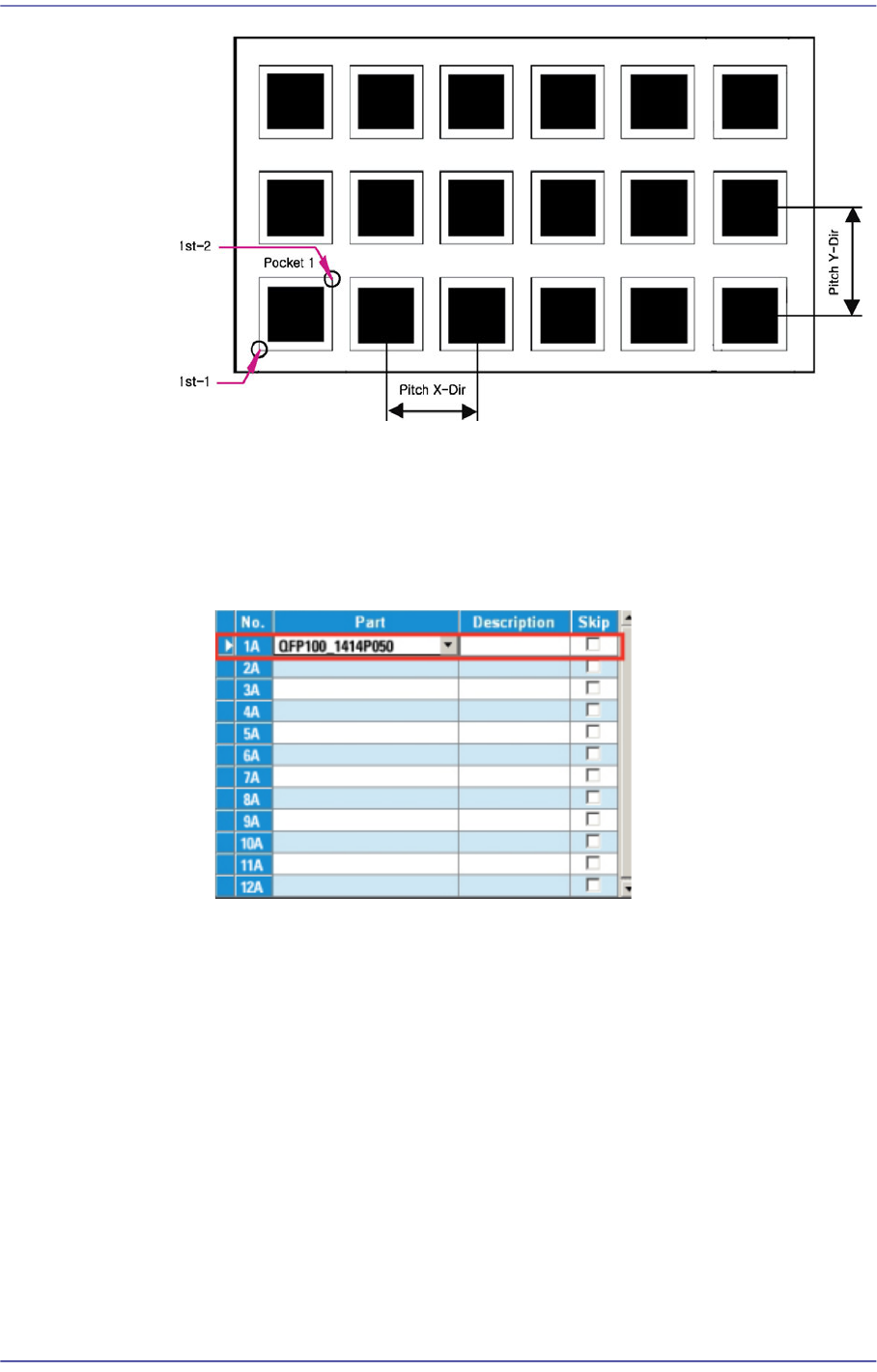
As shown in the following figure, input the coordinates of the center point of
pocket No. 1 and the pocket pitch in the X and Y directions.
8-30
Fast Flexible Placer SM481(L) PLUS Administrator’s Guide
<1Pocket with Angle>
This is a teaching method that is useful when the the fiducial camera is movable to
a definite area of the tray and when the tray is installed on an angle, and not in
parallel with the X-axis of the tray. (When 2 Trays on a palette is applied)
1.Select the required tray feeder.
2.Perform pocket teaching in the following order.
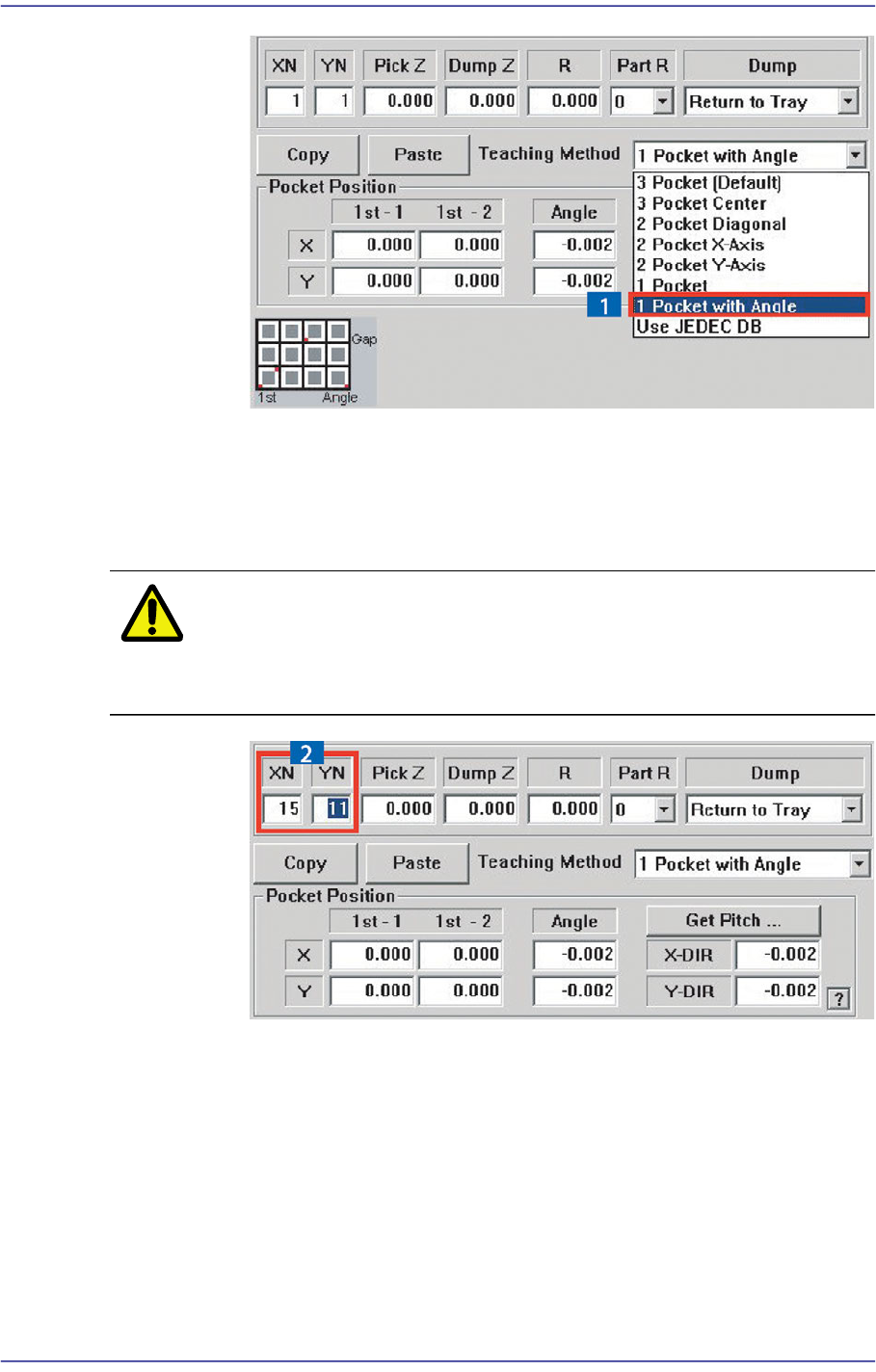
(1)Select the [1 Pocket with Angle] in the scroll menu on the right.
8-31
Feeder Setup
(2)Enter the XN and YN values first to input the total number of pockets of
the tray.
XN: Total number of pockets in X direction
YN: Total number of pockets in Y direction
Caution Be sure to input the XN and YN values first before teaching
the coordinates of a pocket. If not, wrong data will be
inputted.
(3)In order to teach the coordinates of each corners in the first pocket (1St-1,
1St-2), move the fiducial camera to the corresponding position, match the
corresponding point to the center of the camera, and enter the coordinates
of the corresponding point by clicking the <Get> button.
(4)In order to obtain the accurate installation angle (slope) of the tray, move
the fiducial camera to the coordinates of the left lower corner of a pocket
in the first row, match the corresponding point to the center of the camera,
and enter the coordinates of the corresponding point by clicking the <Get>
button. [refer to the following figure]