Hanwha SM481 PLUS Series Administrator’s Guide Eng.pdf.pdf - 第303页
10-13 Opti mization 10.6. Op timizer Dialog Press the <Run Optimizer> button to execute the Opt imizer . D uring the execution, the following dialog box is displayed. Figure10.6 “Opt imizer” dialog box In the first…
10-12
Fast Flexible Placer SM481(L) PLUS Administrator’s Guide
10.5. Run Optimizer
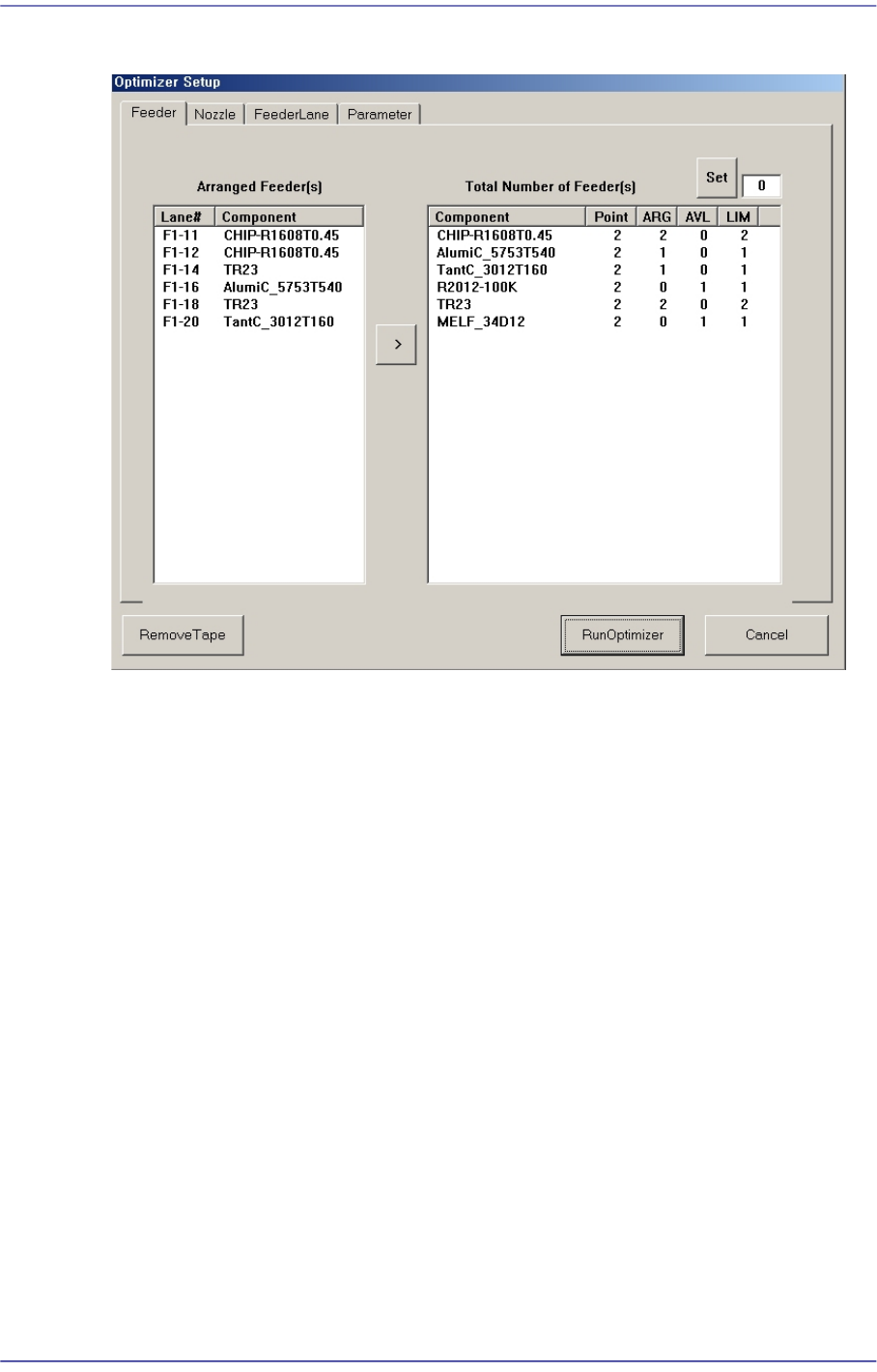
<Remove Tape> button
Click on the <Remove Tape> button to disregard all the feeders already arranged and
to newly arrange all tape feeders. When this button is clicked on, all the tape feeders
already arranged are removed.
<Run Optimizer> button
Saves the set options and executes Optimizer. To obtain an efficient result, empty all
lanes by pressing the <Remove Tape> button and execute Optimizer.
<Cancel> button
Closes the Optimizer Setup window without saving the currently set Optimizer
Options.
10-13
Optimization
10.6. Optimizer Dialog
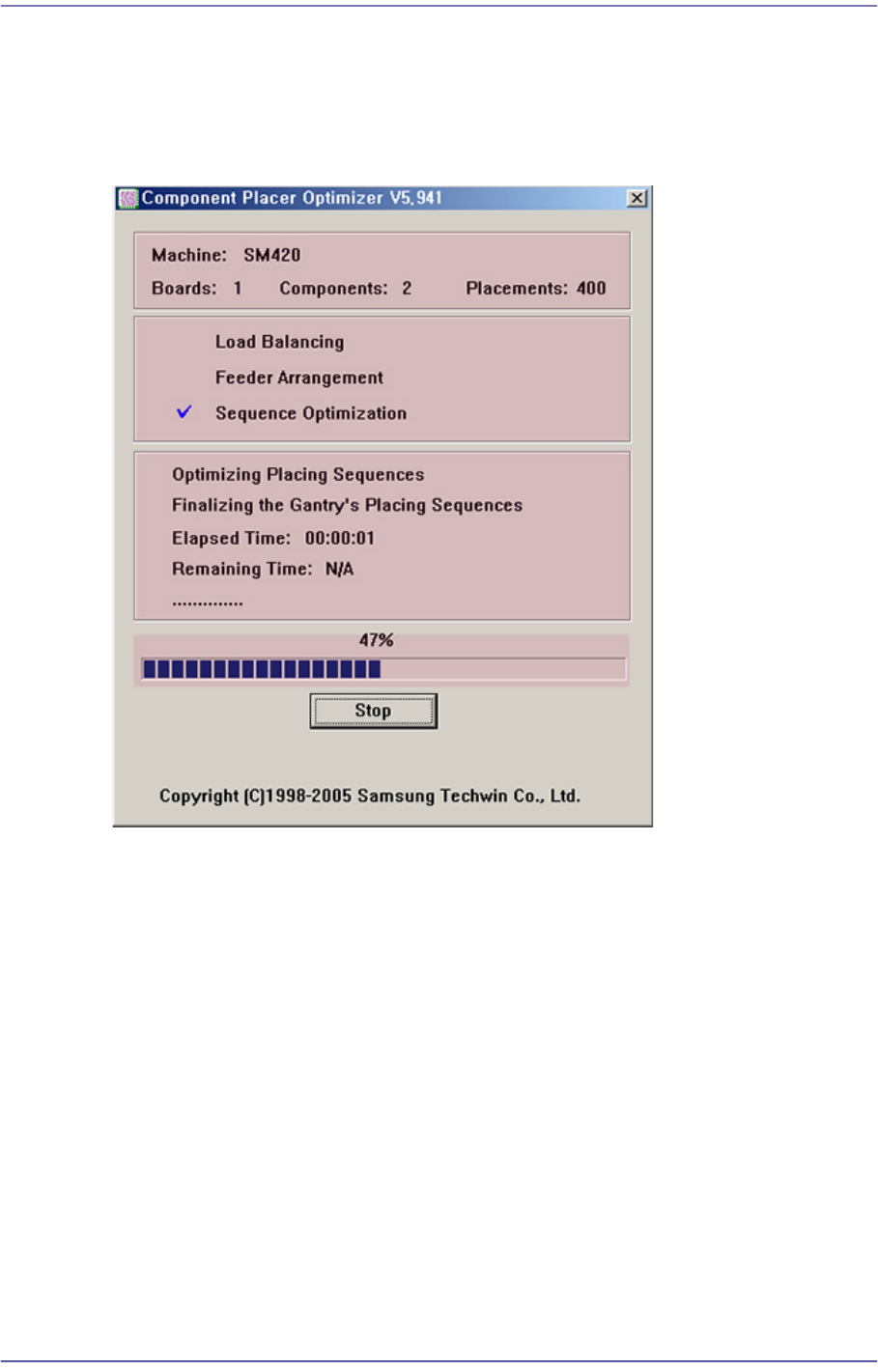
Press the <Run Optimizer> button to execute the Optimizer. During the execution, the
following dialog box is displayed.
Figure10.6 “Optimizer” dialog box
In the first group, the equipment model name, number of component types and total
placement positions are displayed.
Then, in the second group, the optimizer execution progress is indicated with check mark.
Check marked item is the one that is being executed. In the third group, more detailed
progress status, execution time of the optimizer (Elapsed Time) and the remaining
execution time (Remaining Time) are displayed.
The progress bar below the third group indicates how much the calculation process has
progressed for each step.
The Cancel/Stop buttons are used to stop the optimizer execution while it is being
executed. At normal state it is marked as “Cancel”. If it is pressed at this state, the massage
box called “User Break” appears and then the optimizer execution is canceled.
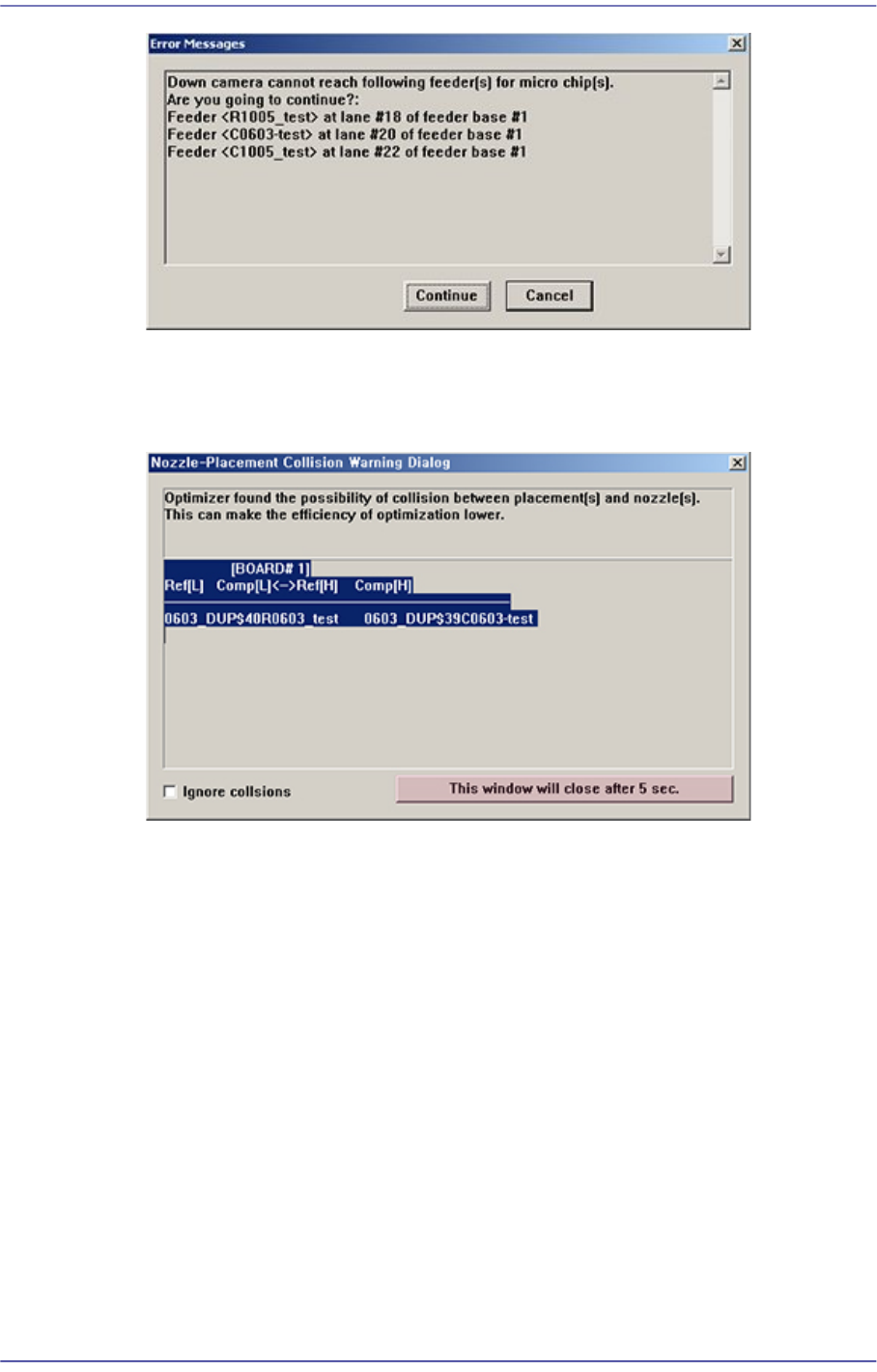
Message Type 1
Provides information to a user as shown below, and continues or stops the execution of
the optimizer according to the user’s selection.
10-14
Fast Flexible Placer SM481(L) PLUS Administrator’s Guide
Message Type 2
Provides information to a user. However, it continues to execute the optimizer after a
certain period of time lapses regardless of the user’s input.
<Ignore collsions> check box
If this check box is checked, the parts are placed in the determined work sequence
by ignoring the collision that may occur between other parts already placed and
the nozzle during part placement.
<This window …> button
Click the button to exit the message box before the indicated time. Then the
message box exits immediately and the optimizer is executed continuously.
Message Type 3
Provides information to a user. However, the execution is stopped by the user’s input.
In most cases, it is indicated when an error occurred.