Hanwha SM481 PLUS Series Administrator’s Guide Eng.pdf.pdf - 第170页
7-12 Fast Flexible Placer SM481(L) PLUS Administ r ator’s Guide button When this button is selected, it is poss i ble to move the vision image using the mouse. / button Zooms in/out the vision image. button Shows t…
7-11
Part Registration
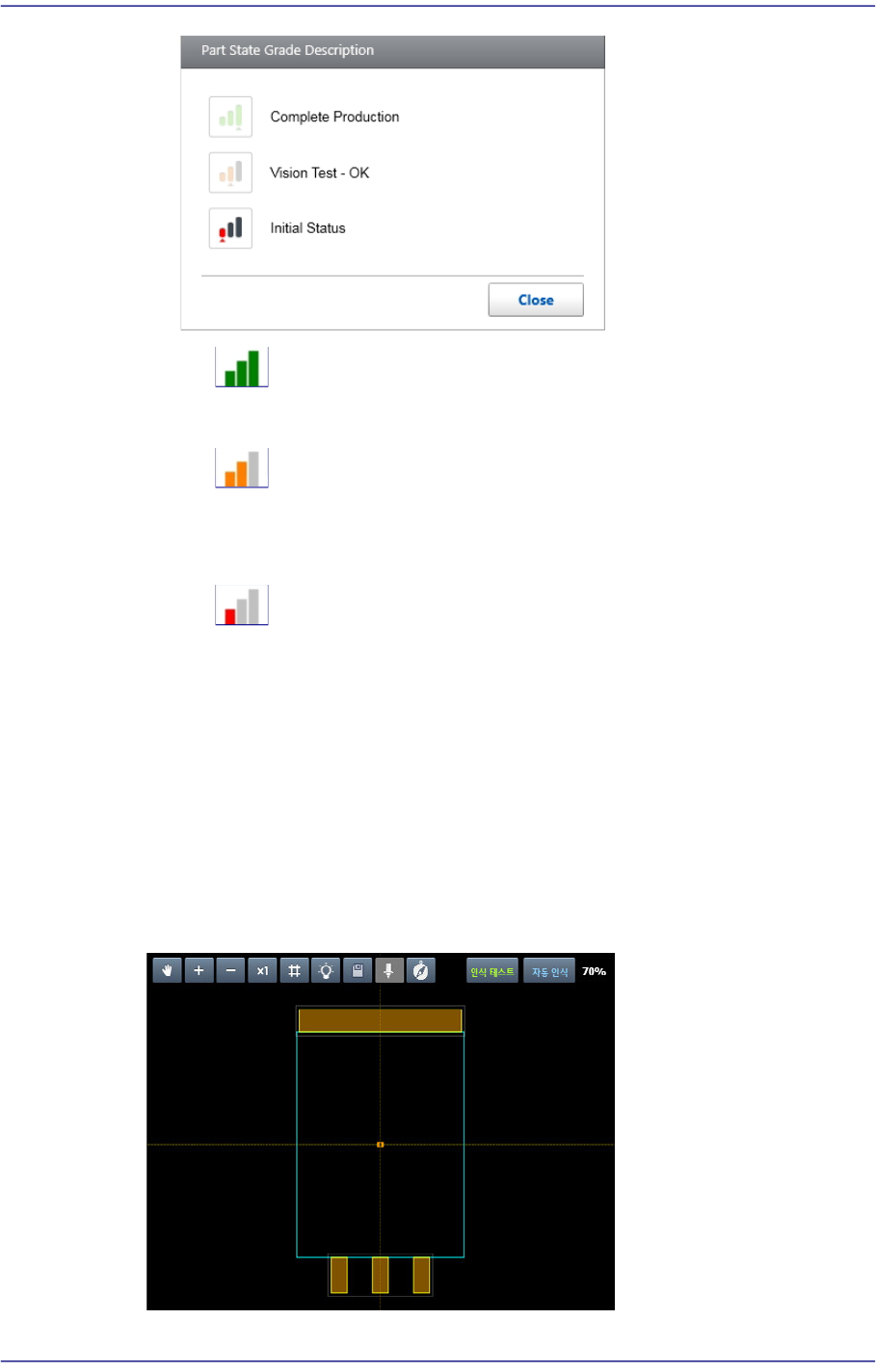
Refers to the part that has been used for PCB production.
Refers to the part that passed the part recognition test in the machine MMI and
T-ELITE .
Refers to the part temporarily registered when creating a PCB program in the
T-Solution. It is copied from the standard part DB.
<Save> button
Saves the edited part data and closes the dialog box.
<Cancel> button
Closes the dialog box without saving the edited part data.
‘Vision Window’ area
Displays the part image and part shape.
7-12
Fast Flexible Placer SM481(L) PLUS Administrator’s Guide
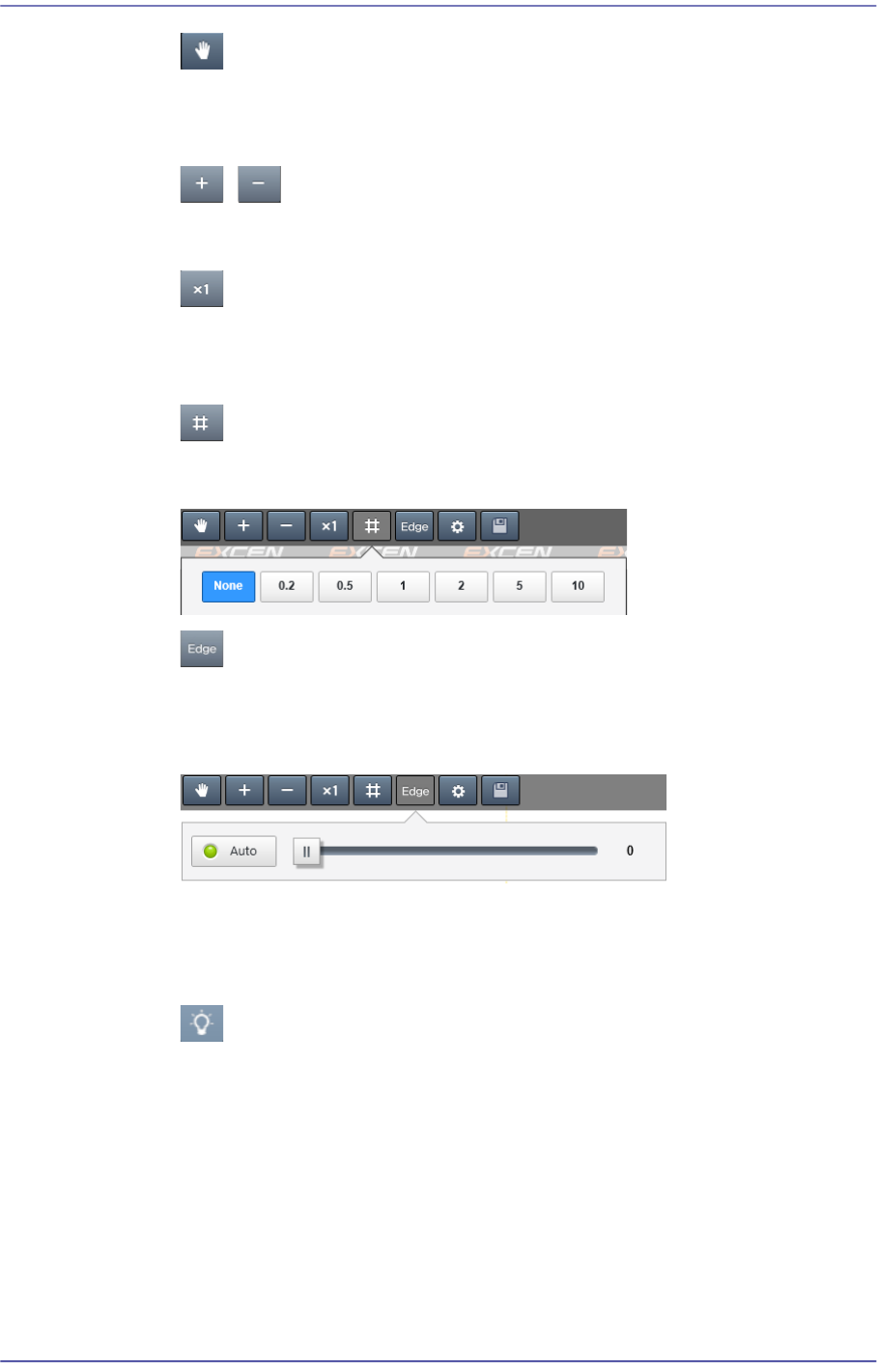
button
When this button is selected, it is possible to move the vision image using the
mouse.
/ button
Zooms in/out the vision image.
button
Shows the vision image at 100% in size. The image size is indicated as a
percentage(%) at the top right of the vision window.
button
Sets the grid interval in the vision window. The unit of the set value is mm.
button
Clicking this button will show the vision image in the following order:
Actual Image → Black and Image → Edge Image → Actual Image
<Auto> switch button
Selected in cases to automatically set the threshold to be applied when
displaying a black and image.
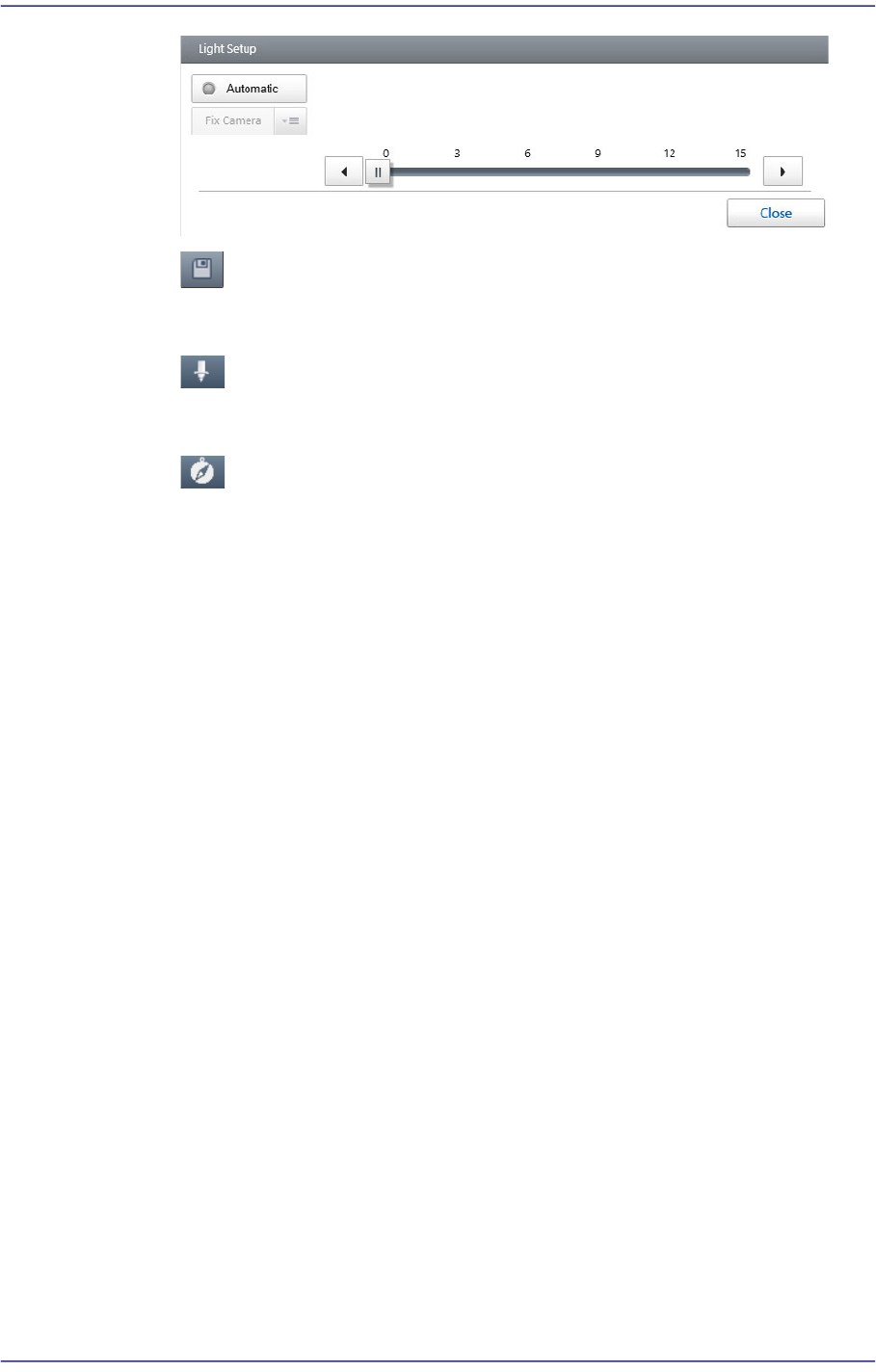
button
Executes the dialog box that can set the lighting value of the camera recognizing a
part.
7-13
Part Registration
button
Saves the image viewed in the vision window currently.
button
Displays the nozzle shape in the vision window.
button
Displays the polarity of the part in the vision window.
<Align Test> button
Performs the part recognition test using the set part recognition data.
Displays the recognition test result at the bottom of the vision window.
<Auto Teach> button
Finds the part recognition data automatically.
'Part Parameters' area
Selected when registering a new part or modifying the data of the registered part. Part
data consists of two types of part parameters as follows:
For more details, refer to “7.2.2. Edit Part Parameter”.