Hanwha SM481 PLUS Series Administrator’s Guide Eng.pdf.pdf - 第147页
6-37 Board Definition brightness. Here, ‘Threshold V a l u e’ indicates the border value deciding whether each pixel shou l d be reco gnized in white or bl a ck. That is, se tup the limitation f or deciding if the image …

6-36
Fast Flexible Placer SM481(L) PLUS Administrator’s Guide
<Block Select> combo box
For a Multi PCB
The model selected from the “Board Definition” dialog box is selected
automatically and the corresponding Combo Box is disabled.
For a Block PCB
Select the model for which setup will be performed and set other items.
<1.Use> check box
Set whether to use the Accept Mark.
<2. Mark Position> group
The Accept Mark position teaching result is inputted.
<3. Teach> group
Teach the Accept Mark position.
Procedure to teach the Accept Mark
Select the fiducial camera corresponding to the workstation to which a PCB is
loaded.
Click the <<Move> button to move to the position of the currently set Accept
Mark.
Perform adjustments so that the Accept Mark center falls on the crosshair center in
the SMVision window.
Click the <Get> button to input the current coordinate.
<4. Mark Type> group
Select the color of Accept Mark. Available mad mark colors are as follows;
Black: the mark appears darker than the surrounding.
White: the mark appears brighter than the surrounding.
<5. Search Area> group
Set the area to test the Accept Mark. The purpose is to limit the testing area when
recognition is interfered due to a shape similar to the mark near the mark.
<Width X> edit box
Set the range to test in X axis direction. In general, set to 6mm.
<Width Y> edit box
Set the range to test in Y axis direction. In general, set to 6mm.
<6. Parameter> group
<Threshold> edit box
The image viewed through the SM Vision window is composed of each pixel.
Each pixel has a unique value between 0 and 255 according to the seen degree of
6-37
Board Definition
brightness. Here, ‘Threshold Value’ indicates the border value deciding whether
each pixel should be recognized in white or black. That is, setup the limitation for
deciding if the image pixel should be black or white when checking a bad mark.
For example, if accept mark setup is “Black” and the <Threshold> value is 100, all
values under 100 in the vision image are recognized as black. And if <Accept
mark Logic> is “White” and the <Threshold> value is 100, all values over 100 in
the vision image are recognized as white.
<Real Display/Binary> button
Shows the image seen through the SMVision in real display to which threshold is
not applied, or in the image (Binary) to which threshold is applied as recognized
by MMI.
<Light> group
Set the lighting value when testing the Accept Mark. In general, set to 7. However,
adjust it properly according to the condition of the PCB and accept mark.
<Test> button
Tests the mark by using the set mark data. The user can check whether the set
mark data is correct. When the test is successful, the following message box is
displayed..
Caution If you move to another screen while editing the “Board”
dialog box, the edited data is saved automatically
<Update> button
Save the Accept Mark data and close the “Accept Mark Position” dialog box.
<Cancel> button
Close the “Accept Mark Position” dialog box without saving the Accept Mark data.
6-38
Fast Flexible Placer SM481(L) PLUS Administrator’s Guide
6.6. 2D Barcode
6.6.1. Configuration
Allows a user to know the model information of the PCB loaded into the machine by
recognizing the barcode on the PCB and manage the production history by PCB being
interlocked with the Lot Tracking System (LTS).
When using the 2D barcode
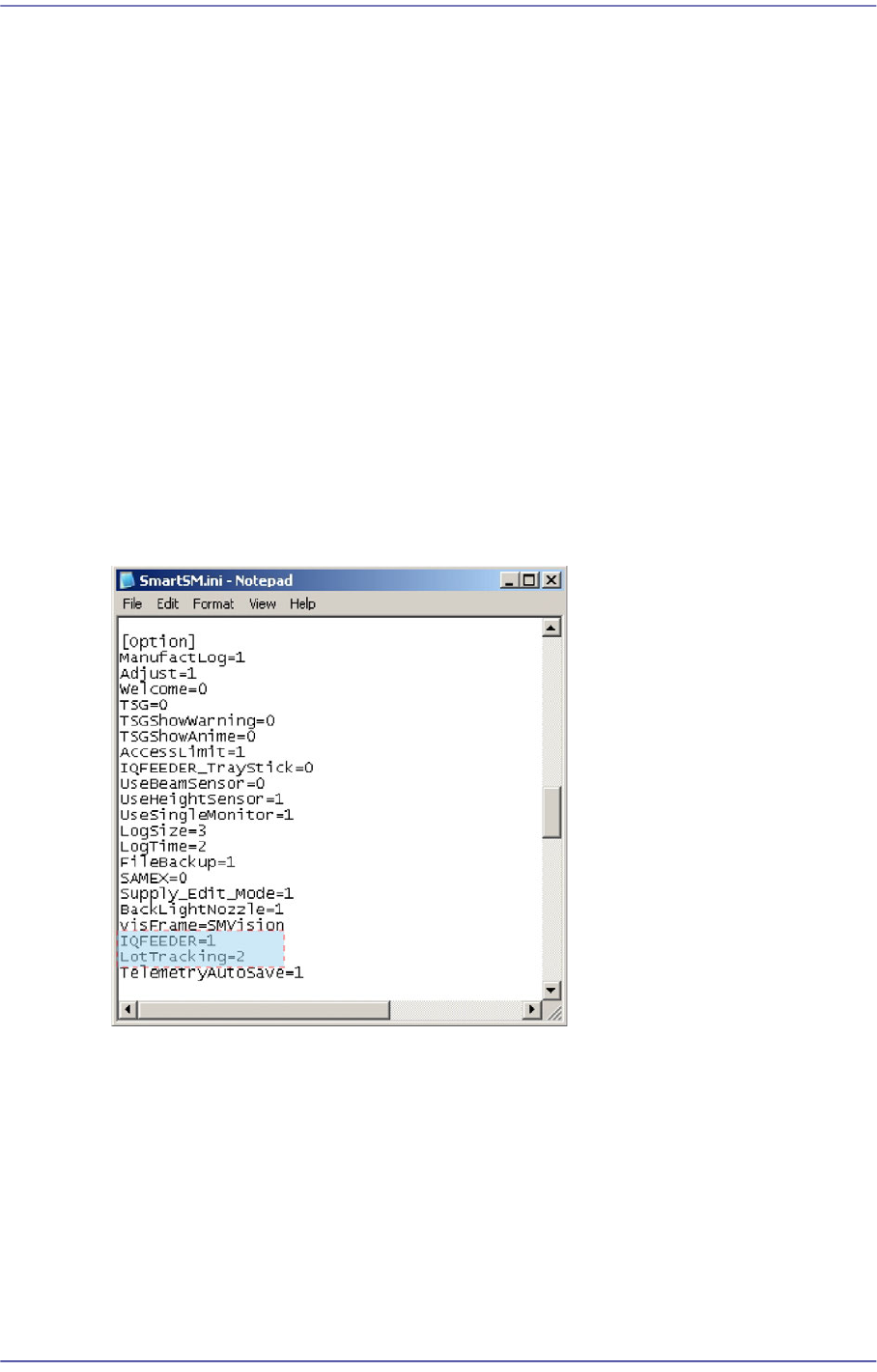
In the [Option] item of the “C:\SmartSM\bin\SmartSM.ini” file, set the IQFEEDER to
1 and the LotTracking to 2. Then press the ‘Barcode Position’ Button in the “Board
Definition’ dialog box.
When using 1D barcode
In the [Option] item of the “C:\SmartSM\bin\SmartSM.ini” file, set the IQFEEDER to
1 and LotTracking to 1.
When using no barcode (Default setup)
In the [Option] item of the “C:\SmartSM\bin\SmartSM.ini” file, set the IQFEEDER to
0 and LotTracking to 0.
After finishing the modification of the configuration file, execute the “SmartSM.exe”.