Hanwha SM481 PLUS Series Administrator’s Guide Eng.pdf.pdf - 第67页
3-3 File Shortcut Menu “Open” dialog box is dis p layed. Figure3.4 “Open” dia log box <Folders> combo box Specify the directory in whi c h t h e fil e is loca t ed. Di s plays t he files in the di rectory specifi…
3-2
Fast Flexible Placer SM481(L) PLUS Administrator’s Guide
3.1. New [Ctrl+N]
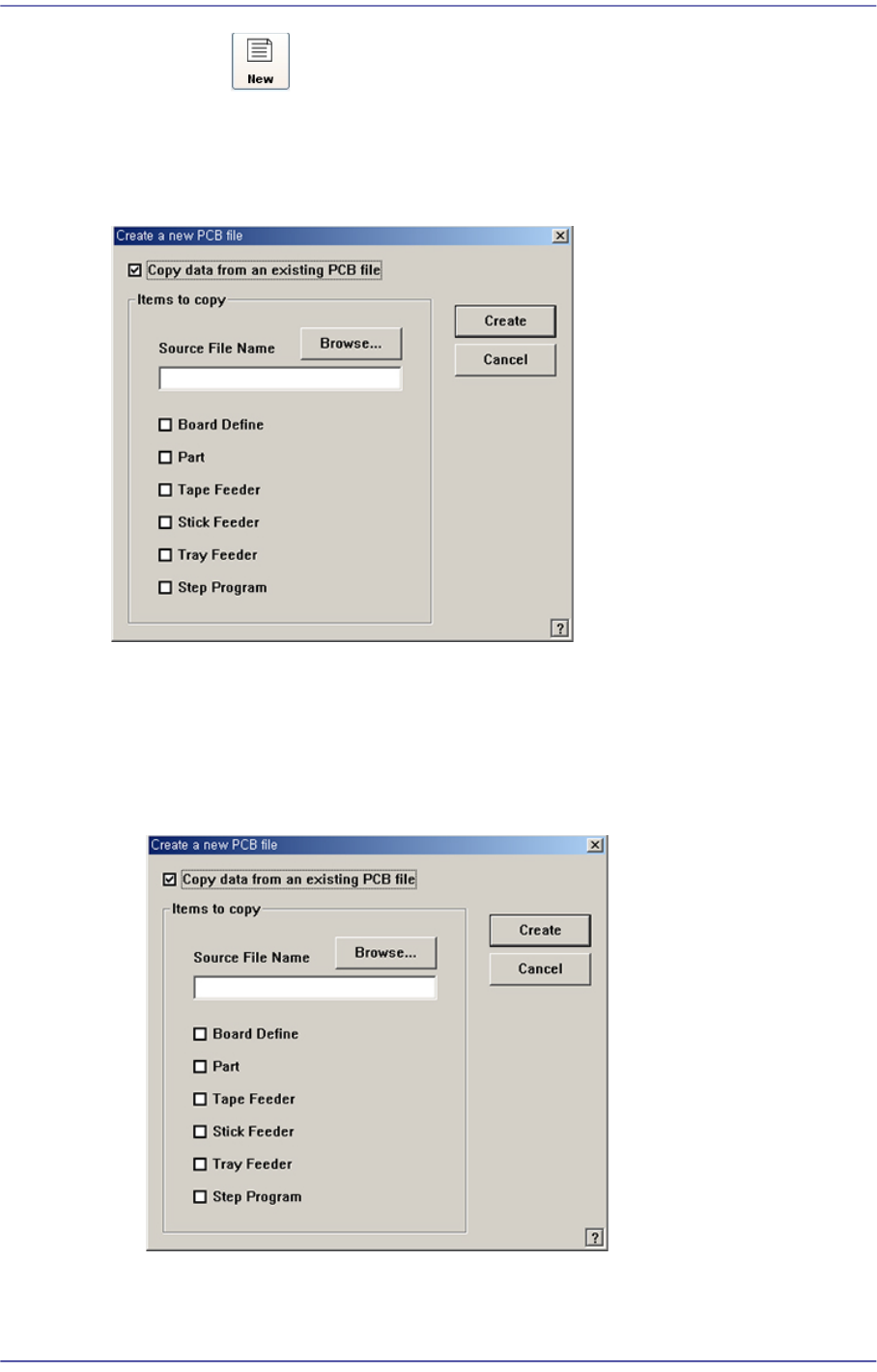
<New> command is used to create a new PCB file. When the <New> command is
selected, the following dialog box is displayed.
Figure3.2 “New PCB File” dialog box
<Copy data from an existing PCB file> check box
Used to copy certain data from an existing file and create a new file. When this box is
not checked, default data is used to create a new file. When this box is clicked on, the
<Items to Copy> dialog box is displayed.
Figure3.3 “ Create a new PCB file” dialog box
<Browse...> button
Used to create a new PCB file from existing files. When this Button is clicked on,
3-3
File Shortcut Menu
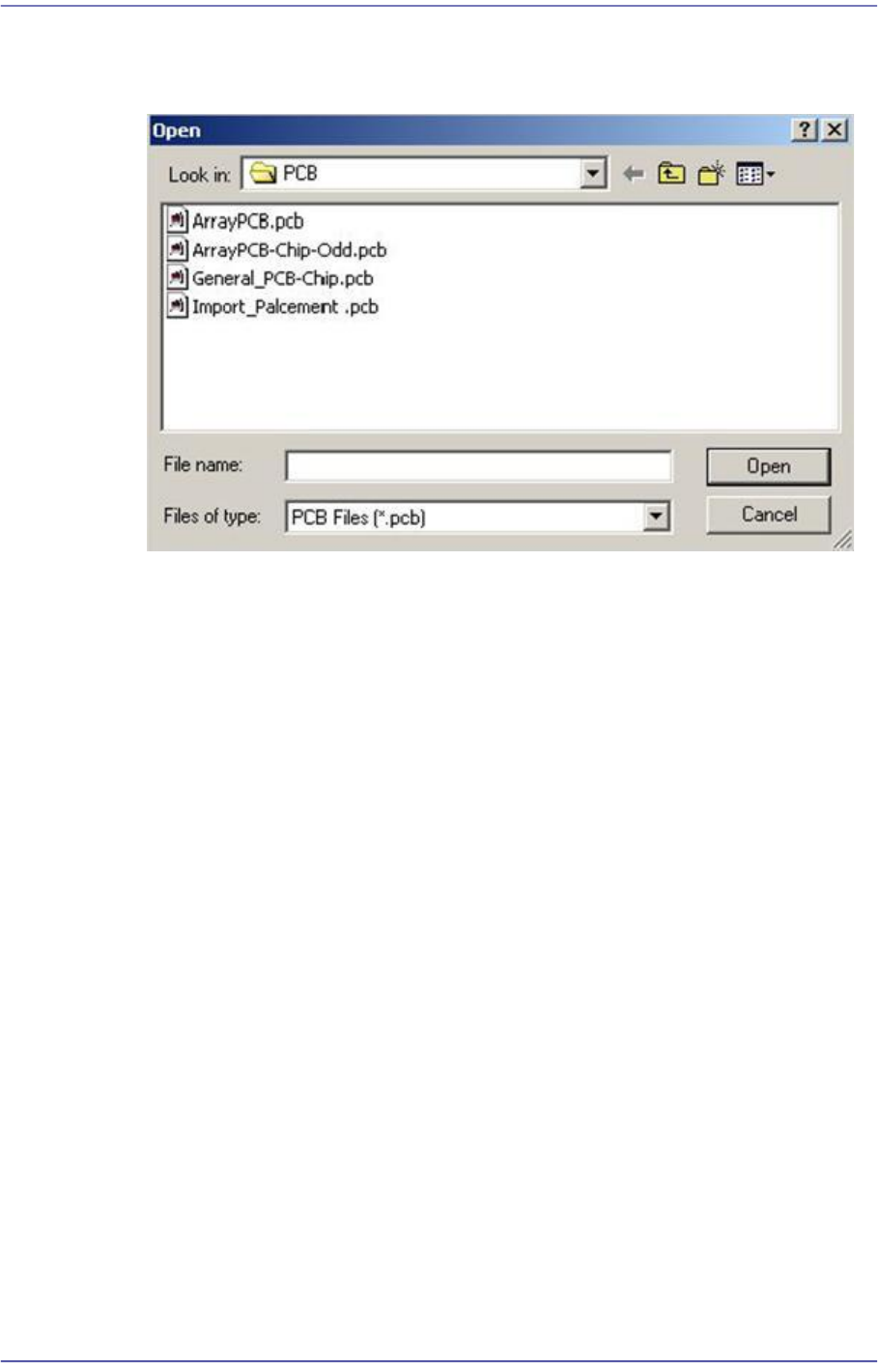
“Open” dialog box is displayed.
Figure3.4 “Open” dialog box
<Folders> combo box
Specify the directory in which the file is located. Displays the files in the directory
specified here in the <File list> list box.
List box
Displays existing files. When a file name is clicked on, displays the file name in
the <File name> edit box.
<File name> edit box
Enter a file name. If a file from the file list is clicked on, that file name is
displayed in the edit box.
<List files of type > combo box
Select the type of file to be displayed in the <File list> list box. When the
triangular Button is clicked on, accessible file types are displayed.
PCB Data Files(*.pcb): displays file names with the 'pcb' extension only.
OPT Data Files(*.opt): displays file names with the 'opt' extension only.
<OK> button
Selects a file and closes the “Open” dialog box.
<Cancel> button
Cancels the file selection and closes the “Open” dialog box
<Items to Copy> check box group
Select items to copy.
Board Definition: PCB Setup information

3-4
Fast Flexible Placer SM481(L) PLUS Administrator’s Guide
Part Number: Component information
Tape Feeder: Tape Feeder information
Stick Feeder: Stick Feeder information
Tray Feeder: Tray Feeder information
Step Program: Step Program information
By checking an item in the above, the content of that item can be copied. The menu
without check mark returns to the initial setting.
<Create> button
Creates a new PCB file according to the setting content. When the source file for
copying is not specified, creates a data file with all the data in the <Items to Copy>
check box group in the initial setting.
<Cancel> button
Cancels the New command and closes the “Create a new PCB file” dialog box.