Hanwha SM481 PLUS Series Administrator’s Guide Eng.pdf.pdf - 第469页
15-33 System Setup <Update> button T ransmits the change data to the equipment a nd closes the dialog box.
15-32
Fast Flexible Placer SM481(L) PLUS Administrator’s Guide
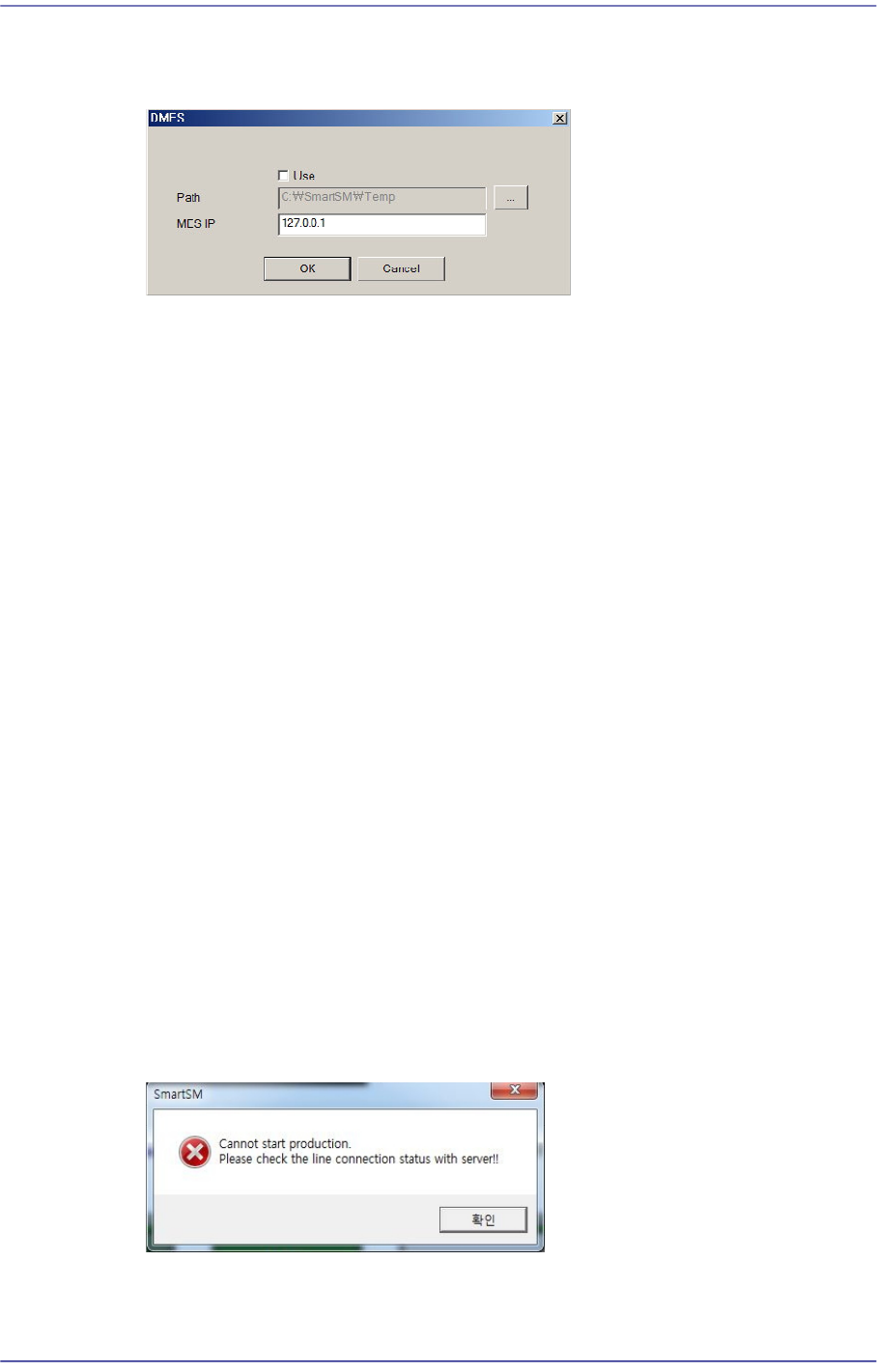
< Use DMES> check box
Sets the IP for communication with the MES host.
<Show Backup Pin> check box
When using the function for sequential changing in the T-Solution, select this check
box to enable the backup pin dialog box.
<Use 1D Barcode JobChange> check box
It is possible to automatically download the corresponding PCB program by scanning
the barcode of the reel list printed in the T-Solution.
<1D Barcode Scan wait time(sec)> check box
When recognizing the 1D barcode using the scanner, sets the time in seconds taken
until the 1D barcode is recognized.
<Use Multi-Vendor> check box
Refers to the function used to produce PCBs by using parts made by several
manufacturers for a part.
If a PCB program is created by registering a sub part for one part for one part in the
TOLP of the T-Solution, allows the work to be performed by using sub parts when
placing a part on the PCB with this check box being selected.
<Use Place Offset> check box
Modifying the part parameters will automatically save the modified part parameters in
the UPD.
<PNP Connection Check> check box
Checks whether the machine and PNP are connected before starting production.
Starting production with the machine not connected to the PNP will display an error
message.
<Use NewPartEditor> check box
Selecting this check box will execute the NPE (New Part Editor) while editing a part.

15-33
System Setup
<Update> button
Transmits the change data to the equipment and closes the dialog box.
15-34
Fast Flexible Placer SM481(L) PLUS Administrator’s Guide
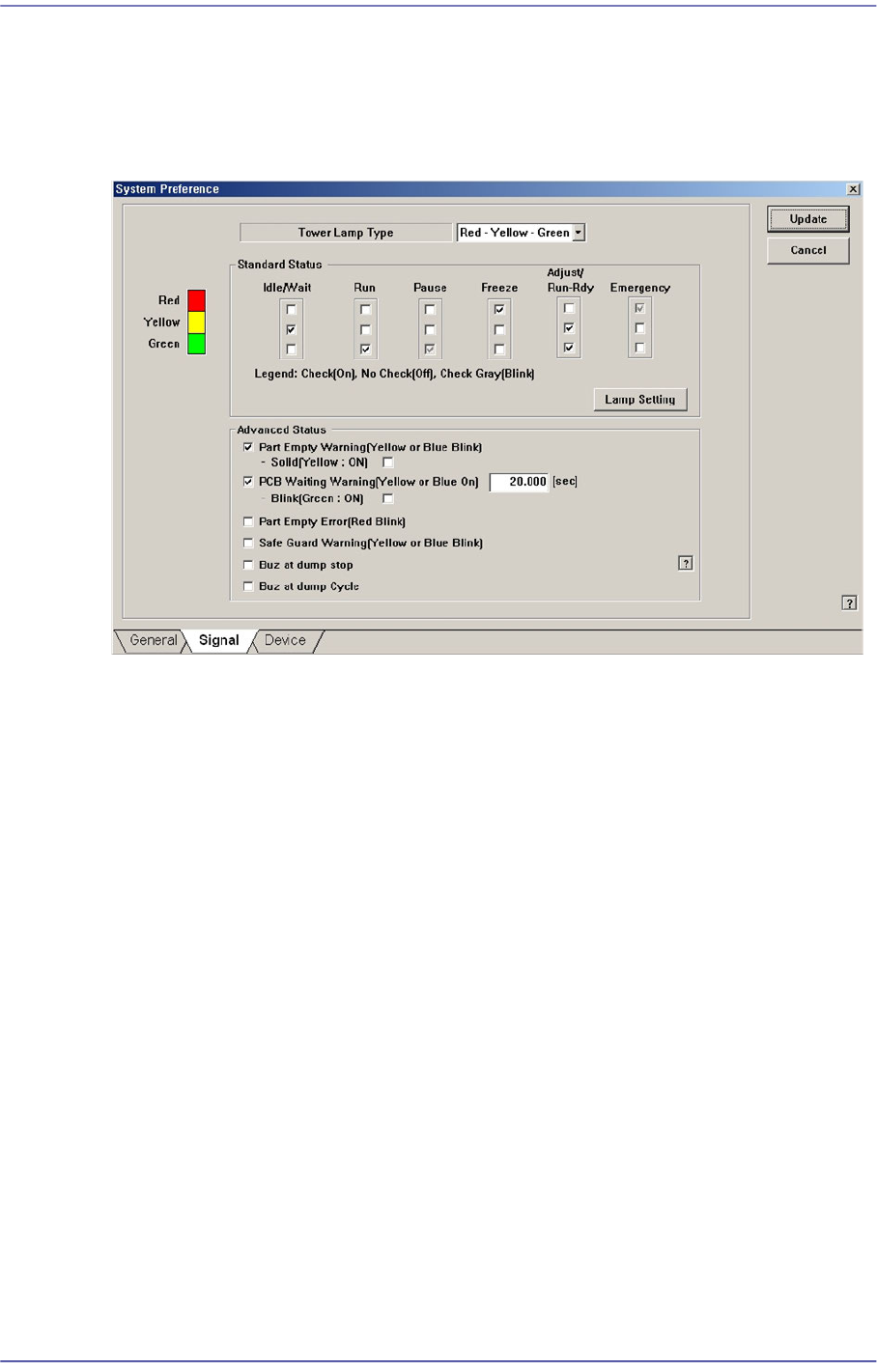
15.5.2. <Signal> tab dialog
Set the status of the signal light. When this button is selected, the following screen is
displayed.
Figure15.17 “Signal” tab dialog
<Tower Lamp Type> combo box
Select the signal tower type. Available types are as follows.
Red –Yellow –Green: When the signal light consists of “Red –Yellow –Green”.
Red –Blue –Green: When the signal light consists of “Red –Blue –Green”.
<Standard Status> group
Set the status of the signal light corresponding to the equipment status.
For example, if you want to turn on the “Yellow” lamp of the signal tower in the idle/
wait status, check the corresponding “Yellow” lamp check box among the 3 check
boxes under the Idle/Wait.
The status and meanings of the check boxes are as follows.
Checked: Turns on the corresponding lamp.
Not checked: Turns off the corresponding lamp.
Checked in gray: Flickers the corresponding lamp.
<Lamp Setting> button
The user can perform setup concerning the error by which the red lamp of the
signal light is turned on by default so that the yellow lamp is turned on selectively
according to the error type. Clicking this button will display the following dialog
box.