Hanwha SM481 PLUS Series Administrator’s Guide Eng.pdf.pdf - 第148页
6-38 Fast Flexible Placer SM481(L) PLUS Administ r ator’s Guide 6.6. 2D Barcode 6.6.1. Configuration Allows a user to know the model inform a tion of the PCB loaded into the machine b y recognizing the barcode on the PCB…
6-37
Board Definition
brightness. Here, ‘Threshold Value’ indicates the border value deciding whether
each pixel should be recognized in white or black. That is, setup the limitation for
deciding if the image pixel should be black or white when checking a bad mark.
For example, if accept mark setup is “Black” and the <Threshold> value is 100, all
values under 100 in the vision image are recognized as black. And if <Accept
mark Logic> is “White” and the <Threshold> value is 100, all values over 100 in
the vision image are recognized as white.
<Real Display/Binary> button
Shows the image seen through the SMVision in real display to which threshold is
not applied, or in the image (Binary) to which threshold is applied as recognized
by MMI.
<Light> group
Set the lighting value when testing the Accept Mark. In general, set to 7. However,
adjust it properly according to the condition of the PCB and accept mark.
<Test> button
Tests the mark by using the set mark data. The user can check whether the set
mark data is correct. When the test is successful, the following message box is
displayed..
Caution If you move to another screen while editing the “Board”
dialog box, the edited data is saved automatically
<Update> button
Save the Accept Mark data and close the “Accept Mark Position” dialog box.
<Cancel> button
Close the “Accept Mark Position” dialog box without saving the Accept Mark data.
6-38
Fast Flexible Placer SM481(L) PLUS Administrator’s Guide
6.6. 2D Barcode
6.6.1. Configuration
Allows a user to know the model information of the PCB loaded into the machine by
recognizing the barcode on the PCB and manage the production history by PCB being
interlocked with the Lot Tracking System (LTS).
When using the 2D barcode
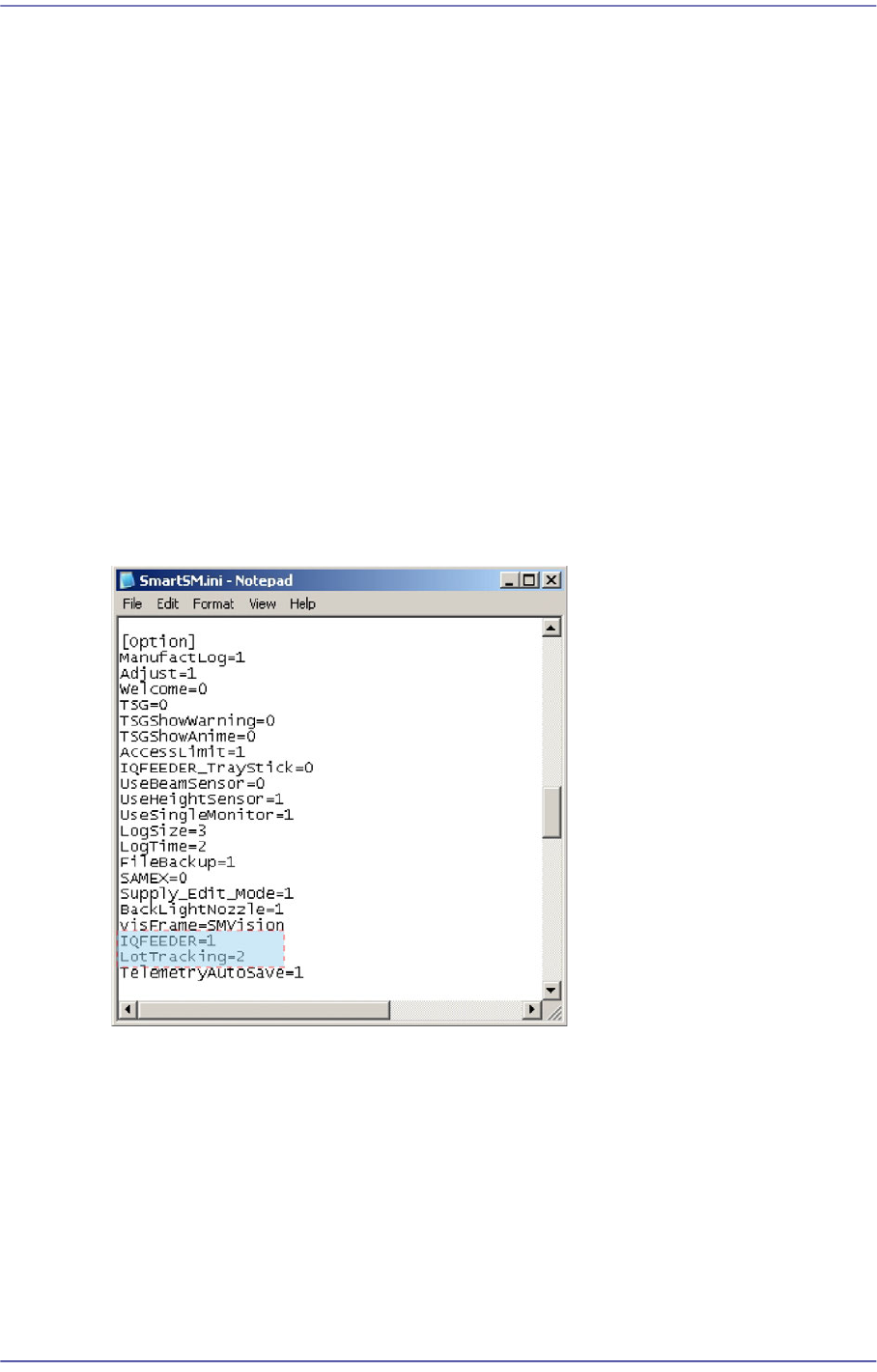
In the [Option] item of the “C:\SmartSM\bin\SmartSM.ini” file, set the IQFEEDER to
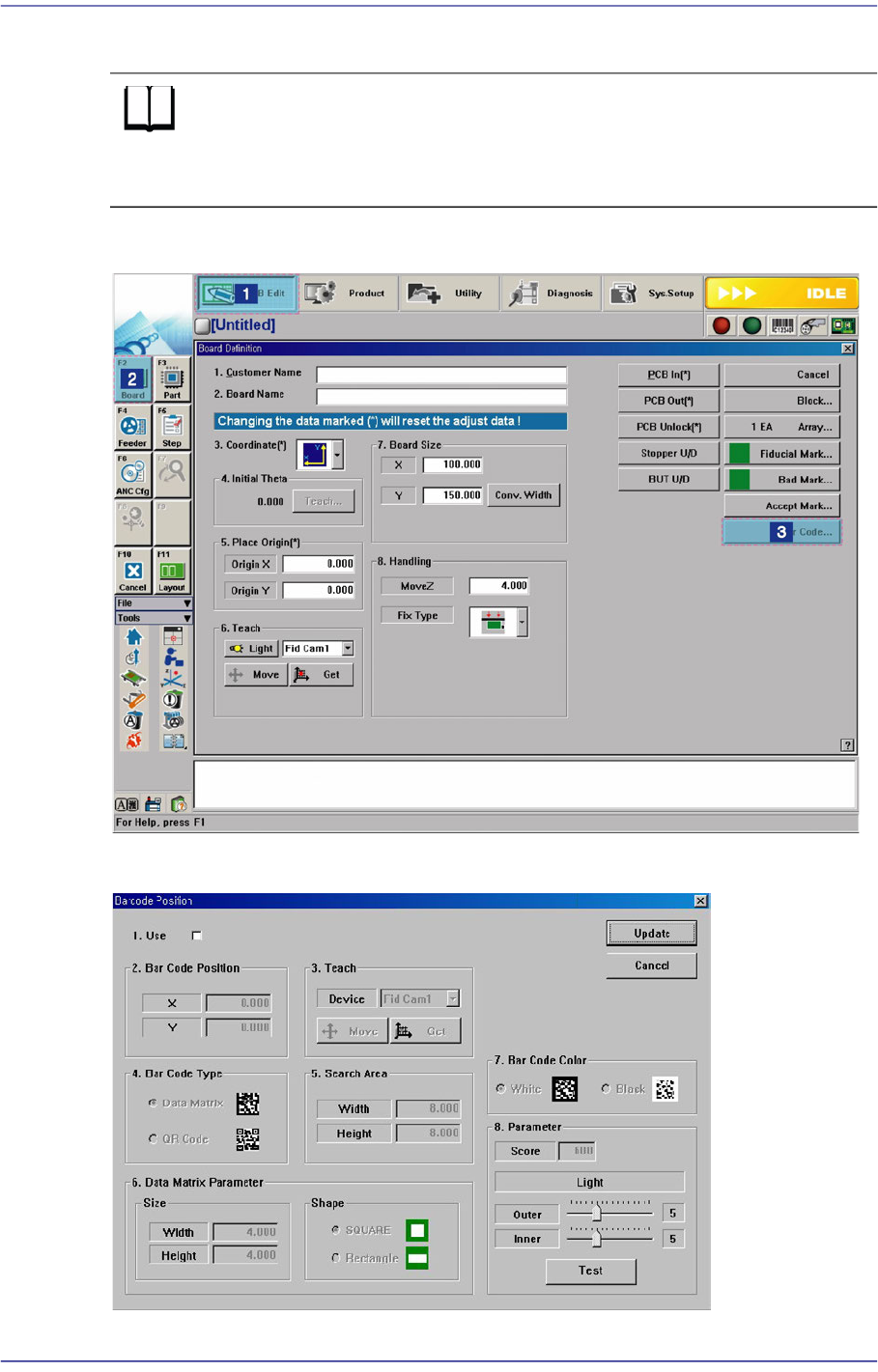
1 and the LotTracking to 2. Then press the ‘Barcode Position’ Button in the “Board
Definition’ dialog box.
When using 1D barcode
In the [Option] item of the “C:\SmartSM\bin\SmartSM.ini” file, set the IQFEEDER to
1 and LotTracking to 1.
When using no barcode (Default setup)
In the [Option] item of the “C:\SmartSM\bin\SmartSM.ini” file, set the IQFEEDER to
0 and LotTracking to 0.
After finishing the modification of the configuration file, execute the “SmartSM.exe”.
6-39
Board Definition
6.6.2. Barcode Position
Reference In order to enable this function, the <Use 2D Barcode> check
box must be selected from the ‘General’ tab dialog box in the
‘Preferences’ submenu of the ‘Sys. Setup’ menu.
Figure6.9 Order of ‘Barcode Position’ Dialog Box Execution
Figure6.10 Barcode Position’ Dialog Box