Hanwha SM481 PLUS Series Administrator’s Guide Eng.pdf.pdf - 第75页
3-11 File Shortcut Menu Caution If the <Save> command is executed, the f i le cannot be restored to the previous one befo r e saving. Therefore, be careful when executing the comm and. 3.4. Merge Part Library Perfo…
3-10
Fast Flexible Placer SM481(L) PLUS Administrator’s Guide
<Save file as type> combo box
Select file format to be displayed in the <File list> list box. When the triangular Button
is clicked on, accessible file types are displayed.
PCB Files(*.pcb)
Save the file names with a ‘pcb’ extension. Files with a ‘pcb’ extension are PCB
files for which optimization was not executed
PCB 40 Files(*.pcb)
Indicates only the file with extension of ‘pcb’, which is compatible to the CP40
equipment.
OPT Files(*.opt)
If the optimization is completed and automatically save as to ‘opt’ files. Files with
an OPT extension are PCB files on which an optimization result was reflected.
OPT 40 Files(*.opt)
Indicates only the file with extension of ‘opt’, which is compatible to the CP40
equipment.
XML Files(*.xml)
Save the file names with a ‘xml’ extension. Files with an ‘xml’ extension cannot
be used with our SM400 series machines and PCB files.
PCB V1 Files(*.pcb)
As a file with a ‘pcb’ extension, it allows the PCB file to be used with the machine
to which the flux system is not applied among the SM400 series models. It does
not support operation by POP method.
PCB V2 Files(*.pcb)
Saves the file with a pcb extension (MMI Version 2.0 and higher) which can
perform the POP function. This file does not support the block board function.
<Save> button
Selects a file and closes the “Save As” dialog box
<Cancel> button
Cancels the <Save As> command and closes the “Save As” dialog box.
Caution If the extension of PCB File is changed arbitrarily, the PCB
File will not be recognized.Do not change the extension of
PCB File.
3-11
File Shortcut Menu
Caution If the <Save> command is executed, the file cannot be
restored to the previous one before saving. Therefore, be
careful when executing the command.
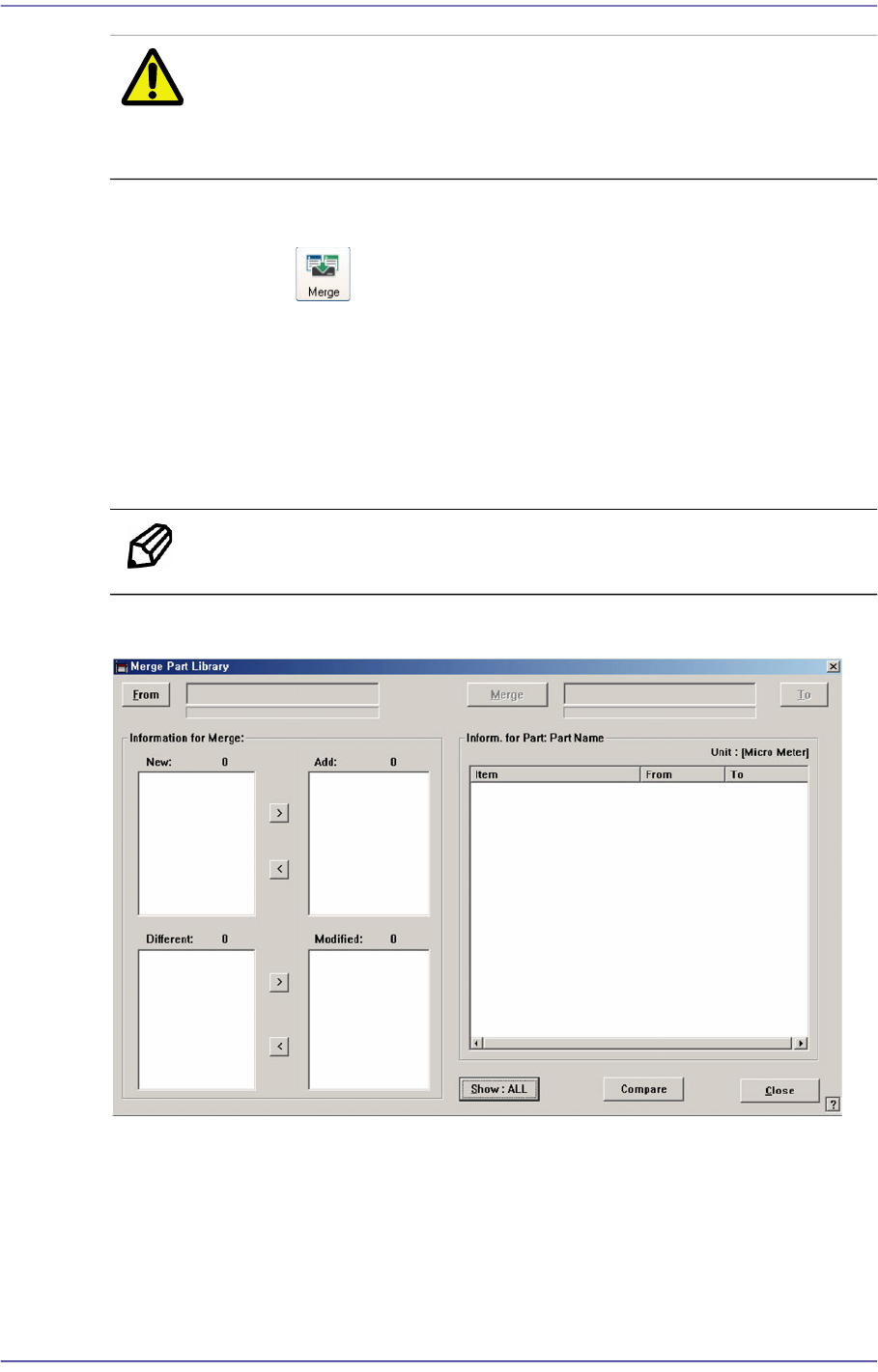
3.4. Merge Part Library
Performs the function to compare and combine the local DB (UPD.mdb) file or updated
and distributed DB (STDUPD.mdb) of other machines with the local DB (UPD.mdb) file.
It is used mainly in the following cases.
To perform integrated management of part information of PCB files.
To import part information existing in other machines when changing the PCB model.
Memo The standard DB (STDUPD.mdb) file is a read-only file
Clicking the ‘Merge Part Library’ icon Button will display the following dialog box.
<From > button
Select the DB file from which the part information is imported. Select the local DB
(UPD.mdb) or standard DB (STDUPD.mdb) that was copied and imported through the
source DB.
<To> button
Select the DB file to be merged. Select the local DB (UPD.mdb) as the target DB.
3-12
Fast Flexible Placer SM481(L) PLUS Administrator’s Guide
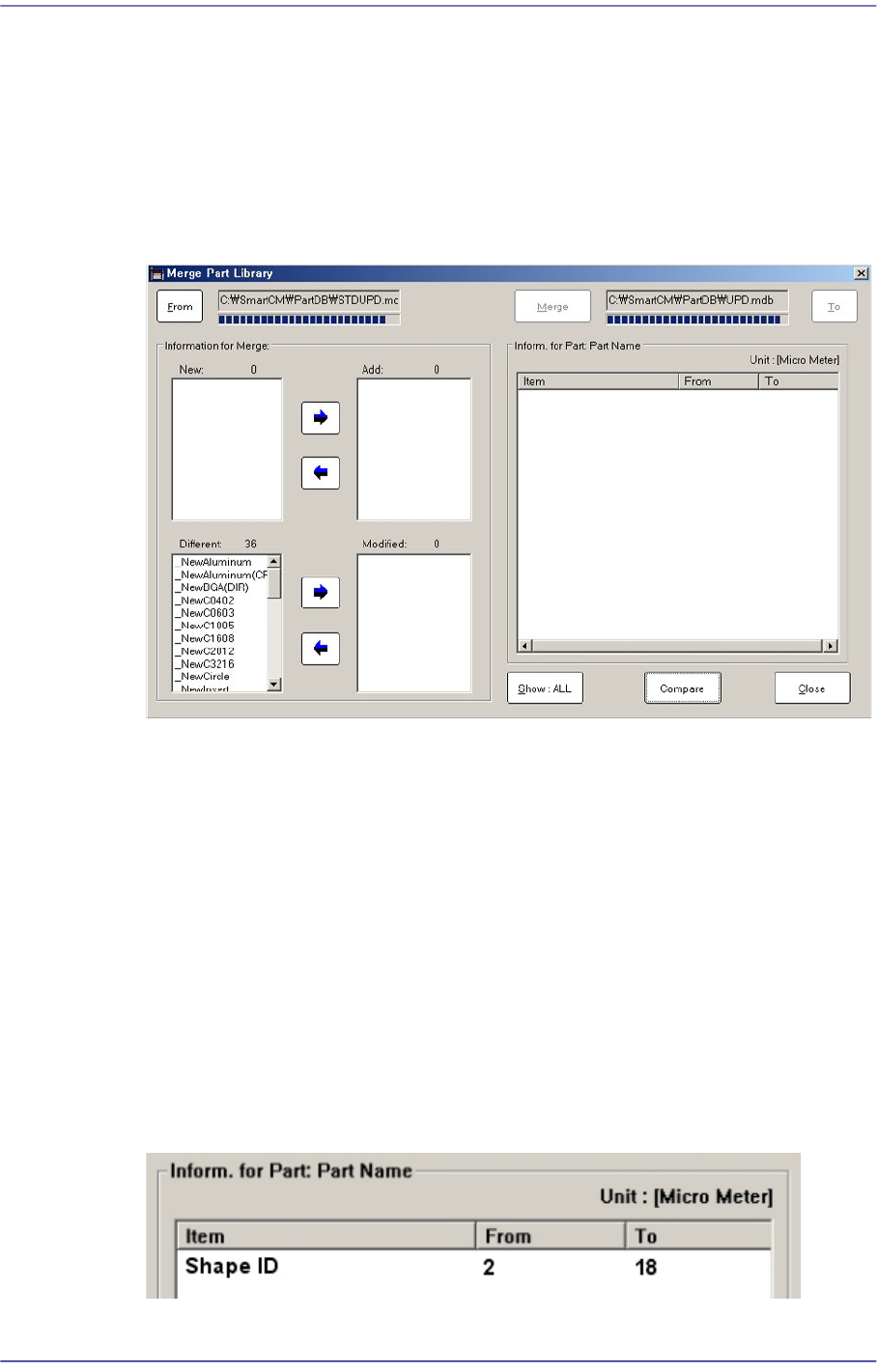
<Compare> button
Compares two DB files and indicates the part information not existing in the target DB
in the <New:> list box in the <Merge Information> group. However, information with
identical part names in the target DB file but with different saved values are indicated
in the <Diff:> list box.
Selecting the source DB file and target DB and clicking this Button will display the
comparison data between two databases as follows:
<Show: ALL> button
There are two functions: “Show: ALL” and “Show: DIFF”. Clicking this Button will
change these two functions in turn.
<Show: ALL>
Selecting the part name in the <New:> or <Different:> list box will display all part
information related to the corresponding part in the <Inform. For Part: Part Name>
group.
<Show: DIFF>
Selecting the part name in the <New:> or <Different:> list box will display only
part information with different values among the part information related to the
corresponding part in the <Inform. For Part: Part Name> group.
Figure3.8 Show :DIFF list box