Hanwha SM481 PLUS Series Administrator’s Guide Eng.pdf.pdf - 第197页
7-39 Part Registration part in the left direction. Right Convex: Th ere is a recess or protrusion at the bottom s urface of the part in the right direction. T wo Circles: Used when a Lumans LED is placed on a PCB. Ther e…
7-38
Fast Flexible Placer SM481(L) PLUS Administrator’s Guide
<Shape> group
When the 'Direction Mark' is selected as a direction mark type
Select the direction mark shape. (triangle, rectangle, circle)
- Shape definition - Mark (Direction Mark)
1: Position change of the selected point (Up - Down)
2: Position change of the selected point (Left - Right)
When the 'Flip Check' is selected as a direction mark type
Displayed when the <Mark Area (2)> switch button is selected.
Selects a shape to the mark or convex-concave on the bottom surface of
the LED. If the convex-concave shape is selected, the brightness of the
selected area as well as the direction of a protrusion are checked. This,
therefore, prevents the part from being placed upside down.
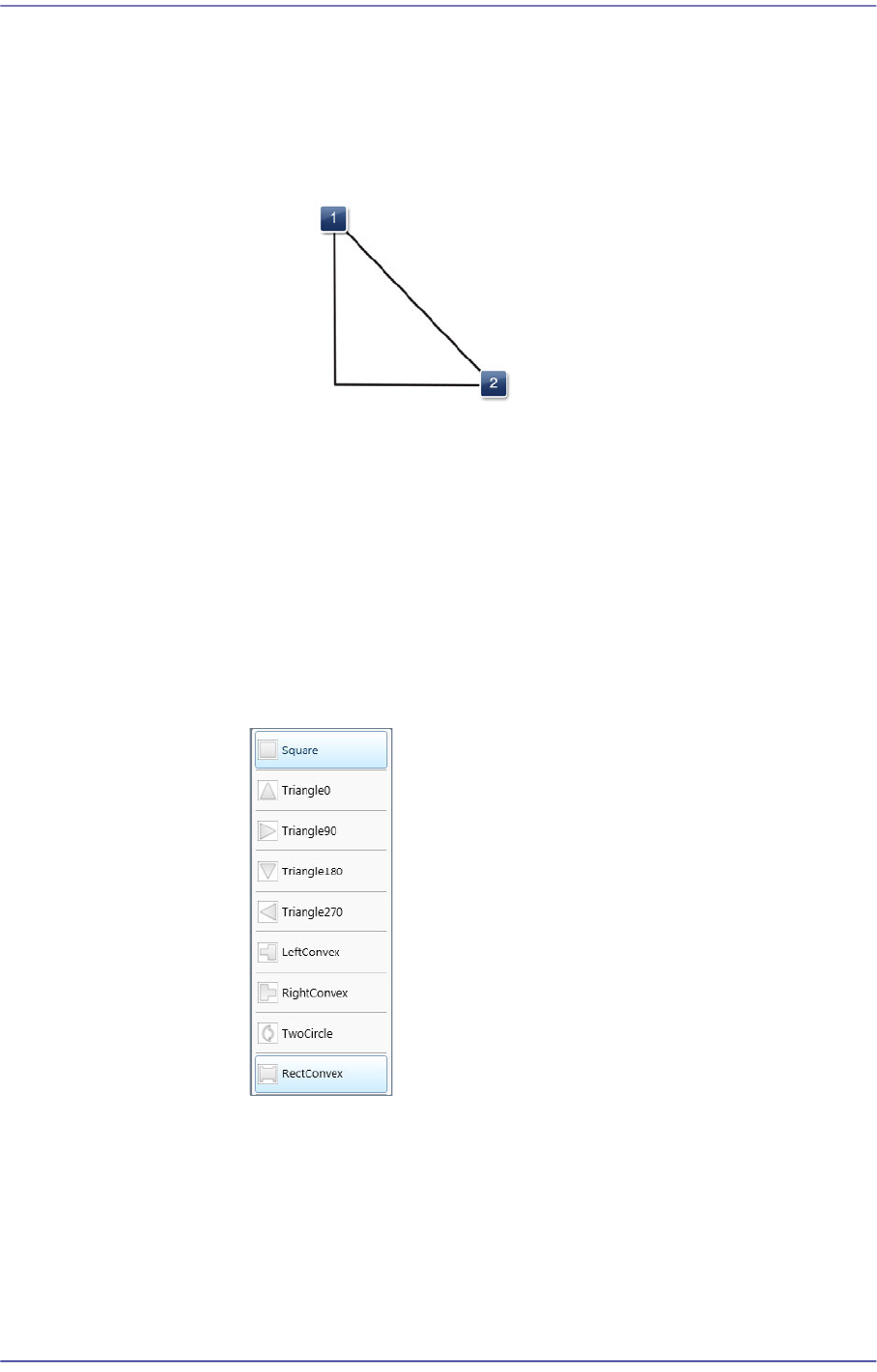
Square: There is no shape.
Triangle 0: Triangle mark in the 0° direction.
Triangle 90: Triangle mark in the 90° direction.
Triangle 180: Triangle mark in the 180° direction.
Triangle 270: Triangle mark in the 270° direction.
Left Convex: There is a recess or protrusion at the bottom surface of the
7-39
Part Registration
part in the left direction.
Right Convex: There is a recess or protrusion at the bottom surface of the
part in the right direction.
Two Circles: Used when a Lumans LED is placed on a PCB. There is a
round concave shape at the bottom surface of a part.
Rect Convex: Used to place a flash lens on a PCB.
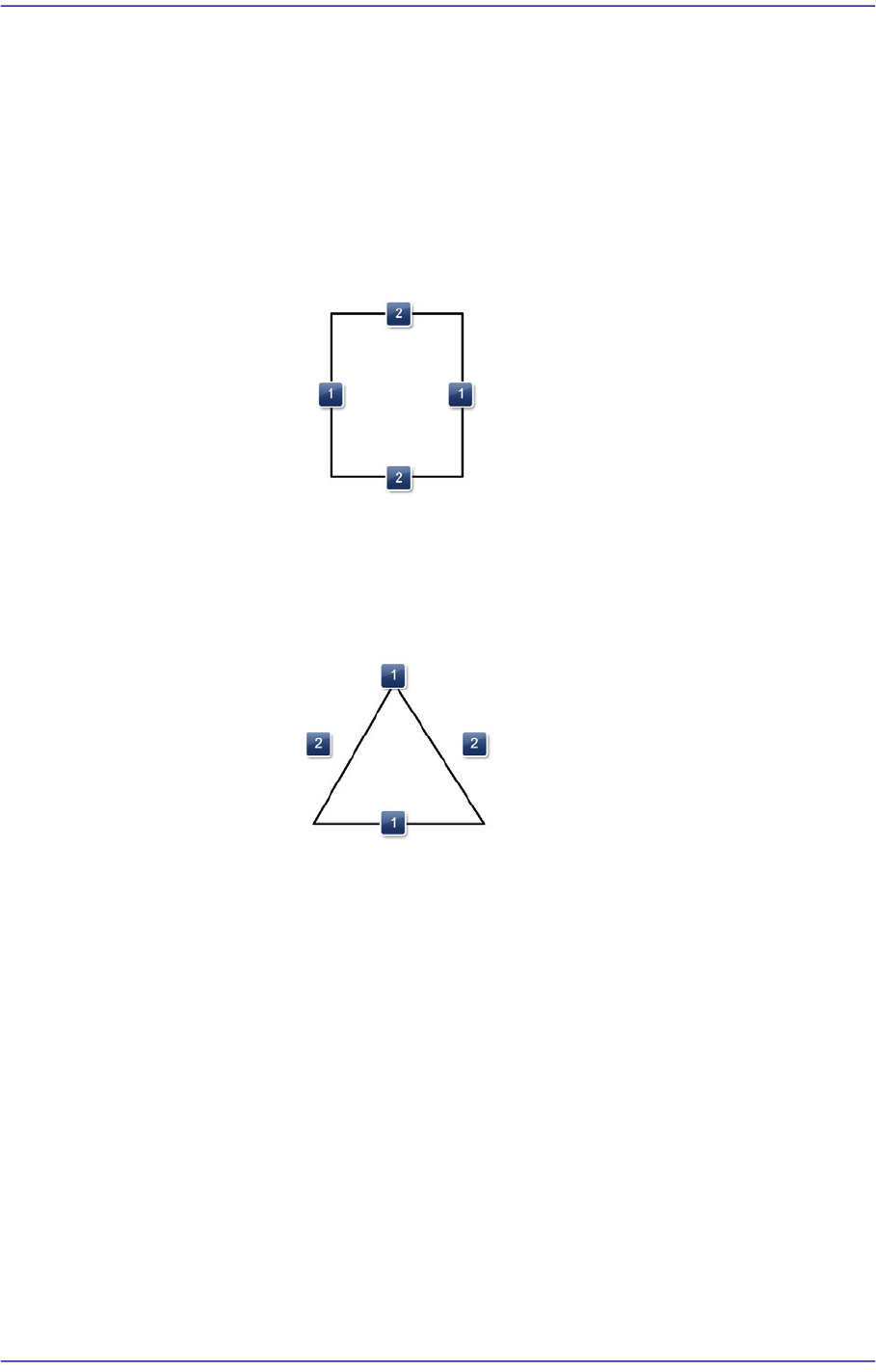
- Shape definition - Mark (LED Check - Rectangle)
1: Length of the rectangle in the X direction
2: Length of the rectangle in the Y direction
- Shape definition - Mark (LED Check - Triangle)
1: Position change of the selected point (Up - Down)
2: Position change of the selected point (Left - Right) Always an equilateral
triangle
<4-Way Placement Set> check button
As a direction mark type, this check box is displayed when selecting 'Flip
Check'.
When recognizing an LED, if it is picked up by being rotated by 180°, this
function places it by rotating it by 180° without dumping it. This check box is
selected when using the bowl feeder.
In order to use this function, the characteristics, position and size of the LED
mark must be inputted correctly.
When there is a symmetrical mark on the bottom surface of the part, exercise
care not to use this function.
7-40
Fast Flexible Placer SM481(L) PLUS Administrator’s Guide
<Pos.> combo box
Selecting 'Triangle' as the shape of the mark direction after selecting 'Mark
Direction' as the type of direction mark will enable this combo box.
Select the position at which the direction mark exists on a part.
<Color> combo box
As a direction mark type, this check button is displayed when selecting 'Flip
Check' as a direction mark shape.
Select the color of the direction mark. Available colors are as follows:
White
Select the mark looks brighter than its surroundings. When the mark shape
is 'Left Convex' and 'Right Convex', this color cannot be selected.
Black
Select the mark looks darker than its surroundings.
<Brightness> edit box
As a direction mark type, this input field is displayed when selecting 'Flip
Check' as a direction mark shape.
Refers to the reference value of the area. The area with a value less than the
reference value can be considered normal. Generally, it has a value of 200 and
above.
<Difference> edit box
When the <Mark Area (2)> switch button is selected after selecting 'Flip
Check' as a direction mark type, this input field is displayed.
Input the minimum value of the difference in brightness between Clear Area
(1) and Mark Area (2). In general, input 40.
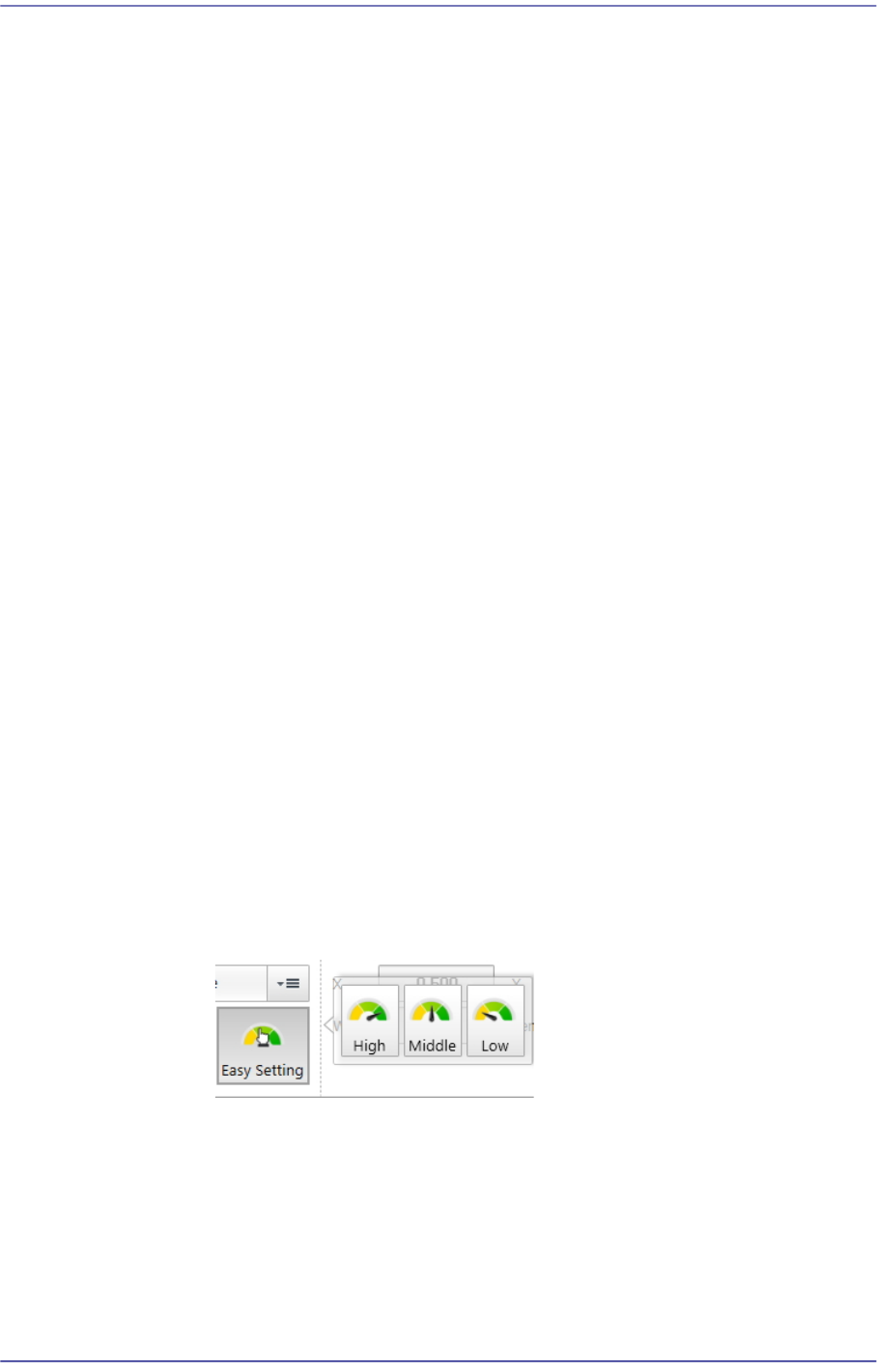
‘Set Brightness / Difference’ area
It is possible to set the Brightness and Difference values.
High / Middle / Low
It is possible to apply the default set value depending on the Brightness
and Difference level.
<X/ Y> edit box
Input the X and Y offsets between the vision window center and the center of
the selected object.