Hanwha SM481 PLUS Series Administrator’s Guide Eng.pdf.pdf - 第149页
6-39 Board Definition 6.6.2. Barcode Position Reference In order to enable this function, the <Use 2D Barcode> ch e ck box must be selected from the ‘General’ tab dialog box in the ‘Preferences’ submenu of the ‘Sys…
6-38
Fast Flexible Placer SM481(L) PLUS Administrator’s Guide
6.6. 2D Barcode
6.6.1. Configuration
Allows a user to know the model information of the PCB loaded into the machine by
recognizing the barcode on the PCB and manage the production history by PCB being
interlocked with the Lot Tracking System (LTS).
When using the 2D barcode
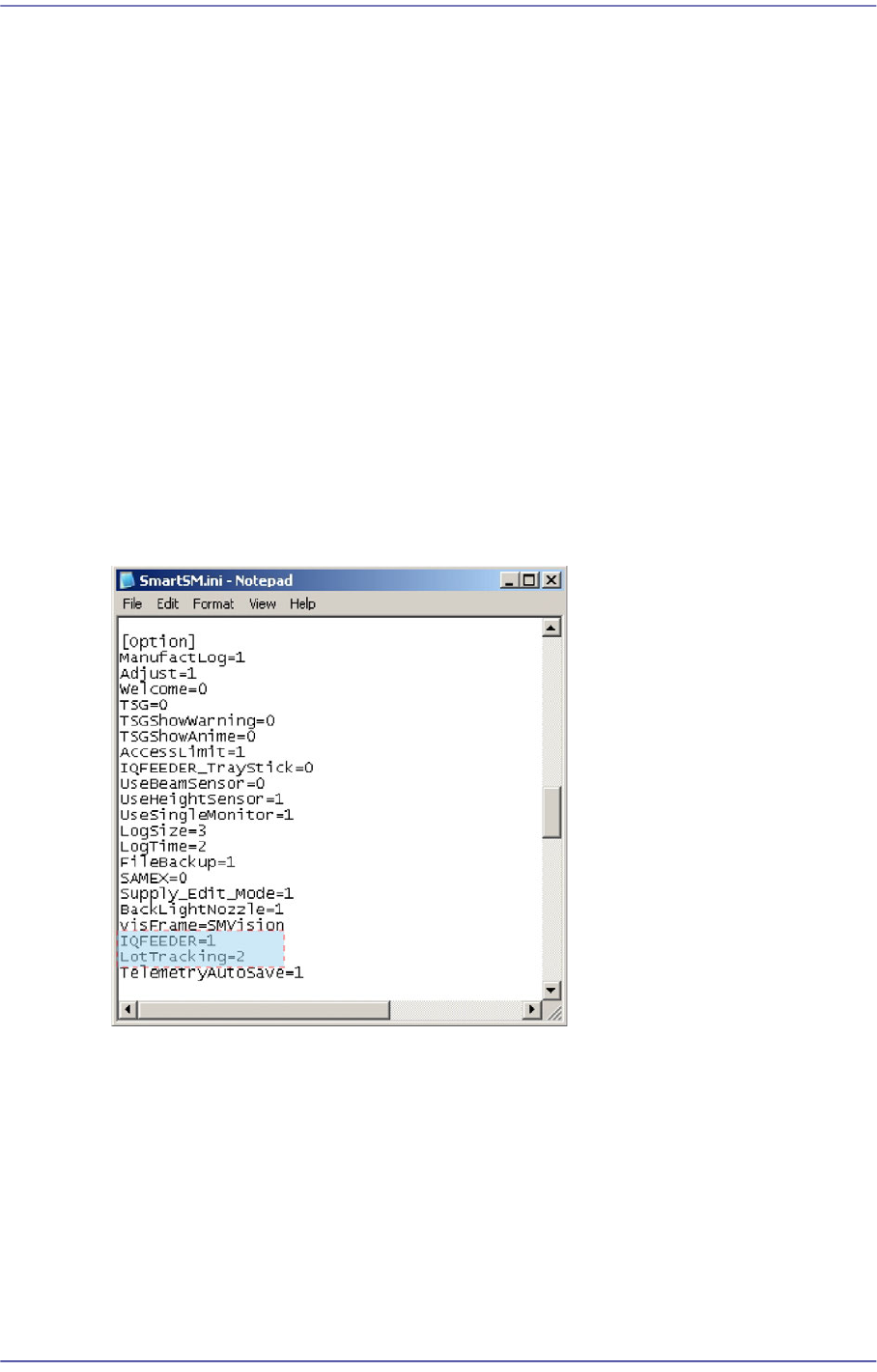
In the [Option] item of the “C:\SmartSM\bin\SmartSM.ini” file, set the IQFEEDER to
1 and the LotTracking to 2. Then press the ‘Barcode Position’ Button in the “Board
Definition’ dialog box.
When using 1D barcode
In the [Option] item of the “C:\SmartSM\bin\SmartSM.ini” file, set the IQFEEDER to
1 and LotTracking to 1.
When using no barcode (Default setup)
In the [Option] item of the “C:\SmartSM\bin\SmartSM.ini” file, set the IQFEEDER to
0 and LotTracking to 0.
After finishing the modification of the configuration file, execute the “SmartSM.exe”.
6-39
Board Definition
6.6.2. Barcode Position
Reference In order to enable this function, the <Use 2D Barcode> check
box must be selected from the ‘General’ tab dialog box in the
‘Preferences’ submenu of the ‘Sys. Setup’ menu.
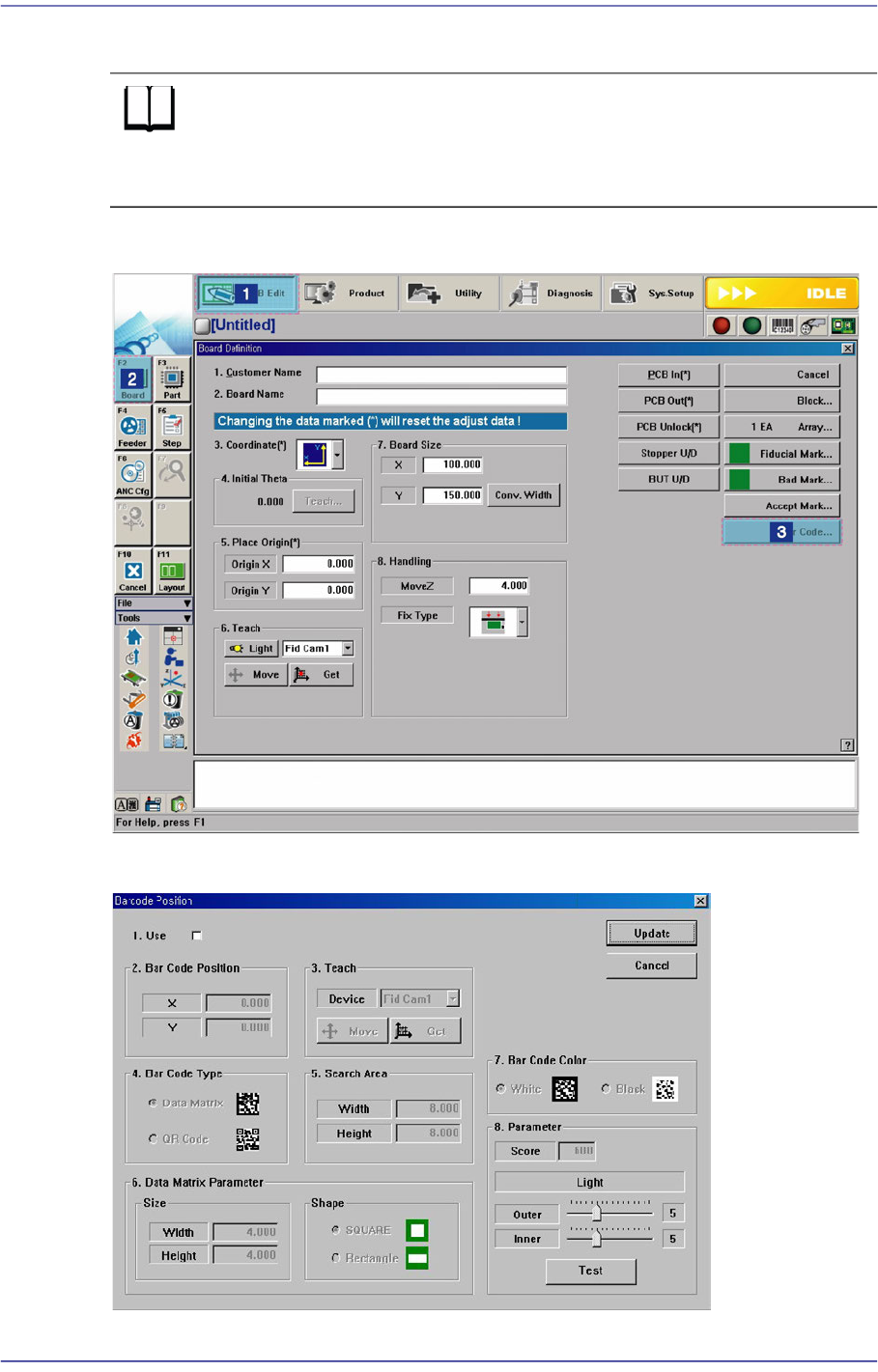
Figure6.9 Order of ‘Barcode Position’ Dialog Box Execution
Figure6.10 Barcode Position’ Dialog Box

6-40
Fast Flexible Placer SM481(L) PLUS Administrator’s Guide
<1.Use> check box
Check the 2D barcode function to use it.
<2. Bar Code Position> group
Indicates the position of the 2D barcode.
<Board> Area
Teaches the 2D barcode position attached to a board using the fiducial camera
selected from the <3. Teach> area or performs setup for 2D barcode attachment to
a board.
<X/Y> edit box
Sets the X/Y coordinate of a 2D barcode.
<Z> edit box
When attaching a 2D barcode to a board, sets the Z-axis coordinate in order to
press and attach a 2D barcode to a board with a head spindle.
<Inspection> check box
Selecting this check box will recognize the 2D barcode attached to a board.
<Placing> check box
Selecting this check box will attach a 2D barcode to a board using the
machine.
<Part> caption box
Enabled when the <Placing> check box is selected. Displays the part supplied
by the feeder selected from the <Feeder> combo box.
<Feeder> combo box
Enabled when <Placing> check box is selected. The feeder supplying the part
registered by selecting the <BarCode> check box from the Common Data
setup screen appears in the list as shown in the following figure: