Operating Instructions_VF335_en.pdf - 第131页
6|Function description 6.5 The [General settings] editing dialog This dialog is opened with a click on the button in the top toolbar of the start dialog and contains the following dialogs – [Profile] – [User administra…
6|Function description
6.4.3 The status bar
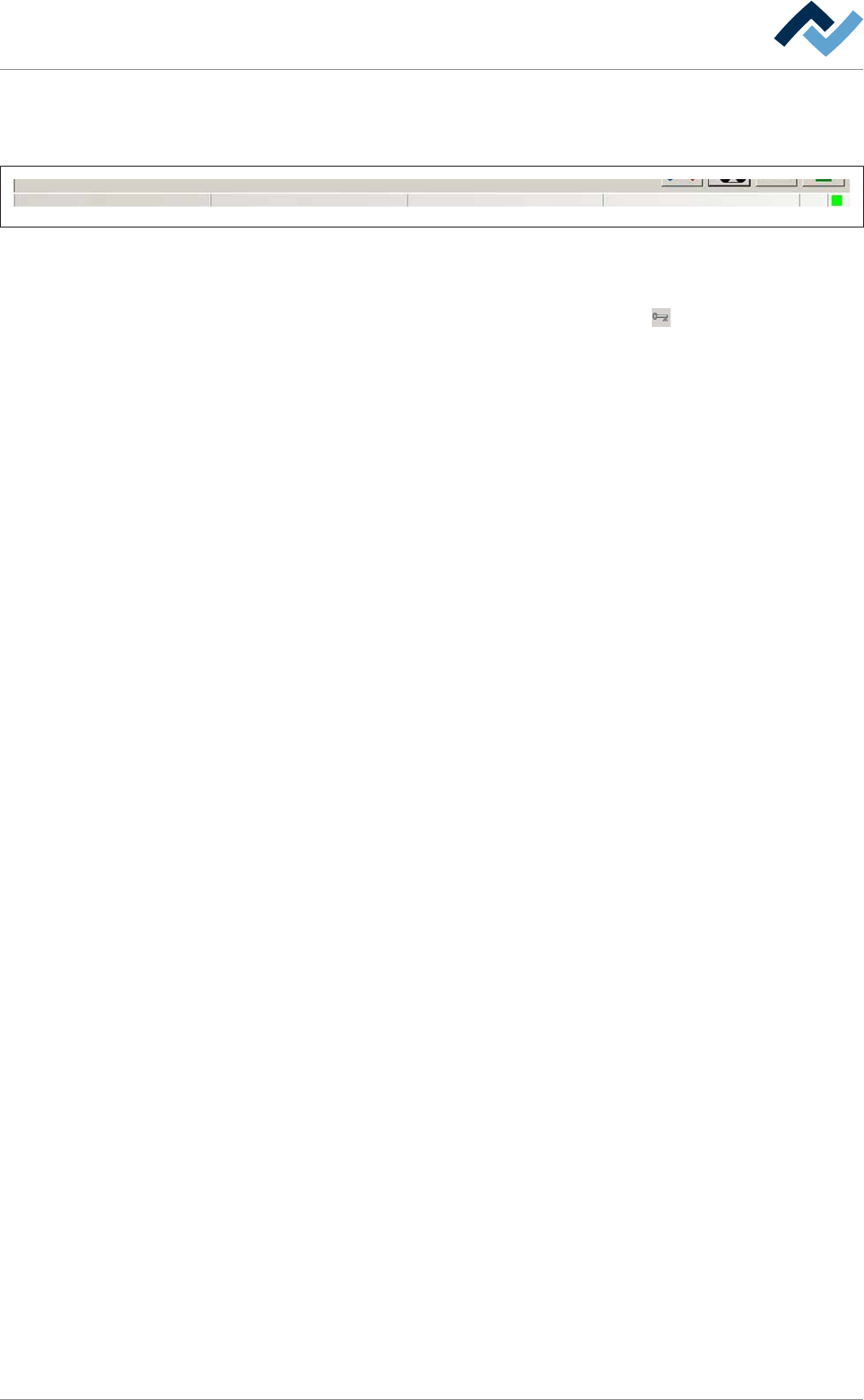
The status bar can be found at the lower edge of the screen:
user: none Automatic mode Library Soldering program
Fig.23: The status bar displays the currently logged in user and the current operating mode of the machine. In addition, in auto-
matic mode the library and the currently active soldering program are displayed.
[User] The name of the currently logged in user is displayed in the status bar at the
lower left edge of the screen. If a user is logged in, the
button is visible in the
top toolbar of the start dialog. You can click on this button to log out the user. If
this button is not visible, no user is logged in. On this regard, please read chapter
Creating a new user. The green square in the right section of the status bar signals
the operator the control sovereignty as well as the proper communication between
PC and PLC.
Ersa GmbH Operating Instructions_VF335_en|Rev. 14|30/11/2017 130/695
6|Function description
6.5 The [General settings] editing dialog
This dialog is opened with a click on the button in the top toolbar of the start dialog
and contains the following dialogs
– [Profile]
– [User administration]
– [File path]
– [Logging]
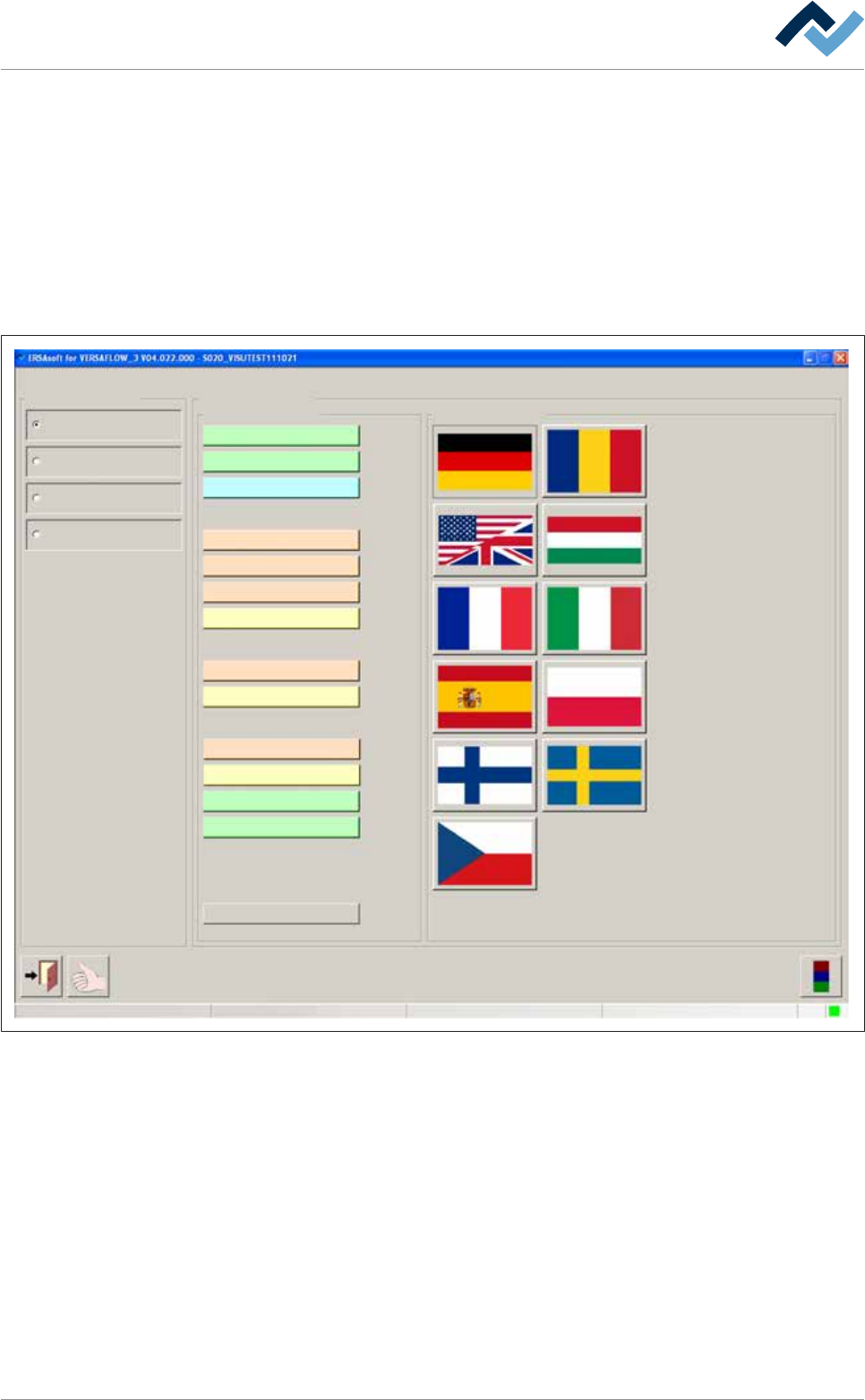
These dialogs can be opened by enabling the respective radio buttons:
Profile
User administration
Logging
File path
General settings
Settings
User maintenance mode
Infeed
Profile
LanguageBackground colour
Infeed unit
Flux unit
Preheating
Preheating
Preheating
Preheating
Preheating
Soldering module
Soldering module
Soldering module
Exit unit
Exit
Default
User ersa Maintenance mode
The [General settings] dialog, here the [Profile] radio button was enabled.
Ersa GmbH Operating Instructions_VF335_en|Rev. 14|30/11/2017 131/695
6|Function description
6.5.1 The [Profile] dialog
In this dialog, you can make the following settings:
The [Language] frame:
ü Set a national language
a) Select the desired language by clicking on the appropriate national flag.
ü Accept settings, close dialogs
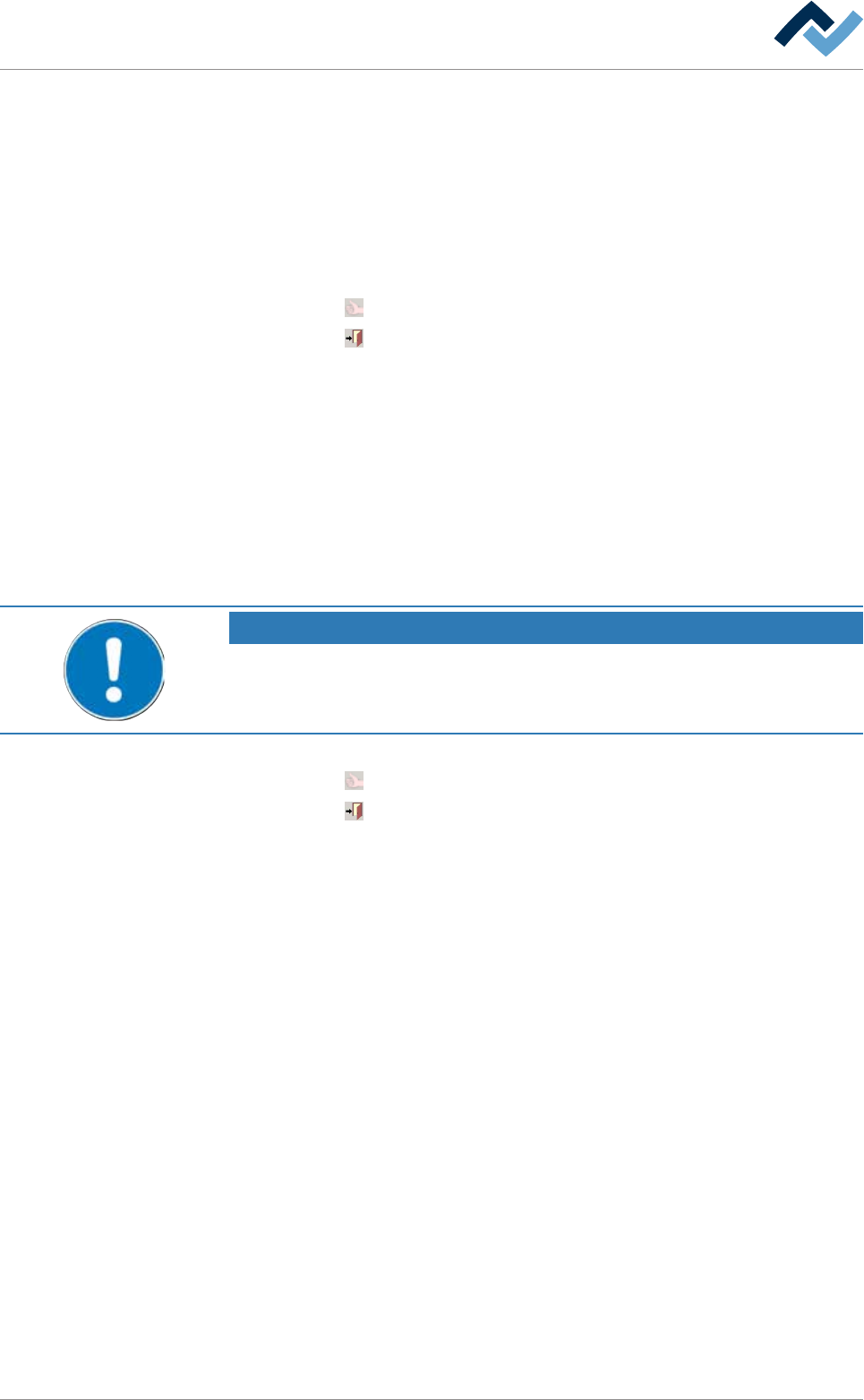
a) Click on
to accept a setting.
b) Click on
to close a dialog.
The [Background colour] frame
For a better overview, each machine module can be provided with a background
colour. The background colours, which are set here, are also used in the editing and
setting dialogs. This improves clarity.
ü Setting the background colour
a) Select the desired module by clicking on it. A colour palette appears.
b) Select the desired background colour by clicking on it and the confirm with
[OK].
NOTE
Factory settings
The [Default] button resets all settings of the [Background colour] frame to the factory
defaults.
ü Accept settings, close dialogs
a) Click on
to accept a setting.
b) Click on
to close a dialog.
Ersa GmbH Operating Instructions_VF335_en|Rev. 14|30/11/2017 132/695