Operating Instructions_VF335_en.pdf - 第146页
6|Function description To delete the switching process, click on the button in the bottom toolbar. Application example 1 ü The machine must be ready for operation on Monday morning at 06:00 am. Production must end at 0…
6|Function description
6.6.3 Setting the switch-on and switch-off times
Switch-on time and operational readiness
The switch-on time set in the weekly timer defines the timing of the machine oper-
ational readiness.
The weekly timer automatically calculates when the modules must be turned on.
For this calculation, the data in the corresponding setting dialogs is taken into ac-
count.
An example: In the [Soldering module] input dialog, a pre-heat time can be entered
into the [Solder pot]. If you enter a preheating time of 100 minutes for the pot, the
weekly timer enables the pot heating 100 minutes before the defined switch-on
time. The machine is then ready for operation at the set time, and is in the operat-
ing mode [Maintenance mode].
NOTE
The infeed remains blocked!
The infeed is not released automatically; it remains blocked.
Switch-off time and production end
The switch-off time set in the weekly timer defines the timing of the machine "pro-
duction end". The timer is then in the OFF phase. When the switch-off time has
been reached, the following steps are performed in sequence:
– The machine infeed is blocked.
– The board which is still inside the machine is completely processed and con-
veyed out of the system.
– All heaters and preheaters are switched off.
– The solder temperature is kept at standby temperature.
– The release is blocked.
– The conveyors are switched off.
You can set up to 20 switch-on and switch-off times. The registers to set the switch-
ing times are located in the right section of the dialog:
– [On day]: here, you can select the weekday when the system will be ready for
operation.
– [On time]: Here, for the [On day], you can set the [On time] when the system
shall be ready for operation.
– [Off day]: here, you can select the weekday when the system will be disabled.
– [Off time]: Here, for the [Off day], you can enter the [Off time].
– [Active]: By clicking on the button repeatedly, the following symbols are dis-
played in sequence:
The switching process is enabled and being performed.
The switching process is disabled. It remains visible in the list, but it is not per-
formed.
Ersa GmbH Operating Instructions_VF335_en|Rev. 14|30/11/2017 145/695
6|Function description
To delete the switching process, click on the button in the bottom toolbar.
Application example 1
ü The machine must be ready for operation on Monday morning at 06:00 am.
Production must end at 04:00 pm.
a) In the [On day] dropdown menu, select the [Monday] entry.
b) Enter the switch-on time 06:00 into the input field [On time].
c) Select the [Monday] entry from the [Off day] dropdown menu.
d) Enter the switch-off time 16:00 into the input field [Off time].
e) In the column [Active], click on the button repeatedly until the symbol
is dis-
played.
ð The switching process is enabled and being performed.
f) Select an entry from the dropdown menu [Operation mode if timer is off]:
ð [Voltage supply OK]: After switch-off, the machine is in this operating
mode.
ð [Movement off]: After switch-off, the machine is in this operating mode.
ü Accept settings, close dialogs
a) Click on
to accept a setting.
b) Click on
to close a dialog.
Application example 2
ü The machine will run for an entire week in continuous operation:
a) From the dropdown menu [On day], select the entry [Monday].
b) Enter the switch-on time 00:00 into the input field [On time].
c) Select the entry [Sunday] from the dropdown menu [Off day].
d) Enter the switch-off time 11:59 pm into the input field [Off time].
e) In the column [Active], click on the button repeatedly until the symbol
is dis-
played.
ð The switching process is enabled and being performed.
f) Select an entry from the dropdown menu [Operation mode if timer is off]:
ð [Voltage supply OK]: After switch-off, the machine is in this operating
mode.
ð [Movement off]: After switch-off, the machine is in this operating mode.
ü Accept settings, close dialogs
a) Click on
to accept a setting.
b) Click on
to close a dialog.
NOTE
Operation mode if timer is off
The settings in this dropdown menu cannot be saved individually for each switching
operation. They apply to all switching processes!
Ersa GmbH Operating Instructions_VF335_en|Rev. 14|30/11/2017 146/695
6|Function description
6.7 The [Messages] editing dialog
The messages administration dialogues allow to clearly display all the messages ap-
pearing during the production process. The messages are simultaneously signalled
via the machine signal lamp.
The button
is displayed in each dialogue, except for the [Messages] dialogue, in
the status bar. The [Messages] edit dialogue opens by clicking. The button will flash
as soon as a message is available.
NOTE
Are any changes possible?
The [Acknowledge messages] user rights are required to access this dialog. Settings
can only be displayed if no name and password are logged in. In this case, press the
[ESC] key on your keyboard, or click on the button [Cancel] when a password is re-
quired.
Displaying messages
ü Displaying messages:
a) click on the
button.
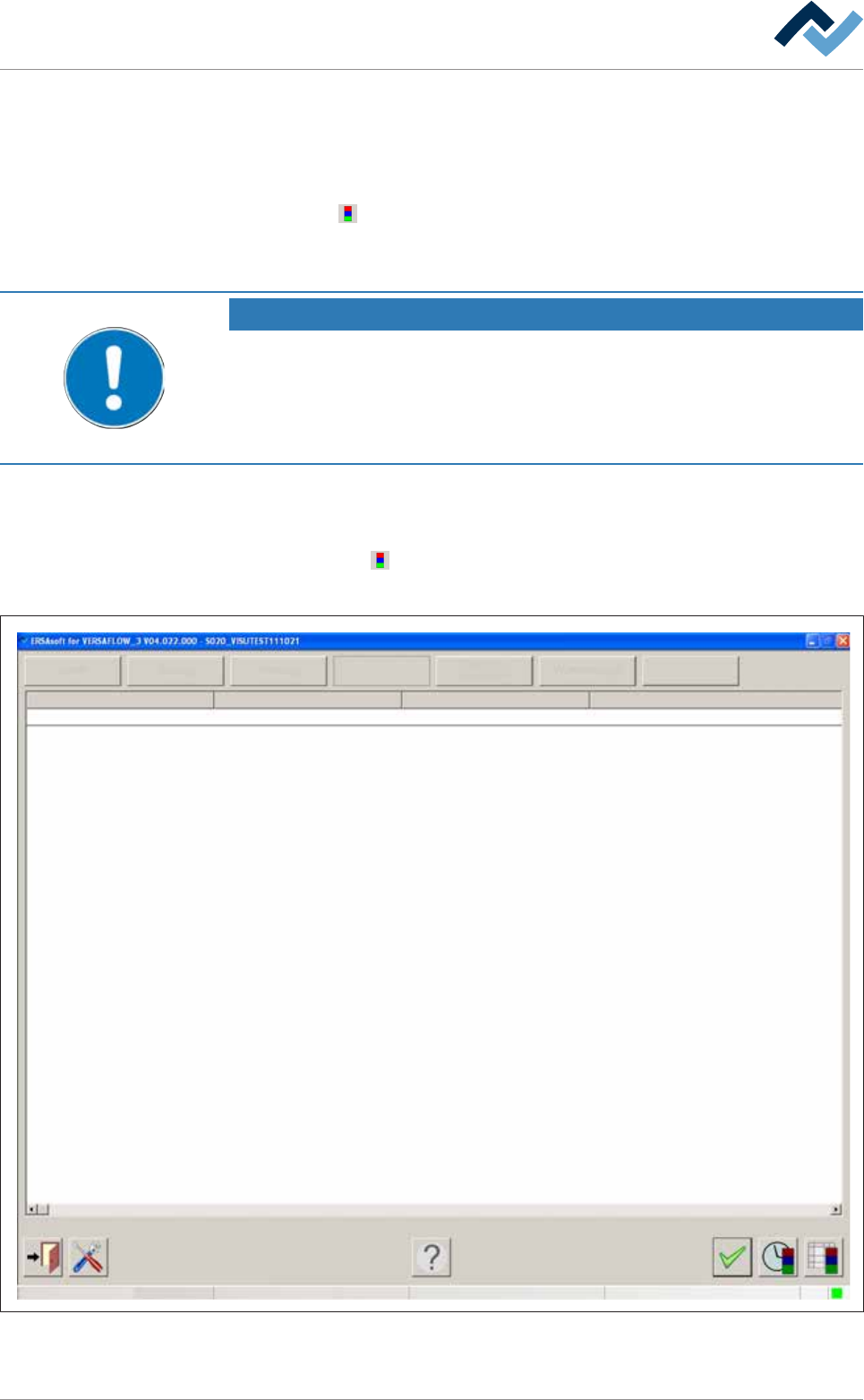
ð The [Messages] edit dialogue is opened:
Service
Facility 1
User ersa
Operation
Info
Facility 2 Facility 3 Text
PC control Communication error
Maintenance mode
Fig.27: The [Messages] input dialog
Ersa GmbH Operating Instructions_VF335_en|Rev. 14|30/11/2017 147/695