Operating Instructions_VF335_en.pdf - 第174页
6|Function description 6.9.7 Fluxer unit settings Enabling the module ü To enable the module: a) In the [General soldering program data] dialog, activate the checkbox of the module in level 1. ð The module has now been…
6|Function description
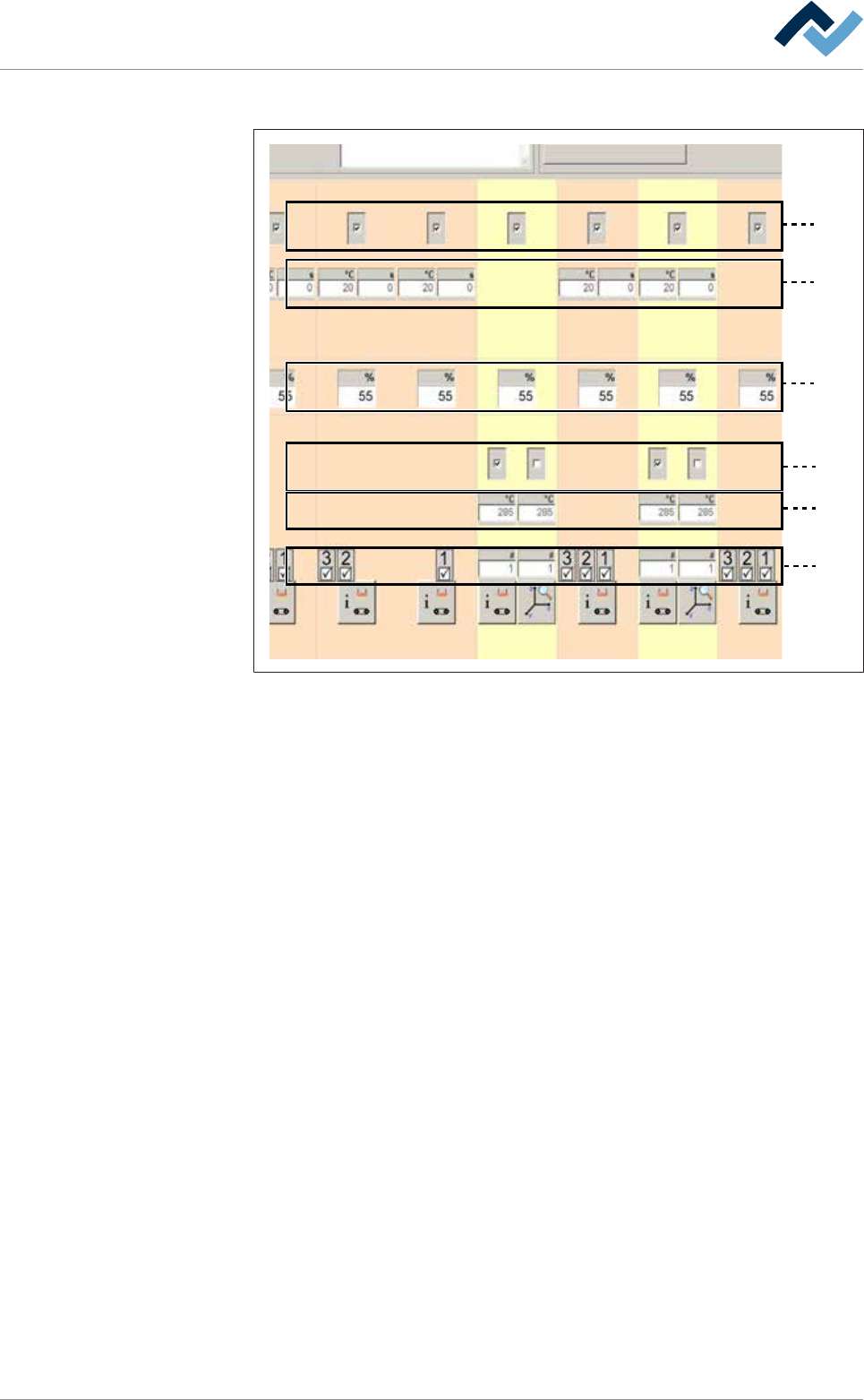
Each module features up to six levels:
1
2
3
4
5
6
Fig.36: The module levels
– Level 1: In this level, you can enable the module. When a module has been ac-
tivated, a checkmark appears.
– Level 2: Preheaters above. In this level, you can set the preheater temperat-
ures and process time.
– Level 3: Conveyor sections. In this level, you can set the conveyor speed of the
module.
– Level 4: In this level, you can enable the pot. In double pot soldering modules
(optional), you can enable one or two pots. When a pot has been enabled, a
checkmark appears.
– Level 5: Soldering temperature. In this level, you can set the soldering temper-
ature.
– Level 6: Solder nozzle number: In the case of a soldering module, you can set
the solder nozzle number in this field.
– Level 6: Spray nozzle number. In the case of a fluxer module, you can set the
spray nozzle number in this field.
– Level 6: In the case of a segmented pre-heat module, you can enable the indi-
vidual segments of the heat cartridge. When a segment has been enabled, a
checkmark appears.
6.9.6 Infeed unit settings
No settings can be entered into this dialog.
Ersa GmbH Operating Instructions_VF335_en|Rev. 14|30/11/2017 173/695
6|Function description
6.9.7 Fluxer unit settings
Enabling the module
ü To enable the module:
a) In the [General soldering program data] dialog, activate the checkbox of the
module in level 1.
ð The module has now been enabled and is used in the soldering program.
Setting the conveyor speed
ü To set the conveyor speed:
a) In the [General soldering program data] dialog in level 3, click on the input field
of the conveyor section.
b) Enter the conveyor speed in [%] of the maximum possible speed value.
ð This is the speed at which the board is conveyed into the next module.
Entering the number of the fluxer nozzle used
ü To enter the number of the fluxer nozzle used:
a) In the [General soldering program data] dialog in level 6, click on the input field
of the fluxer nozzle and enter the number of the fluxer nozzle used.
ð Spraying is done with this nozzle.
Performing extended settings in the [General additional data] dialog
ü To perform extended settings:
a) Open the [General soldering program data] dialog.
b) Below Level 6, click on the
button in the corresponding module.
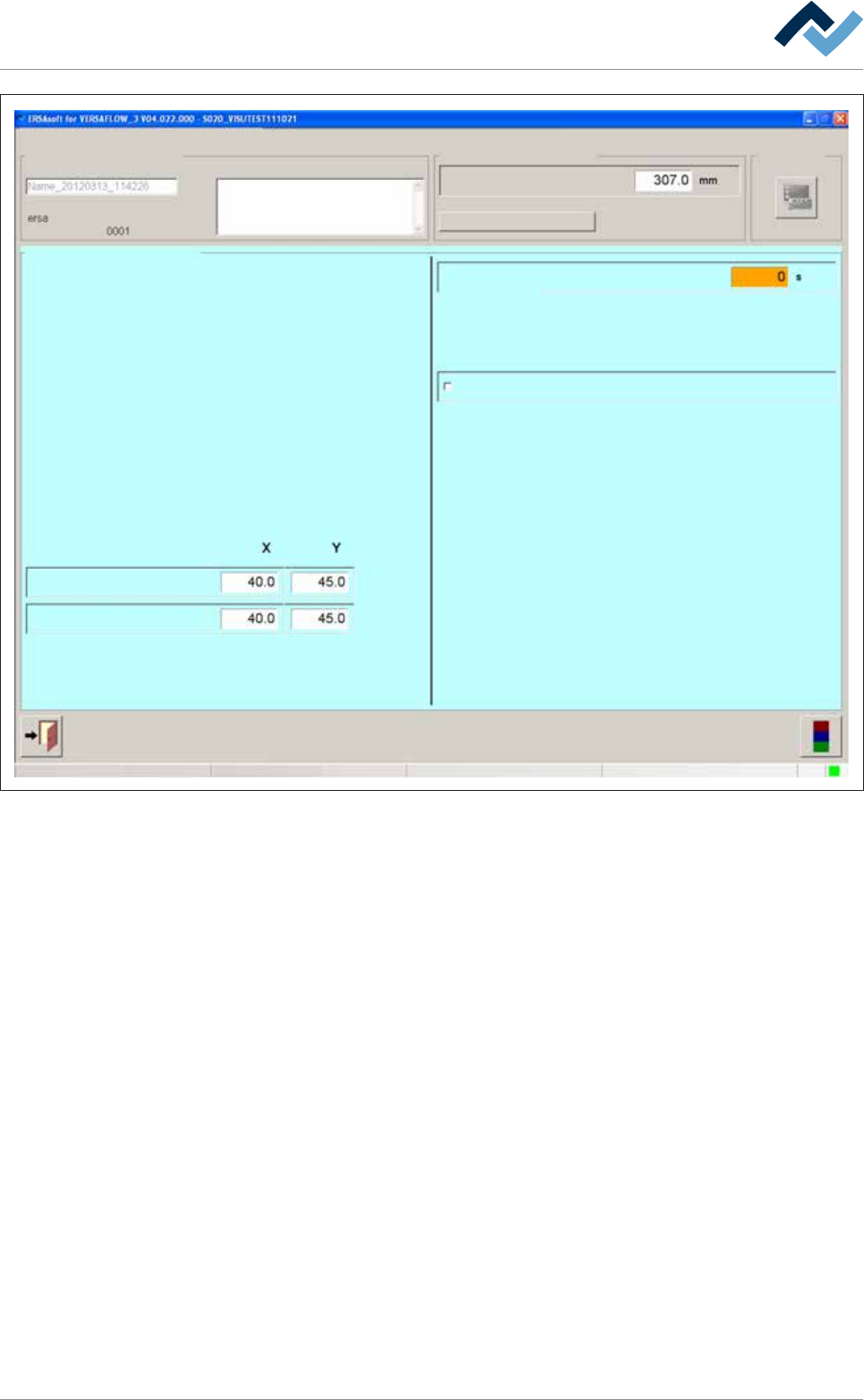
Open the [General additional data] dialog. The yellow square provides information
about how often the dialog has already been opened.
Ersa GmbH Operating Instructions_VF335_en|Rev. 14|30/11/2017 174/695
6|Function description
user:
ersa
Soldering program editor General additional data
Program informations
Program name
Version:
Last modification by:
Infotext:
Conveyor
Conveyor width adjustment
Graphical data
Process time
Process time
Fix horizontal permanently
Park position
Congestion position
Flux unit
General additional data
Maintenance mode
Fig.37: The [General additional data] dialog
Adjusting the process time manually
ü To adjust the process time manually:
a) Click on the [Process time] input field and enter a process time.
ð The process time is adjusted, and the time calculated by the controller for this
module is overwritten. When clicking on [Process time], the controller recalcu-
lates all process times. The process time adjusted by you is overwritten.
Permanently fixing PCBs
ü To permanently fix PCBs during processing:
a) Activate the [Fix horizontal permanently] checkbox.
ð The PCBs are aligned in the module and then laterally fixed until processing is
completed. If the checkbox is not activated, the PCBs are only aligned and then
released again. You can activate this function separately for all available fluxer
and soldering modules
Park position and jam position
In the [Park position] input fields, you can define a position for the nozzle, which is
always approached when the process step has been finished. In this position, the
module waits for the next board. You can also approach this position manually.
Ersa GmbH Operating Instructions_VF335_en|Rev. 14|30/11/2017 175/695