Operating Instructions_VF335_en.pdf - 第166页
6|Function description a) in the [Libraries] frame, highlight a library and then click on the [Copy] button. ð The dialogue [Copy library] is displayed. b) Enter a new name for the copy in the input field. c) Should th…
6|Function description
6.9.1 The [Libraries] frame
In this frame, you can do the following:
– create a new library
– delete a library
– rename a library
– Copy a library together with the soldering programmes contained therein
A library is a "container" in which you can store your soldering programmes. To cre-
ate a soldering programme, you first have to create a library. You can then create
one or more soldering programmes and store them in the library.
Creating a new library
ü Creating a new library:
a) click on the [New] button in the [Libraries] frame.
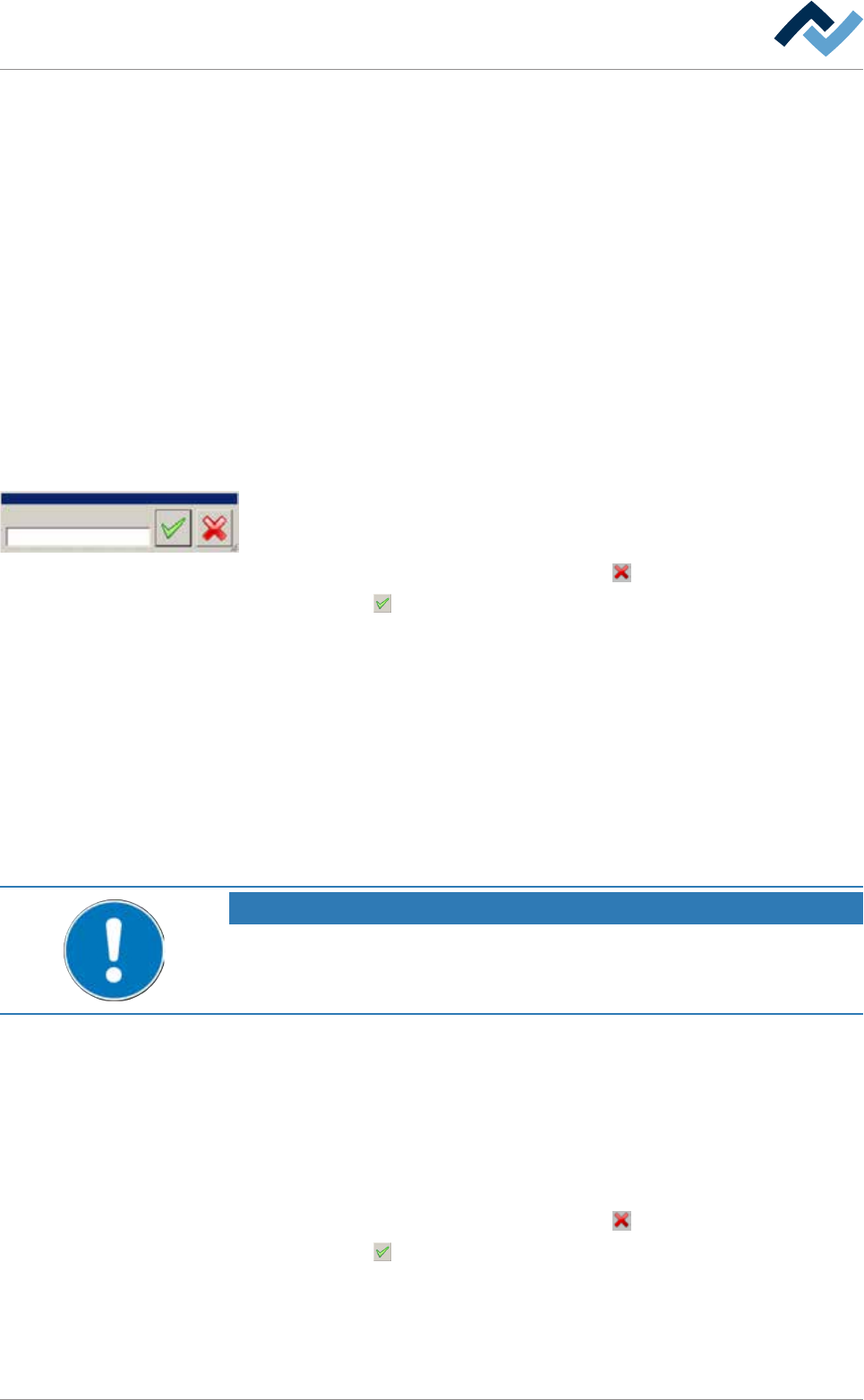
ð The dialogue [New library] is displayed:
New library
Name:
b) enter a name for the library in the input field. Special characters such as
spaces, [ ], { } or < > are not permitted. If one of such characters is entered, an
error message is displayed.
c) Should the process be cancelled, click on the
button.
d) Click on the
button.
ð The new library has been created and is now displayed in the [Libraries] frame.
Delete a library
ü Deleting a library:
a) in the [Libraries] frame, highlight a library and then click on the [Delete] but-
ton.
ð A query dialogue is displayed.
b) Follow the instructions on the screen.
ð The library has been deleted.
NOTE
Can the library not be deleted?
When soldering programs are already stored in a library, the library can not be de-
leted. You must delete the soldering programs contained therein first!
Rename a library
ü Renaming a library:
a) in the [Libraries] frame, highlight a library and then click on the [Rename] but-
ton.
ð The dialogue [Rename library] is displayed.
b) Enter a new name for the library ino the input field.
c) Should the process be cancelled, click on the
button.
d) Click on the
button.
ð The library has been renamed.
Copy a library
ü Copying a library together with the soldering programmes contained therein:
Ersa GmbH Operating Instructions_VF335_en|Rev. 14|30/11/2017 165/695

6|Function description
a) in the [Libraries] frame, highlight a library and then click on the [Copy] button.
ð The dialogue [Copy library] is displayed.
b) Enter a new name for the copy in the input field.
c) Should the process be cancelled, click on the
button.
d) Click on the
button.
ð The library has been copied together with the soldering programmes contained
therein.
Ersa GmbH Operating Instructions_VF335_en|Rev. 14|30/11/2017 166/695
6|Function description
6.9.2 The [Programs] frame
In this frame, you can do the following:
– creating a soldering programme
– enabling a soldering programme
– editing a soldering programme
– deleting a soldering programme
– copying a soldering programme
– renaming a soldering programme
A soldering programme contains, for example, information about PCB-specific set-
tings such as the conveyor width or conveyor speed. This way, soldering pro-
grammes make it possible to quickly adapt a soldering process to its related PCB.
To search for and filter a soldering programme:
ü using the filter function:
a) click on the [Program selection] input field and enter any desired character
string.
ð If you enter, for example, the character string [ec], all file names in which
this string is included, will be displayed in our example [TechDok].
ð All file names containing that character string are displayed.
Deleting a soldering programme:
ü delete a soldering programme:
a) in the [Programs] frame, highlight a soldering programme and then click on the
[Delete] button.
ð A query dialogue is displayed.
b) Follow the instructions on the screen.
ð The soldering programme has been deleted.
Copying a soldering programme:
ü copy a soldering programme:
a) in the [Programs] frame, highlight a soldering programme and then click on the
[Copy] button.
ð The dialogue [Copy program] is displayed.
b) Enter a new name for the copy in the input field.
c) Should the process be cancelled, click on the
button.
d) Click on the
button.
ð The soldering programme has been copied.
Renaming a soldering programme:
ü rename a soldering programme:
a) in the [Programs] frame, highlight a soldering programme and then click on the
[Rename] button.
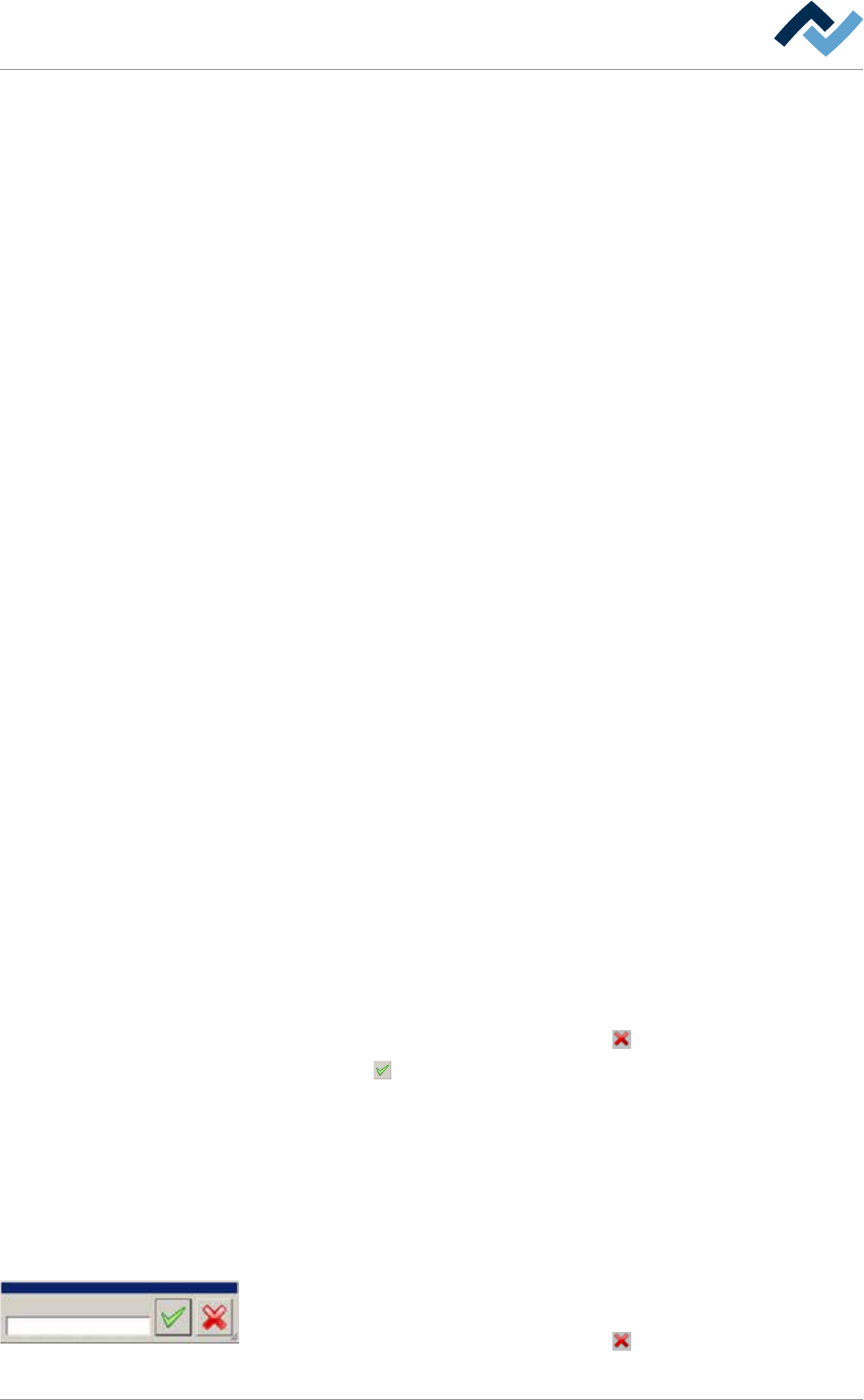
ð The dialogue [Rename program] is displayed.
Rename to:
Rename program
b) Enter a name for the new soldering programme in the input field. Special char-
acters such as spaces, [ ], { } or < > are not permitted.
c) Should the process be cancelled, click on the
button.
Ersa GmbH Operating Instructions_VF335_en|Rev. 14|30/11/2017 167/695