Operating Instructions_VF335_en.pdf - 第226页
6|Function description The bottom toolbar contains the following buttons: Start recording. During recording, the button changes into . In the [Automatic mode] operating mode, recording cannot be started! Stop recording…
6|Function description
6.13.2 The soldering report
This function allows a precise logging and documentation of the entire production
process. You can monitor and export the data of a manufacturing batch. You can
have a separate process data file generated automatically for each PCB of a series.
Opening the dialogue
ü Opening the [Soldering report] edit dialogue:
a) Activate the [Soldering report] radio button in the [Soldering report and oper-
ating data] edit dialogue.
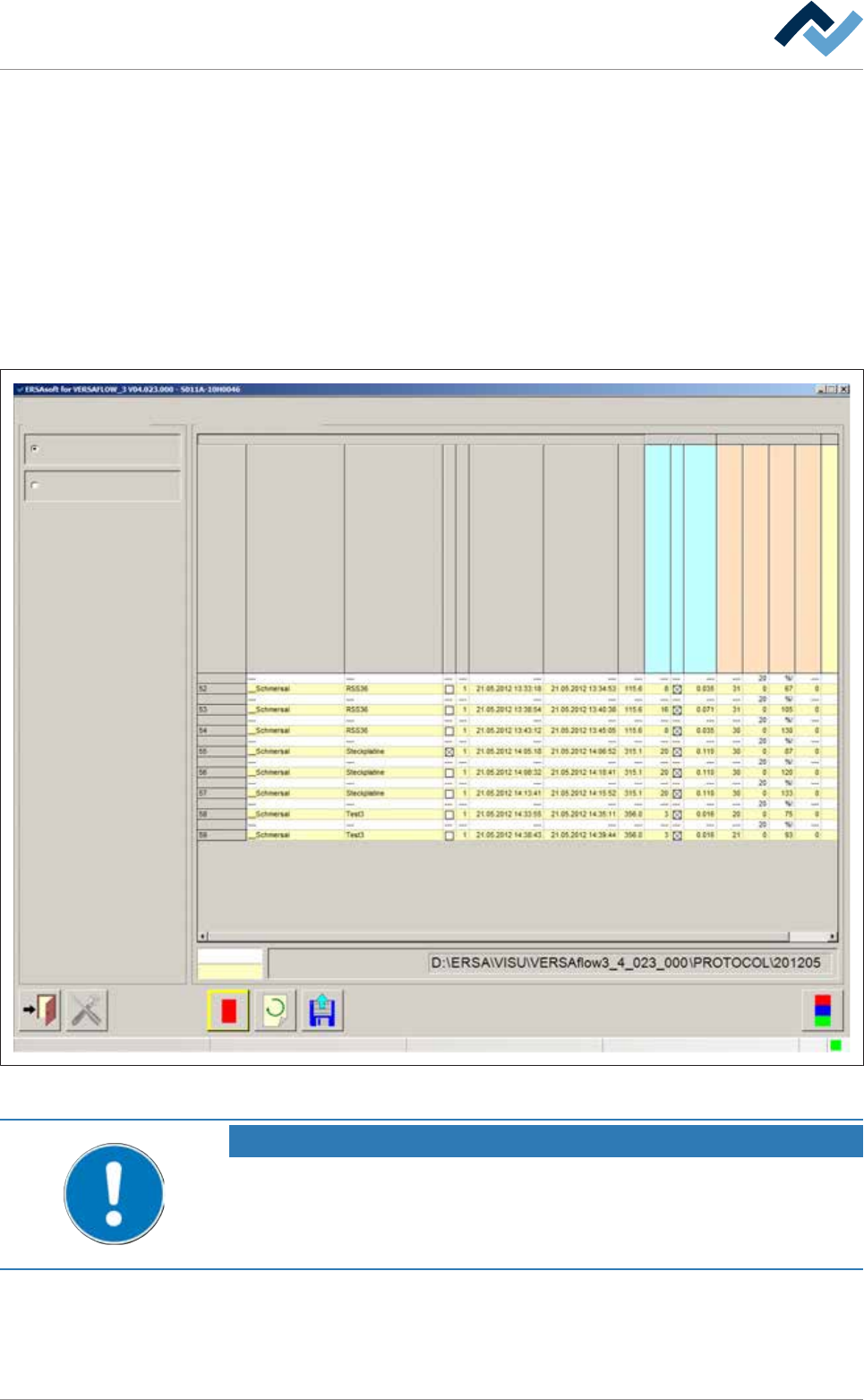
ð The machine soldering report is displayed:
Soldering report and operating data Soldering report
Soldering reportSelection
Soldering report
Operating data
Set value
Actual value
File name
user:
Service
Maintenance mode
Serial board number
Library
Program
Error
Number
Running in moment
Running out moment
Conveyor width [mm]
Time in fluxer unit [s]
Flux head 1 active
consumption Flux head 1
Time in preheat unit 11 [s]
Temp. in upper preheat unit 11 [°C]
Temp. in lower preheat unit 11 [°C]
No. PH repetitions preheat unit 11
Time in soldering unit 1 [s]
Fig.56: The soldering report. In this dialog, the soldering report is shown in tabular form.
NOTE
Are any changes possible?
The [Set value pages] user rights are required to access this dialog. Settings can only
be displayed if no name and password are logged in. In this case, press the [ESC] key
on your keyboard, or click on the button [Cancel] when a password is required.
Ersa GmbH Operating Instructions_VF335_en|Rev. 14|30/11/2017 225/695
6|Function description
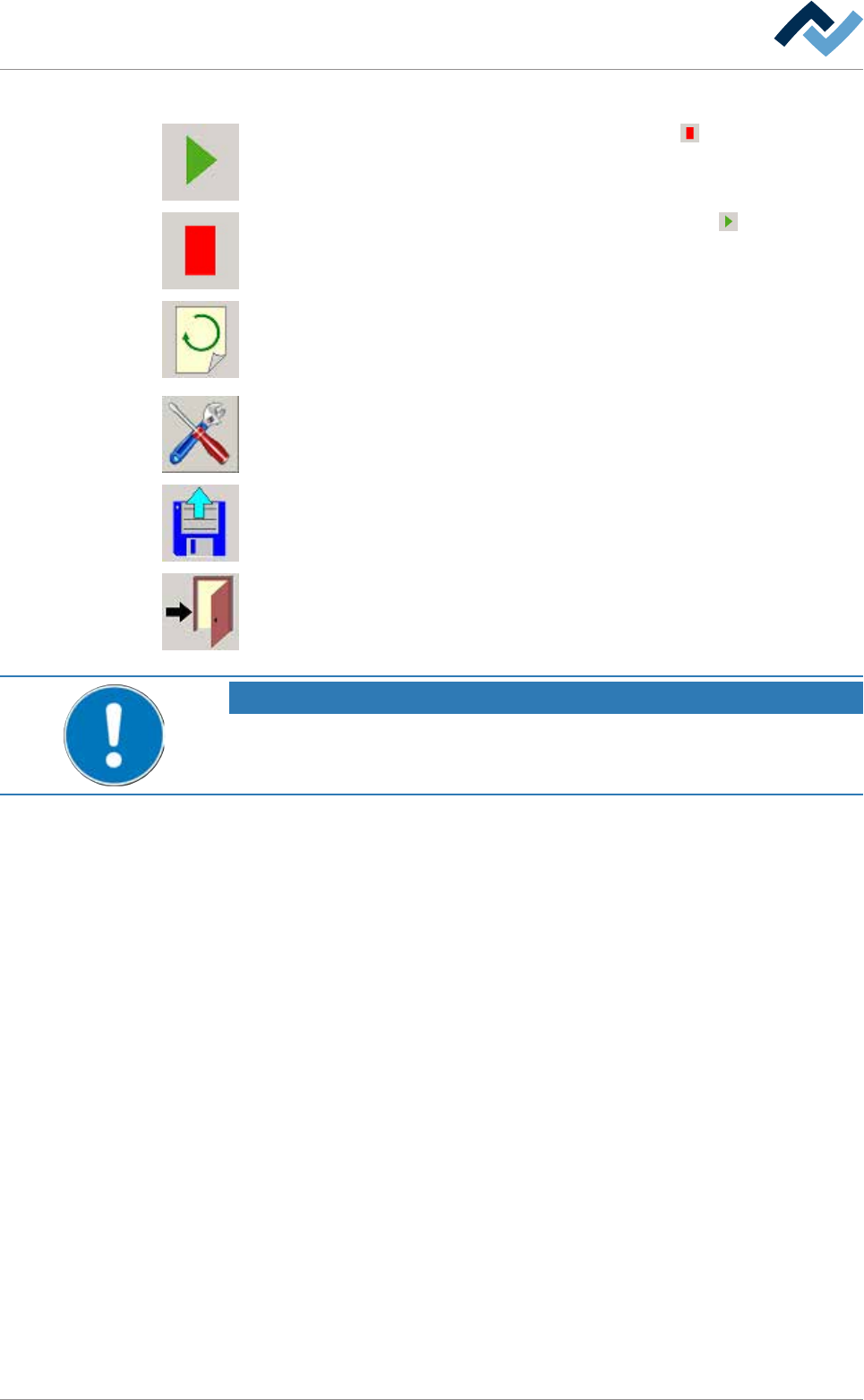
The bottom toolbar contains the following buttons:
Start recording. During recording, the button changes into . In the [Automatic
mode] operating mode, recording cannot be started!
Stop recording. If recording is stopped, the button changes into .
It updates the display of the soldering report. The display of the soldering report is
static and always applies to the board which the machine has just fed out. The dis-
play must be updated as soon as the next board has left the machine. To update,
click on these buttons.
It opens the [Soldering report] setting dialog. During the recording of the soldering
report, this button is not available.
It imports saved soldering reports and shows them.
It closes the dialog.
NOTE
How are set values and actual values displayed?
Set values are always highlighted in white in this dialog, actual values in yellow.
Ersa GmbH Operating Instructions_VF335_en|Rev. 14|30/11/2017 226/695
6|Function description
6.13.3 Recording a soldering report
Recorded soldering reports are saved automatically and can be later reimported
and displayed for documentation purposes.
Recording a soldering report
ü To record a soldering report:
a) set the machine to the [Maintenance mode] operating mode.
b) Insert a board into the machine infeed.
c) Click on the
button in the bottom toolbar of the [Soldering report] dialog.
ð The button will change into
. The soldering report is recorded.
d) Start a soldering program.
ð The machine switches to the [Automatic mode] operating mode. The
board is transported and processed inside the machine. As soon as the
board has left the machine, the soldering report is stored and displayed.
ð The report is automatically saved in a file whose size can be specified by you.
As soon as this file size has been exceeded, ERSAsoft closes the file automatic-
ally and creates a new file.
On this regard, please read Chapter The [File paths] editing dialog [
}139].
NOTE
How do I find a recorded soldering report again?
The files are automatically named in chronological order by the system and stored in
appropriate folders and subfolders. You can specify the structure of the folders in the
setting dialog. The file naming is automatic: The file identification itself is performed
by default in the following format: YYYYMMDD_hhmmss_yyyyyyy.xxx. (Y = 7-digit
counting number). You can change the file name and other parameters in the [Solder-
ing report] setting dialog.
6.13.4 Importing and displaying a soldering report
You can import and display soldering reports which were recorded at an earlier
point in time.
ü Importing soldering reports:
a) Set the machine to the [Maintenance mode] operating mode.
b) Click on the
button in the bottom toolbar of the [Soldering report] dialog.
ð Windows Explorer is displayed.
c) Locate and open the report file.
ð The file is imported, the report is displayed.
Ersa GmbH Operating Instructions_VF335_en|Rev. 14|30/11/2017 227/695