Operating Instructions_VF335_en.pdf - 第133页
6|Function description 6.5.2 The [User administration] dialog You can lock or unlock individual sections of the machine control system for a cer- tain group of people. To this purpose, the dialog box [User administrati…
6|Function description
6.5.1 The [Profile] dialog
In this dialog, you can make the following settings:
The [Language] frame:
ü Set a national language
a) Select the desired language by clicking on the appropriate national flag.
ü Accept settings, close dialogs
a) Click on
to accept a setting.
b) Click on
to close a dialog.
The [Background colour] frame
For a better overview, each machine module can be provided with a background
colour. The background colours, which are set here, are also used in the editing and
setting dialogs. This improves clarity.
ü Setting the background colour
a) Select the desired module by clicking on it. A colour palette appears.
b) Select the desired background colour by clicking on it and the confirm with
[OK].
NOTE
Factory settings
The [Default] button resets all settings of the [Background colour] frame to the factory
defaults.
ü Accept settings, close dialogs
a) Click on
to accept a setting.
b) Click on
to close a dialog.
Ersa GmbH Operating Instructions_VF335_en|Rev. 14|30/11/2017 132/695
6|Function description
6.5.2 The [User administration] dialog
You can lock or unlock individual sections of the machine control system for a cer-
tain group of people. To this purpose, the dialog box [User administration] is used.
When the software is started for the first time, the user administration function is
disabled; for this reason, no password is required.
If a password is required when the software is started, a user has already been cre-
ated and provided with administrator rights. Only a user with administrator rights...
– ...may change the [User administration] settings
– ...may create new users
– ...may disable the user administration function
– ...has unrestricted access to all the control settings (except for the configura-
tion ones).
NOTE
Securing data
The user administration data is stored in the [ERSA.usr] file and should be saved on a
data medium. Store the medium in a safe place in order to have the data available in
case of a possible data loss.
The following users are set by default:
– [Service]; password [Service].
– [User]; password [User]
– [Operator]; password [Operator]
CAUTION
Personal injury or material damage due to the machine improper operation!
This data must be changed immediately after the machine commissioning to prevent
unauthorised access to the controller! Keep the user name and password in a safe
place!
NOTE
Pay attention to upper and lower case letters
The [Log in] edit dialog is case-sensitive when a user logs in. If, for example, a user
with the name [User1] was created, an error message is triggered if [user1] is entered.
The same applies to the password entry: if, for example, a password [Administrator]
was created, an error message will be triggered if [administrator] is entered.
Ersa GmbH Operating Instructions_VF335_en|Rev. 14|30/11/2017 133/695
6|Function description
6.5.3 The [Accessibility] frame
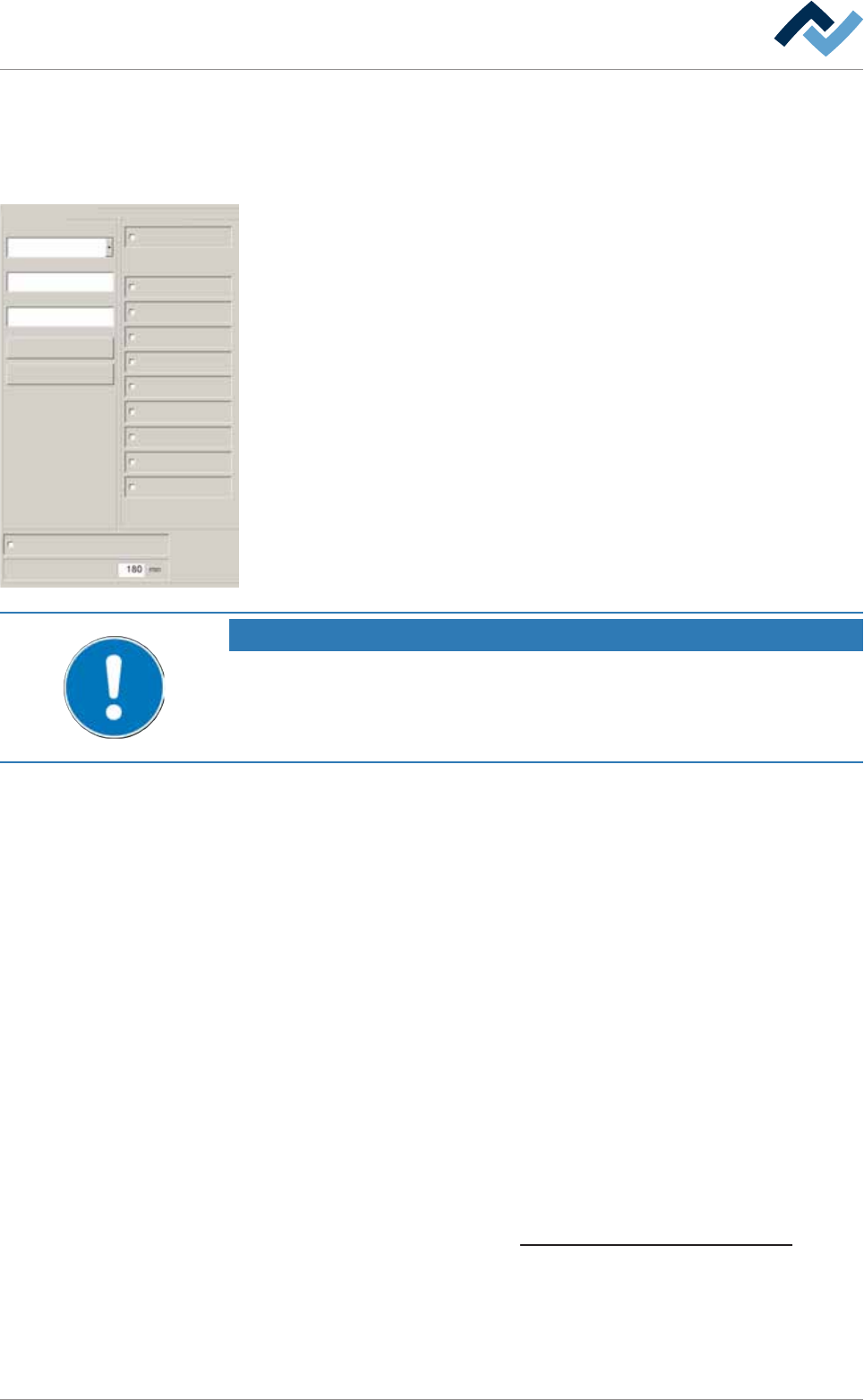
This frame includes several checkboxes, which can be enabled with a click. A check-
mark indicates that a checkbox has been enabled and the related authorization
given.
Profile
User administration
Logging
File path
General settings
Settings
User maintenance mode
Add user
User administration active
User ersa maintenance mode
Automatic log off after
General settings
Process recorder
Weekly timer
Messages administration
Acknowledge messages
Edit soldering program
Select soldering program
Set value pages
Module properties
Administrator
Delete
Name
Password:
Confirmation password
User Accessibility
User administration
– [Administrator]: a user with administrator rights has the right to enable/disable
the user administration function as well as to create new users. If this checkbox
is enabled, the user is automatically granted all rights. (Except for configuration
settings).
NOTE
Are any changes possible?
Without administrator rights, nothing can be changed in this dialog. Without log-in
name and password, the settings can only be displayed. In this case, press the [ESC]
key on your keyboard, or click on the button [Cancel] when a password is required.
– [Module properties]: The user has access to the setting dialogs of the module
properties.
– [Set value pages]: The user has access to the editing dialogs to operate the
modules.
– [Select soldering program]: The user may select and enable an existing solder-
ing program. On this regard , please read chapter Selecting and starting a sol-
dering program.
– [Edit soldering program]: The user may edit soldering programs. On this regard,
please read chapter The soldering program editor.
– [Acknowledge messages]: The user may acknowledge messages. On this re-
gard, please read chapter The [Messages] editing dialog.
– [Messages administration]: the user has access to the [Message administra-
tion] dialog. On this regard, please read chapter The [Messages] editing dialog.
– [Weekly timer]: The user may change settings in the [Weekly timer] dialogs. On
this regard, please read chapter The [Weekly timer] setting dialog..
– [Process recorder]: The user may perform settings in the process recorder dia-
logs. On this regard, please read chapter The process recorder.
– [General settings]: The user may change the settings in the [Profile] dialog. On
this regard, please read chapter The [General settings] editing dialog [
}131].
– [User administration active]: If this checkbox is empty, the user administration
function is disabled. In that case, unrestricted operation is possible for each
person. If this checkbox is enabled, the user administration function is active as
well. In that case, a user can only operate the system if he/she has been given
the required rights.
Ersa GmbH Operating Instructions_VF335_en|Rev. 14|30/11/2017 134/695