Operating Instructions_VF335_en.pdf - 第147页
6|Function description 6.7 The [Messages] editing dialog The messages administration dialogues allow to clearly display all the messages ap- pearing during the production process. The messages are simultaneously signal…
6|Function description
To delete the switching process, click on the button in the bottom toolbar.
Application example 1
ü The machine must be ready for operation on Monday morning at 06:00 am.
Production must end at 04:00 pm.
a) In the [On day] dropdown menu, select the [Monday] entry.
b) Enter the switch-on time 06:00 into the input field [On time].
c) Select the [Monday] entry from the [Off day] dropdown menu.
d) Enter the switch-off time 16:00 into the input field [Off time].
e) In the column [Active], click on the button repeatedly until the symbol
is dis-
played.
ð The switching process is enabled and being performed.
f) Select an entry from the dropdown menu [Operation mode if timer is off]:
ð [Voltage supply OK]: After switch-off, the machine is in this operating
mode.
ð [Movement off]: After switch-off, the machine is in this operating mode.
ü Accept settings, close dialogs
a) Click on
to accept a setting.
b) Click on
to close a dialog.
Application example 2
ü The machine will run for an entire week in continuous operation:
a) From the dropdown menu [On day], select the entry [Monday].
b) Enter the switch-on time 00:00 into the input field [On time].
c) Select the entry [Sunday] from the dropdown menu [Off day].
d) Enter the switch-off time 11:59 pm into the input field [Off time].
e) In the column [Active], click on the button repeatedly until the symbol
is dis-
played.
ð The switching process is enabled and being performed.
f) Select an entry from the dropdown menu [Operation mode if timer is off]:
ð [Voltage supply OK]: After switch-off, the machine is in this operating
mode.
ð [Movement off]: After switch-off, the machine is in this operating mode.
ü Accept settings, close dialogs
a) Click on
to accept a setting.
b) Click on
to close a dialog.
NOTE
Operation mode if timer is off
The settings in this dropdown menu cannot be saved individually for each switching
operation. They apply to all switching processes!
Ersa GmbH Operating Instructions_VF335_en|Rev. 14|30/11/2017 146/695
6|Function description
6.7 The [Messages] editing dialog
The messages administration dialogues allow to clearly display all the messages ap-
pearing during the production process. The messages are simultaneously signalled
via the machine signal lamp.
The button
is displayed in each dialogue, except for the [Messages] dialogue, in
the status bar. The [Messages] edit dialogue opens by clicking. The button will flash
as soon as a message is available.
NOTE
Are any changes possible?
The [Acknowledge messages] user rights are required to access this dialog. Settings
can only be displayed if no name and password are logged in. In this case, press the
[ESC] key on your keyboard, or click on the button [Cancel] when a password is re-
quired.
Displaying messages
ü Displaying messages:
a) click on the
button.
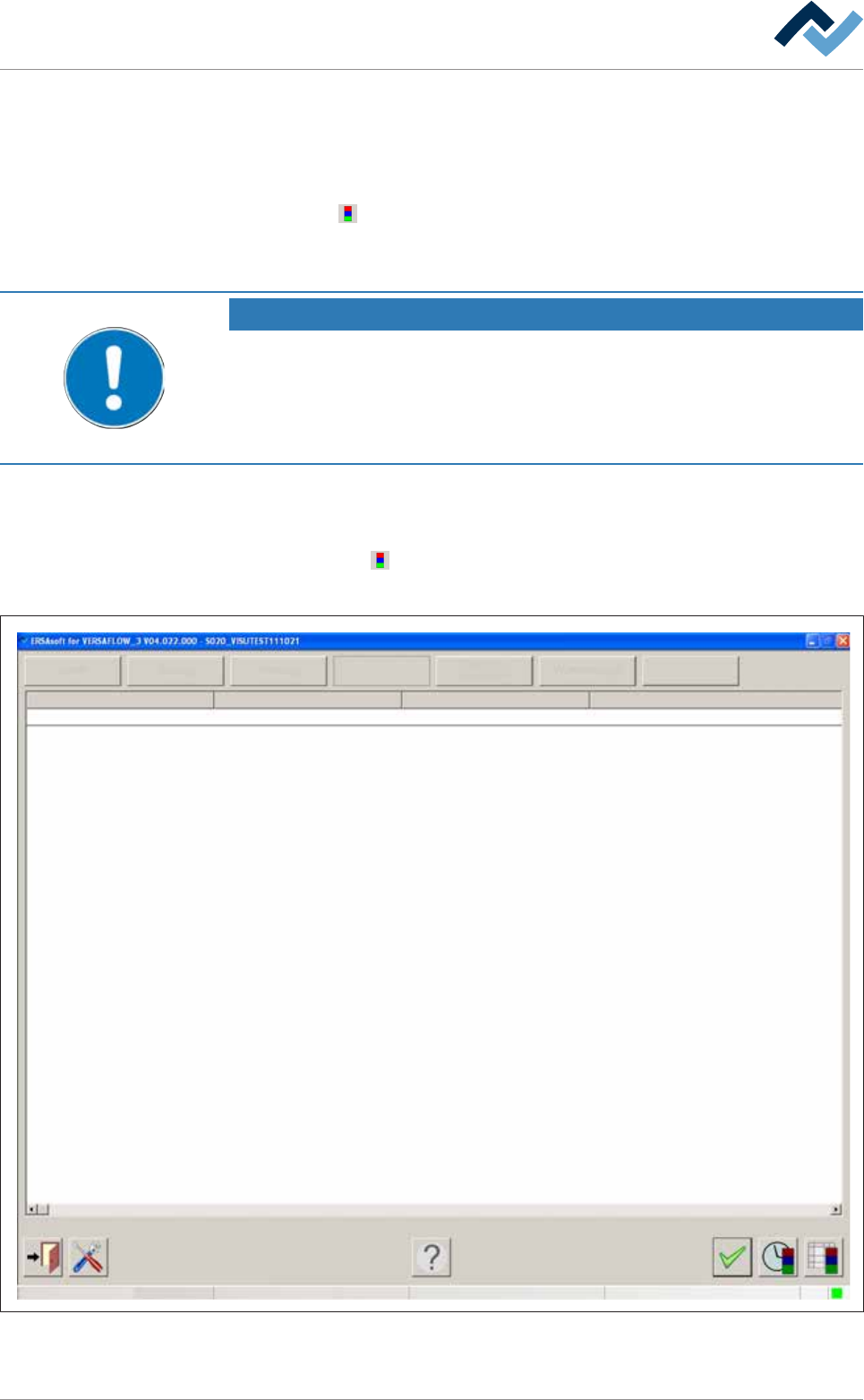
ð The [Messages] edit dialogue is opened:
Service
Facility 1
User ersa
Operation
Info
Facility 2 Facility 3 Text
PC control Communication error
Maintenance mode
Fig.27: The [Messages] input dialog
Ersa GmbH Operating Instructions_VF335_en|Rev. 14|30/11/2017 147/695
6|Function description
6.7.1 Message types
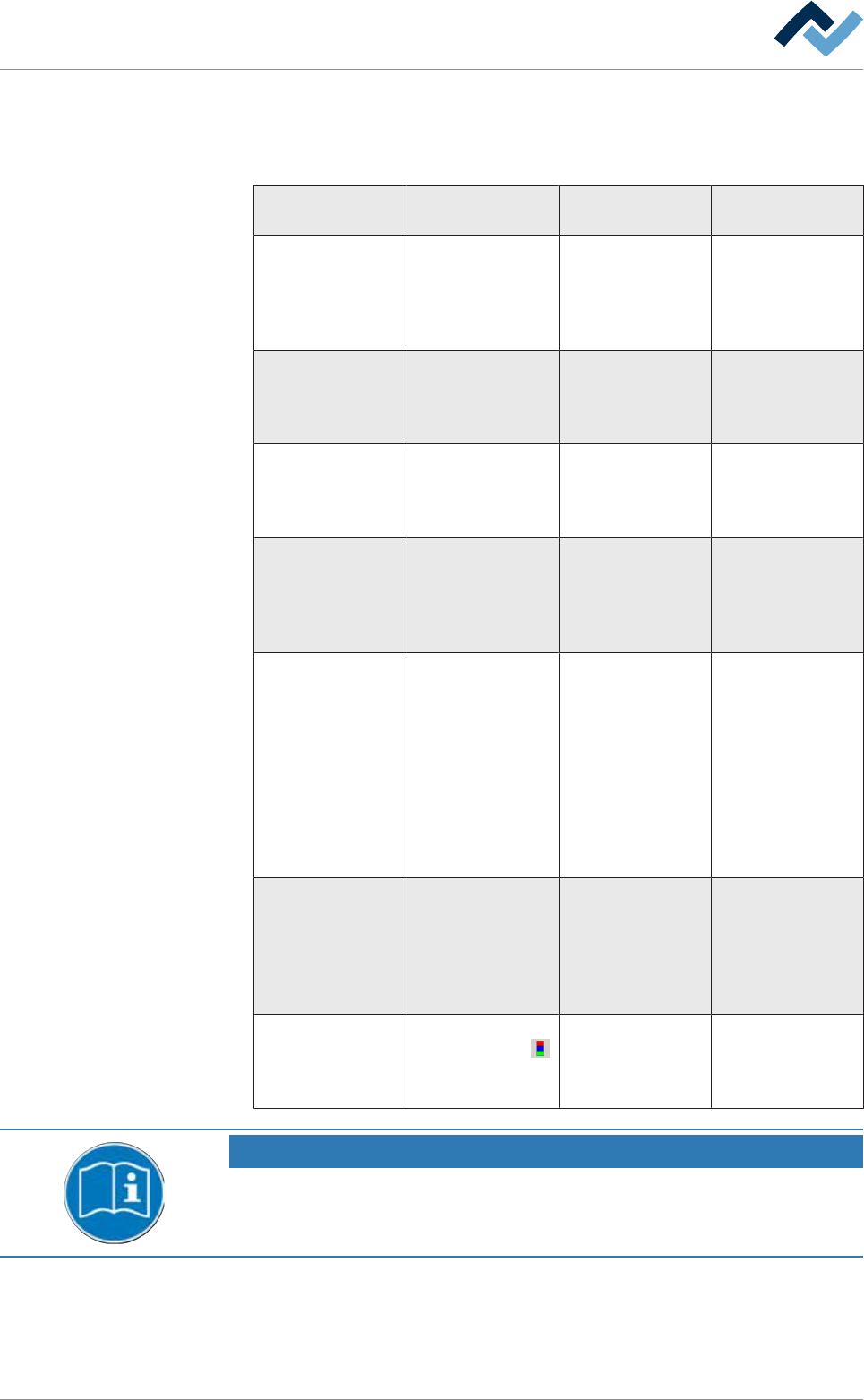
Buttons are located in the top part of the dialogue; each of these buttons repres-
ents a type of message:
Button / Message
type
Signal of the signal
lamp
Description of the
message
Example
[Danger] The red lamp
flashes
Emergency, hazard-
ous condition, im-
mediate action re-
quired. Infeed is
blocked
Exhaust air error,
safety circuit open
[Failure] The red lamp lights
up continuously or
the orange lamp
(optional) flashes
Abnormal condi-
tion, imminent crit-
ical condition. In-
feed is blocked
Tolerance error
[Warning] The blue light
flashes
Abnormal condi-
tion, imminent crit-
ical condition. In-
feed is blocked
Monitoring was
deselected
[Service] The blue light
flashes
Service is strin-
gently required.
Service is mandat-
ory. Infeed is
blocked
Missing agent (ni-
trogen, solder, flux
material...)
[Cyclic messages] The blue light
flashes
Service is mandat-
ory; operator's ac-
tion is required ac-
cording to a self-
defined, cyclic mes-
sage. Infeed is
blocked. With re-
gard to this, please
also read Chapter
[Cyclic messages]
Dependent on self-
defined messages
[Waiting message] The green light
flashes
A waiting message
is displayed until a
certain operating
state has been
reached. Infeed is
not blocked
Solder temperature
not yet reached
[Info] No indication of the
signal lamp. The
button flashes.
A note indicates a
specific operating
condition. Infeed is
not blocked.
The axis is not ref-
erenced
NOTE
Supplementary documents
With respect to this, please also read the document [120062] on the data carrier
[product_data_selective], which is included in the delivery.
ü Displaying a message:
a) Click on a button in the upper section of the window.
ð All still unacknowledged messages of the respective message type are dis-
played.
Ersa GmbH Operating Instructions_VF335_en|Rev. 14|30/11/2017 148/695