Operating Instructions_VF335_en.pdf - 第138页
6|Function description 6.5.6 Removing a user You must have administrator rights to remove a user from the list! ü Removing a user: a) click on the button in the start dialogue. ð When the [Password:] input field appear…
6|Function description
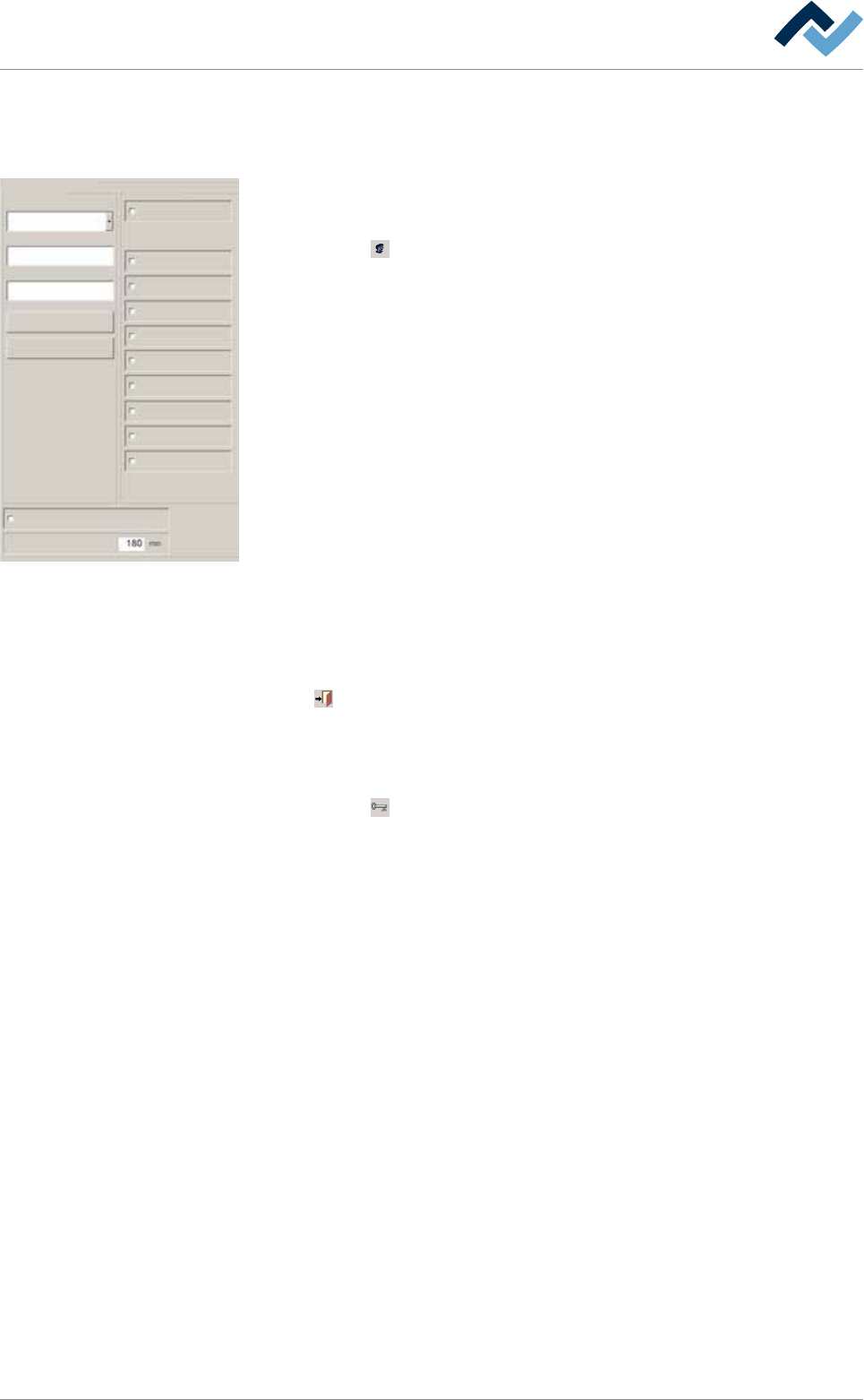
6.5.5 Changing the rights of a user
To change the rights of a user you must have administrator rights!
Profile
User administration
Logging
File path
General settings
Settings
User maintenance mode
Add user
User administration active
User ersa maintenance mode
Automatic log off after
General settings
Process recorder
Weekly timer
Messages administration
Acknowledge messages
Edit soldering program
Select soldering program
Set value pages
Module properties
Administrator
Delete
Name
Password:
Confirmation password
User Accessibility
User administration
Changing the rights of a user
ü Change the rights of a user:
a) click on the
button in the start dialogue.
ð When the [Password:] input field appears:
b) Enter the Administrator user name and password.
c) Click the [User administration] radio button in the [General settings] dialogue.
d) Activate the [User administration active] checkbox.
ð The user administration function has now been enabled.
e) Click on the [Name] menu and select the user name.
f) Select the rights that will be assigned to the user in [Accessibility].
g) Enter a password in the input field [Password:]. The password is not shown
when it is entered but displayed in a coded way (******).
ð When typing, remember that commands are case-sensitive!
h) Enter the password in the [Confirmation password] input field again.
i) Click the [Add user] button.
ð A confirmation prompt is displayed. Follow the instructions on the screen.
If you confirm the changes made, the new settings are accepted and the
previous ones overwritten.
Click on
to close the dialog.
Logging in the user
ü To log out the administrator and log in the new user:
a) click on the
button in the start dialogue.
ð The administrator has now been logged out.
b) Log in the user and check their rights.
ð The process has now been completed.
Ersa GmbH Operating Instructions_VF335_en|Rev. 14|30/11/2017 137/695
6|Function description
6.5.6 Removing a user
You must have administrator rights to remove a user from the list!
ü Removing a user:
a) click on the
button in the start dialogue.
ð When the [Password:] input field appears:
b) Enter the administrator user name and password.
c) Click on the radio button [User administration] in the dialogue [General set-
tings].
d) Activate the [User administration active] checkbox.
ð The user administration function has now been enabled.
ð Click on the [Name] dropdown menu and select the user name.
ð Click the [Delete] button.
ð A confirmation prompt is displayed. Follow the instructions on the screen.
If you confirm the changes made, the user is deleted from the list.
ð The process has now been completed.
Click on
to close the dialog.
Logging out the administrator
ü Logging out the administrator:
a) click on the
button in the start dialogue.
ð The administrator has now been logged out.
ð The user has now been deleted from the list.
Ersa GmbH Operating Instructions_VF335_en|Rev. 14|30/11/2017 138/695
6|Function description
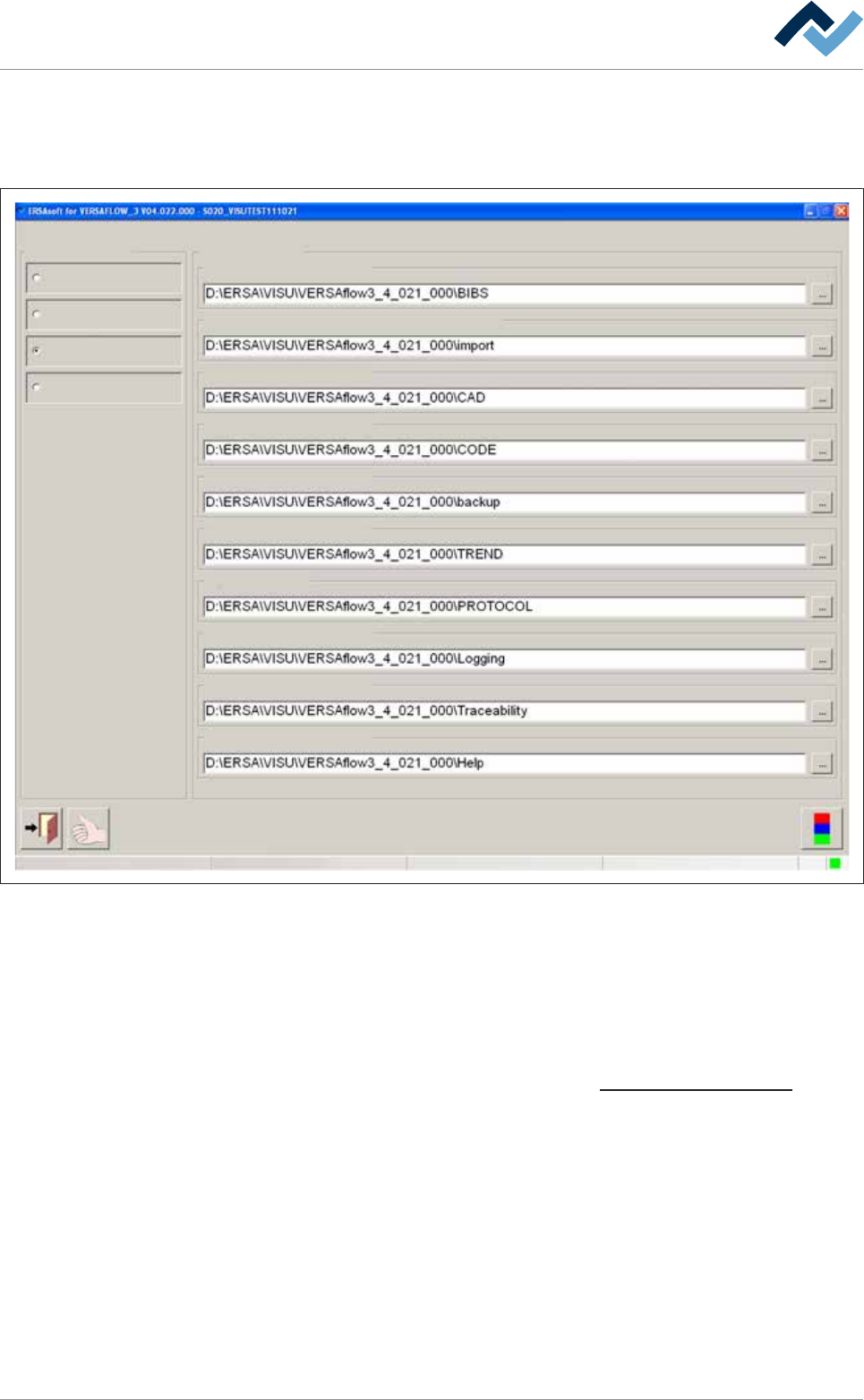
6.5.7 The [File paths] editing dialog
You can store the following machine data; the appropriate file paths are displayed
in this dialog and can also be changed:
Profile
User administration
Logging
File path
General settings
Settings
User maintenance mode
Code table
Process recorder
User ersa Maintenance mode
Configuration data
Soldering programs
File path
Soldering report
Logging
Traceability
Help
Import ERSAsoft 2.5 ASCII Program files
CAD import/export
Fig.24: The [File paths] editing dialog
– [Soldering programs]: soldering program data is stored in this directory. On this
regard, please read chapter The [Programs] frame.
– [Import ERSAsoft 2.5 ASCII Program files]: the soldering program data, impor-
ted from older series machines, is stored in this directory. On this regard,
please read chapter The [Programs] frame.
– [CAD import/export]: data from the CAD Assistant ERSAcad is stored in this dir-
ectory. On this regard, please read chapter Importing from CAD data [
}199].
– [Code table]: the assignment tables of the barcodes for the soldering programs
are stored in this directory.
– [Configuration data]: the machine configuration files are stored in this direct-
ory.
– [Process recorder]: the data acquired from the process recorders is stored in
this directory. On this regard, please read chapter The process recorder.
– [Soldering report]: soldering report data is stored for process control in this dir-
ectory. On this regard, please read chapter .
– [Logging]: the machine log data is stored in this directory.
– [Traceability]: the traceability system data is stored in this directory.
Ersa GmbH Operating Instructions_VF335_en|Rev. 14|30/11/2017 139/695