Operating Instructions_VF335_en.pdf - 第212页
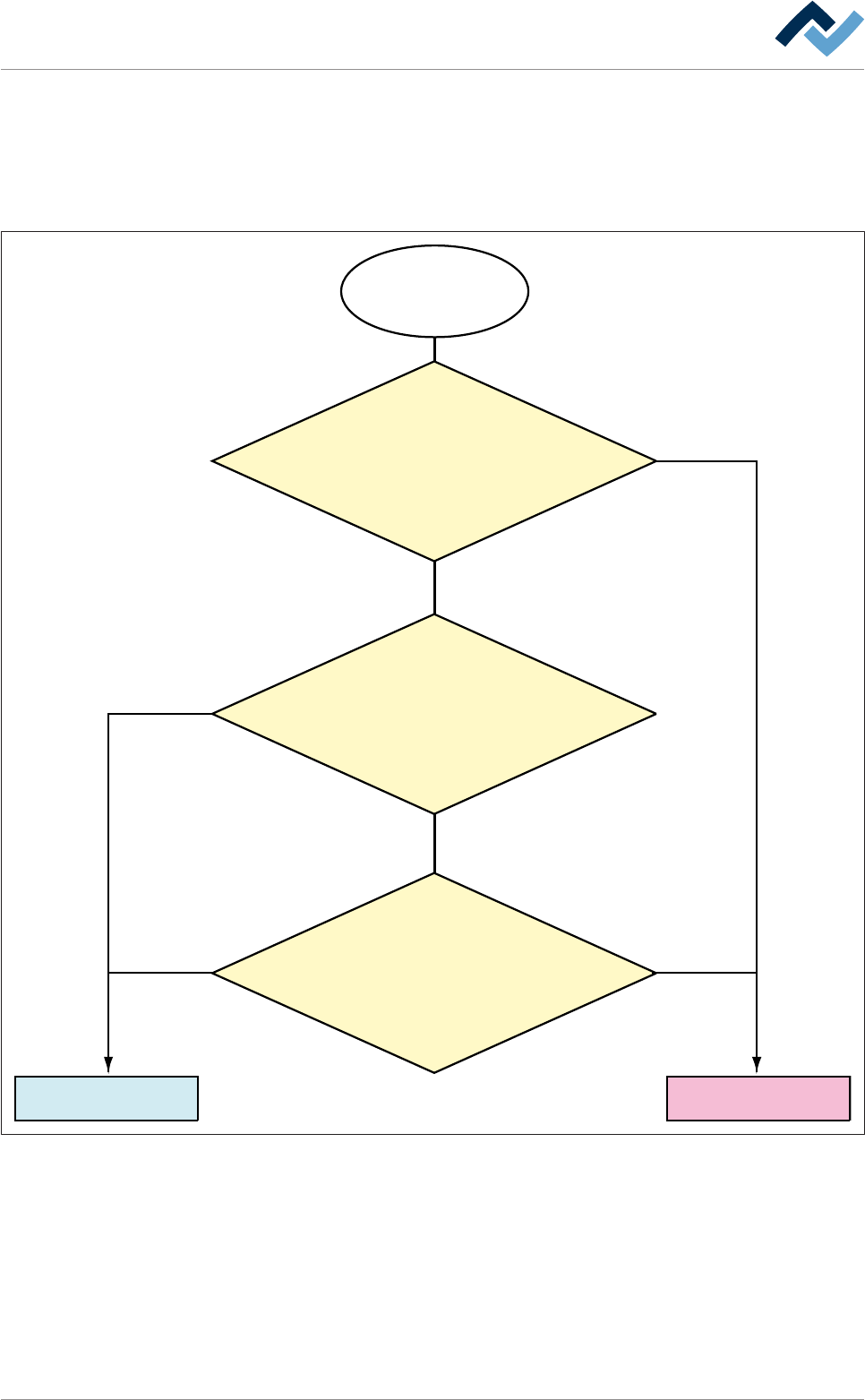
6|Function description 6.10.4 How does ErsaSoft analyse the read code? The following flow chart illustrates the sequence of steps in the analysis of the read code. If a soldering programme can be assigned, this will be…

6|Function description
ð The new data set appears in the [Assignment: code - soldering program] win-
dow.
Ersa GmbH Operating Instructions_VF335_en|Rev. 14|30/11/2017 211/695
6|Function description
6.10.4 How does ErsaSoft analyse the read code?
The following flow chart illustrates the sequence of steps in the analysis of the read
code. If a soldering programme can be assigned, this will be launched. If a soldering
programme cannot be assigned, there is either a faulty code reading or, while
adding data, incorrect information was given.
The code is read
and compared
Launch the corresponding
soldering program
Code reading
error
No
No
No
Yes
Yes
Yes
The read code coincides
exactly with the code
in the input field [code]
The first digits in the input field [code]
coincide with the read code,
the following digits were
replaced with wildcards.
The number of read digits
and the number of digits
in the input field [code]
are identical
Ersa GmbH Operating Instructions_VF335_en|Rev. 14|30/11/2017 212/695
6|Function description
6.10.5 Changing an assignment
You can change an assignment by attributing a new code to the soldering program.
The assignment code – Changing the soldering programme
ü Changing an assignment:
a) in the [Assignment: code - soldering program] frame, highlight the data set to
be changed.
ð The data set is now displayed in the input line.
b) Change the code in the [Code] input field.
c) Click on the
button in the [Assignment: code - soldering program] frame
ð A new code was assigned to the soldering programme.
NOTE
When the [Code mode] checkbox is enabled
In this case, the machine works in [Code mode]. This necessarily requires an enabled
code table. The machine then operates as shown in the code table.
6.10.6 Deleting, rename and copy a code table
Deleting a code table
ü Deleting a code table together with the data sets it contains:
a) in the [Code table] frame, highlight a code table and then click on the
but-
ton.
ð A query dialogue is displayed.
b) Follow the instructions on the screen.
ð The code table has been deleted.
Renaming a code table
ü Renaming a code table:
a) in the [Code table] frame, highlight a code table and then click on the
but-
ton.
ð The [Rename file] dialogue is displayed.
b) Enter a new name for the code table in the input field.
c) Should the process be cancelled, click on the
button.
d) Click on the
button.
ð The code table has been renamed
NOTE
Can a code table not be deleted or renamed?
If a code table is enabled, you cannot delete or rename it. You first have to enable an
other code table. The last code table in the [Code table] frame cannot be deleted or
renamed.
Copying a code table
ü Copying a code table together with the data sets it contains:
Ersa GmbH Operating Instructions_VF335_en|Rev. 14|30/11/2017 213/695