Operating Instructions_VF335_en.pdf - 第284页
7|Treatment of messages and malfunctions 7.5 The bottom toolbar This toolbar is located in the lower section of the dialog: Acknowledgement of the selected message. If the message cannot be acknow- ledged yet, this but…
7|Treatment of messages and malfunctions
7.4 Message description
If you are viewing a message, you will receive detailed information about the facil-
ity the message refers to and which condition caused the message:
– [Facility 1]: which module does the message refer to?
– [Facility 2]: which area of the module indicated in [Facility 1] is affected by the
message?
– [Facility 3]: which area of the facility indicated in [Facility 2] is affected by the
message?
– [Text]: Here, an explanatory text to the displayed message can be found.
The further right a notice is displayed, the more details the message description
contains.
Error code
If you click on an error message, it is highlighted in colour. Simultaneously, the re-
lated error code is displayed above the bottom tool bar. The error code number
may be useful for service and maintenance staff.
Ersa GmbH Operating Instructions_VF335_en|Rev. 14|30/11/2017 283/695
7|Treatment of messages and malfunctions
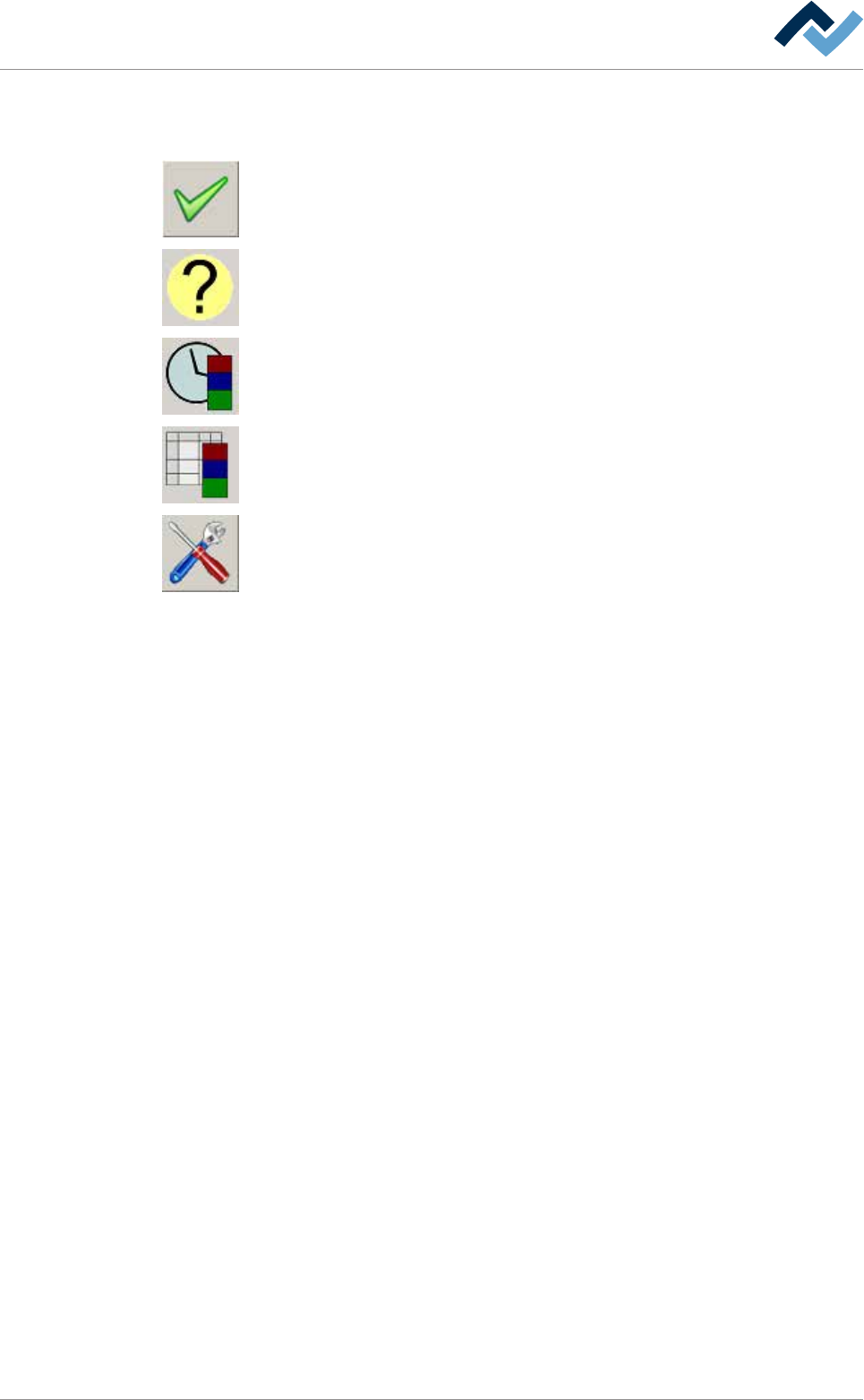
7.5 The bottom toolbar
This toolbar is located in the lower section of the dialog:
Acknowledgement of the selected message. If the message cannot be acknow-
ledged yet, this button is displayed in grey.
Help for the selected message. If no help is available, this button is displayed in
grey.
It opens the [Cyclic messages] dialog.
It opens the [Messages administration] dialog.
It opens the [Messages] setting dialog.
Ersa GmbH Operating Instructions_VF335_en|Rev. 14|30/11/2017 284/695
7|Treatment of messages and malfunctions
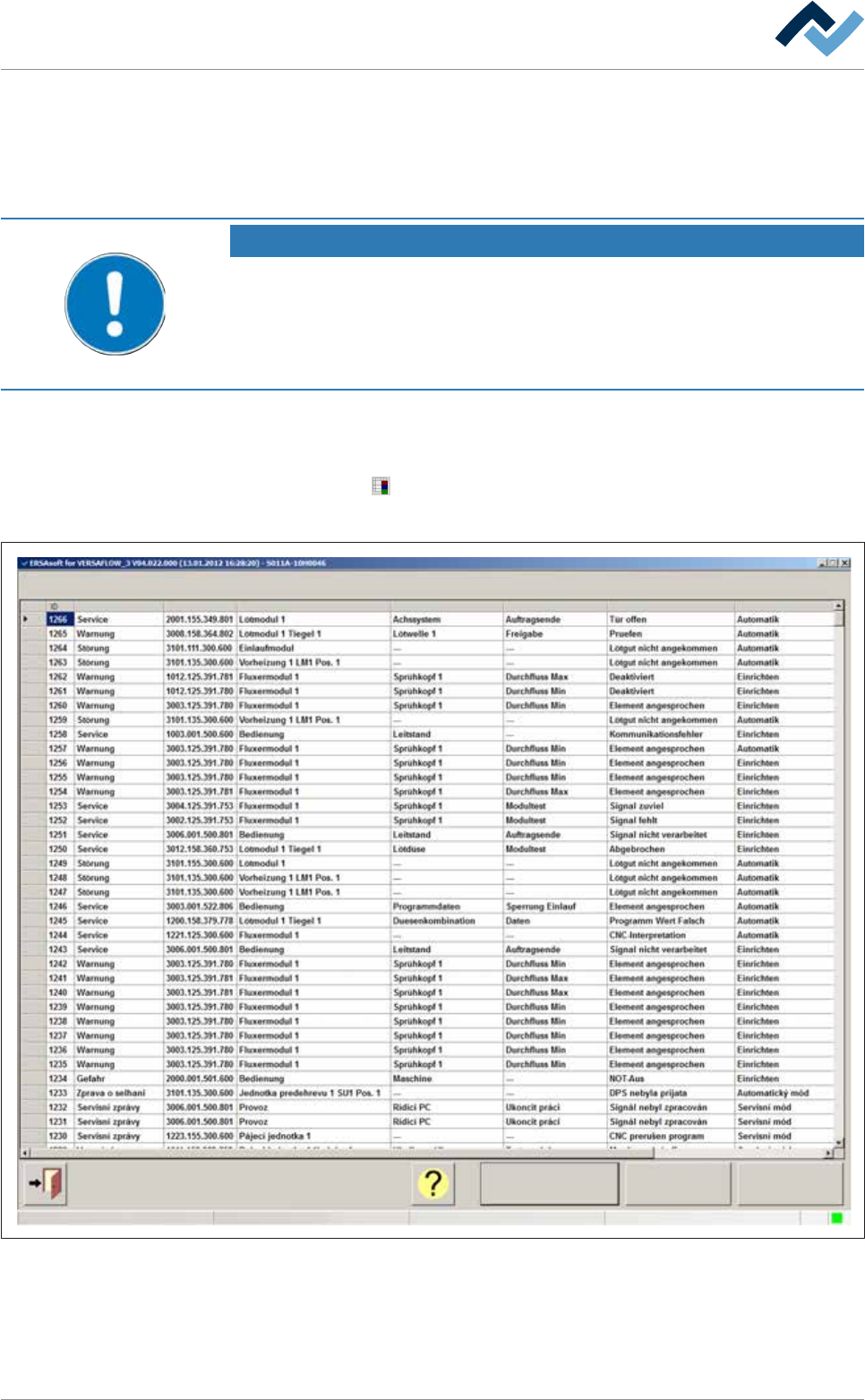
7.6 The [Messages administration] dialog
The [Messages administration] dialogue is used to clearly display all the messages
accumulated in a specific period of time. You can sort messages by various criteria,
or view only the ones received in a specific time period.
NOTE
Are any changes possible?
The [Messages administration] user rights are required to access this dialog. Settings
can only be displayed if no name and password are logged in. In this case, press the
[ESC] key on your keyboard, or click on the button [Cancel] when a password is re-
quired.
Opening the [Messages administration] dialogue
ü Opening the dialogue:
a) click on the
button in the bottom toolbar of the [Messages] dialogue.
ð The [Messages administration] dialogue is opened:
All messages
Messages administration
User ersa
Calendar Assemble
Code Facility 1 Facility 2 Facility 3 Text Operation modeType
Maintenance mode
Fig.80: The [Messages administration] dialog
Displaying all messages
ü Displaying all messages:
Ersa GmbH Operating Instructions_VF335_en|Rev. 14|30/11/2017 285/695