Operating Instructions_VF335_en.pdf - 第229页
6|Function description 6.14 Operation of the modules; input of set values From the start dialog, you can perform settings for the machine units if the ma- chine is in the [Maintenance mode] operating mode. NOTE Are any…
6|Function description
6.13.5 Settings for file naming, directories, file size
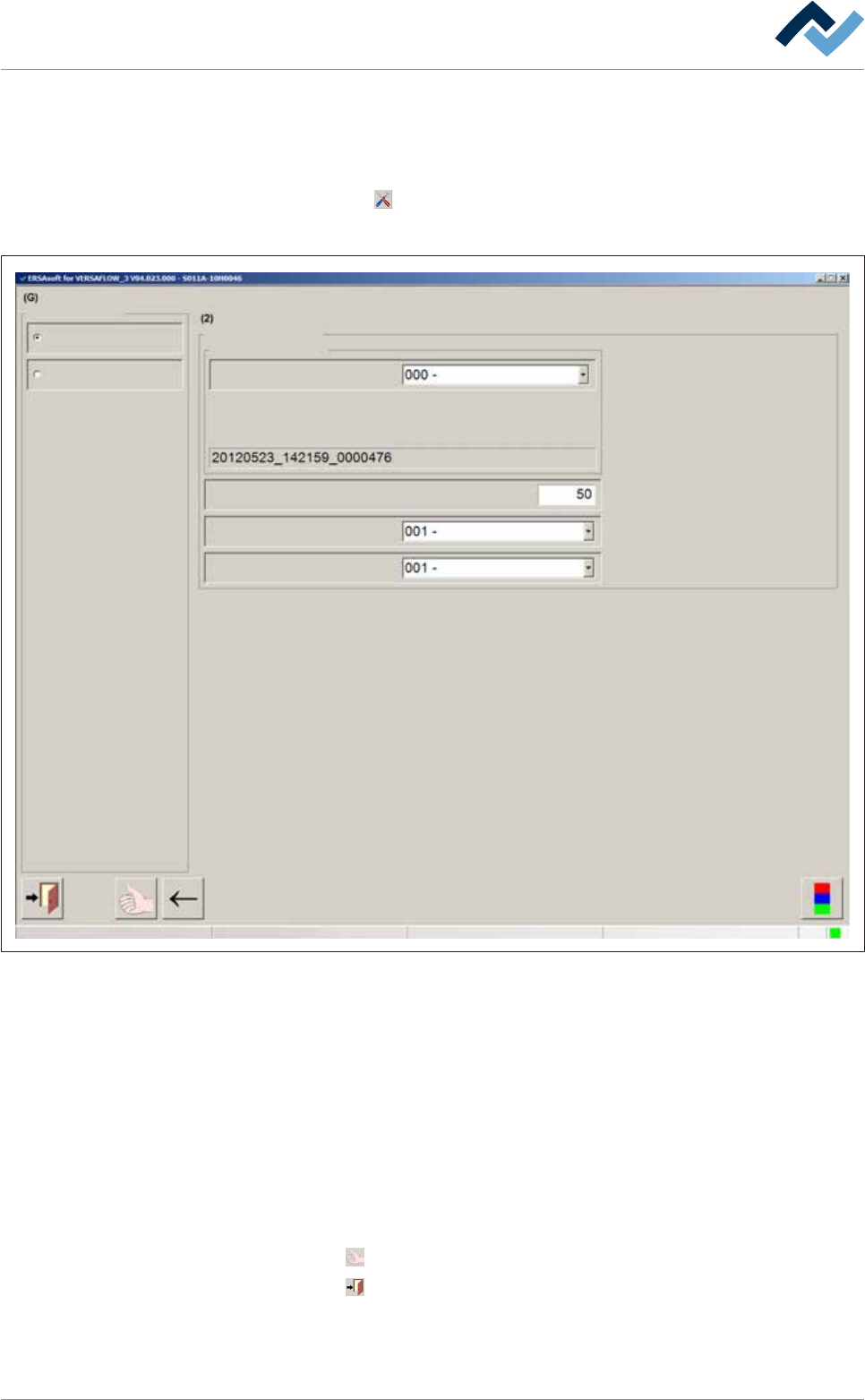
You can customize these setting in the [Soldering report] setting dialog:
ü Opening the [Soldering report] setting dialog:
a) Click on the
button in the bottom toolbar of the [Soldering report] dialog.
ð The [Soldering report] setting dialog is displayed:
Soldering report and operating data Soldering report
Selection
Soldering report
Operating data
ersaUser
Settings Soldering report
File format
File name
Type of file name
Maximum number of data sets per file
Directory subdivide
Additional type of protocol
Serial board number
daily
ZVEI
Maintenance mode
Fig.57: The setting dialog [Soldering report]
– [Type of file name]: You can select one of the following file name types: [Serial
board number], [Text _Program _timestamp] and [Not defined]
– [Maximum number of data sets per file]: Enter a value in the input field. Ex-
ample: If you enter value [1] here, a separate file is created for each data set. If
you enter value [50], after 50 data sets a new file is created.
– [Directory subdivide]: You can select one of the following subdivisions: [never],
[daily] and [Not defined].
– [Additional type of protocol]: You can select one of the following report types:
[none], [ZVEI] and [Not defined] .
ü Accept settings, close dialogs
a) Click on
to accept a setting.
b) Click on
to close a dialog.
Ersa GmbH Operating Instructions_VF335_en|Rev. 14|30/11/2017 228/695
6|Function description
6.14 Operation of the modules; input of set values
From the start dialog, you can perform settings for the machine units if the ma-
chine is in the [Maintenance mode] operating mode.
NOTE
Are any changes possible?
The [Set value pages] user rights are required to access this dialog. Settings can only
be displayed if no name and password are logged in. In this case, press the [ESC] key
on your keyboard, or click on the button [Cancel] when a password is required.
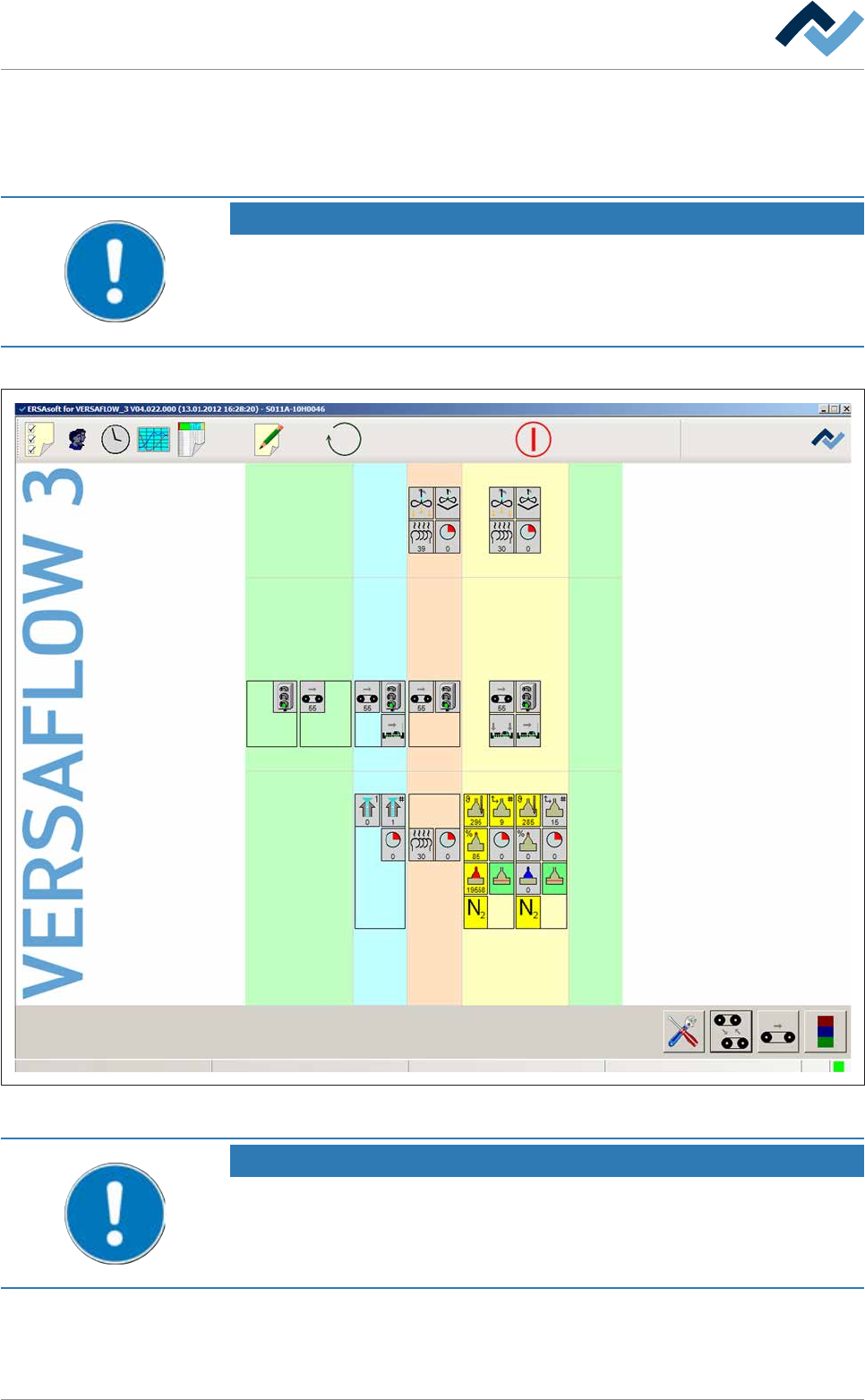
The machine modules are operated from the start dialog:
Preheating Soldering module ExitInfeed Infeed unit
Solder pot
user: none
Flux unit
Maintenance mode
Fig.58: The start dialog with the schematically displayed units of the machine.
NOTE
Different description
This document describes all the functions - even those which may not be supported
by your machine equipment. For this reason, the representation of the machine in
your visualization may be different from the functional description at hand.
Ersa GmbH Operating Instructions_VF335_en|Rev. 14|30/11/2017 229/695
6|Function description
Each module is schematically displayed with a symbol. However, a unit is only dis-
played in the start dialog if it has been marked as available in the configuration of
the machine. A module can also be repeatedly available as, for example, in the case
of preheaters or soldering modules.
If you move your mouse on a module, a short explanation (tooltip) is displayed. In
the [Maintenance mode] operating mode, you can enable units, enter set values
and read actual values. An activated module changes its colour in the start dialog
from grey to yellow.
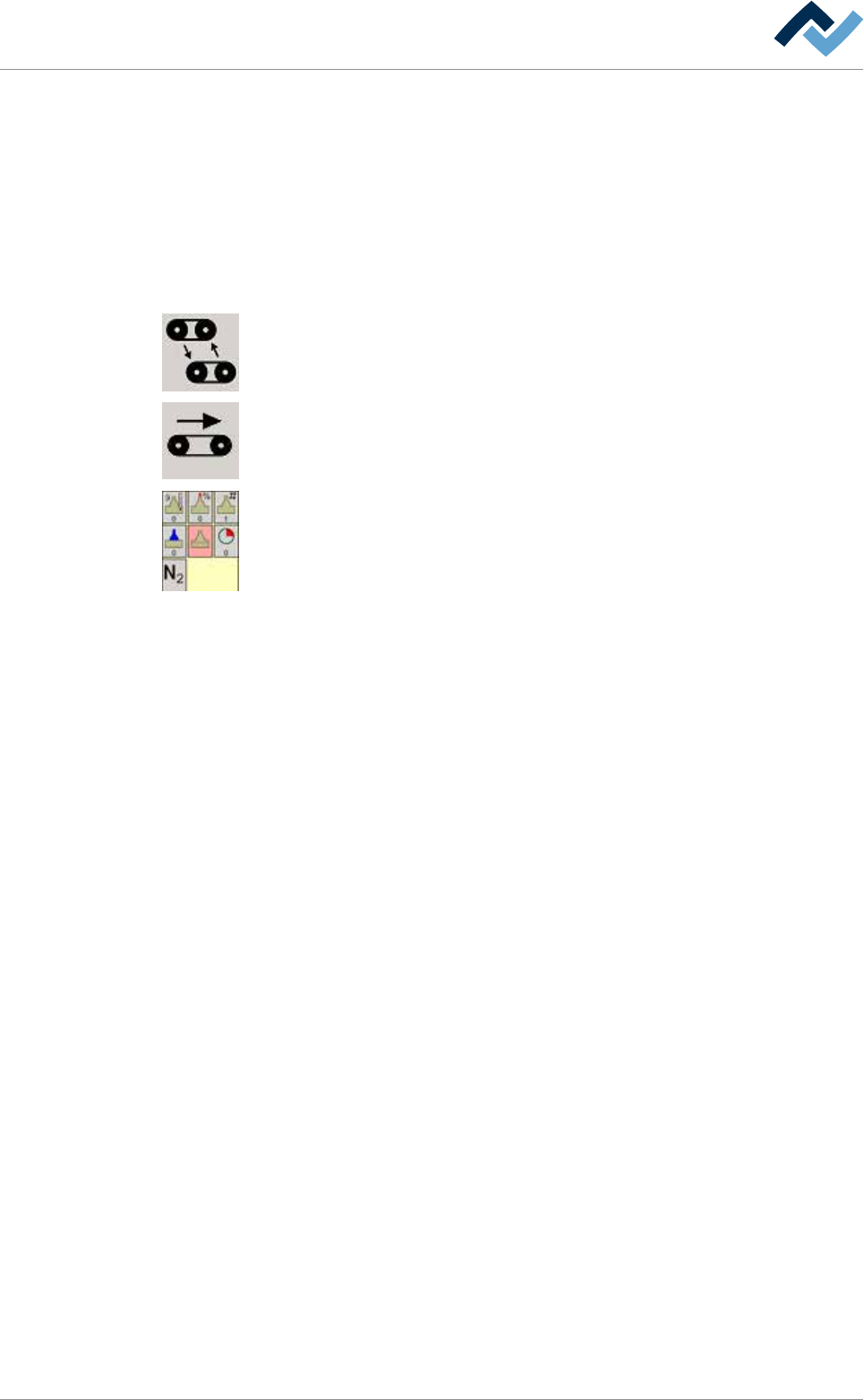
The icons and buttons in the bottom toolbar have the following meaning:
[Conveyor width adjustment ]: It opens the editing dialog of the conveyor width ad-
justment.
All conveyors on. Click on this button to switch on all the machine conveyors simul-
taneously. If a conveyor is switched on, this button is displayed in yellow.
The following buttons are always combined in groups and open - after being clicked
on - the editing dialog of the module. In the example shown, you can see the but-
tons of a soldering unit. Here, the buttons schematically display, for example, the
pot, solder wave, nozzle number or protective gas supply. For a quick overview
without having to open the input dialog, actual values can be read at the bottom of
the buttons.
Ersa GmbH Operating Instructions_VF335_en|Rev. 14|30/11/2017 230/695