Operating Instructions_VF335_en.pdf - 第157页
6|Function description ð The time has been set. If a message is displayed, the horn will signal it for the time set. ü Accept settings, close dialogs a) Click on to accept a setting. b) Click on to close a dialog. Lamp…
6|Function description
6.7.6 The [Messages] setting dialog
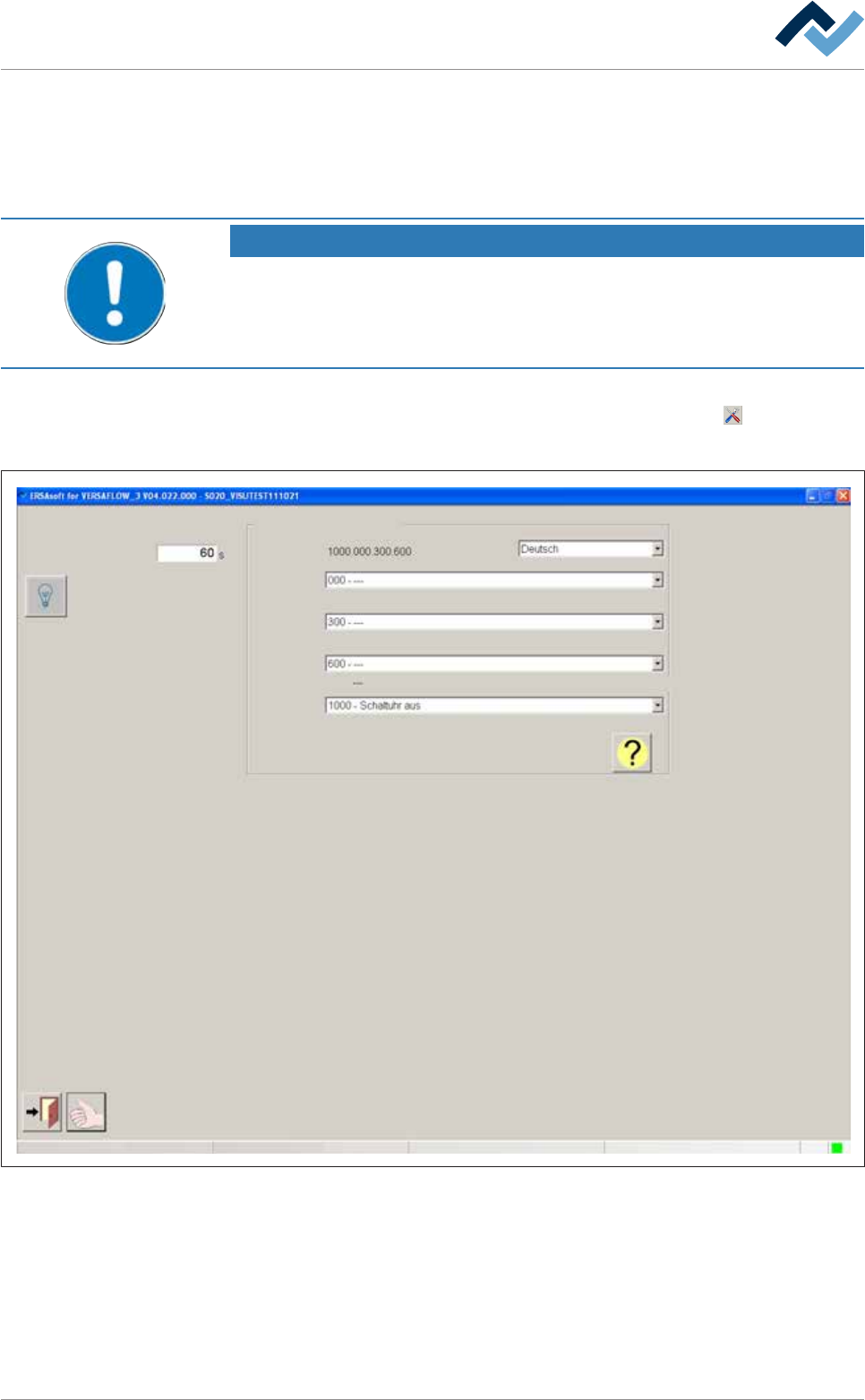
In this dialog, you can set how long the horn (optional) will sound if a new message
appears. In addition, you can test the lights and the horn of the signal lamp, look
for message texts, and display a help for the found message text.
NOTE
Are any changes possible?
The [Module properties] user rights are required to access this dialog. Settings can
only be displayed if no name and password are logged in. In this case, press the [ESC]
key on your keyboard, or click on the [Cancel] button when a password is required.
ü To open the [Messages] settings dialog:
a) In the [Messages] dialog, in the bottom toolbar, click on the
button,
ð The [Messages] settings dialog is opened:
User ersa
Messages Settings
Max duration signal horn on
Second language
Search for message text
Maintenance mode
Fig.30: The [Messages] settings dialog
Acoustic signal of a message
ü To set the horn signal time:
a) Click on the [Max duration signal horn on] input field.
b) Enter a value in seconds. The setting range is [0] ...[100000] seconds. If the
time entered is outside this range, an error message appears.
Ersa GmbH Operating Instructions_VF335_en|Rev. 14|30/11/2017 156/695
6|Function description
ð The time has been set. If a message is displayed, the horn will signal it for the
time set.
ü Accept settings, close dialogs
a) Click on
to accept a setting.
b) Click on
to close a dialog.
Lamp test
ü Testing the lamps and the horn:
a) Click on the
button.
ð All lights of the signal lamp must be lit. The horn must sound.
The [Search for message text] frame
The [Search for message text] frame is used for service and allows the service per-
sonnel to specifically look for a help text for a displayed message.
ü To select a second language:
a) Select a second language in the dropdown menu.
ð The selected message text is displayed in a second language.
ü To display a message help text:
a) Select a message from the dropdown menu.
b) Click on the
button.
ð If a help text is available for a message, the former is displayed in a new win-
dow.
Ersa GmbH Operating Instructions_VF335_en|Rev. 14|30/11/2017 157/695
6|Function description
6.8 The process recorder
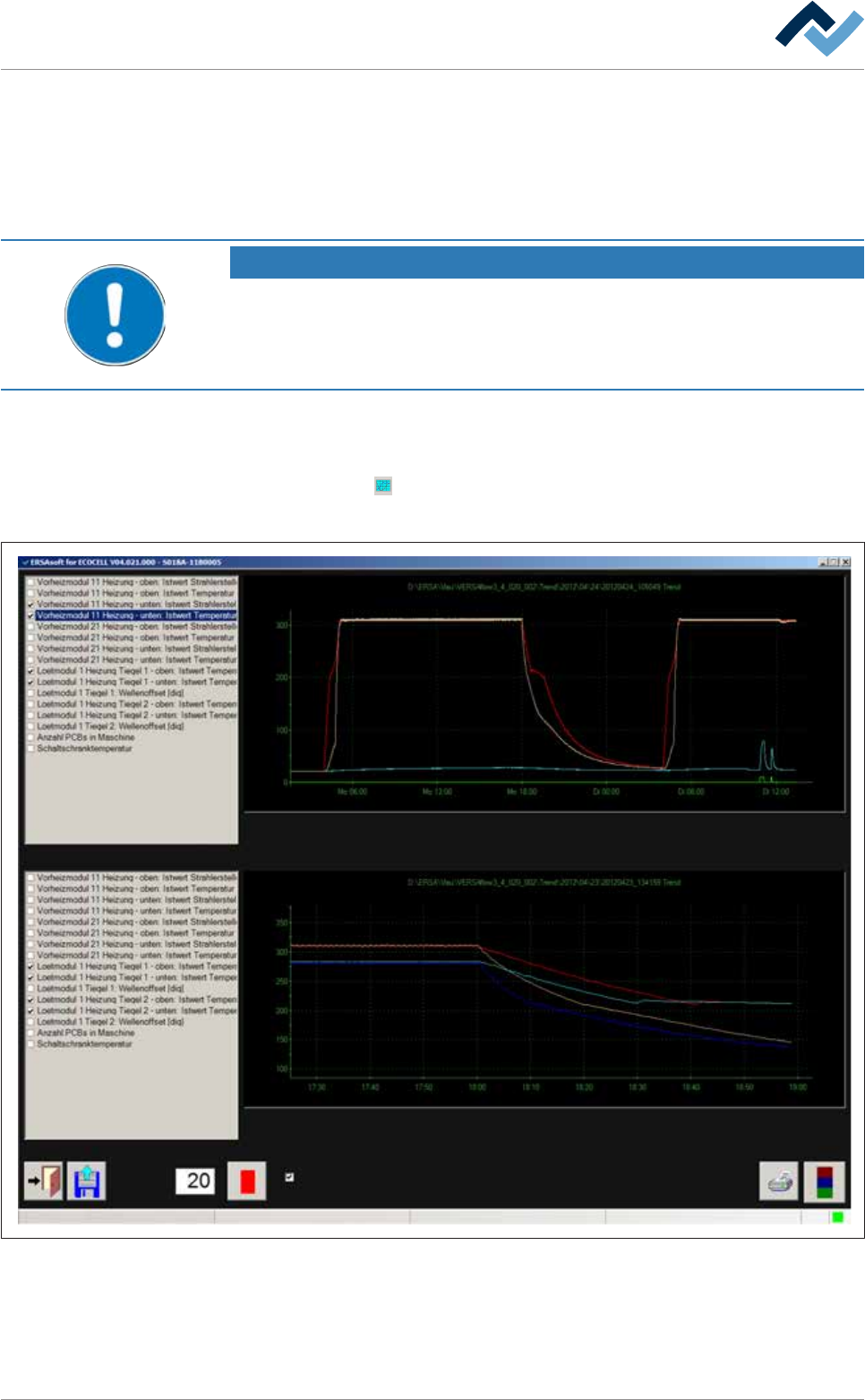
The process recorder is used to record readings and to graphically display the re-
corded measurement results. You can filter out individual readings to improve clar-
ity. Readings are saved automatically and can later be retrieved and printed for
comparison.
NOTE
Are any changes possible?
The [Process recorder] user rights are required access this dialog. Settings can only be
displayed if no name and password are logged in. In this case, press the [ESC] key on
your keyboard, or click on the [Cancel] button when a password is required.
Open the [Process recorder] dialogue
ü Opening a dialogue:
a) Click on the
button in the top toolbar of the start dialogue.
ð The [Process recorder] is opened:
User ersa
Interval
Zoom in
Maintenance mode
Fig.31: The [Process recorder] dialog. Depending on your machine equipment, this illustration may differ from the actual display.
Ersa GmbH Operating Instructions_VF335_en|Rev. 14|30/11/2017 158/695