Operating Instructions_VF335_en.pdf - 第167页
6|Function description 6.9.2 The [Programs] frame In this frame, you can do the following: – creating a soldering programme – enabling a soldering programme – editing a soldering programme – deleting a soldering progra…
6|Function description
a) in the [Libraries] frame, highlight a library and then click on the [Copy] button.
ð The dialogue [Copy library] is displayed.
b) Enter a new name for the copy in the input field.
c) Should the process be cancelled, click on the
button.
d) Click on the
button.
ð The library has been copied together with the soldering programmes contained
therein.
Ersa GmbH Operating Instructions_VF335_en|Rev. 14|30/11/2017 166/695
6|Function description
6.9.2 The [Programs] frame
In this frame, you can do the following:
– creating a soldering programme
– enabling a soldering programme
– editing a soldering programme
– deleting a soldering programme
– copying a soldering programme
– renaming a soldering programme
A soldering programme contains, for example, information about PCB-specific set-
tings such as the conveyor width or conveyor speed. This way, soldering pro-
grammes make it possible to quickly adapt a soldering process to its related PCB.
To search for and filter a soldering programme:
ü using the filter function:
a) click on the [Program selection] input field and enter any desired character
string.
ð If you enter, for example, the character string [ec], all file names in which
this string is included, will be displayed in our example [TechDok].
ð All file names containing that character string are displayed.
Deleting a soldering programme:
ü delete a soldering programme:
a) in the [Programs] frame, highlight a soldering programme and then click on the
[Delete] button.
ð A query dialogue is displayed.
b) Follow the instructions on the screen.
ð The soldering programme has been deleted.
Copying a soldering programme:
ü copy a soldering programme:
a) in the [Programs] frame, highlight a soldering programme and then click on the
[Copy] button.
ð The dialogue [Copy program] is displayed.
b) Enter a new name for the copy in the input field.
c) Should the process be cancelled, click on the
button.
d) Click on the
button.
ð The soldering programme has been copied.
Renaming a soldering programme:
ü rename a soldering programme:
a) in the [Programs] frame, highlight a soldering programme and then click on the
[Rename] button.
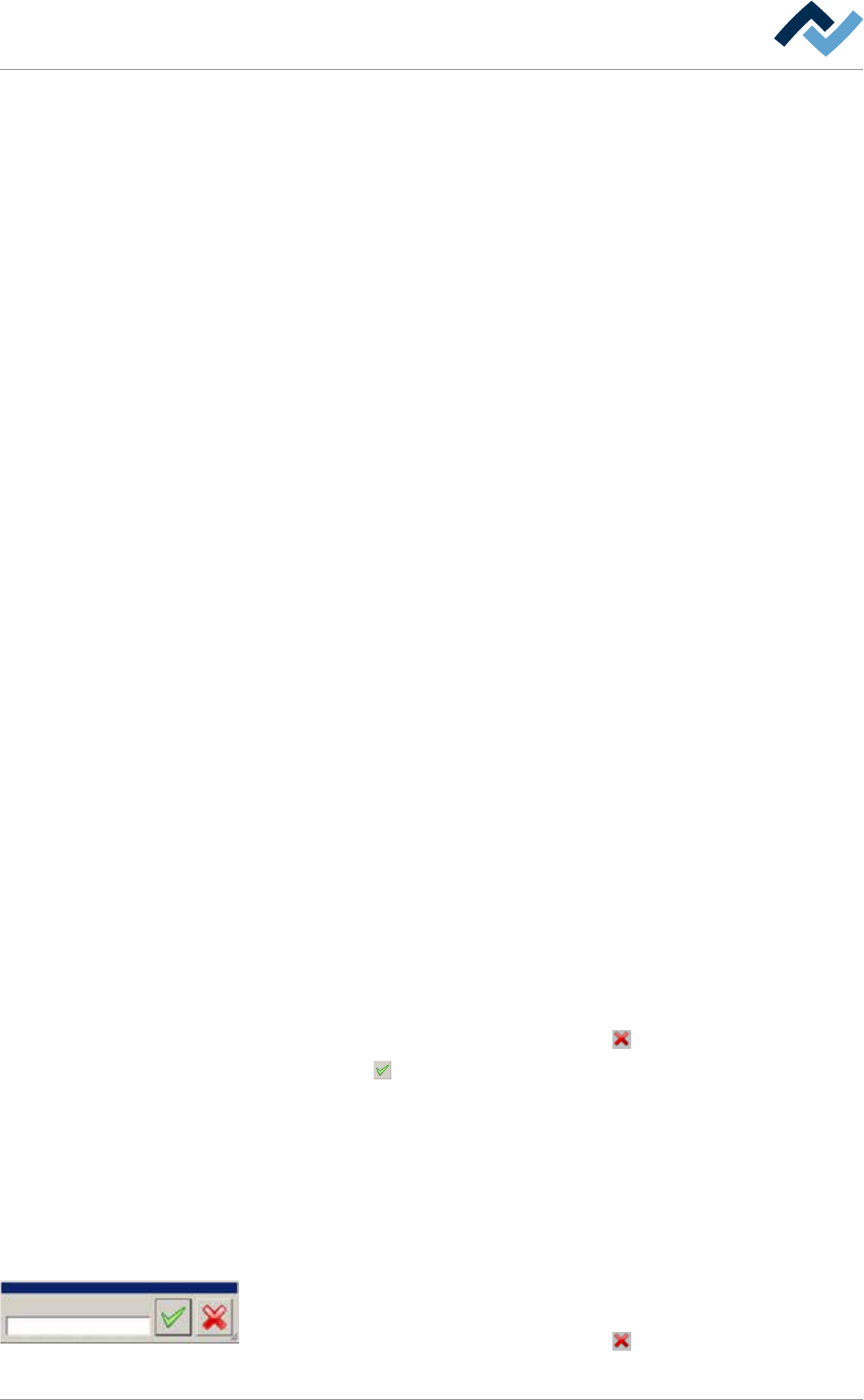
ð The dialogue [Rename program] is displayed.
Rename to:
Rename program
b) Enter a name for the new soldering programme in the input field. Special char-
acters such as spaces, [ ], { } or < > are not permitted.
c) Should the process be cancelled, click on the
button.
Ersa GmbH Operating Instructions_VF335_en|Rev. 14|30/11/2017 167/695
6|Function description
d) Click on the button.
ð The soldering programme has been renamed.
Importing a soldering program of the Ersasoft 2.5 ASCII type
You can import soldering programs of the Ersasoft 2.5 ASCII type. For that purpose,
you first have to manually copy the program to be imported into the correct direct-
ory. With respect to this, please read Chapter The [File paths] editing dialog
[}139].
ü To import a soldering program of the Ersasoft 2.5 ASCII type:
a) Click on the [Import] button.
ð The [Load file] dialog is displayed. If matching files are available in the dir-
ectory:
b) Select a file.
ð The file name appears at the top of the dialog.
c) Should the process be cancelled, click on the
button.
d) Click on the
button.
ð Data is imported.
WARNING
Machine malfunctioning is possible!
Personal or material damage is possible due to incompatible soldering programs.
ü Importing must be performed by trained and qualified staff only.
a) Accurately check the soldering program and, if possible, adapt it to the machine!
Ersa GmbH Operating Instructions_VF335_en|Rev. 14|30/11/2017 168/695