Operating Instructions_VF335_en.pdf - 第136页
6|Function description 6.5.4 Creating a new user Profile User administration Logging File path General settings Settings User maintenance mode Add user User administration active User ersa maintenance mode Automatic lo…
6|Function description
ü Automatically logging out a user
a) Click on the [Automatic user logoff] input field.
b) Enter the user auto logout time in [min].
ð The user is automatically logged out when the entered time elapses.
ð If the [0] value is entered, the automatic logout is disabled.
ð The process has now been completed.
Ersa GmbH Operating Instructions_VF335_en|Rev. 14|30/11/2017 135/695
6|Function description
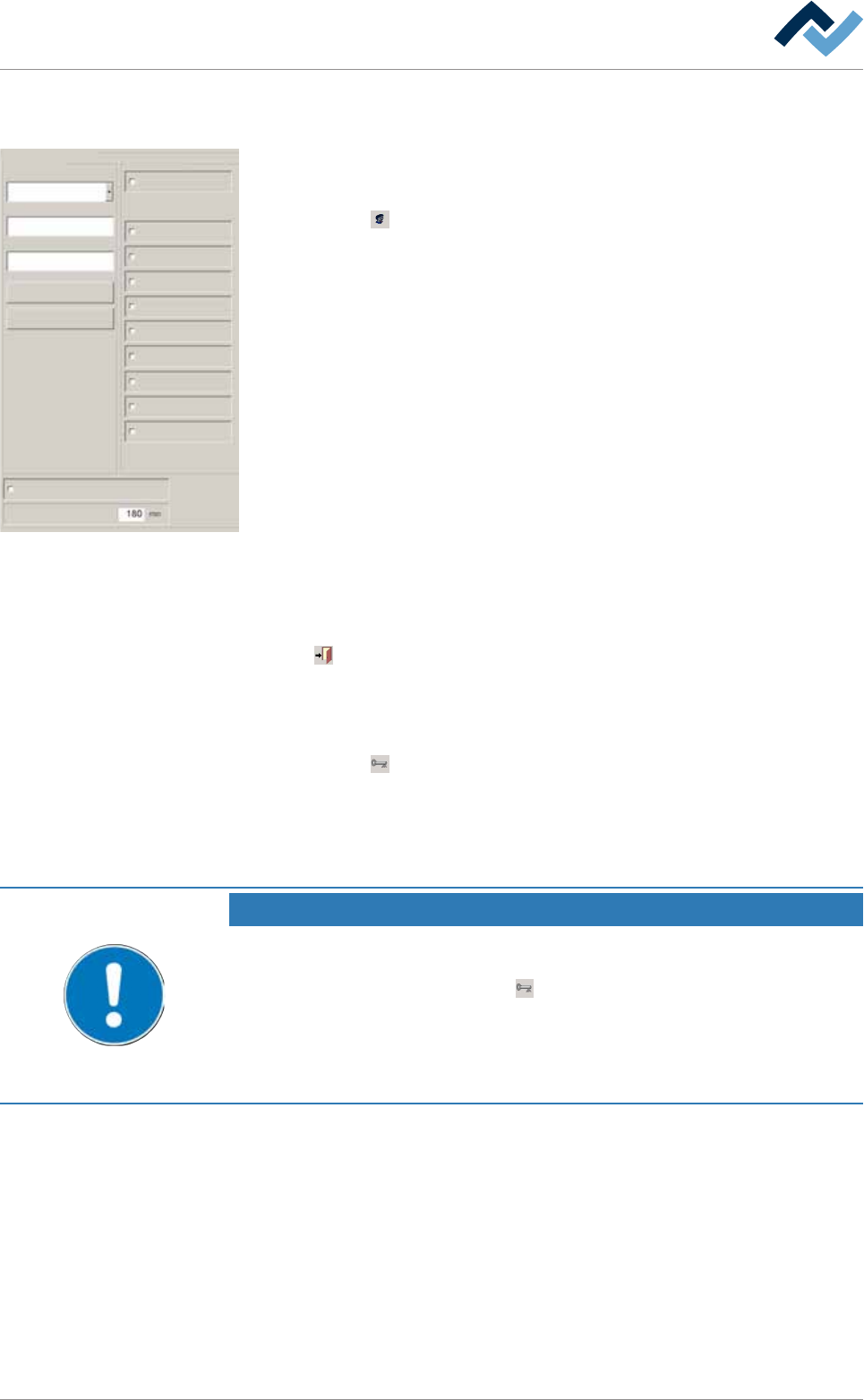
6.5.4 Creating a new user
Profile
User administration
Logging
File path
General settings
Settings
User maintenance mode
Add user
User administration active
User ersa maintenance mode
Automatic log off after
General settings
Process recorder
Weekly timer
Messages administration
Acknowledge messages
Edit soldering program
Select soldering program
Set value pages
Module properties
Administrator
Delete
Name
Password:
Confirmation password
User Accessibility
User administration
Creating a new user and assigning rights
ü Creating a new user, assigning rights:
a) click on the
button in the start dialogue.
ð When the input field [Password:] appears:
b) enter the administrator user name and password.
c) Click the [User administration] radio button in the [General settings] dialogue.
d) Activate the [User administration active] checkbox.
ð The user administration function has now been enabled.
e) Enter a new user name in the [Name] input field.
ð When entering characters, remember that commands are case-sensitive!
f) Select the rights that will be assigned to the user in the [Accessibility] frame.
g) Insert a password in the input field [Password:]. The password is not shown
when it is entered but displayed in a coded way (******).
ð When typing, remember that commands are case-sensitive!
h) Enter the password in the [Confirmation password] input field again.
i) Click the [Add user] button.
ð The new user has been added.
Click on
to close the dialog.
Logging in the user
ü To log out the administrator and log in the new user:
a) click on the
button in the start dialogue.
ð The administrator has now been logged out.
b) Log in the user and check their rights.
ð The process has now been completed.
NOTE
Which user is logged in?
The name of the currently logged in user appears in the status bar at the bottom left
of the screen. If a user is logged in, the
button is visible in the top toolbar of the
start dialogue. You can click on this button to log out the user. When logging in to the
edit dialogue [Log in]: When entering the user name, remember that commands are
case-sensitive. If, for example, a user with the name [User1] was created, an error
message is triggered if [user1] is entered.
Ersa GmbH Operating Instructions_VF335_en|Rev. 14|30/11/2017 136/695
6|Function description
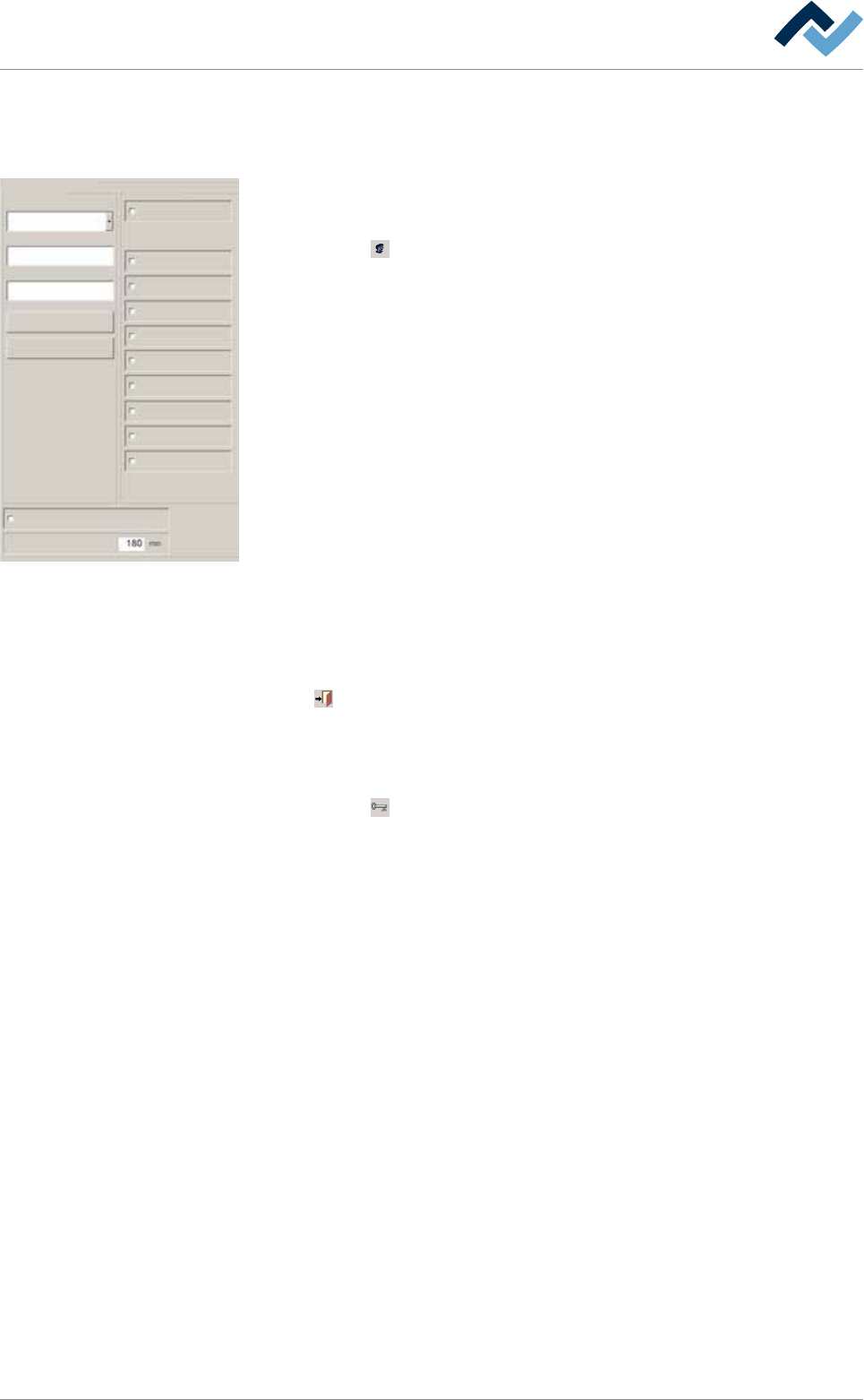
6.5.5 Changing the rights of a user
To change the rights of a user you must have administrator rights!
Profile
User administration
Logging
File path
General settings
Settings
User maintenance mode
Add user
User administration active
User ersa maintenance mode
Automatic log off after
General settings
Process recorder
Weekly timer
Messages administration
Acknowledge messages
Edit soldering program
Select soldering program
Set value pages
Module properties
Administrator
Delete
Name
Password:
Confirmation password
User Accessibility
User administration
Changing the rights of a user
ü Change the rights of a user:
a) click on the
button in the start dialogue.
ð When the [Password:] input field appears:
b) Enter the Administrator user name and password.
c) Click the [User administration] radio button in the [General settings] dialogue.
d) Activate the [User administration active] checkbox.
ð The user administration function has now been enabled.
e) Click on the [Name] menu and select the user name.
f) Select the rights that will be assigned to the user in [Accessibility].
g) Enter a password in the input field [Password:]. The password is not shown
when it is entered but displayed in a coded way (******).
ð When typing, remember that commands are case-sensitive!
h) Enter the password in the [Confirmation password] input field again.
i) Click the [Add user] button.
ð A confirmation prompt is displayed. Follow the instructions on the screen.
If you confirm the changes made, the new settings are accepted and the
previous ones overwritten.
Click on
to close the dialog.
Logging in the user
ü To log out the administrator and log in the new user:
a) click on the
button in the start dialogue.
ð The administrator has now been logged out.
b) Log in the user and check their rights.
ð The process has now been completed.
Ersa GmbH Operating Instructions_VF335_en|Rev. 14|30/11/2017 137/695