Operating Instructions_VF335_en.pdf - 第160页
6|Function description 6.8.2 The top frame of the [Process recorder] dialog User ersa maintenance mode Interval Zoom in Fig.32: The [Process recorder] dialog. Depending on your machine equipment, this illustration may…
6|Function description
6.8.1 The bottom toolbar of the process recorder
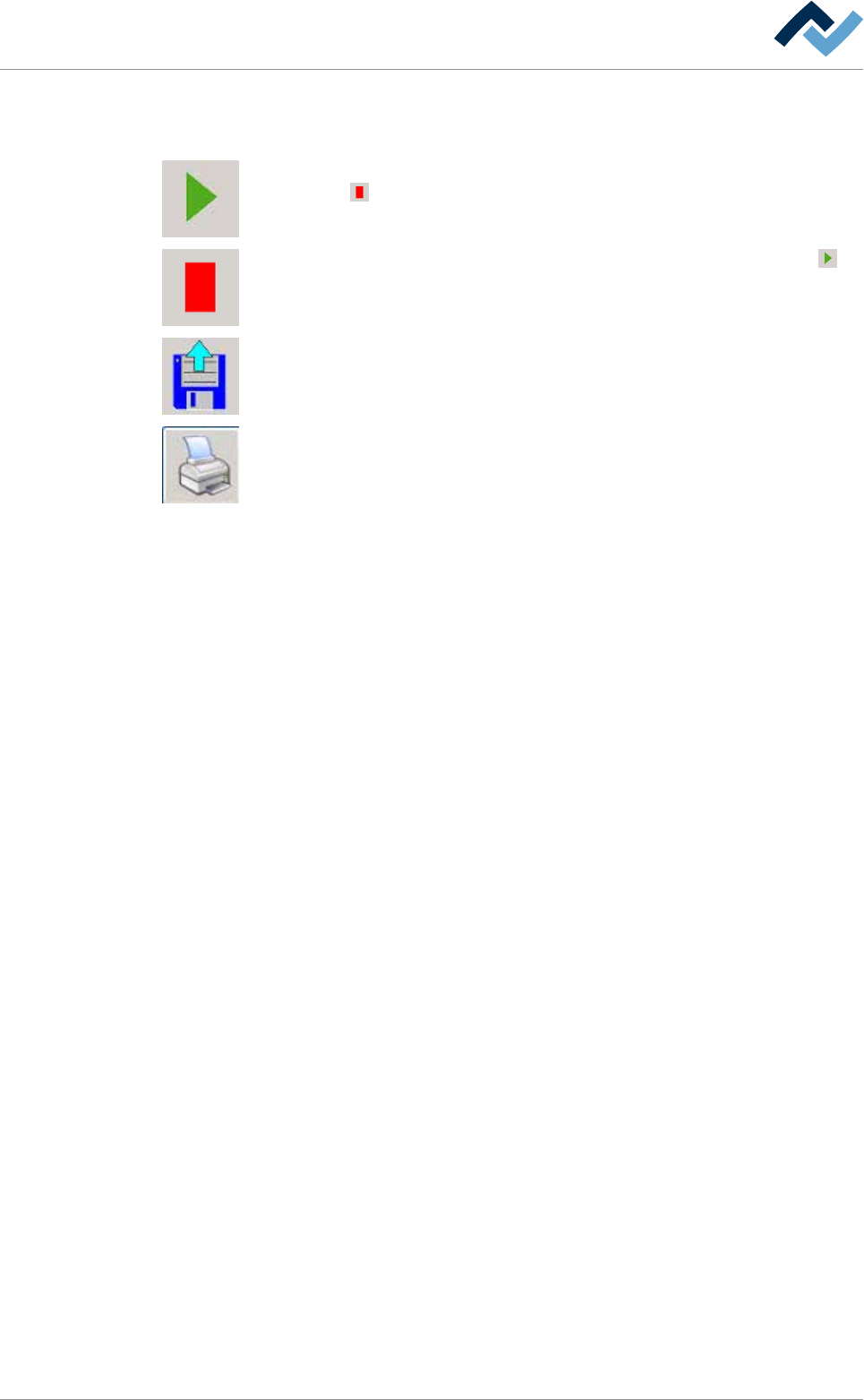
The following buttons are located in the bottom toolbar:
By clicking on this button you can start recording. During recording, the button
changes into
.
By clicking on this button you can stop recording. The button will change into .
By clicking on this button you can import data from a previously recorded process
into the bottom frame of the process recorder.
By clicking on this button you can print the process data.
Ersa GmbH Operating Instructions_VF335_en|Rev. 14|30/11/2017 159/695
6|Function description
6.8.2 The top frame of the [Process recorder] dialog
User ersa
maintenance mode
Interval
Zoom in
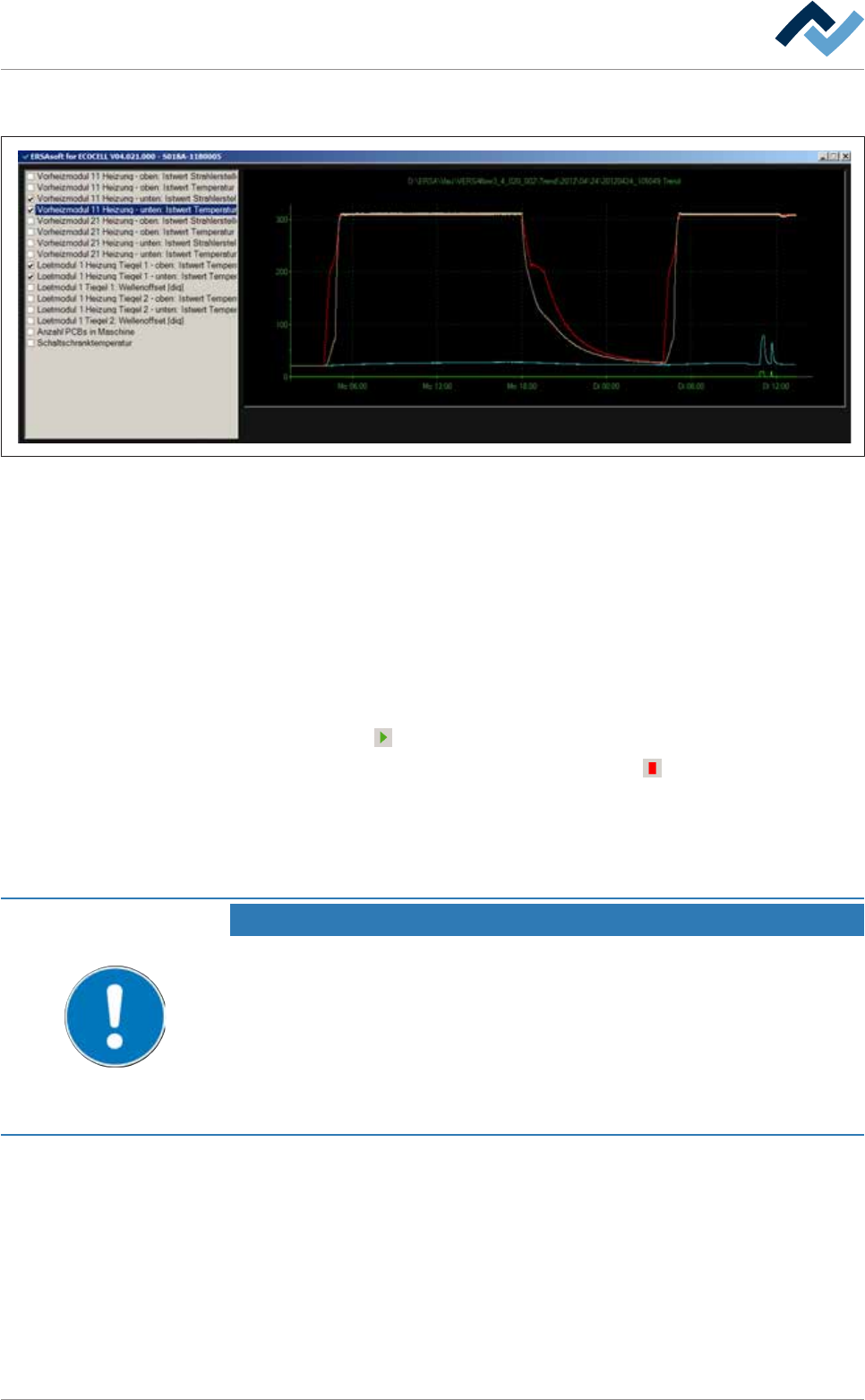
Fig.32: The [Process recorder] dialog. Depending on your machine equipment, this illustration may differ from the actual display.
Recording and graphically displaying readings
The window on the left reflects the machine configuration. This window provides
checkboxes for the selection of the values to be displayed. The selected, current
readings are graphically displayed in the right window.
ü Recording and graphically display readings:
a) In the left window, select which readings are to be displayed.
b) In the bottom toolbar, click on the input field [Interval] and enter a value for
the measurement interval in [seconds].
c) Click on the
button.
ð The recording starts. The button will change into
. The readings are then
graphically displayed in the top frame. At the same time, the readings are auto-
matically saved in a file. Once a certain file size is exceeded, the file is automat-
ically closed and a new one is created.
With regard to this, please read Chapter The [File paths] editing dialogue .
NOTE
Where can I find the data?
The files are automatically named by the system in chronological order and stored in
appropriate folders and subfolders: [Year]\[Month]\[Filename.trend]. This way, they
can be reassigned at any time. The file name itself occurs in the format:
2009_05_11_06_51_49.trend - The file was created on 11/05/2009 at 06.51 49 sec.
The maximum file size is about 150 kB. The shorter the measurement interval is set in
the [Interval] input field, the faster the maximum file size is reached and the more
files are created.
Zoom function
ü Viewing the graphic in a higher resolution:
a) Click on the [Zoom in] checkbox.
ð The zoom function is enabled.
b) Click with the mouse on the desired section of the graphic and, while pressing
the mouse button, drag over the desired area.
Ersa GmbH Operating Instructions_VF335_en|Rev. 14|30/11/2017 160/695
6|Function description
c) Release the mouse button. The selected area is now displayed in an enlarged
way. If required, this process can be repeated several times until the zoom limit
has been reached.
d) Click on the [Zoom in] checkbox again.
ð The checkmark disappears and the graphic is displayed again with its original
resolution.
Printing function
ü To print a graphic
a) Click on the
button in the bottom toolbar.
ð The print dialog box is launched. For the printing process, a previously se-
lected zoom area is also taken into account.
b) Follow the instructions on the screen.
NOTE
Why are two print dialogs displayed?
If process data is displayed in the upper as well as in the lower windows, the print dia-
log is displayed twice: once for the upper window and once for the lower window. If
one of the windows is not to be printed, you can cancel the concerned print dialog.
Ersa GmbH Operating Instructions_VF335_en|Rev. 14|30/11/2017 161/695