Operating Instructions_VF335_en.pdf - 第221页
6|Function description 6.13 Soldering report and operating data This function allows a precise logging and documentation of the entire production process. You can monitor and export the data of a manufacturing batch. Y…
6|Function description
6.12.1 Changing the operating mode
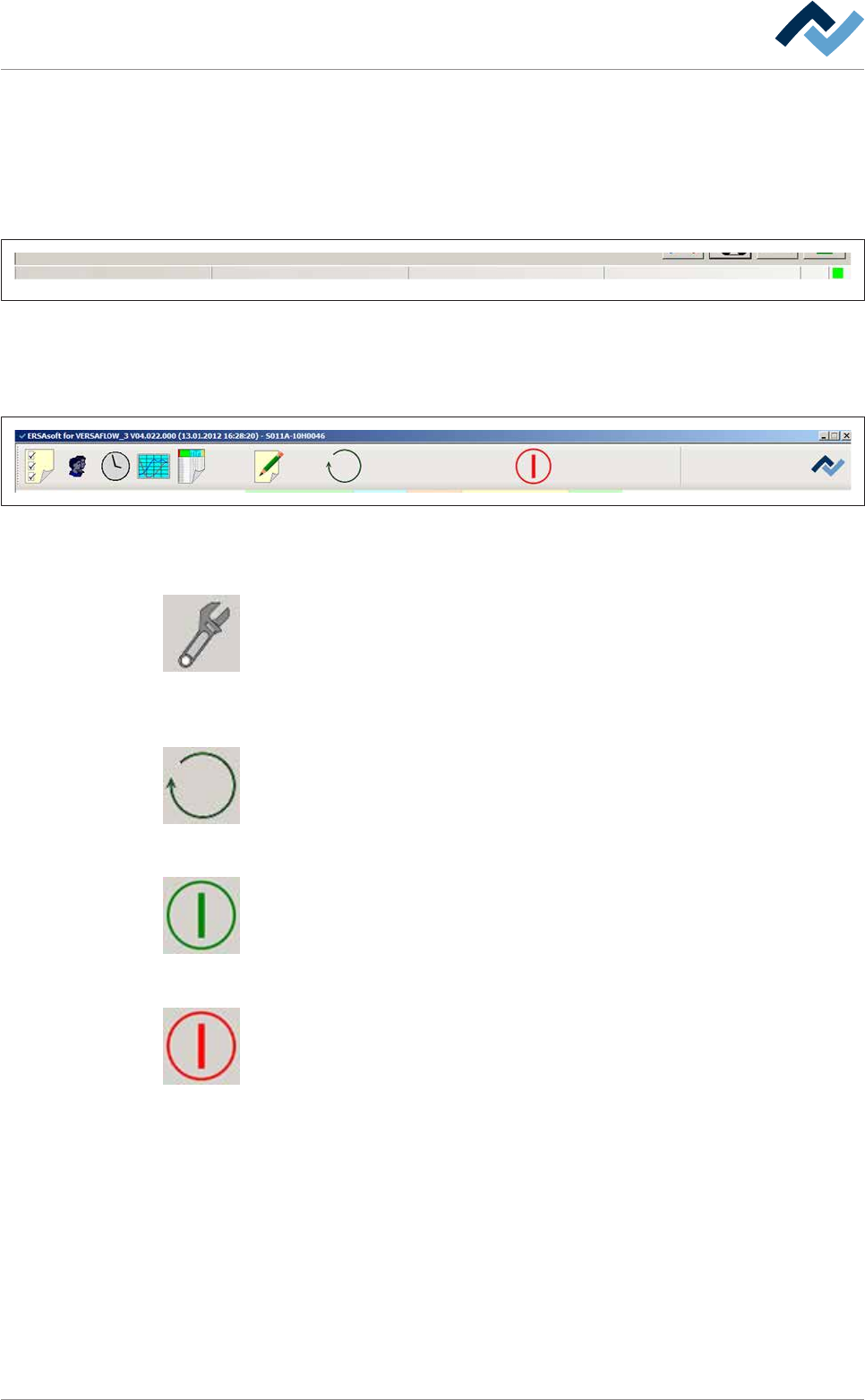
The most important operating modes of the machine are displayed as rectangles in
the flowchart. The text within these rectangles is always displayed in the status bar
of the start dialogue. There you can always read the current operating mode.
The status bar can be found at the lower edge of the screen:
user: none Automatic mode Library Soldering program
Fig.52: The status bar displays the currently logged in user and the current operating mode of the machine. In addition, in auto-
matic mode the library and the currently active soldering program are displayed.
The buttons for the operating modes are visible in the top toolbar of the start dia-
logue.
Preheating Soldering module ExitInfeed Infeed unit
Solder pot
user: none maintenance mode
Flux unit
Fig.53: Top toolbar
If the machine is in the [Automatic mode] operating mode:
This button is only visible in the [Automatic mode] operating mode. By clicking on
this button, you can stop an active soldering program and set the machine to the
[Maintenance mode]operating mode.
If the machine is in the [Maintenance mode] operating mode:
Click on this button to change the operating mode of the machine or select a sol-
dering program.
If the machine is in the [Movement off] operating mode:
If the green symbol is displayed, the machine is in the [Movement off] operating
mode: Click on this button to switch to the [Maintenance mode] operating mode:
If the machine is in the [Maintenance mode] operating mode:
When the red symbol appears, the machine is in the [Maintenance mode] operat-
ing mode. By clicking on this button, you can switch to the [Movement off] operat-
ing mode.
Ersa GmbH Operating Instructions_VF335_en|Rev. 14|30/11/2017 220/695
6|Function description
6.13 Soldering report and operating data
This function allows a precise logging and documentation of the entire production
process. You can monitor and export the data of a manufacturing batch. You can
have a separate process data file generated automatically for each PCB of a series.
Opening the dialogue
ü Opening the [Soldering report and operating data] edit dialogue:
a) on the top toolbar of the start dialogue, click on the
button.
ð When the [Password] edit dialogue is displayed:
b) enter user name and correct password.
ð After entering [User name] and [Password:] correctly, the [Soldering report and
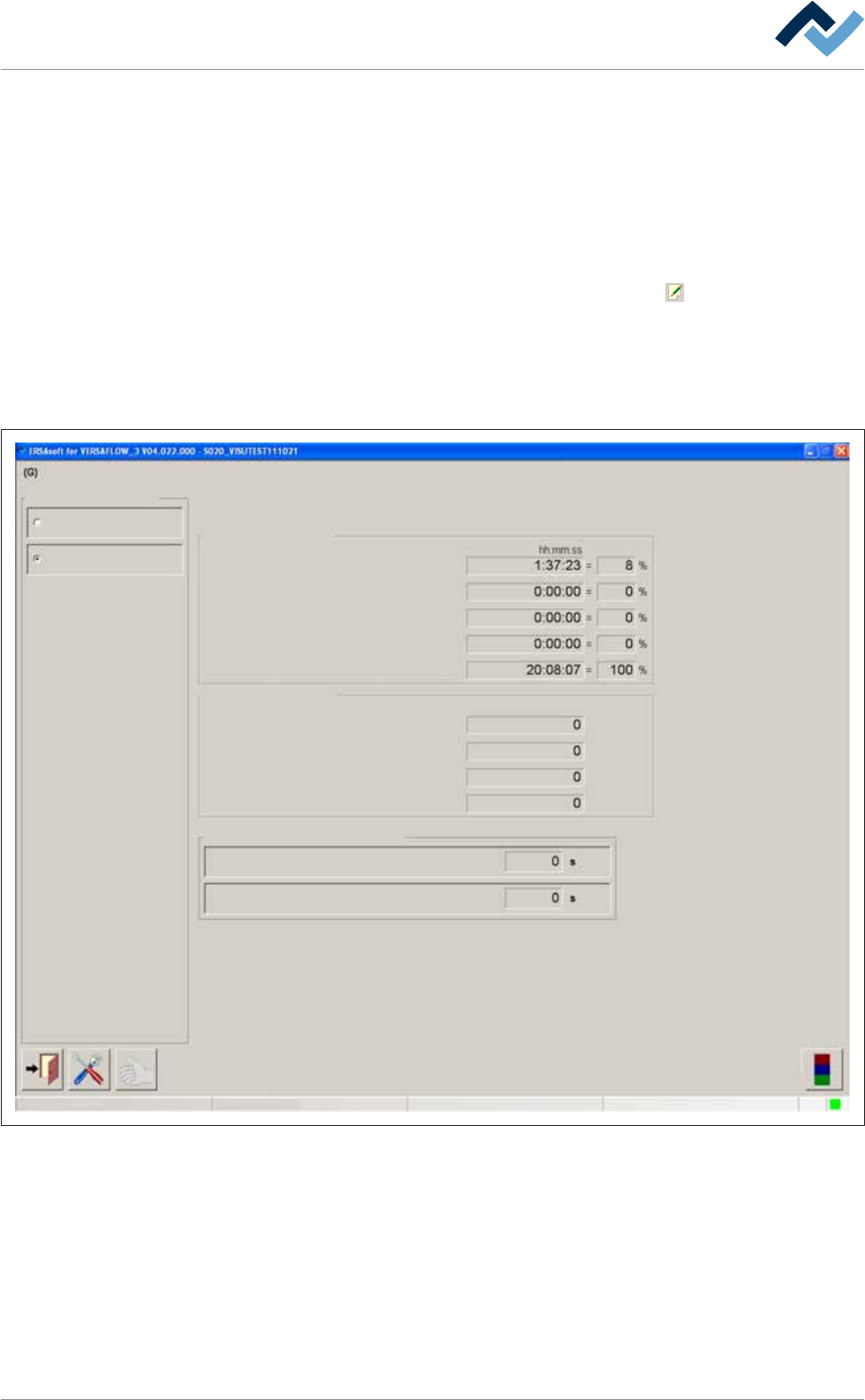
operating data] edit dialogue is displayed:
User ersa Maintenance mode
Soldering report and operating data
Operating data
Operating data
Operating data
Soldering report
Running times
Time in maintenance mode
Time in production mode
Waiting time while production mode
Waiting time congestion successor
Total time
Number of boards
Currently in machine
Total boards
Produced boards
Defective boards
Waiting time while production mode
Waiting time congestion successor
(N-1)
(N+1)
(N-1)
(N+1)
Selection
Delay time to counter start
Fig.54: The input dialog [Soldering report and operating data]. By enabling the radio buttons top left, you can open the corres-
ponding dialogs.
Ersa GmbH Operating Instructions_VF335_en|Rev. 14|30/11/2017 221/695
6|Function description
6.13.1 Machine operating data
In this dialog, you can view or change the machine operating data. Additionally you
will find information about the quantity of processed boards.
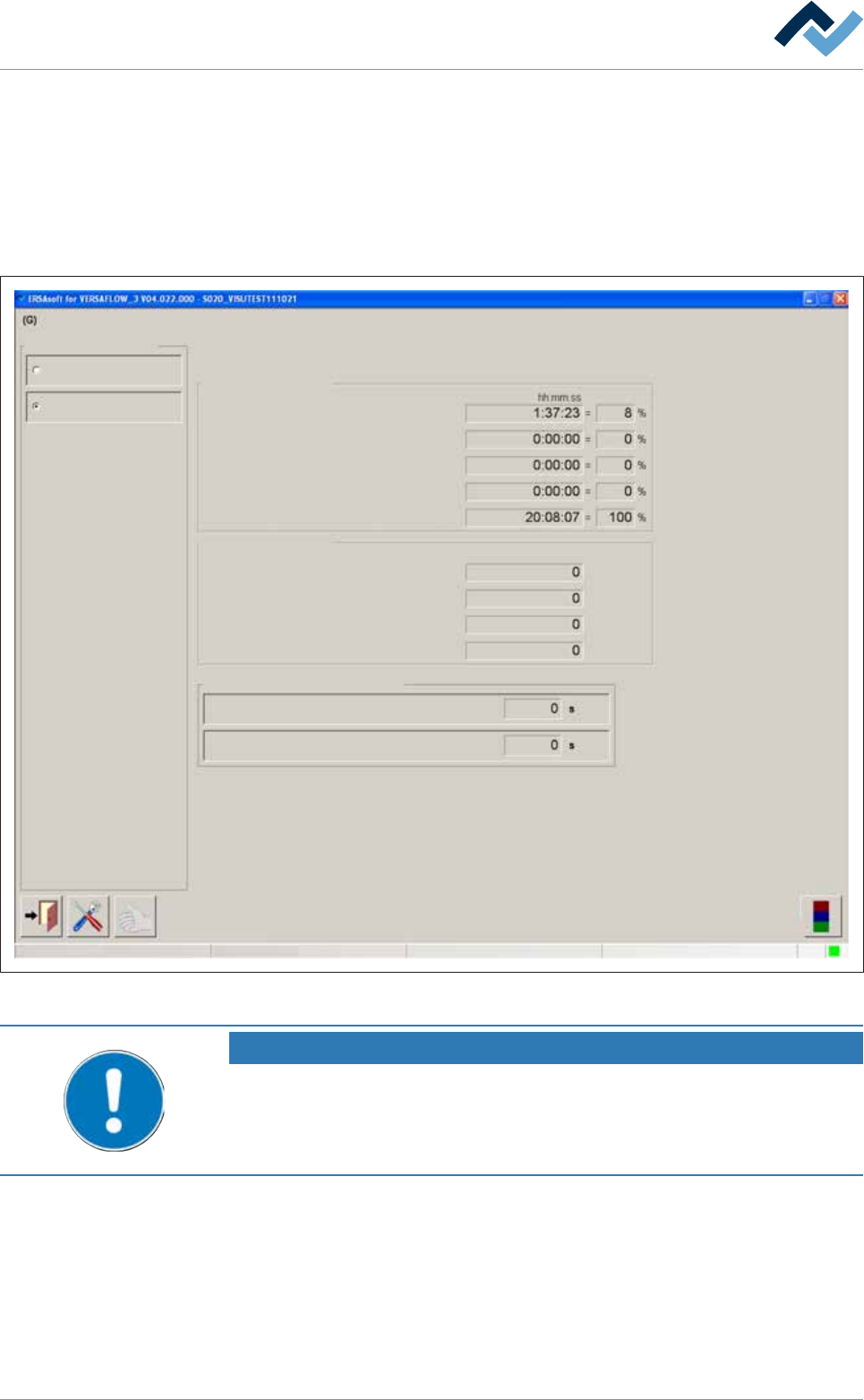
ü Displaying the [Operating data] editing dialog:
a) Enable the [Operating data] radio button.
ð The machine operating data is displayed.
User ersa Maintenance mode
Soldering report and operating data
Operating data
Operating data
Operating data
Soldering report
Running times
Time in maintenance mode
Time in production mode
Waiting time while production mode
Waiting time congestion successor
Total time
Number of boards
Currently in machine
Total boards
Produced boards
Defective boards
Waiting time while production mode
Waiting time congestion successor
(N-1)
(N+1)
(N-1)
(N+1)
Selection
Delay time to counter start
Fig.55: The [Soldering report and operating data] input dialog
NOTE
Are any changes possible?
The [Administrator] user rights are required access this dialog. Settings can only be
displayed if no name and password are logged in. In this case, press the [ESC] key on
your keyboard, or click on the button [Cancel] when a password is required.
Ersa GmbH Operating Instructions_VF335_en|Rev. 14|30/11/2017 222/695