Operating Instructions_VF335_en.pdf - 第228页
6|Function description 6.13.5 Settings for file naming, directories, file size You can customize these setting in the [Soldering report] setting dialog: ü Opening the [Soldering report] setting dialog: a) Click on the …
6|Function description
6.13.3 Recording a soldering report
Recorded soldering reports are saved automatically and can be later reimported
and displayed for documentation purposes.
Recording a soldering report
ü To record a soldering report:
a) set the machine to the [Maintenance mode] operating mode.
b) Insert a board into the machine infeed.
c) Click on the
button in the bottom toolbar of the [Soldering report] dialog.
ð The button will change into
. The soldering report is recorded.
d) Start a soldering program.
ð The machine switches to the [Automatic mode] operating mode. The
board is transported and processed inside the machine. As soon as the
board has left the machine, the soldering report is stored and displayed.
ð The report is automatically saved in a file whose size can be specified by you.
As soon as this file size has been exceeded, ERSAsoft closes the file automatic-
ally and creates a new file.
On this regard, please read Chapter The [File paths] editing dialog [
}139].
NOTE
How do I find a recorded soldering report again?
The files are automatically named in chronological order by the system and stored in
appropriate folders and subfolders. You can specify the structure of the folders in the
setting dialog. The file naming is automatic: The file identification itself is performed
by default in the following format: YYYYMMDD_hhmmss_yyyyyyy.xxx. (Y = 7-digit
counting number). You can change the file name and other parameters in the [Solder-
ing report] setting dialog.
6.13.4 Importing and displaying a soldering report
You can import and display soldering reports which were recorded at an earlier
point in time.
ü Importing soldering reports:
a) Set the machine to the [Maintenance mode] operating mode.
b) Click on the
button in the bottom toolbar of the [Soldering report] dialog.
ð Windows Explorer is displayed.
c) Locate and open the report file.
ð The file is imported, the report is displayed.
Ersa GmbH Operating Instructions_VF335_en|Rev. 14|30/11/2017 227/695
6|Function description
6.13.5 Settings for file naming, directories, file size
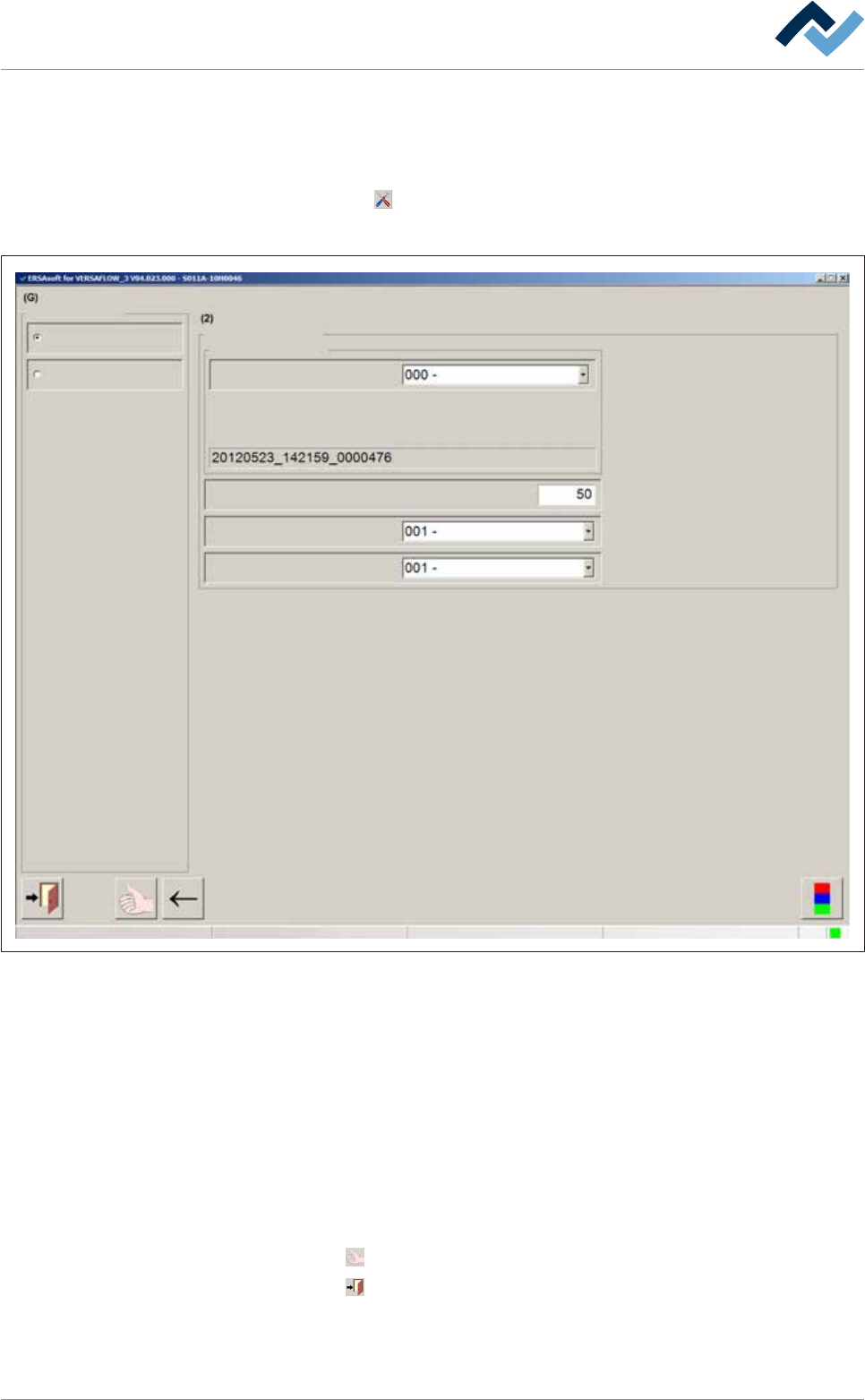
You can customize these setting in the [Soldering report] setting dialog:
ü Opening the [Soldering report] setting dialog:
a) Click on the
button in the bottom toolbar of the [Soldering report] dialog.
ð The [Soldering report] setting dialog is displayed:
Soldering report and operating data Soldering report
Selection
Soldering report
Operating data
ersaUser
Settings Soldering report
File format
File name
Type of file name
Maximum number of data sets per file
Directory subdivide
Additional type of protocol
Serial board number
daily
ZVEI
Maintenance mode
Fig.57: The setting dialog [Soldering report]
– [Type of file name]: You can select one of the following file name types: [Serial
board number], [Text _Program _timestamp] and [Not defined]
– [Maximum number of data sets per file]: Enter a value in the input field. Ex-
ample: If you enter value [1] here, a separate file is created for each data set. If
you enter value [50], after 50 data sets a new file is created.
– [Directory subdivide]: You can select one of the following subdivisions: [never],
[daily] and [Not defined].
– [Additional type of protocol]: You can select one of the following report types:
[none], [ZVEI] and [Not defined] .
ü Accept settings, close dialogs
a) Click on
to accept a setting.
b) Click on
to close a dialog.
Ersa GmbH Operating Instructions_VF335_en|Rev. 14|30/11/2017 228/695
6|Function description
6.14 Operation of the modules; input of set values
From the start dialog, you can perform settings for the machine units if the ma-
chine is in the [Maintenance mode] operating mode.
NOTE
Are any changes possible?
The [Set value pages] user rights are required to access this dialog. Settings can only
be displayed if no name and password are logged in. In this case, press the [ESC] key
on your keyboard, or click on the button [Cancel] when a password is required.
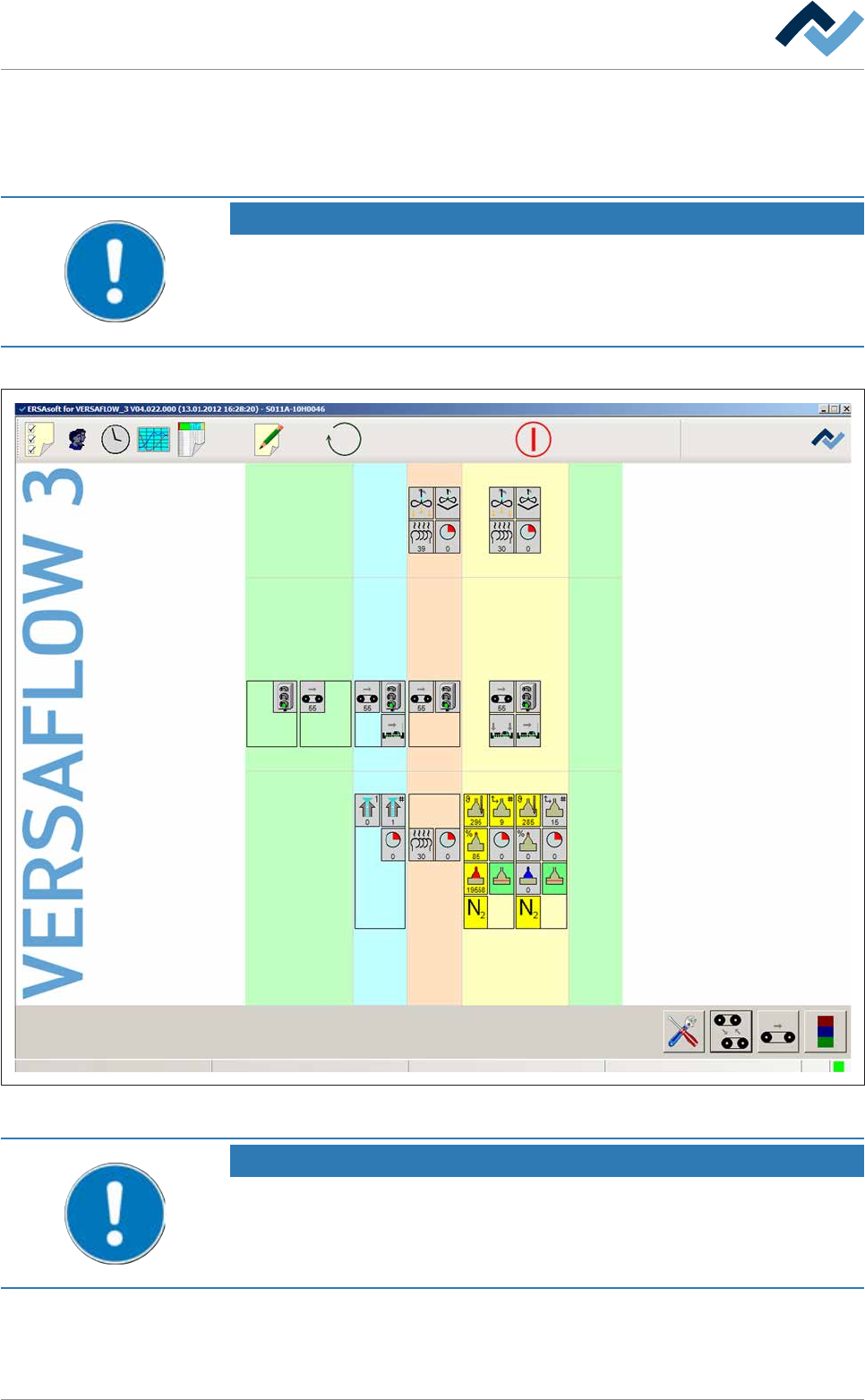
The machine modules are operated from the start dialog:
Preheating Soldering module ExitInfeed Infeed unit
Solder pot
user: none
Flux unit
Maintenance mode
Fig.58: The start dialog with the schematically displayed units of the machine.
NOTE
Different description
This document describes all the functions - even those which may not be supported
by your machine equipment. For this reason, the representation of the machine in
your visualization may be different from the functional description at hand.
Ersa GmbH Operating Instructions_VF335_en|Rev. 14|30/11/2017 229/695