Operating Instructions_VF335_en.pdf - 第265页
6|Function description Enter the flux type in the [Flux unit 1- mount data] setting dialog ü Entering a flux type: ü A user logging into the system has respective rights. ü The machine is in the operating mode [Mainten…
6|Function description
Flux Tank Preparation and Initial Filling
ü Filling an empty tank:
ü A user logging into the system has respective rights.
ü The machine is in the operating mode [Maintenance mode] function.
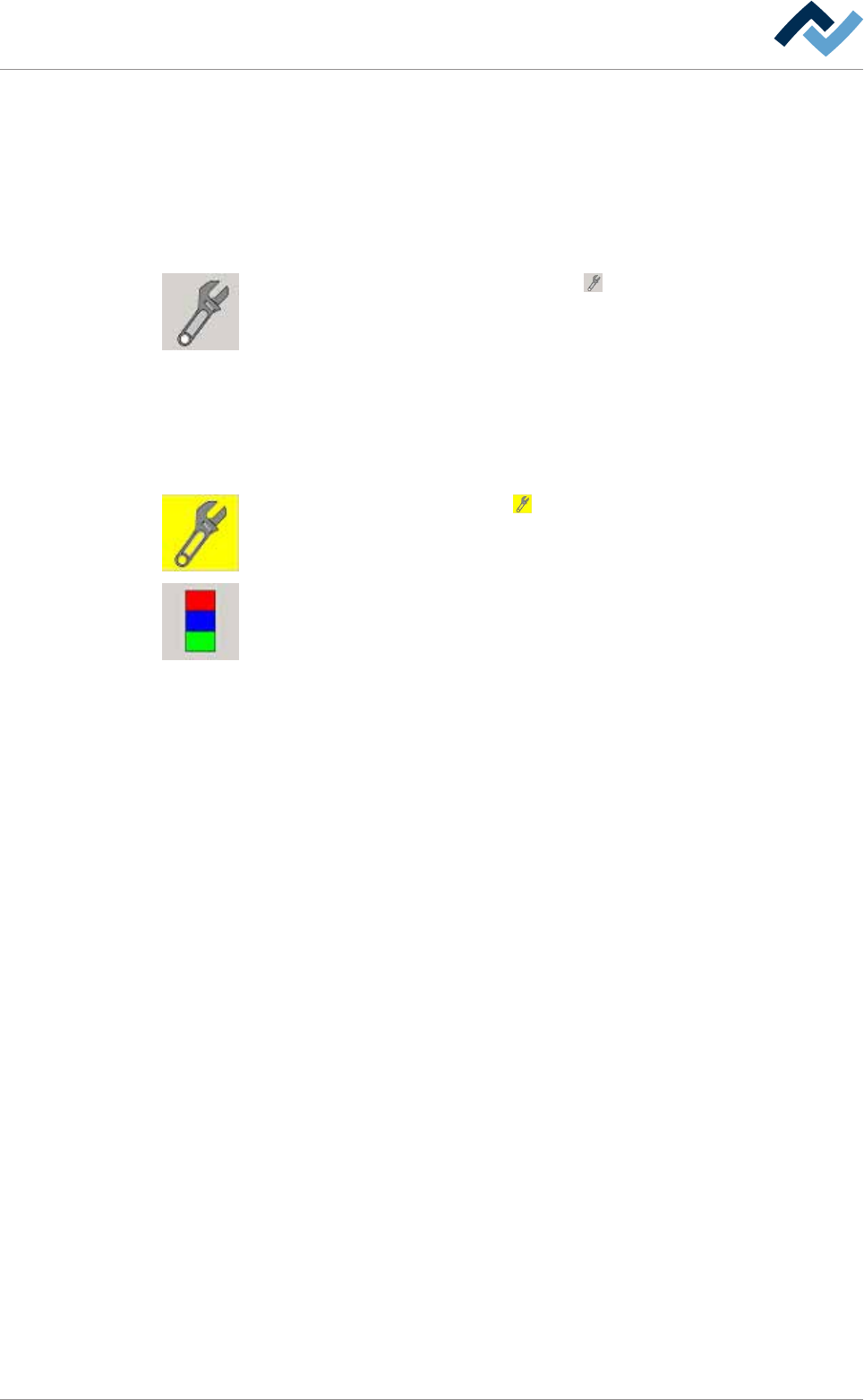
a) Press the flux sprayer icon in the basic dialog window.
ð The [Flux unit 1] window appears.
b) In the [Switch functions] frame press the button to enable module mainten-
ance. When the module maintenance mode is active, this button turns yellow.
c) Open the flux storage door.
d) Prepare a flux can.
e) Make sure that you have prepared flux material of one grade only. Do not mix
up grades!
f) Fill the tank with flux, then bleed the system and flush it.
g) Close the flux storage door.
h) In the [Switch functions] frame press the button to deactivate module main-
tenance. When this mode is completed, the button turns grey.
i) Open the [Messages] input dialog and acknowledge all existing messages.
ð The process has now been completed.
Ersa GmbH Operating Instructions_VF335_en|Rev. 14|30/11/2017 264/695
6|Function description
Enter the flux type in the [Flux unit 1- mount data] setting dialog
ü Entering a flux type:
ü A user logging into the system has respective rights.
ü The machine is in the operating mode [Maintenance mode] function.
a) Press the flux sprayer icon in the basic dialog window.
ð The [Flux unit 1] window appears.
b) Click on the button in the lower toolbar.
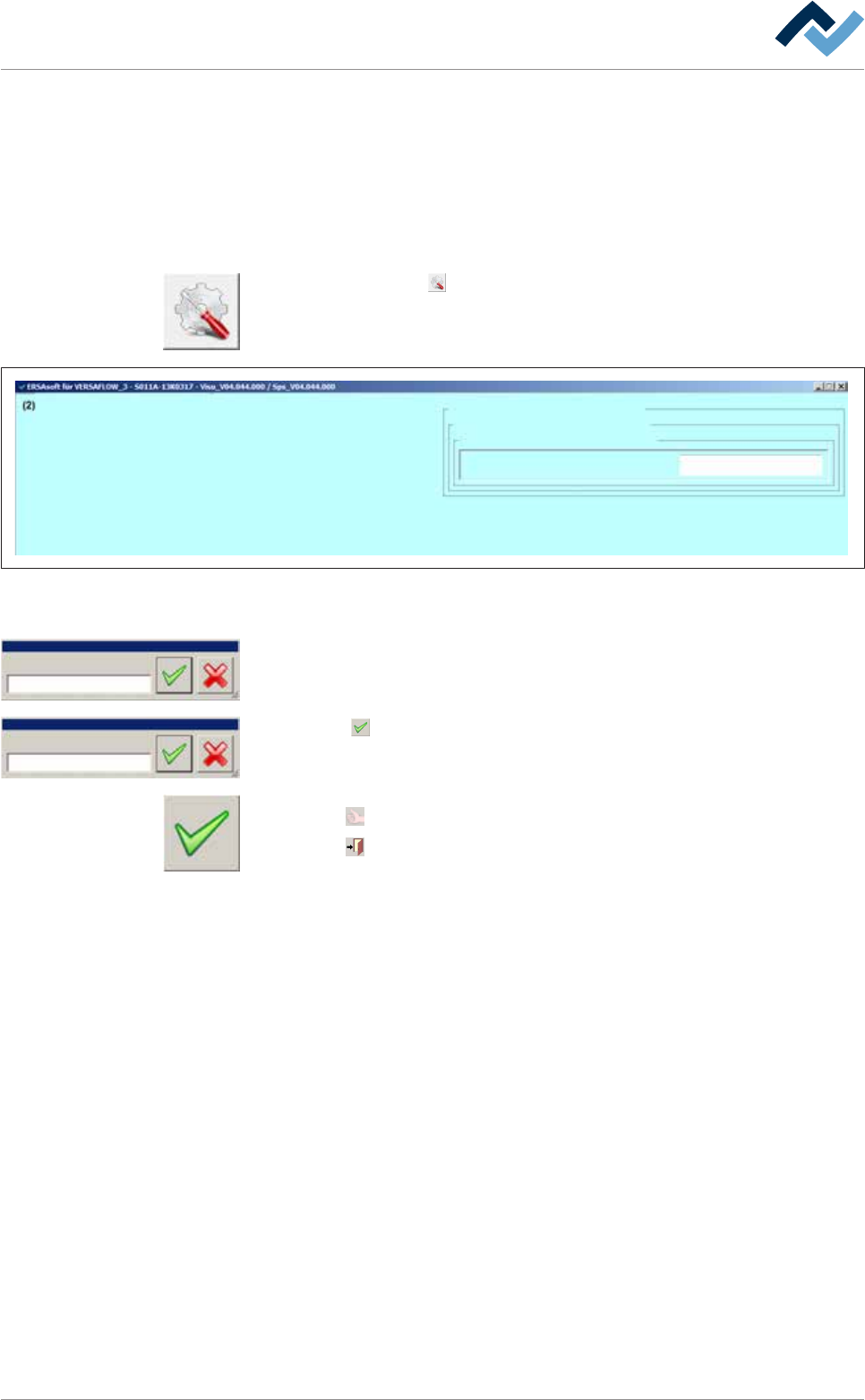
ð The settings dialogue [Flux unit 1 mount data] window appears:
Settings Flux unit 1
user:
Administrator
Maintenance mode
mount data
vessel 1
Flux material data
mount data
Name
Fig.73: The settings dialogue [Flux unit 1 - mount data] function.
c) In the [mount data] frame click on the [Name] input field.
Name
Edit dialog Text
Name
Edit dialog Text
2092960010
ð The [Name] window appears.
d) Enter the flux name from the keyboard in the [Edit dialog: Text] input field or
read the code with a reader.
e) Click the
button.
f) The text will be saved.
ü Accept settings, close dialogs
a) Click on
to accept a setting.
b) Click on
to close a dialog.
Ersa GmbH Operating Instructions_VF335_en|Rev. 14|30/11/2017 265/695
6|Function description
Specifying a flux type in the soldering program
ü Entering a flux type:
a) In the start dialog click the button.
ð The soldering program editor will open.
b) Press the flux sprayer icon in the editor.
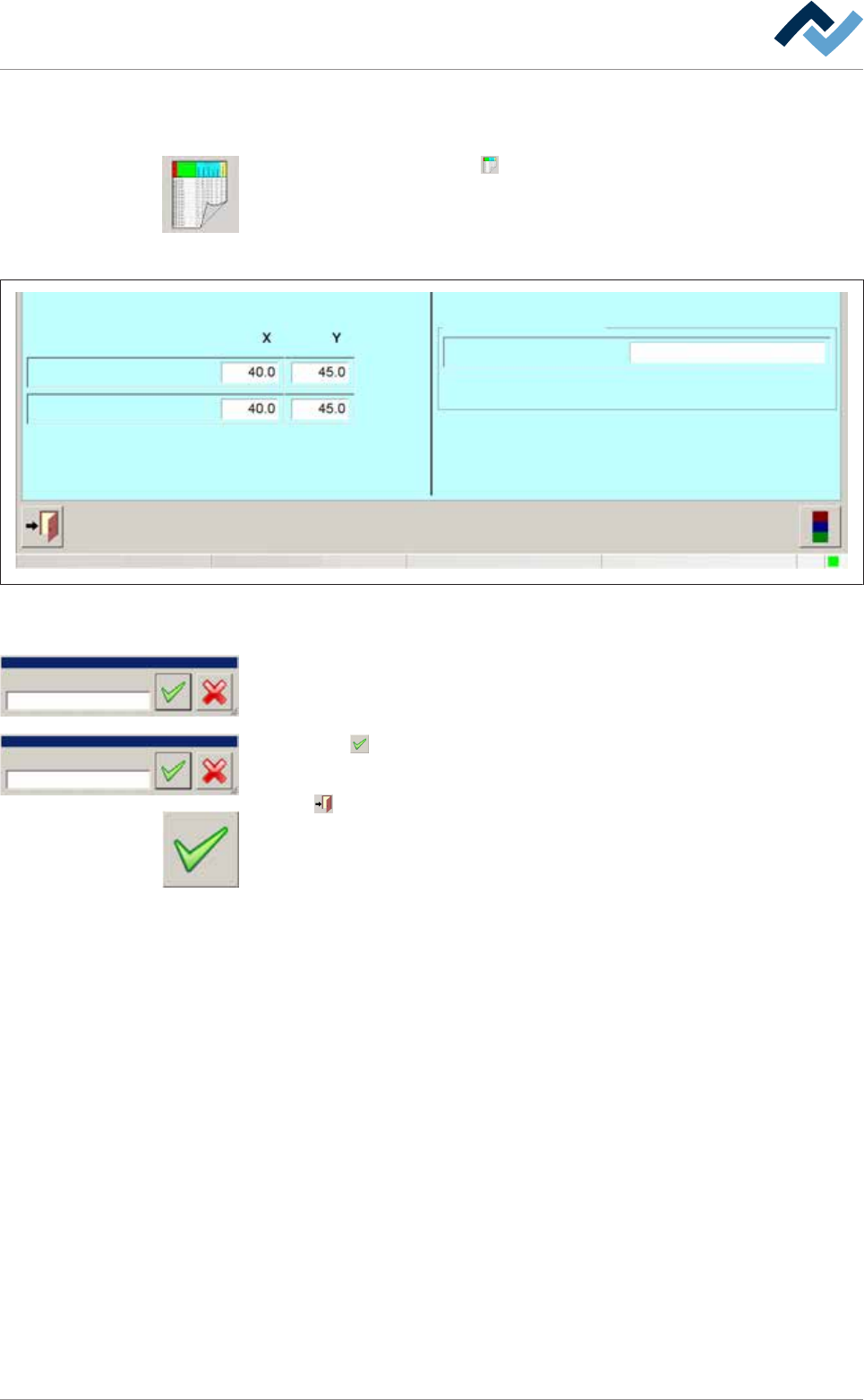
c) The [General additional data Flux unit 1] window appears:
user:
ersa
Soldering program editor General additional data
Program informations
Program name
Version:
Last modification by:
Infotext:
Conveyor
Conveyor width adjustment
Graphical
data
Process time
Process time
Fix horizontal permanently
Park position
Congestion position
Flux unit
General additional data
Maintenance mode
Flux unit 1
vessel 1
Flux material data
Fig.74: The [General additional data Flux unit 1] function.
d) In the [Flux material data] frame click on the [vessel 1] input field.
Name
Edit dialog Text
Name
Edit dialog Text
2092960010
ð The [Name] window appears.
e) Enter the flux name from the keyboard in the [Edit dialog: Text] input field or
read the code with a reader.
f) Click the
button.
g) The text will be saved.
Click on
to close the dialog.
a) Exit the editor. Save changes before exit.
ð The process has now been completed.
Ersa GmbH Operating Instructions_VF335_en|Rev. 14|30/11/2017 266/695