Operating Instructions_VF335_en.pdf - 第151页
6|Function description 6.7.4 The [Messages administration] dialog The [Messages administration] dialogue is used to clearly display all the messages accumulated in a specific period of time. You can sort messages by va…
6|Function description
6.7.3 The bottom toolbar
This toolbar is located in the lower section of the dialog:
Acknowledgement of the selected message. If the message cannot be acknow-
ledged yet, this button is displayed in grey.
Help for the selected message. If no help is available, this button is displayed in
grey.
It opens the [Cyclic messages] dialog.
It opens the [Messages administration] dialog.
It opens the [Messages] setting dialog.
Ersa GmbH Operating Instructions_VF335_en|Rev. 14|30/11/2017 150/695
6|Function description
6.7.4 The [Messages administration] dialog
The [Messages administration] dialogue is used to clearly display all the messages
accumulated in a specific period of time. You can sort messages by various criteria,
or view only the ones received in a specific time period.
NOTE
Are any changes possible?
The [Messages administration] user rights are required to access this dialog. Settings
can only be displayed if no name and password are logged in. In this case, press the
[ESC] key on your keyboard, or click on the button [Cancel] when a password is re-
quired.
Opening the [Messages administration] dialogue
ü Opening the dialogue:
a) click on the
button in the bottom toolbar of the [Messages] dialogue.
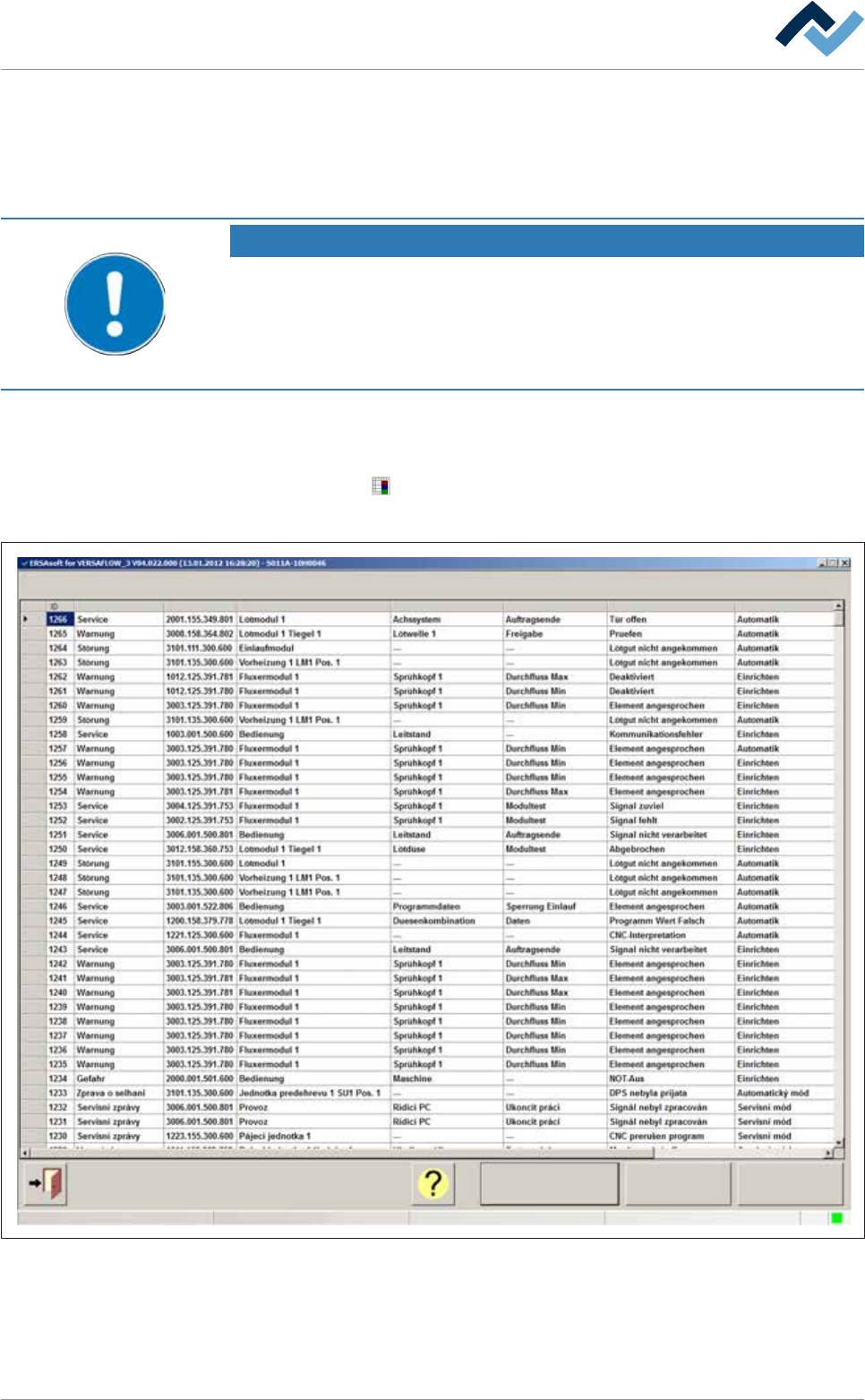
ð The [Messages administration] dialogue is opened:
All messages
Messages administration
User ersa
Calendar Assemble
Code Facility 1 Facility 2 Facility 3 Text Operation modeType
Maintenance mode
Fig.28: The [Messages administration] dialog
Displaying all messages
ü Displaying all messages:
Ersa GmbH Operating Instructions_VF335_en|Rev. 14|30/11/2017 151/695
6|Function description
a) click on the [All messages] button.
ð All messages are displayed.
Displaying all messages for a specific calendar day
ü Displaying all messages for a specific calendar day:
a) click on the [Calendar] button.
ð A dialogue for selecting a calendar day is displayed.
b) Select a calendar day.
ð All messages accumulated on that day will be displayed.
Grouping the displayed messages
ü Grouping the displayed messages:
a) click on the [Assemble] button.
ð The messages are grouped together according to their frequency.
ü Sorting messages alphabetically:
a) click on a column heading.
ð The messages in this column are sorted alphabetically.
The detailed description of a message in the table
The [Messages administration] dialogue contains the following columns:
column description
[ID] message serial number.
[Type] Indicates the message type (kind of mes-
sage).
[Code] Indicates the code number of the mes-
sage.
[Facility 1], [Facility 2], [Facility 3] Indicates which facility the message
refers to.
[Text] Displays a descriptive message text.
[Operation mode] Indicates in which operating mode the
machine was when the message ap-
peared.
[Date ackn.] Indicates when the message was ac-
knowledged.
[Occured] Indicates the time when the message
appeared.
[Acknowledged] Indicates the time when the message
was acknowledged.
[User] Indicates which user acknowledged the
message.
Click on
to close the dialog.
Ersa GmbH Operating Instructions_VF335_en|Rev. 14|30/11/2017 152/695