Operating Instructions_VF335_en.pdf - 第149页
6|Function description 6.7.2 Message description If you are viewing a message, you will receive detailed information about the facil- ity the message refers to and which condition caused the message: – [Facility 1]: Wh…
6|Function description
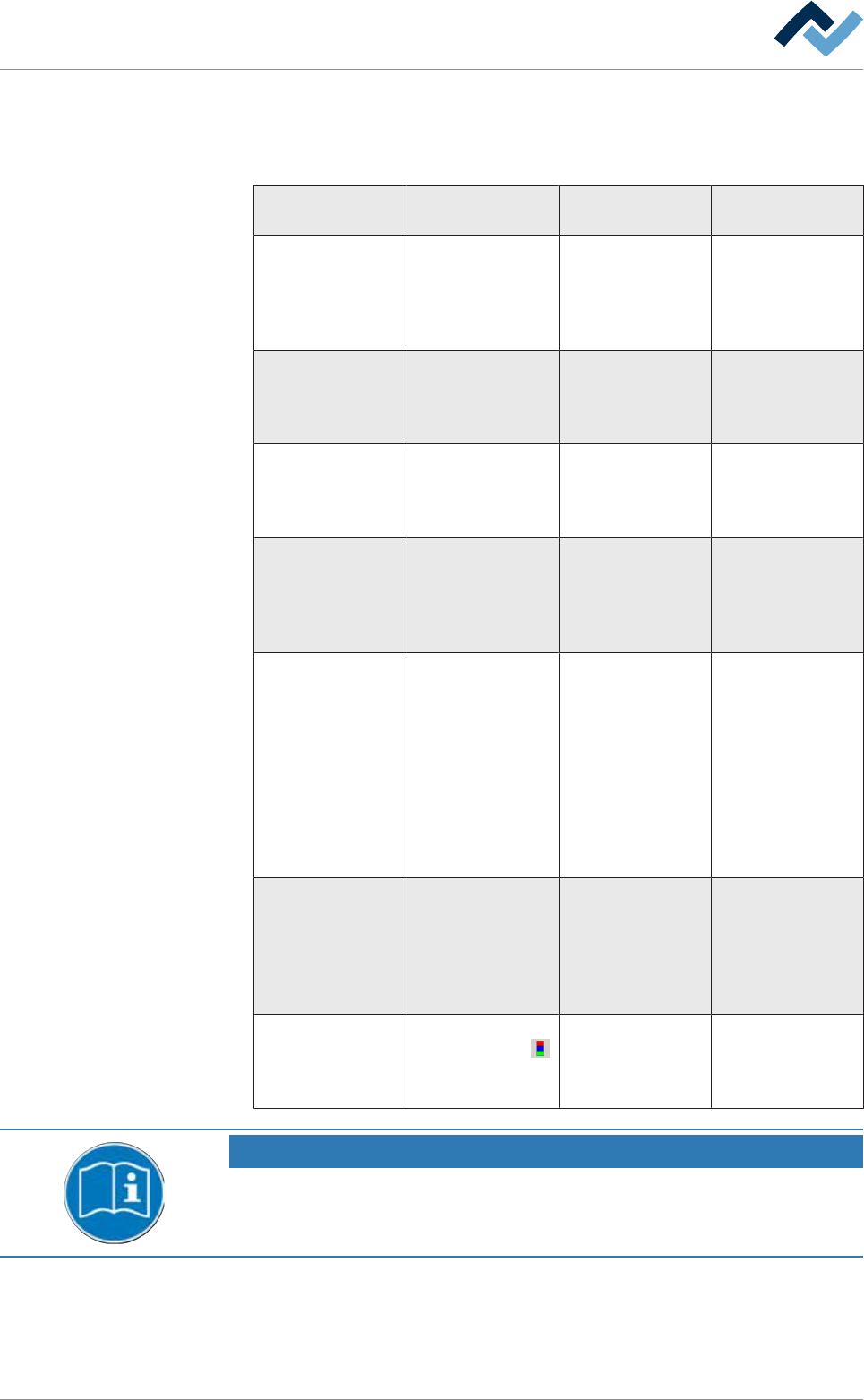
6.7.1 Message types
Buttons are located in the top part of the dialogue; each of these buttons repres-
ents a type of message:
Button / Message
type
Signal of the signal
lamp
Description of the
message
Example
[Danger] The red lamp
flashes
Emergency, hazard-
ous condition, im-
mediate action re-
quired. Infeed is
blocked
Exhaust air error,
safety circuit open
[Failure] The red lamp lights
up continuously or
the orange lamp
(optional) flashes
Abnormal condi-
tion, imminent crit-
ical condition. In-
feed is blocked
Tolerance error
[Warning] The blue light
flashes
Abnormal condi-
tion, imminent crit-
ical condition. In-
feed is blocked
Monitoring was
deselected
[Service] The blue light
flashes
Service is strin-
gently required.
Service is mandat-
ory. Infeed is
blocked
Missing agent (ni-
trogen, solder, flux
material...)
[Cyclic messages] The blue light
flashes
Service is mandat-
ory; operator's ac-
tion is required ac-
cording to a self-
defined, cyclic mes-
sage. Infeed is
blocked. With re-
gard to this, please
also read Chapter
[Cyclic messages]
Dependent on self-
defined messages
[Waiting message] The green light
flashes
A waiting message
is displayed until a
certain operating
state has been
reached. Infeed is
not blocked
Solder temperature
not yet reached
[Info] No indication of the
signal lamp. The
button flashes.
A note indicates a
specific operating
condition. Infeed is
not blocked.
The axis is not ref-
erenced
NOTE
Supplementary documents
With respect to this, please also read the document [120062] on the data carrier
[product_data_selective], which is included in the delivery.
ü Displaying a message:
a) Click on a button in the upper section of the window.
ð All still unacknowledged messages of the respective message type are dis-
played.
Ersa GmbH Operating Instructions_VF335_en|Rev. 14|30/11/2017 148/695

6|Function description
6.7.2 Message description
If you are viewing a message, you will receive detailed information about the facil-
ity the message refers to and which condition caused the message:
– [Facility 1]: Which module does the message refer to?
– [Facility 2]: Which part of the module indicated in [Facility 1] is affected by the
message?
– [Facility 3]: Which part of the facility indicated in [Facility 2] is affected by the
message?
– [Text]: Here, an explanatory text to the displayed message can be found.
The further right a notice is displayed, the more details the message description
contains.
Error code
If you click on an error message, it is highlighted in colour. Simultaneously, the re-
lated error code is displayed above the bottom tool bar. The error code number
may be useful for service and maintenance staff.
Ersa GmbH Operating Instructions_VF335_en|Rev. 14|30/11/2017 149/695
6|Function description
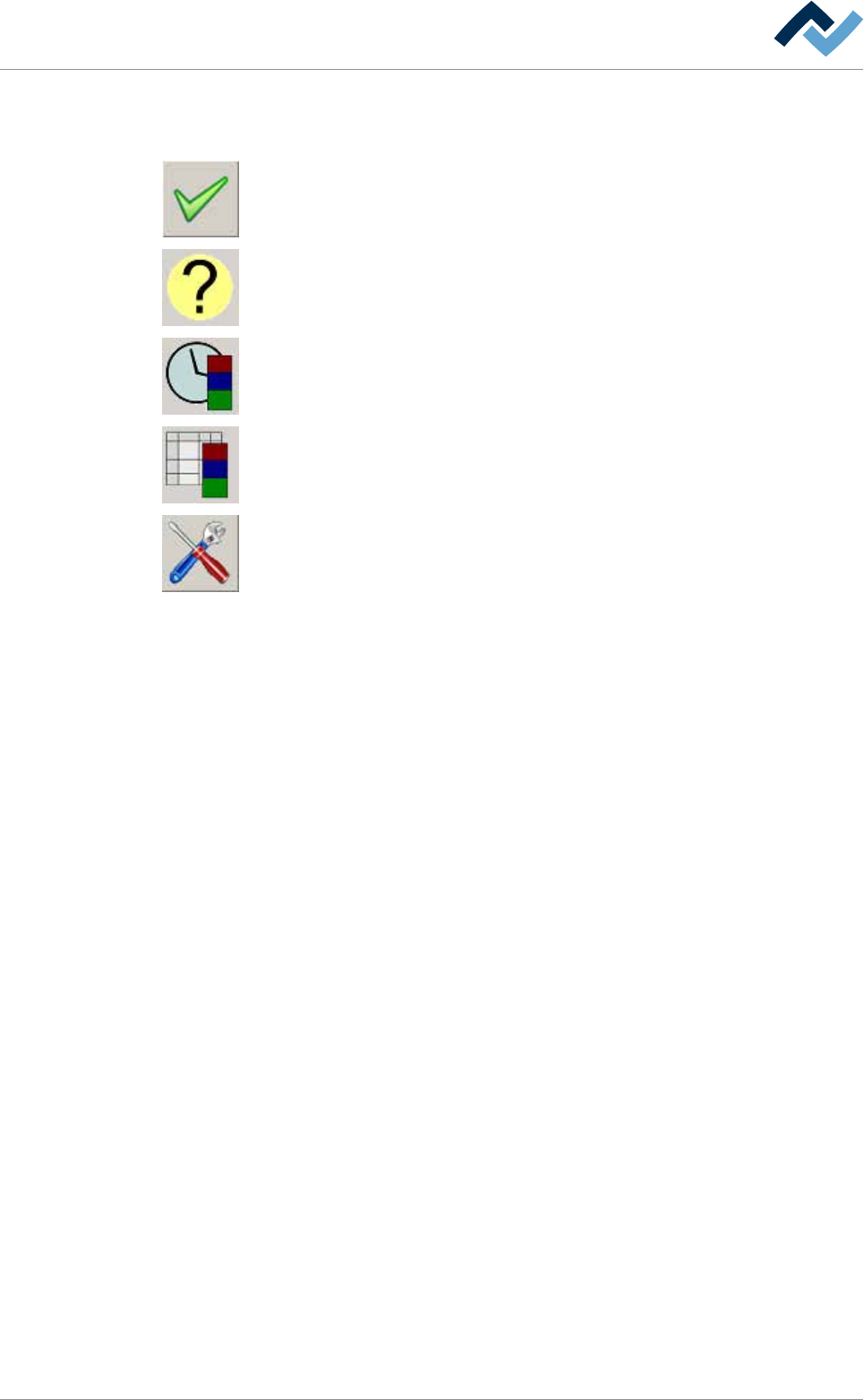
6.7.3 The bottom toolbar
This toolbar is located in the lower section of the dialog:
Acknowledgement of the selected message. If the message cannot be acknow-
ledged yet, this button is displayed in grey.
Help for the selected message. If no help is available, this button is displayed in
grey.
It opens the [Cyclic messages] dialog.
It opens the [Messages administration] dialog.
It opens the [Messages] setting dialog.
Ersa GmbH Operating Instructions_VF335_en|Rev. 14|30/11/2017 150/695