Operating Instructions_VF335_en.pdf - 第164页
6|Function description 6.9 The soldering program editor In the soldering programme editor, you can create libraries where to store solder- ing programmes. You may create new soldering programmes or edit and modify ex- …
6|Function description
b) Follow the instructions on the screen.
Click on
to close the dialog.
Ersa GmbH Operating Instructions_VF335_en|Rev. 14|30/11/2017 163/695
6|Function description
6.9 The soldering program editor
In the soldering programme editor, you can create libraries where to store solder-
ing programmes. You may create new soldering programmes or edit and modify ex-
isting soldering programmes. You may compile several soldering programmes into
a library in order to increase clarity.
NOTE
Are any changes possible?
The [Edit soldering program] user rights are required access this dialog. Settings can
only be displayed if no name and password are logged in. In this case, press the [ESC]
key on your keyboard, or click on the [Cancel] button when a password is required.
Open the [Soldering program editor] dialogue
ü Opening a dialogue:
a) click on the
button in the top toolbar of the start dialogue.
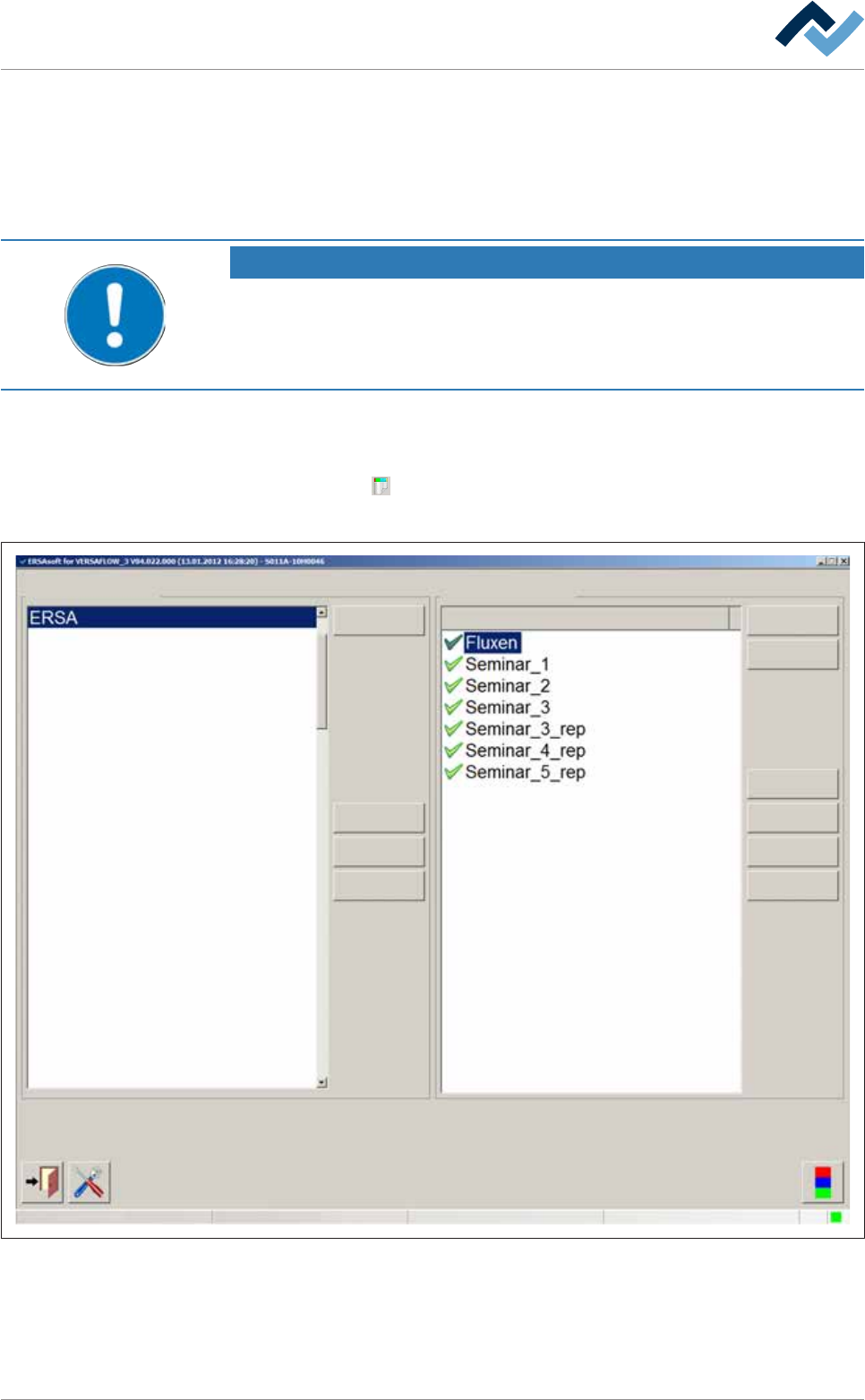
ð The [Soldering program editor] dialogue is opened:
User ersa
Soldering program editor Settings
Libraries Programs
New New
Copy Copy
Delete Delete
Rename Rename
Import
Edit
Maintenance mode
Fig.34: The [Soldering program editor] dialog
Ersa GmbH Operating Instructions_VF335_en|Rev. 14|30/11/2017 164/695
6|Function description
6.9.1 The [Libraries] frame
In this frame, you can do the following:
– create a new library
– delete a library
– rename a library
– Copy a library together with the soldering programmes contained therein
A library is a "container" in which you can store your soldering programmes. To cre-
ate a soldering programme, you first have to create a library. You can then create
one or more soldering programmes and store them in the library.
Creating a new library
ü Creating a new library:
a) click on the [New] button in the [Libraries] frame.
ð The dialogue [New library] is displayed:
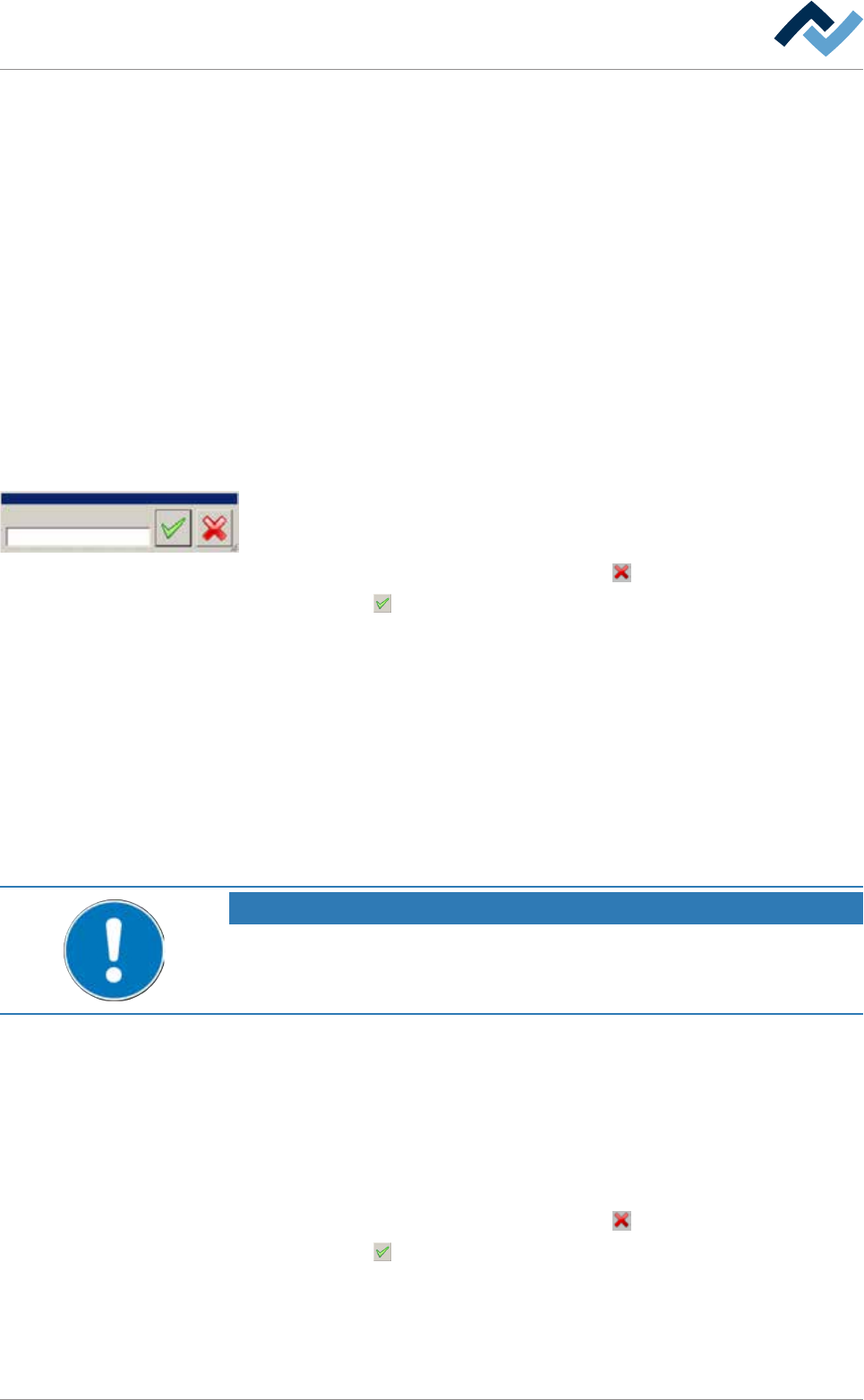
New library
Name:
b) enter a name for the library in the input field. Special characters such as
spaces, [ ], { } or < > are not permitted. If one of such characters is entered, an
error message is displayed.
c) Should the process be cancelled, click on the
button.
d) Click on the
button.
ð The new library has been created and is now displayed in the [Libraries] frame.
Delete a library
ü Deleting a library:
a) in the [Libraries] frame, highlight a library and then click on the [Delete] but-
ton.
ð A query dialogue is displayed.
b) Follow the instructions on the screen.
ð The library has been deleted.
NOTE
Can the library not be deleted?
When soldering programs are already stored in a library, the library can not be de-
leted. You must delete the soldering programs contained therein first!
Rename a library
ü Renaming a library:
a) in the [Libraries] frame, highlight a library and then click on the [Rename] but-
ton.
ð The dialogue [Rename library] is displayed.
b) Enter a new name for the library ino the input field.
c) Should the process be cancelled, click on the
button.
d) Click on the
button.
ð The library has been renamed.
Copy a library
ü Copying a library together with the soldering programmes contained therein:
Ersa GmbH Operating Instructions_VF335_en|Rev. 14|30/11/2017 165/695