Operating Instructions_VF335_en.pdf - 第209页
6|Function description 6.10.3 Adding a data set and assigning a soldering program The [Assignment: code - soldering program] frame contains the data sets of a code table. Each data set defines the relation of a barcode…
6|Function description
6.10.2 Creating a new code table
A code table is a “container” in which you can store data sets. To create a data set,
you first have to generate a code table. Afterwards, you can create a data set and
store it in the code table. You can save and retrieve code tables.
Edit dialog
user: none maintenance mode
Code table
Code table Assignment: code - soldering program
Code Library Soldering program
Code
Library Soldering program
Activated code table:
Creating a new code table
ü Creating a new code table:
a) click on the button
in the [Code table] frame
ð The [Save file] window appears.
b) Enter a name for the code table in the input field.
ð Special characters such as empty spaces, [ ], { } or < > are not permitted. If
one such character is entered, an error message is displayed.
c) Should the process be cancelled, click on the
button.
d) Click on the
button.
ð The new code table has been created and is now displayed in the [Code
table] frame.
ð To work with the code table you now have to add data sets and make an as-
signment to a soldering programme.
Ersa GmbH Operating Instructions_VF335_en|Rev. 14|30/11/2017 208/695
6|Function description
6.10.3 Adding a data set and assigning a soldering program
The [Assignment: code - soldering program] frame contains the data sets of a code
table. Each data set defines the relation of a barcode to a soldering programme. In
the lower part of the frame, you can find the input line with the input fields [Code],
[Library] and [Soldering program].
Edit dialog
user: none maintenance mode
Code table
Code table Assignment: code - soldering program
Code Library Soldering program
Code
Library Soldering program
Activated code table:
Creating a new data set
ü Creating a new data set:
a) select a code table, to which a data set can be added, in the [Code table]
frame.
b) Click the [Code] input field in the input line in order to enter the code. You can
also use wildcards.
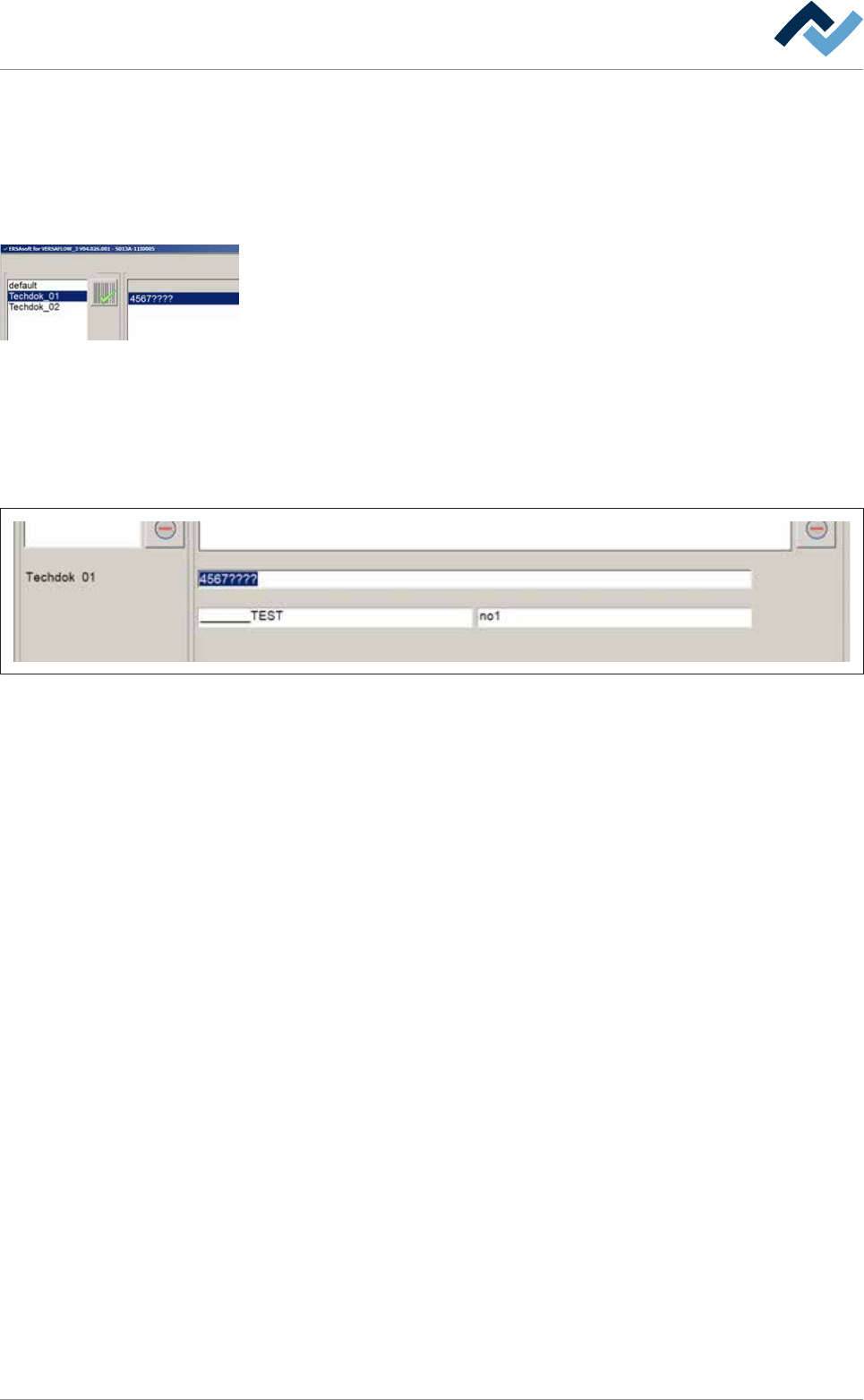
ð Example: If your PCB code is [5678] and additionally contains a consecutive
serial number [1234], you can also enter the wildcard [?] for each digit of the
serial number: [5678????]. The assignment then applies to all codes with the
first four digits [5678].
Edit dialog
user: none maintenance mode
Code table
Code table Assignment: code - soldering program
Code Library Soldering program
Code
Library Soldering program
Activated code table:
Fig.50: The input line. Wildcards have been entered for the consecutive serial number [????].
Ersa GmbH Operating Instructions_VF335_en|Rev. 14|30/11/2017 209/695
6|Function description
Assigning the code to a soldering programme
ü Assigning the code to a soldering programme:
a) click the [Library] input field in the input line to assign the code to a soldering
programme.
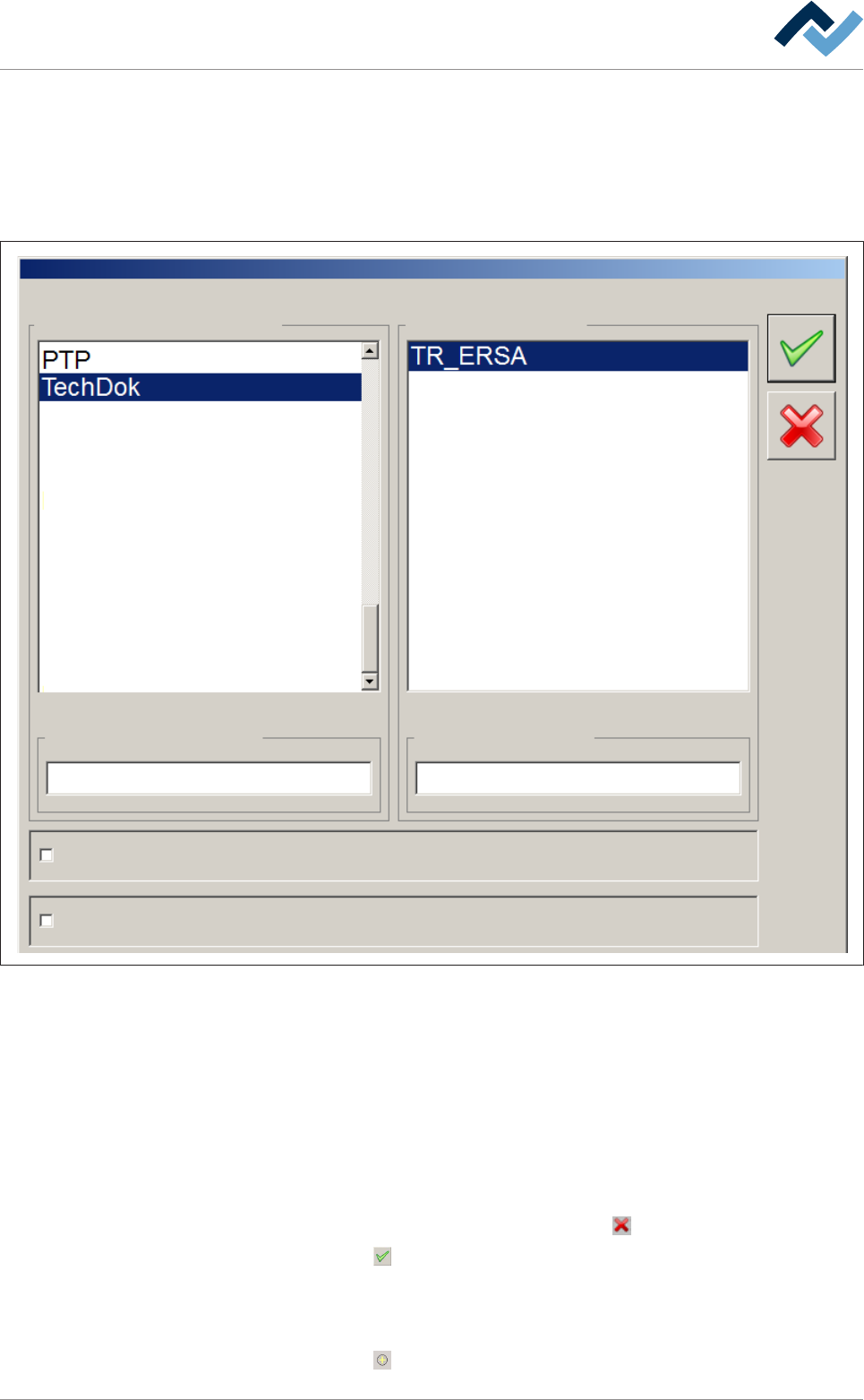
ð The following dialogue is displayed:
Libraries Programs
Libraries selection Program selection
Board simulation
Select soldering program
ec
Code mode
Fig.51: select the soldering programs
Selecting library and programme
ü Selecting a library and a programme contained in it:
a) activate the [Code mode] checkbox.
b) Select the library in which the soldering programme is located in the [Libraries]
frame.
c) Select the soldering programme which is to be assigned to the code in the [Pro-
grams] frame.
d) Should the process be cancelled, click on the
button.
e) Click on the
button.
ð The soldering programme is assigned to the code, and the names of the
library and soldering programme are automatically accepted in the [Lib-
rary] and [Soldering program] fields.
f) Click on the
button in the [Programs] frame
Ersa GmbH Operating Instructions_VF335_en|Rev. 14|30/11/2017 210/695