Operating Instructions_VF335_en.pdf - 第238页
6|Function description WARNING Danger of crushing! Risk of injury due to squeezing of body parts! CAUTION Risk of material damage! Trapped or falling down boards may cause damage to the machine. a) Before adjusting the…
6|Function description
6.14.7 The input dialog [width adjustment]
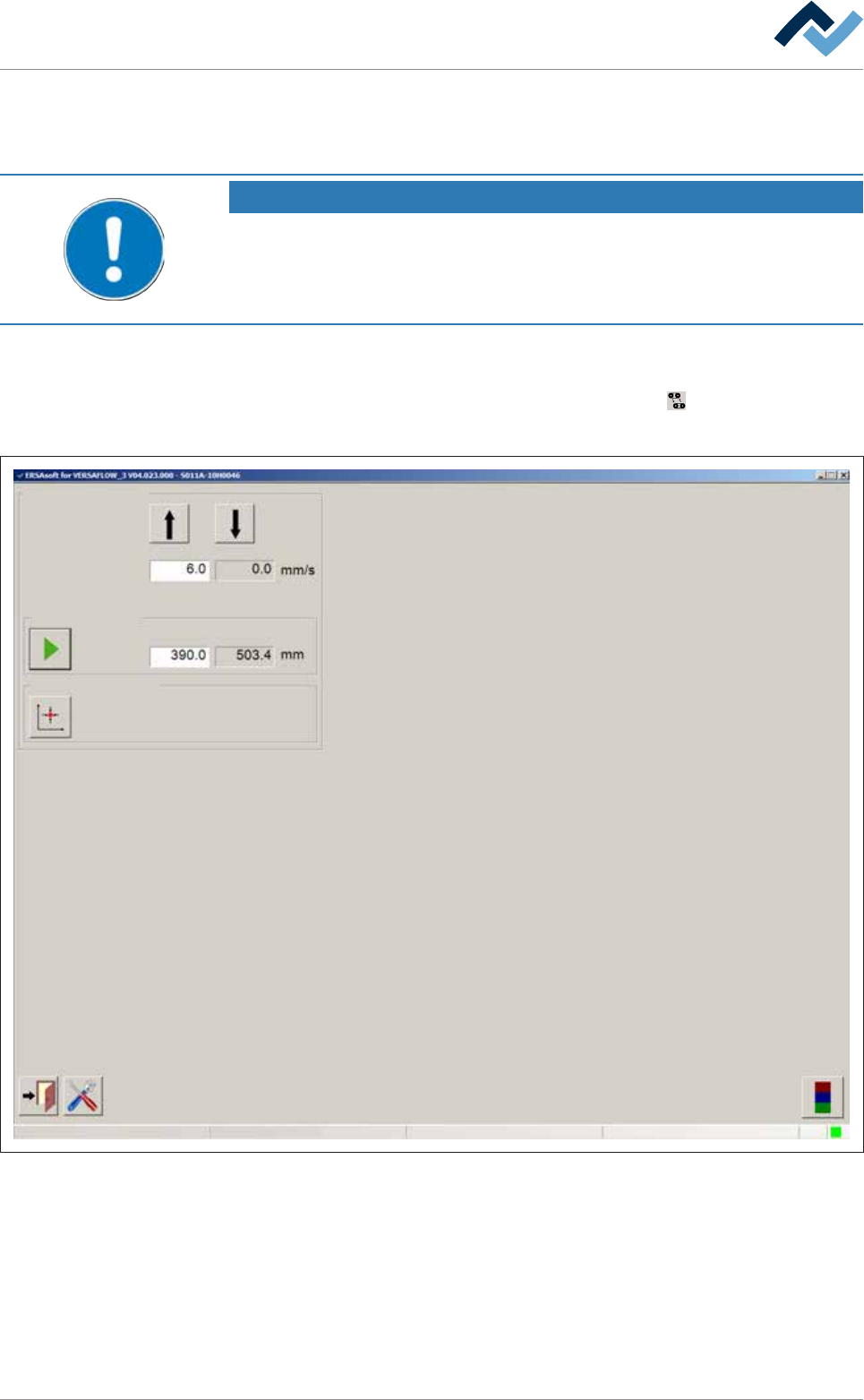
In this dialog you can set the conveyor width manually and reference it.
NOTE
Are any changes possible?
The [Set value pages] user rights are required to access this dialog. Settings can only
be displayed if no name and password are logged in. In this case, press the [ESC] key
on your keyboard, or click on the button [Cancel] when a password is required.
ü To open the [Conveyor width adjustment] input dialog:
a) Set the machine to the [Maintenance mode]
b) In the bottom toolbar of the start dialog, click on the
ð The [Conveyor width adjustment] input dialog is displayed:
Conveyor width adjustment
Positioning
Set value Actual value
Set value Actual value
Step mode
Special positions
v
User ersa
Maintenance mode
Fig.59: The input dialog [Width adjustment]
[Step mode]:In this frame, you can manually adjust the conveyor width in the jog
mode.
Ersa GmbH Operating Instructions_VF335_en|Rev. 14|30/11/2017 237/695
6|Function description
WARNING
Danger of crushing! Risk of injury due to squeezing of body parts!
CAUTION
Risk of material damage!
Trapped or falling down boards may cause damage to the machine.
a) Before adjusting the conveyor width, make sure that no board is in the machine!
ü To manually adjust the conveyor width in the jog mode:
a) In the [Step mode] frame, enter a value in [mm/s] into the [Set value] input
field.
b) Click and hold the
or button.
ð As long as the button is clicked, the conveyor width is adjusted at a speed of
[Set value] Here, a ramp function is used. The speed gradually increases up to
[Set value]. In the display field [Actual value],you can read the current speed in
[mm/s].
ü To manually adjust the conveyor width to a defined set value:
a) In the [Step mode] frame, enter a value in [mm/s] into the [Set value] input
field.
b) In the [Positioning] frame, enter a value in [mm/s] into the [Set value] input
field.
c) Click on the
button.
ð The conveyor width is now adjusted. In the display field [Actual value], you can
read the conveyor current width in [mm]. During the adjustment, the symbol
appears next to a moving axis.
Referencing must then always be carried out:
– After a breakdown of the CAN motors power supply
– after pressing the emergency STOP
– after a power failure
– after switching off the main switch
– after an adjustment
ü To reference width adjustment:
a) In the [Reference move] frame, click on the
button.
ð Referencing is started.
NOTE
The travel movement requires a certain amount of time.
a) In the meantime, do not perform any inputs.
b) During referencing, the
symbol is displayed next to a moving axis in the setting
dialog.
Ersa GmbH Operating Instructions_VF335_en|Rev. 14|30/11/2017 238/695
6|Function description
NOTE
Why are the [Positioning] and [Special positions] frames not displayed?
a) This can have several causes:
ð Your machine does not have a program-controlled width adjustment.
ð The program-controlled width adjustment has not been configured.
ð The [Enable only step mode] checkbox is enabled in the settings dialog.
Ersa GmbH Operating Instructions_VF335_en|Rev. 14|30/11/2017 239/695