DECAN_F2_Service(Eng_Ver1).pdf - 第314页
13-44 Fast & Flexible Chip Shooter DECAN F2 Service Manual If the user check item is added by cl icking the <OK> button, a new check item is added in the setup screen. 5) Modifying User Check Items The regi…
13-43
Software
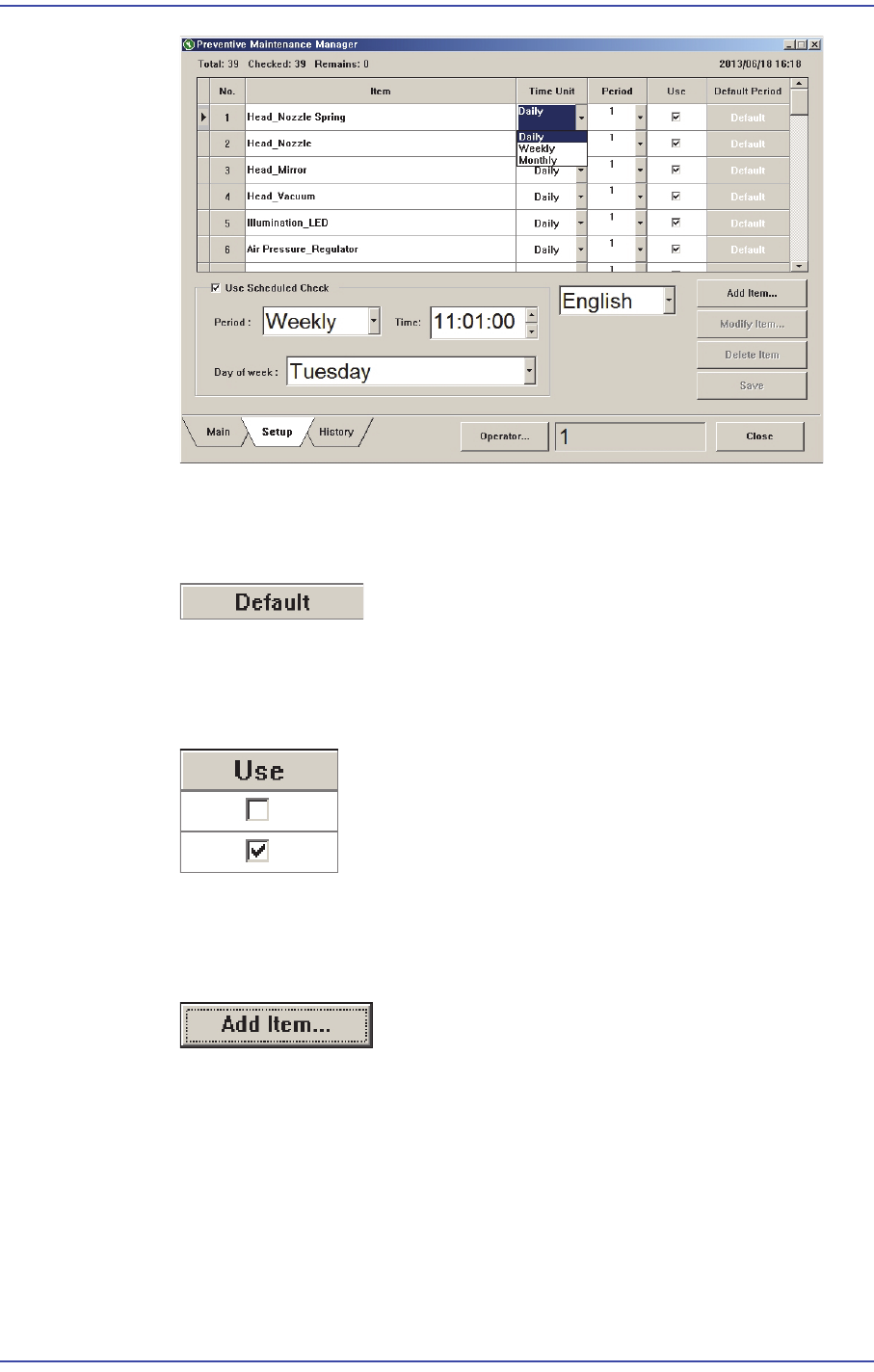
2) Setting Check Period as Default
When setting the changed check period as default value again, click the <Default>
button for the corresponding item.
The change check period is set as default again.
3) Setting Whether to Use Check Period
Set whether to use the check item in the <Use> column.
4) Adding User Check Item
User can add a new check item. This can be performed in the following manner.
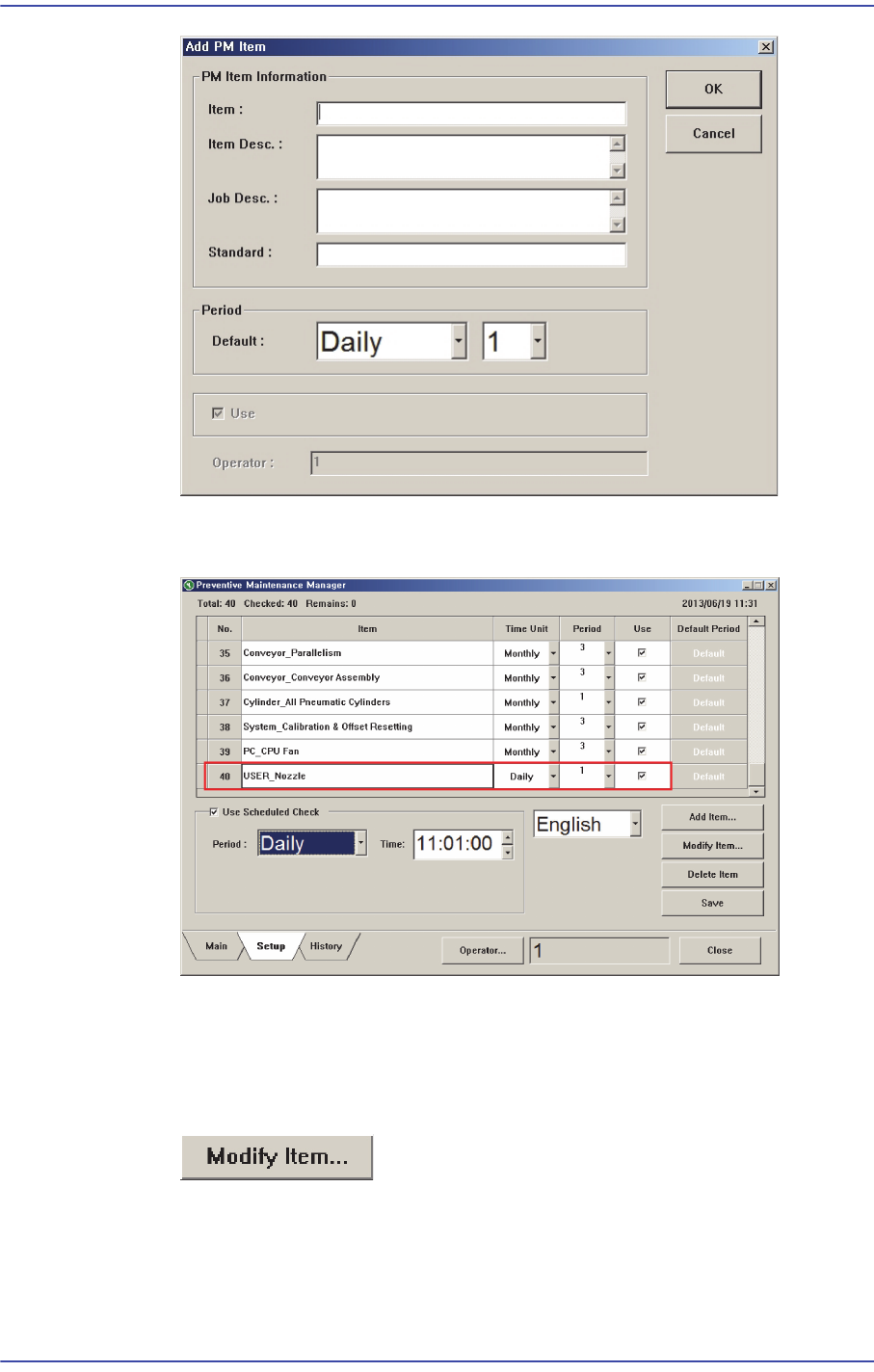
Click the <Add Item…> button and execute the ‘Add PM Item’ dialog box.
Enter an item to be added in the ‘Add PM Item’ dialog box and set the check period.
13-44
Fast & Flexible Chip Shooter DECAN F2 Service Manual
If the user check item is added by clicking the <OK> button, a new check item is
added in the setup screen.
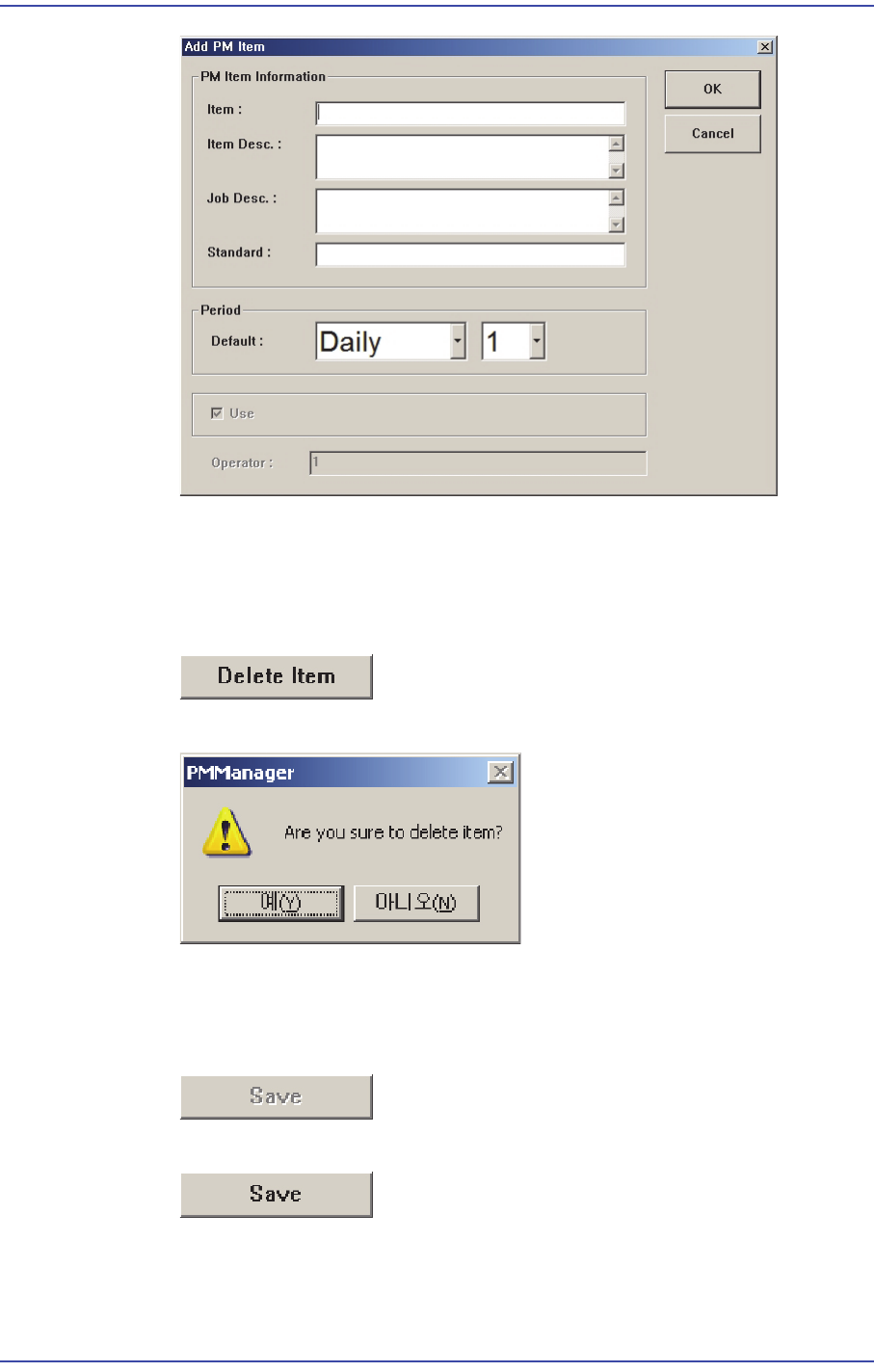
5) Modifying User Check Items
The registered user check items can be modified. This can be performed in the
following manner.
Click the <Modify Item…> button.
Modify the registered check item.
13-45
Software
6) Deleting User Check Item
The registered user check item can be modified. This can be performed in the
following manner.
Click the <Delete Item> button.
Click the <Yes> button to delete the corresponding item.
7) Saving Changed Item
If there is changed setups in the Setup Screen, the <Save> button is enabled.
When there is no changed item
When there is changed item
When saving the changed item, click the <Save> button.
If the following window appears, click the <Yes> button to save the setups.