DECAN_F2_Service(Eng_Ver1).pdf - 第315页
13-45 Software 6) Deleting User Check Item The registered user check item can be modified. This can be performed in the following manner . Click the <Delete Item> button. Click the <Y es> button to de let…
13-44
Fast & Flexible Chip Shooter DECAN F2 Service Manual
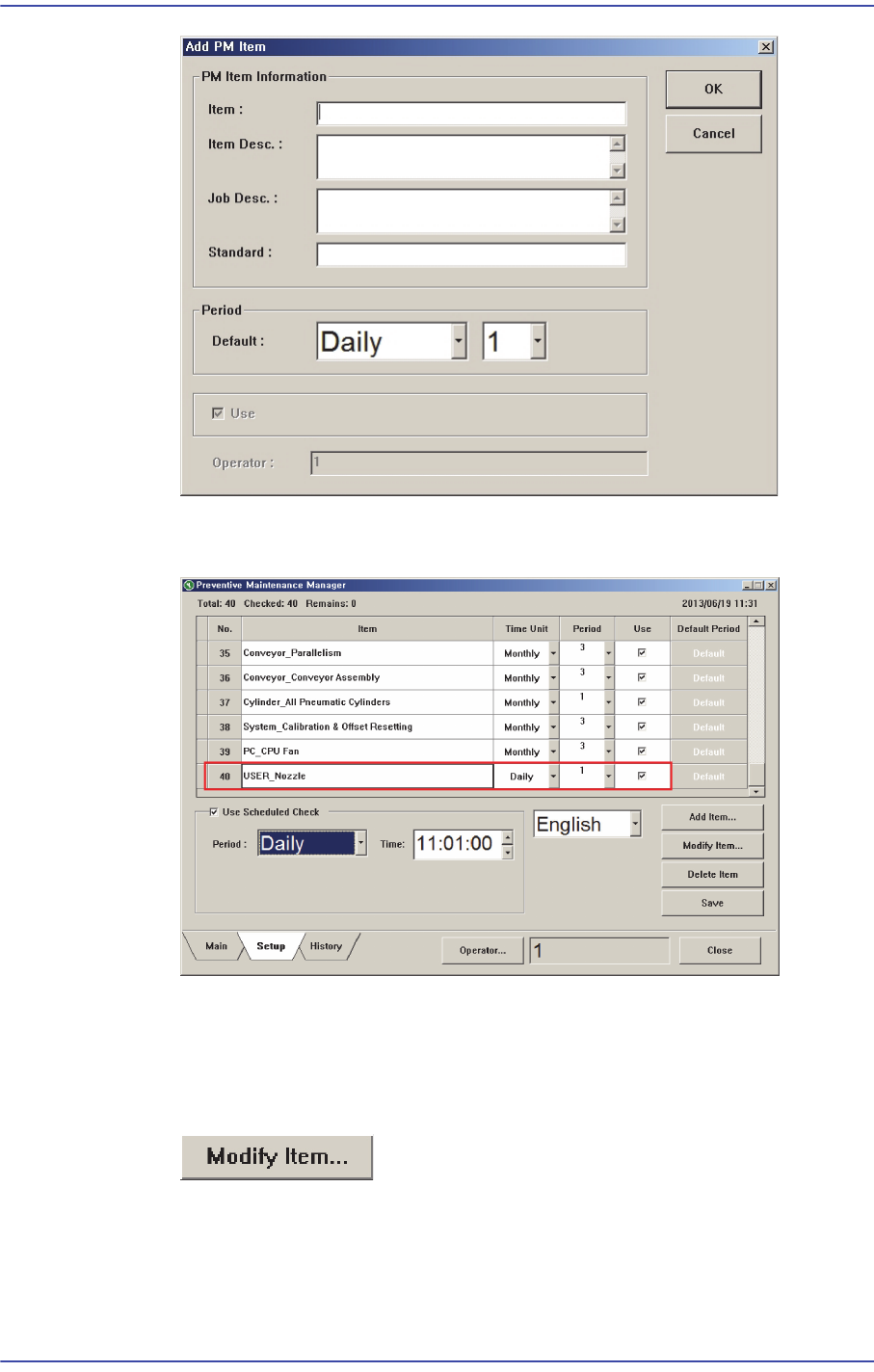
If the user check item is added by clicking the <OK> button, a new check item is
added in the setup screen.
5) Modifying User Check Items
The registered user check items can be modified. This can be performed in the
following manner.
Click the <Modify Item…> button.
Modify the registered check item.
13-45
Software
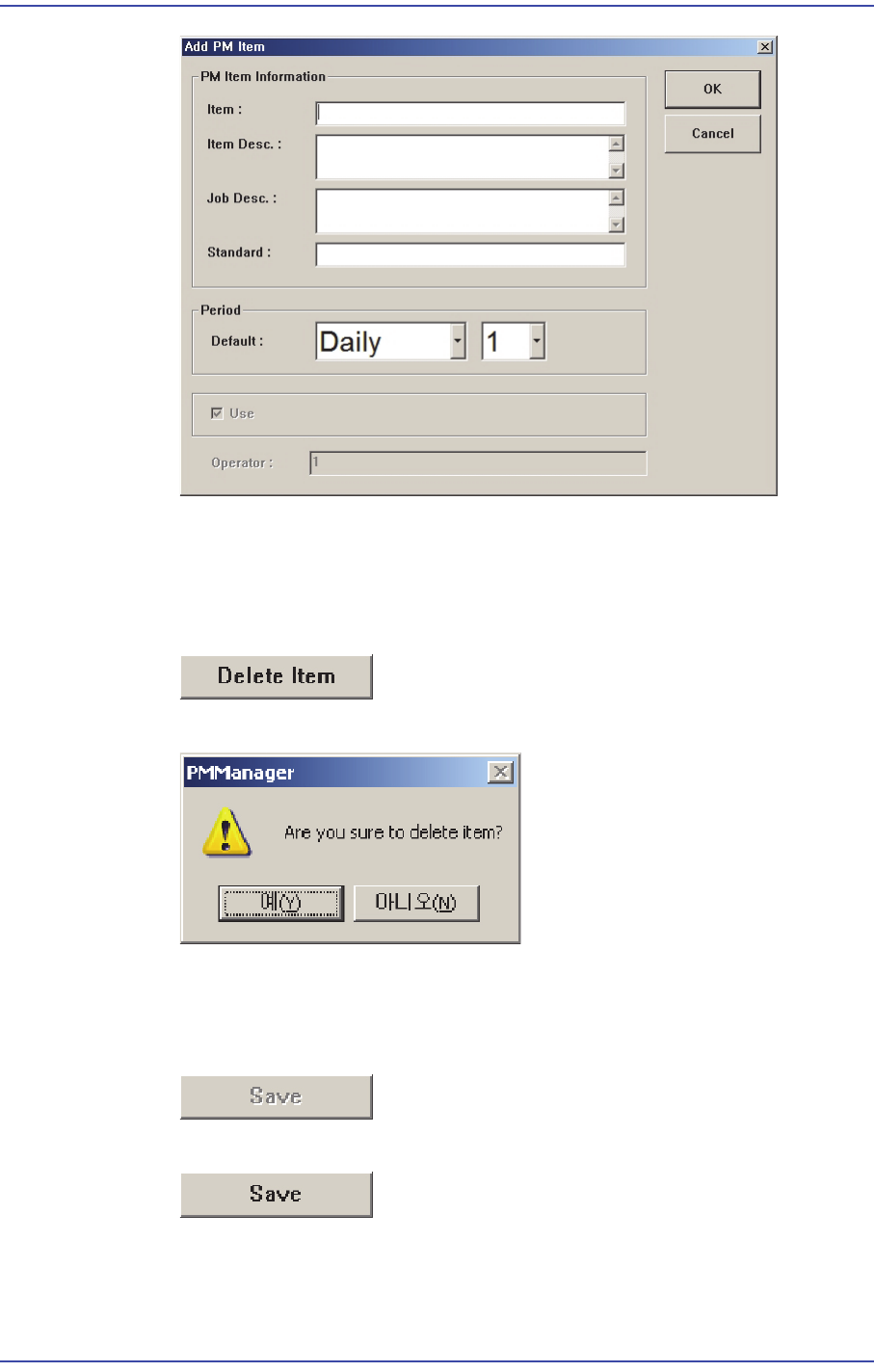
6) Deleting User Check Item
The registered user check item can be modified. This can be performed in the
following manner.
Click the <Delete Item> button.
Click the <Yes> button to delete the corresponding item.
7) Saving Changed Item
If there is changed setups in the Setup Screen, the <Save> button is enabled.
When there is no changed item
When there is changed item
When saving the changed item, click the <Save> button.
If the following window appears, click the <Yes> button to save the setups.
13-46
Fast & Flexible Chip Shooter DECAN F2 Service Manual
8) Scheduled Check Function
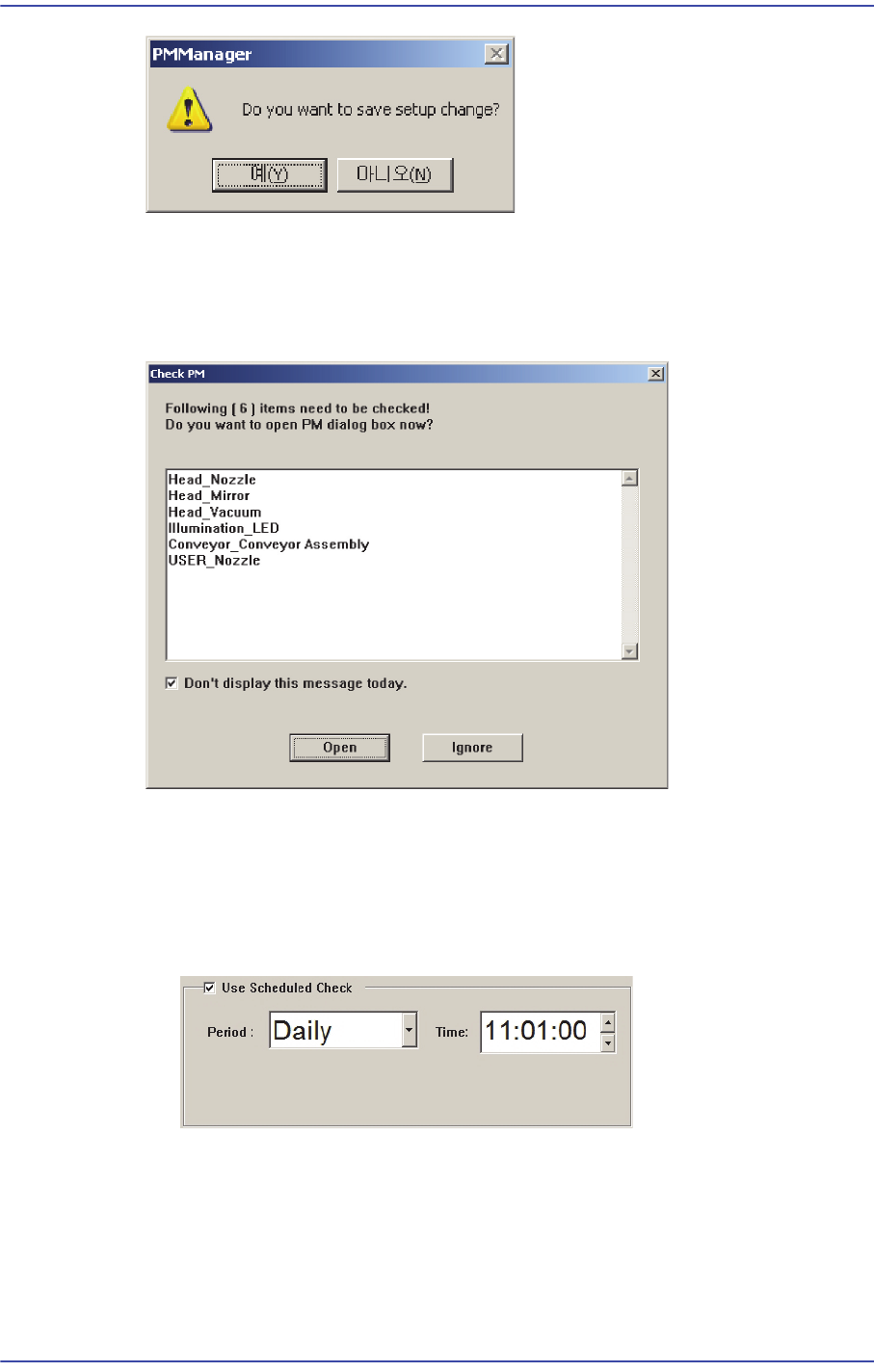
The scheduled check function informs the user of the items to be checked at the time
set by the user. When the time set by the user comes, the number of check items and
items to be checked are indicated as follows.
If the <Open> button is clicked the PM Manager window is indicated. If the <Ignore>
button is clicked, the PM Manager window is not indicated.
Using Scheduled Check Function
When using the scheduled check function, select the <Use Scheduled Check>
function.
When it is not desired to use the scheduled function, release the check of the <Use
Scheduled Check> box.